Feature Summary
The New AirSheet feature allows users to create a brand-new AirSheet document, supporting data management structure building from scratch.
Feature Description
| Feature Dimension | Description |
|---|---|
| Membership Restriction | No membership restriction |
| Version Restriction | No version restriction |
| Shortcut | Ctrl+ N |
Operation Steps
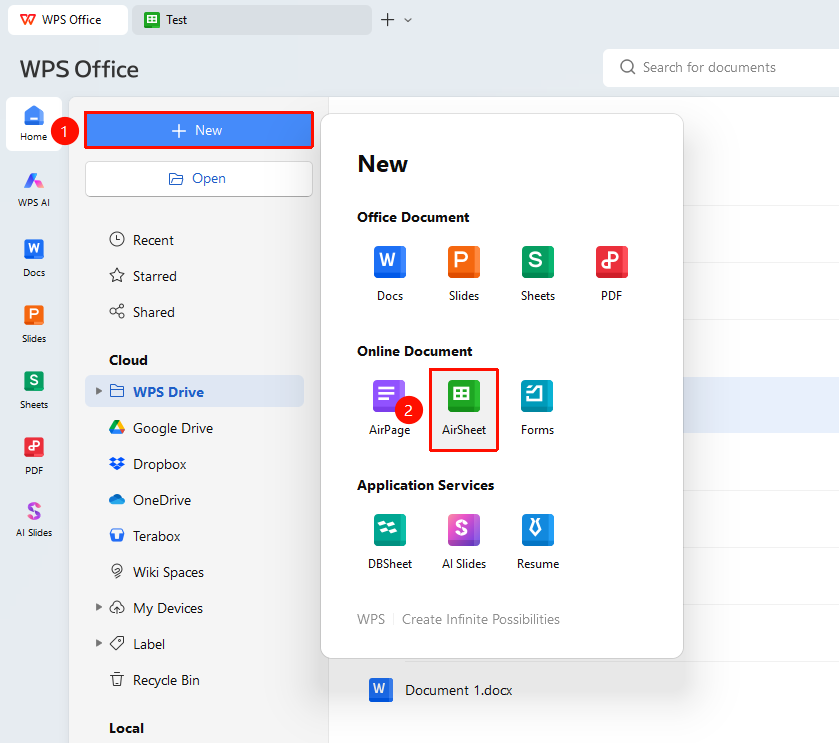
Method 1: Quick Creation from Main Interface
Feature Entry
"New" button → "AirPage" button
- Double-click the WPS icon on the desktop to launch the software and enter the main interface
- Click "New" in the left navigation bar
- Click the "AirSheet" button to complete creation
- An editable blank AirSheet will be generated
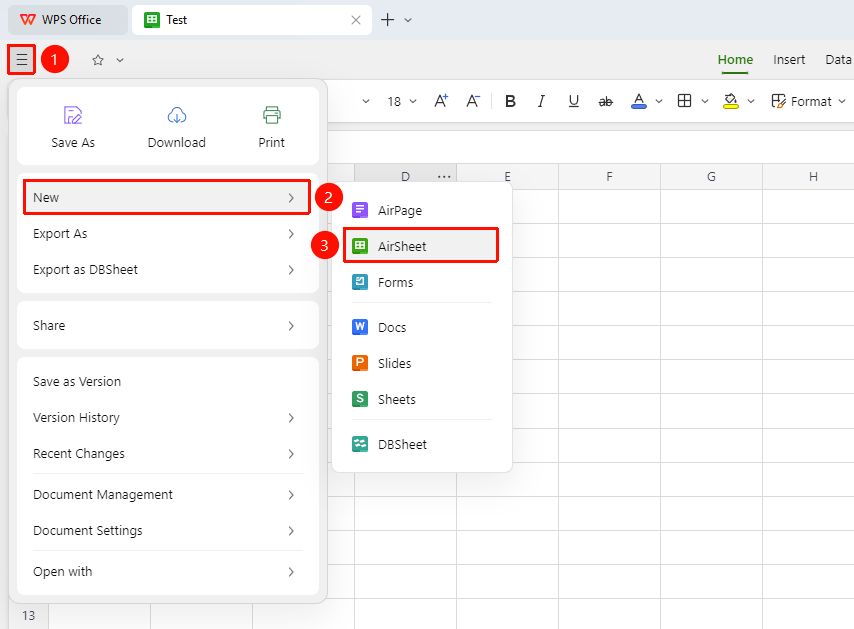
Method 2: Create via File operations button (Applicable when an AirSheet is already open)
Feature Entry
"File Operations" tab → "File operations" button → "AirSheet" button
- In the opened AirSheet interface, click the "File operations" button (☰) icon in the upper left corner
- Select "New" → "AirSheet" from the dropdown list
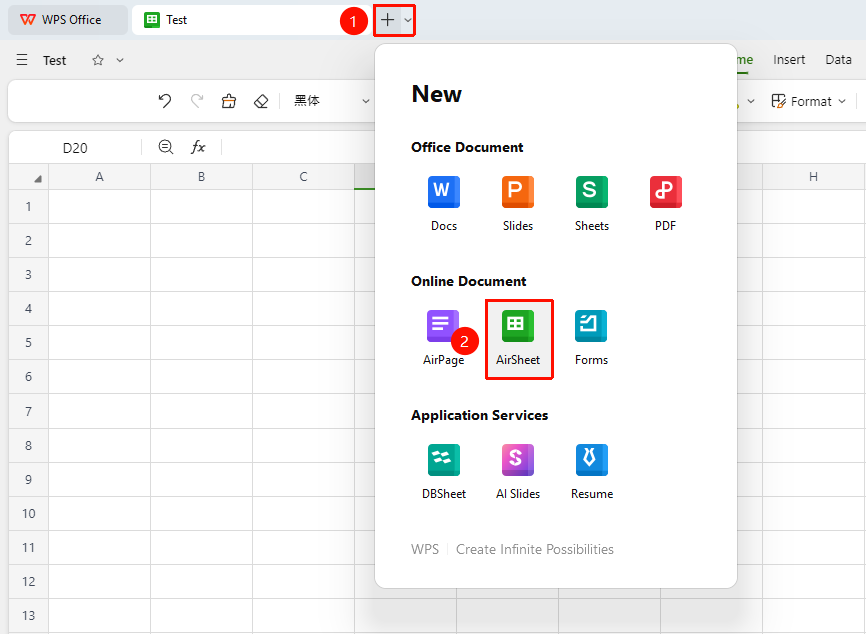
Method 3: Quick Creation via Tab
Feature Entry
Top "Tab" bar → "+" icon → "AirSheet" option
- In the document tab bar at the top of the WPS software, click the "+" icon to the right of the current tab
- Select "Docs" in the pop-up panel
Method 4: Create via Shortcut (Fastest Way)
Press Ctrl + N while on the sheet editing page
to directly create a blank AirSheet without any mouse operation.
FAQ
Q1: What should I do if I fail to create a new AirSheet?
- Solution: Check if the network connection is normal and confirm that you have signed in to your account. If you still cannot create one, try refreshing the page or restarting the WPS client.
Q2: What is the difference between AirSheet and regular Sheets?
- Solution: AirSheet provides richer view capabilities (such as ledger, kanban, Gantt chart, etc.), supports data tables, column type definitions, and various collaboration features, making it suitable for structured data management. Regular Sheets are mainly based on free cell editing.
Q3: Where is the newly created AirSheet file saved?
- Solution: The newly created AirSheet is saved in "Personal Space" by default. If you need to save it to another location, you can use the "Save As" feature to move it to a specified folder after creation.
Notes
- Signing in to a WPS account is required to create a new AirSheet
- AirSheet supports two different types of sheets: sheet and data table
- One AirSheet document can contain multiple sheets and data tables
- Data tables use structured field management, making them more suitable for standardized data entry