Feature Summary
The data import feature supports importing data from local or online files into AirSheet, enabling fast data migration and consolidation.
Feature Description
| Feature Dimension | Description |
|---|---|
| Membership Restriction | No membership restriction |
| Version Restriction | No version restriction |
Steps
Import from Local File
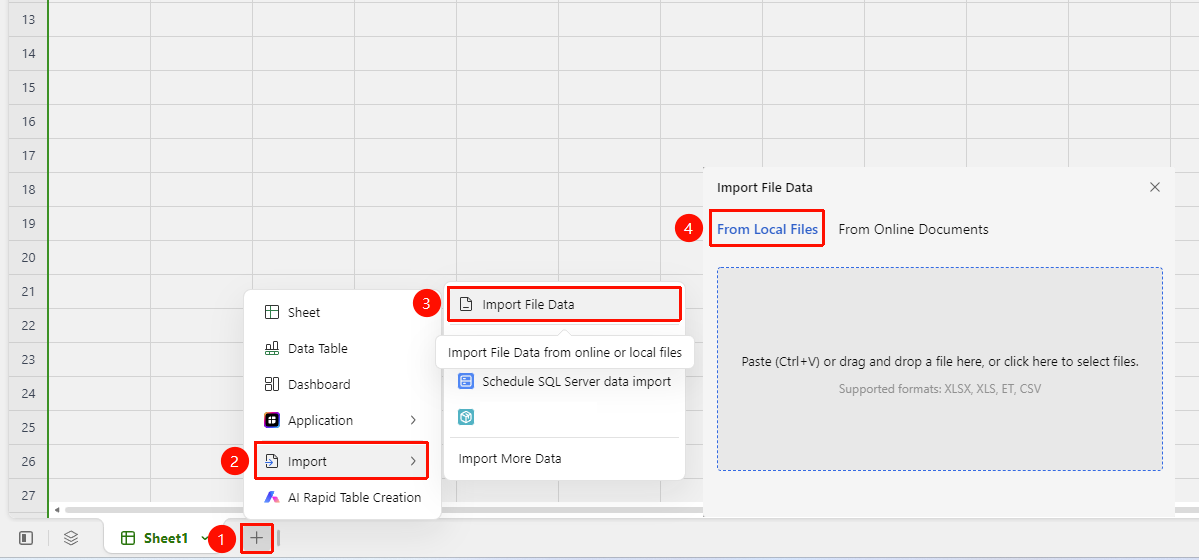
Feature Entry ①
Bottom Sheet Bar "+" → "Import File Data" → "From Local File"
- Open the AirSheet document and click the "+" button on the bottom Sheet Bar.
- Select "Import" from the pop-up menu.
- Select "Import File Data" → "From Local File".
- Upload the file using one of the following methods:
- Drag and Drop: Drag the file from your computer to the upload area in the dialog box.
- Paste (Ctrl+V): Copy the file and paste it into the dialog box.
- Click to Select File: Click "Click to Select File" in the dialog box to open the file browser.
- Supported file formats: XLSX, XLS, ET, CSV
- After selecting the file, the data will be automatically imported into the current sheet.
Feature Entry ②
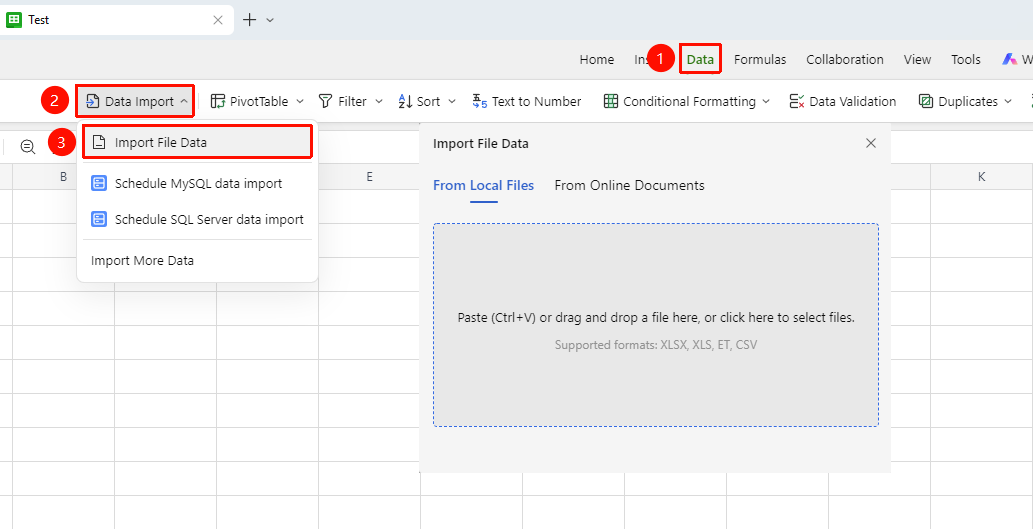
Data Tab → "Data Import" Option → "Import File Data" → "From Local File"
- Open the AirSheet document and click the "Data" tab in the top ribbon.
- Select "Data Import".
- Select "Import File Data" → "From Local File".
- Click "Select File" and choose the file you want to import from your local device (supports Excel, CSV, and other formats).
Import from Online File
Feature Entry ①
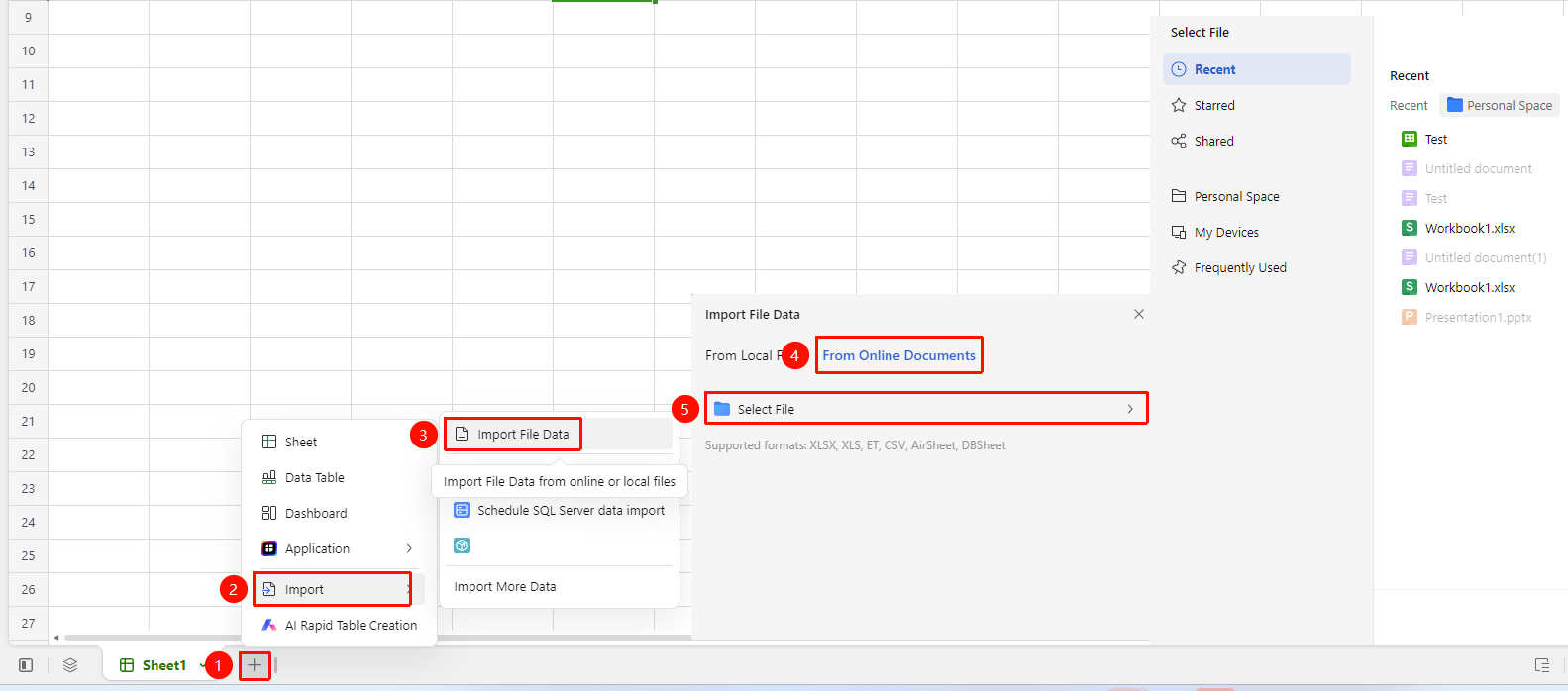
Bottom Sheet Bar "+" → "Import File Data" → "From Online Document"
- Click the "+" button on the bottom Sheet Bar.
- Select "Import" → "Import File Data" → "From Online Document".
- Click "Select File" to open the cloud document file picker.
- In the file picker, you can quickly navigate using the left navigation bar:
- Recent: Recently opened files
- Starred: Starred and favorited files
- Shared: Files shared with me by others
- Personal Space: Personal cloud document space
- My Devices: Files synced across devices
- Frequent: Frequently accessed files
- After selecting the file, click "OK", and the data will be automatically imported into the current sheet.
- Supported file formats: XLSX, XLS, ET, CSV, AirSheet
Feature Entry ②
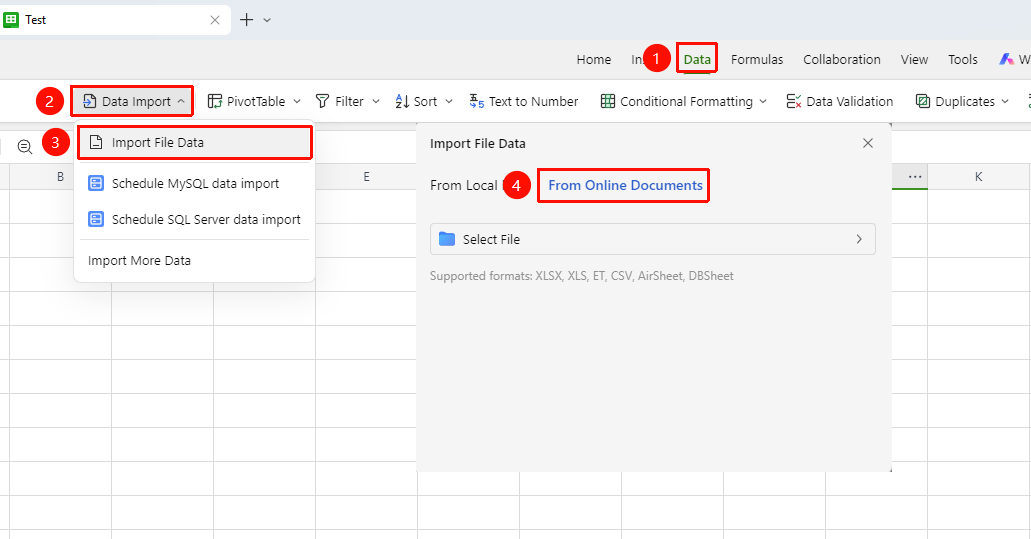
Data Tab → "Data Import" Option → "Import File Data" → "From Online Document"
- Open the AirSheet document and click the "Data" tab in the top ribbon.
- Select "Data Import".
- Select "Import File Data" → "From Online File".
- In the pop-up file picker, browse and select the target cloud document.
FAQ
Q1: What file formats are supported for import?
- Solution: Currently, common spreadsheet formats such as Excel (.xlsx/.xls), CSV (.csv), and DBSheet (.dbt) are supported. It is recommended to use the Excel format for import to preserve complete formatting.
Q2: What should I do if the data format is lost after import?
- Solution: Some unsupported formatting elements (such as conditional formatting, charts, etc.) may not be retained after import, which is normal. It is recommended to manually adjust the necessary formatting settings after import.
Q3: Is there a file size limit for import?
- Solution: It is recommended that the file size for a single import does not exceed 250 MB. If the file is too large, you can split it into multiple smaller files and import them separately.
Notes
- Please wait patiently for the process to complete when importing large files.
- Do not close the document or disconnect from the network during the import process.
- Repeated imports will create a new sheet and will not overwrite existing data.
- After a data sheet is imported, column types will be automatically inferred based on the data content.