Feature Summary
The sharing feature allows users to share an AirSheet with others to view or edit, supports setting different permission levels and sharing methods, and facilitates team collaboration.
Feature Description
| Feature Dimension | Description |
|---|---|
| Membership Restriction | No membership restriction |
| Version Restriction | No version restriction |
Steps
Enable Sharing and Set Permissions
Feature Entry
「Share」 button in the upper right corner
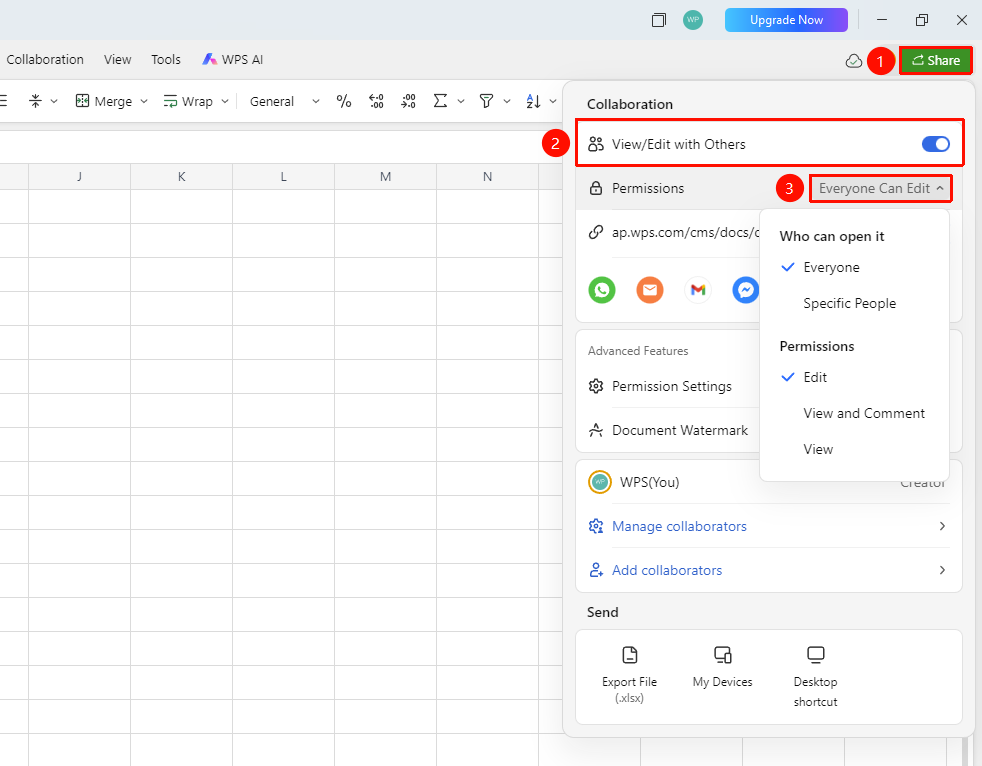
- Click the 「Share」 button in the upper right corner of the AirSheet
- In the pop-up sharing panel, click 「View/Edit Together」
- Click 「Link Permission」 to set the sharing scope
- Anyone: Anyone with the link can access
- Specified Users Only: Only invited collaborators can access
- Assign permissions to visitors: Edit / View and Comment / View
- When you need to open it in view or edit mode, select the corresponding permission
Send Sharing Link via Multiple Methods
Feature Entry
Sharing panel → 「Copy Link」 or icon button
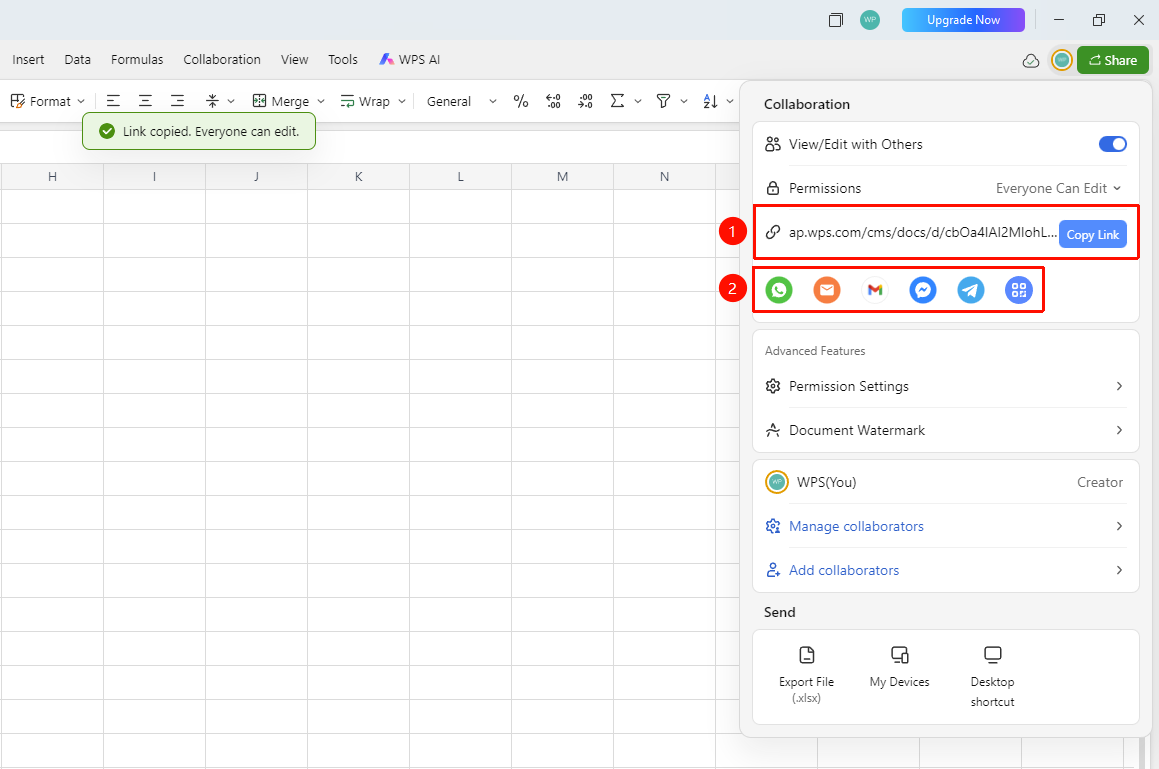
- After setting permissions, click 「Copy Link」 to copy the sharing link
- Or click the Collaboration, QR Code and other icons below to share directly
- Send the link to the people who need to collaborate
Share Selection Data
Feature Entry
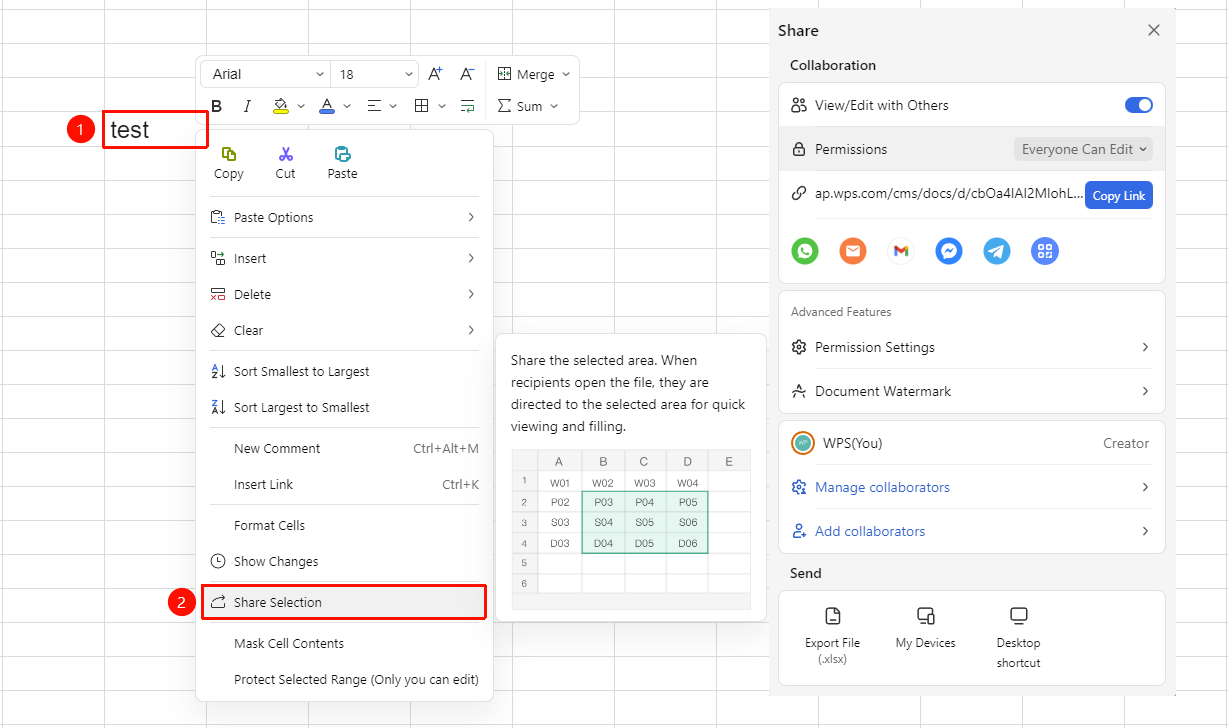
Select area → Right-click → 「Share Selection」
- Select the cell range you want to share in the Sheets
- Right-click and select 「Share Selection」
- Set sharing permissions and scope
- The recipient can quickly jump to the shared area after opening
FAQ
Q1: How to cancel a shared link?
- Solution: Click the 「Share」 button in the upper right corner, and in the sharing panel, click to turn off 「View/Edit Together」 to deactivate the link. Users who have already opened it will lose access after refreshing.
Q2: What if the person shared with cannot edit?
- Solution: Check whether the permission setting of the sharing link is 「can edit」. If it is 「can view」, you need to click the permission setting to switch to 「can edit」 permission before sharing again.
Q3: Can I see who made changes in the shared Document?
- Solution: Yes. Click the file menu (☰) icon in the upper left corner → 「Collaboration Record」 to view the collaboration record, where you can see the modification time and operation content of each collaborator.
Notes
- Before sharing, it is recommended to confirm the confidentiality level of the data to avoid leakage of sensitive information.