Feature Summary
History Version is used to view and restore historical version records of AirSheet, helping users track file change history and quickly restore to a previous version when data is accidentally modified or lost.
Feature Description
| Feature Dimension | Description |
|---|---|
| Membership Restriction | No membership restriction |
| Version Restriction | No version restriction |
Operation Steps
View History Version
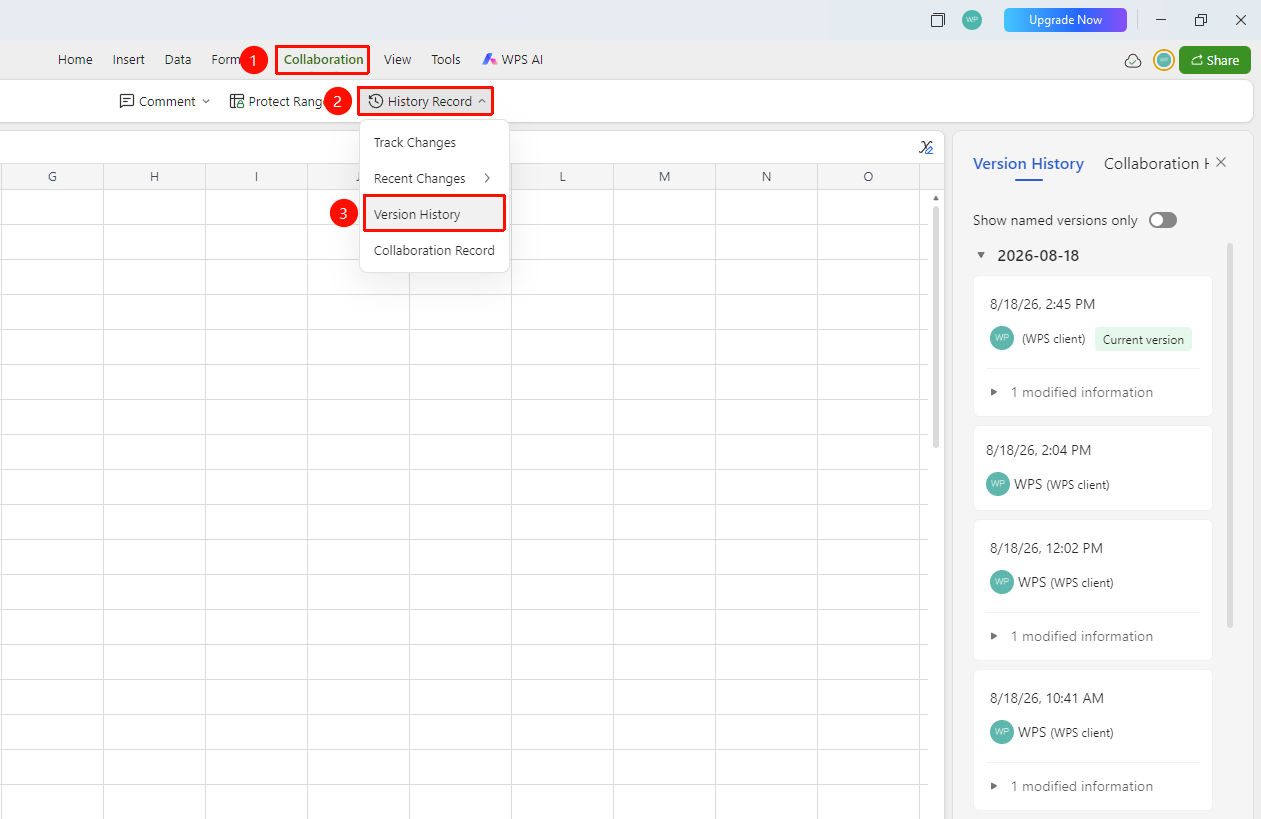
Feature Entry ①
「Collaborate」tab → 「History Record」 → 「History Version」
- Click the top 「Collaborate」 tab
- Click the 「History Record」 button in the toolbar
- Select 「History Version」 from the dropdown menu
- The history version list pops up in the right panel, sorted in reverse chronological order
- Each Record displays version time, modifier, and version description
Feature Entry ②
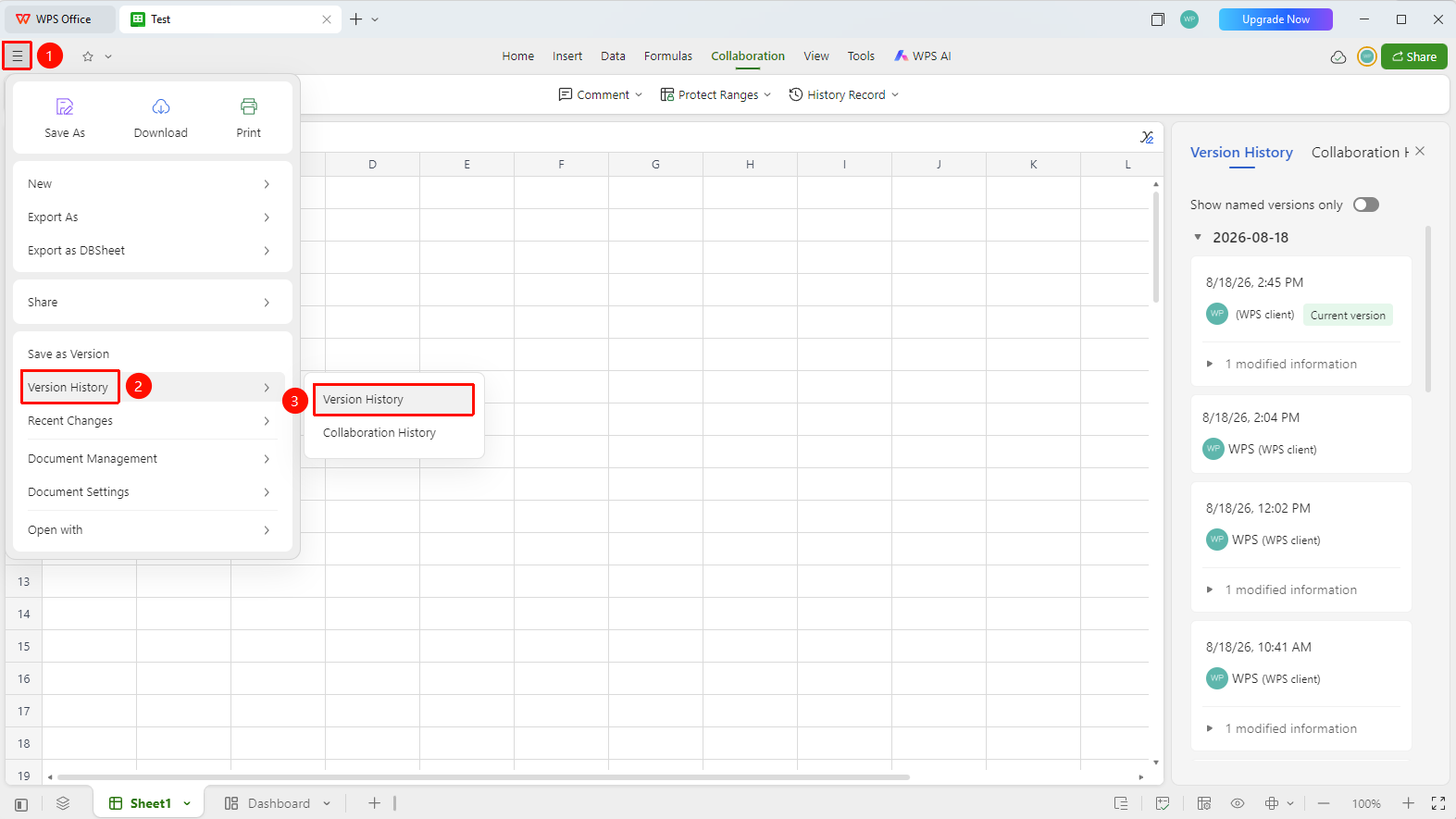
「File Operation」tab → 「History Record」 → 「History Version」
- Open AirSheet, click the top-left 「File Operation」 tab (☰ icon)
- Click 「History Record」 → 「History Version」 in sequence
- Expand the history version panel
History Version Operations
Feature Entry
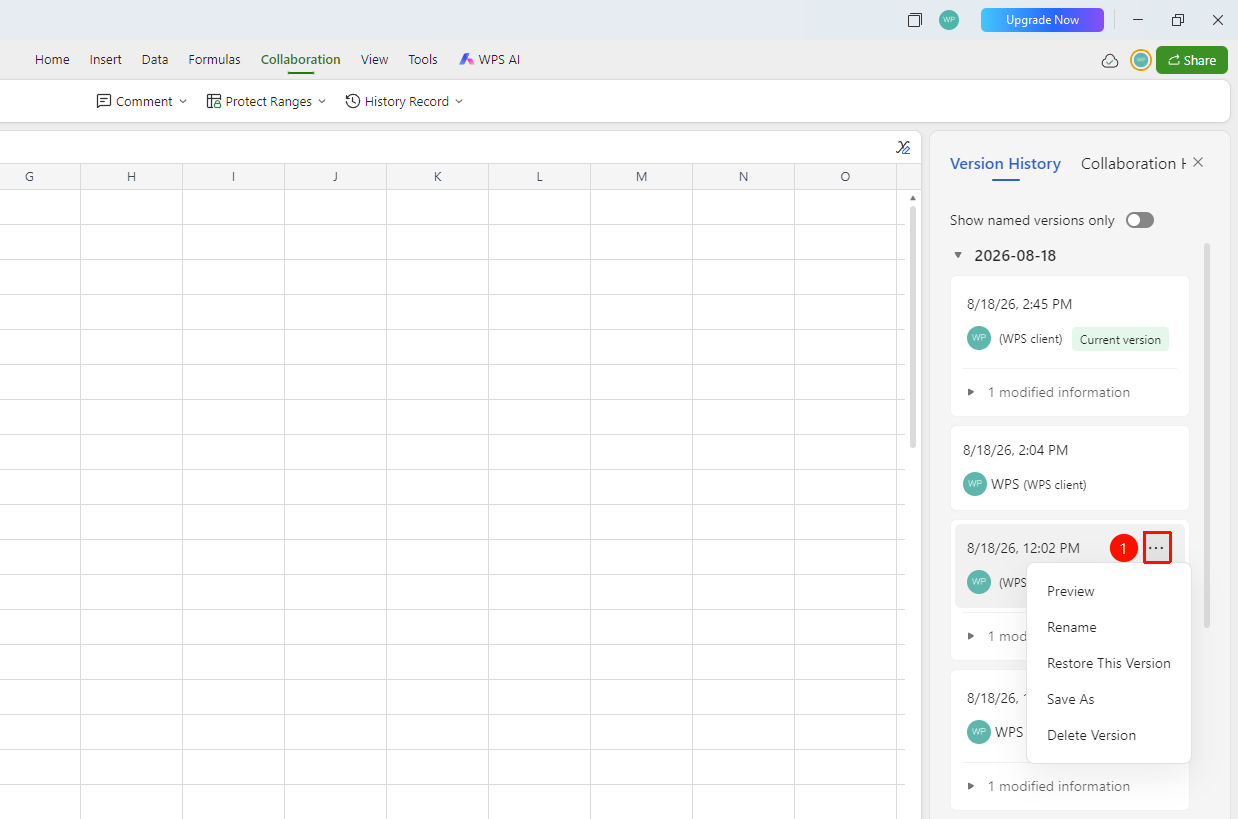
「History Version Panel」 → 「More」 button
- Click the 「More」 button in the history version panel
- Select from the following options in the menu that appears:
- Preview: Preview the history version
- Rename: Rename the history version
- Restore This Version: Revert the Document content to this version
- Save As: Save the history version as a new file
- Delete Version: Delete this history version
FAQ
Q1: Does the history version occupy storage space?
- Solution: History versions occupy Drive storage space, and the history versions of large files will also be larger in size.
Q2: Will restoring a history version cause the loss of current content?
- Solution: Restoring a version will revert the Document to the selected history version, and the current content will be replaced. It is recommended to back up important modifications first.
Q3: Does the history version support long-term retention?
- Solution: Yes. For history versions that need long-term retention, manually rename them or save them as new files.
Notes
- History versions automatically save the Document content at various editing stages
- Supports version preview, restoration, renaming, and saving as
- Important versions can be renamed for easier identification later
- Regularly clean up file history versions to free up Drive space