Feature Summary
Hide the toolbar and menu bar to maximize the data display area, providing more space for editing and browsing.
Feature Description
| Feature Dimension | Description |
|---|---|
| Membership Restriction | No membership restriction |
| Version Restriction | No version restriction |
Steps
Enter Full-Screen Display
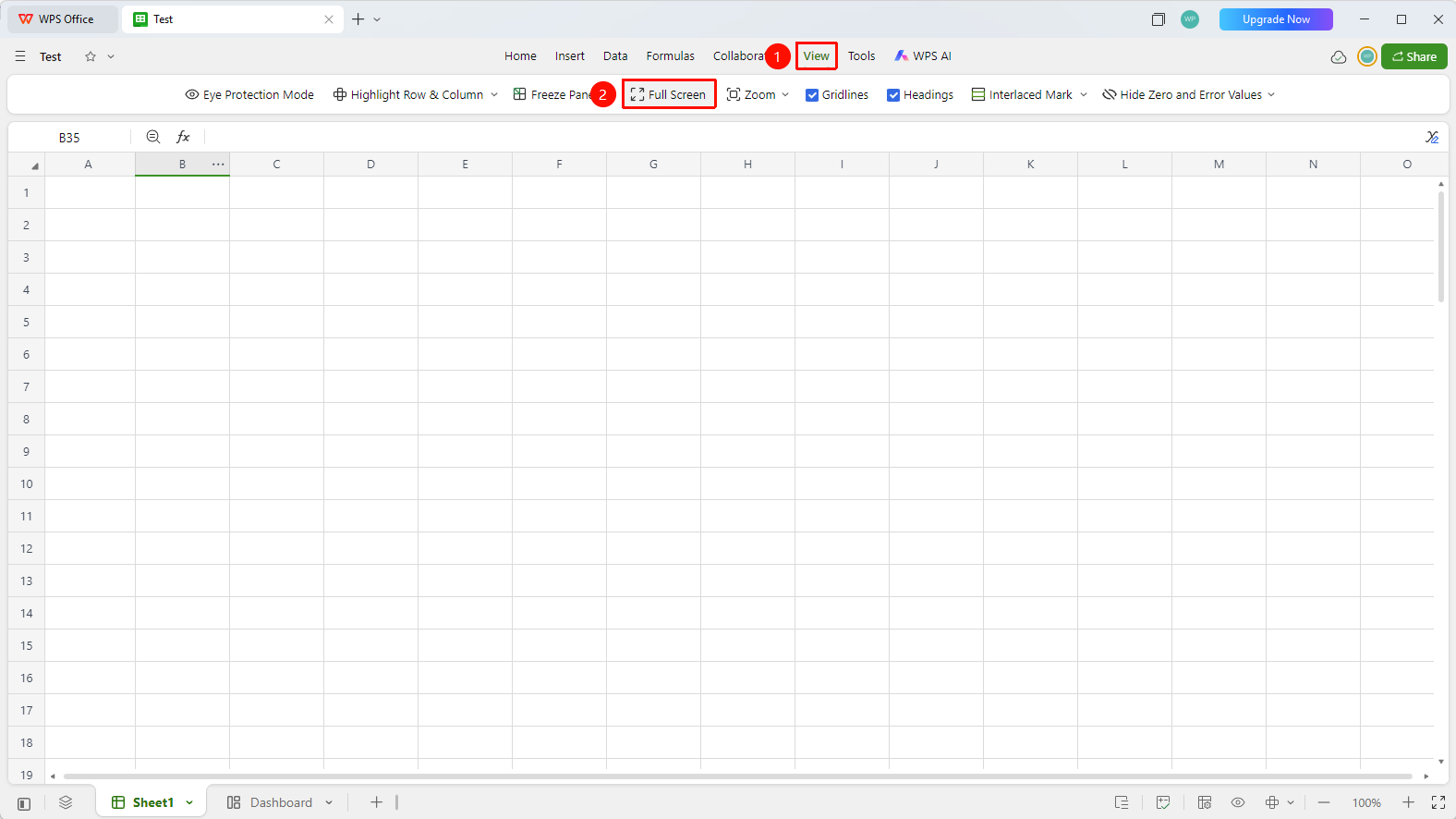
Feature Entry 1
"View" → "Full-Screen Display"
- Click the "Full-Screen Display" button in the "View" tab
- The sheet tabs and system status bar are automatically hidden
- The data area is maximized
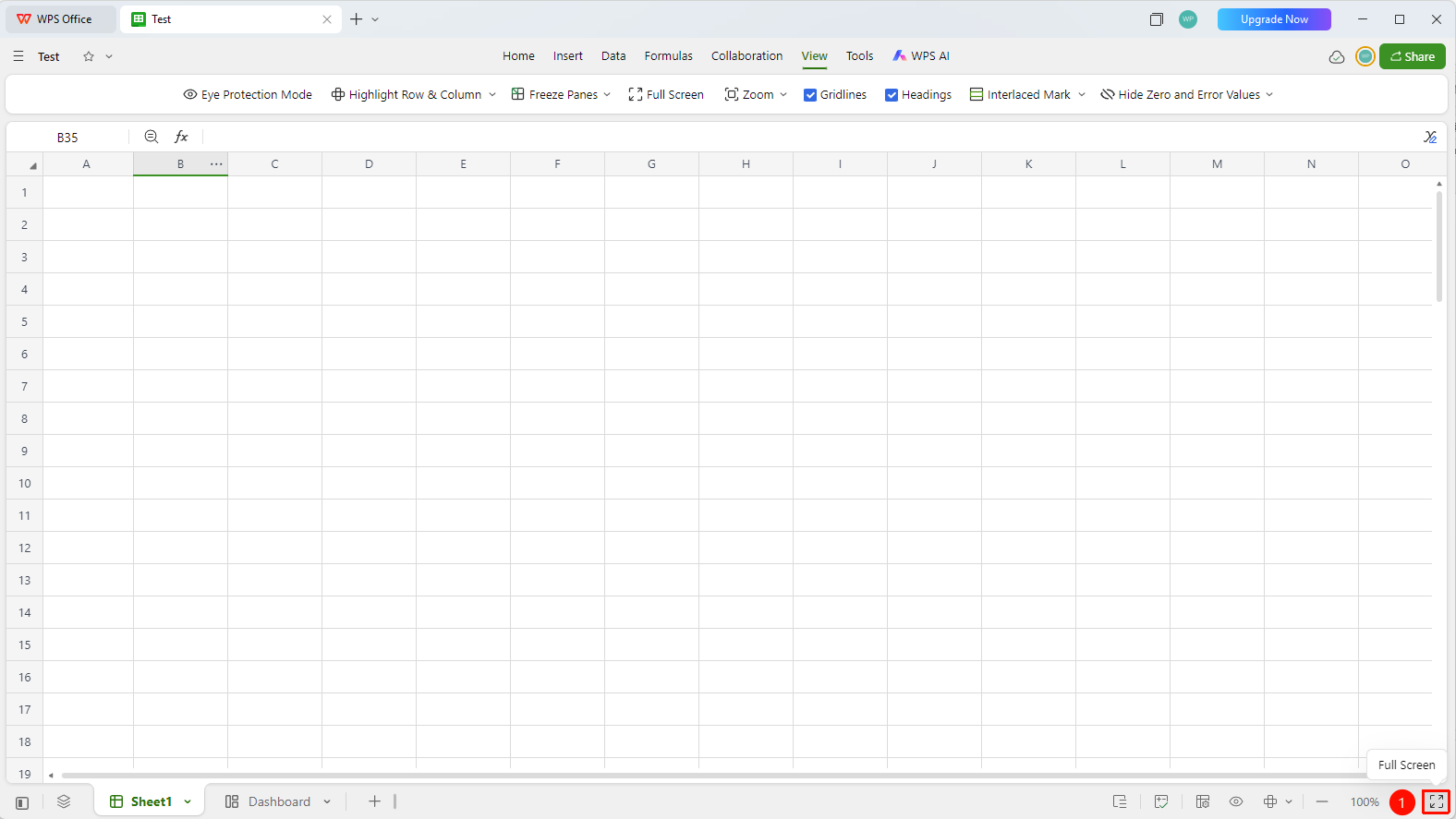
Feature Entry 2
"bottom status bar" → "Full-Screen Display"
- Click the "Full-Screen Display" button in the bottom status bar
- The sheet tabs and system status bar are automatically hidden
- The data area is maximized
Exit Full-Screen Display
Feature Entry
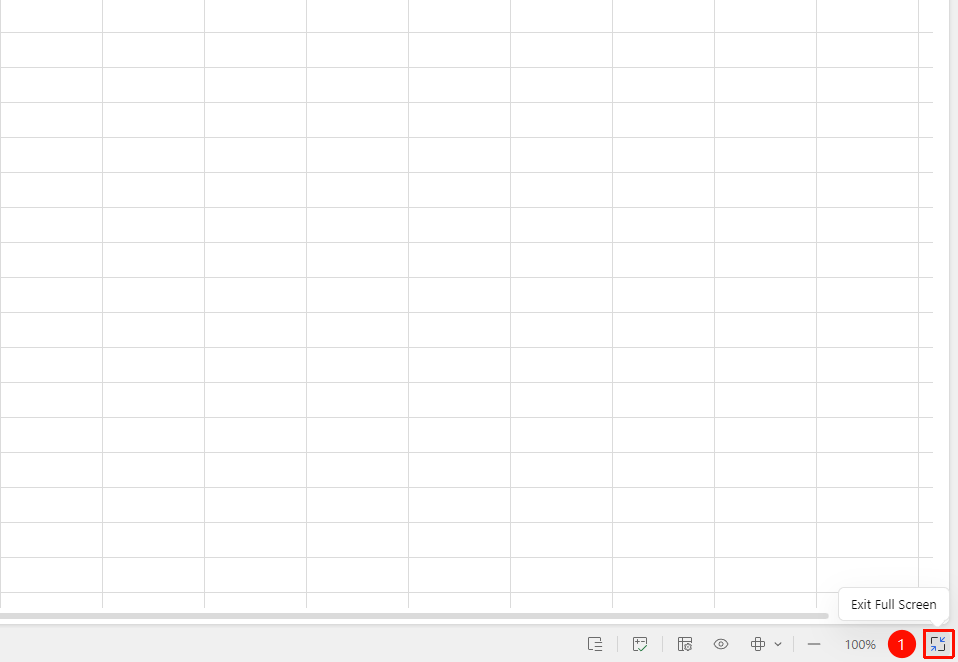
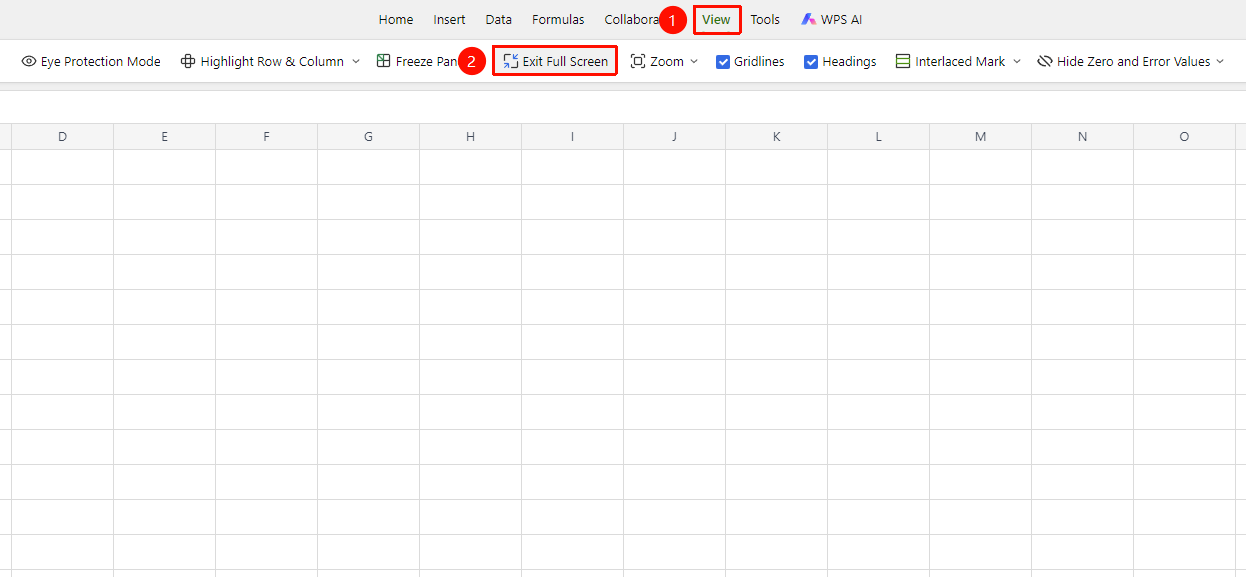
Press the Esc key / Click the exit full-screen button in the lower right corner
- Press the Esc key to exit full-screen mode immediately
- Or move the mouse to the "Exit Full Screen" button in the lower right corner
- You can also click "View" → "Exit Full Screen" again to switch and exit
FAQ
Q1: Can I edit data in full-screen mode?
- Solution: Yes, full-screen mode only hides interface elements, and editing functions remain fully operational.
Q2: Can I use shortcuts in full-screen mode?
- Solution: Yes, all shortcuts work normally in full-screen mode.
Q3: Can the full-screen display be saved as a default setting?
- Solution: Full-screen is a temporary view mode. The full-screen state will not be remembered after closing the document.
Notes
- Full-screen mode hides interface elements without affecting features
- Pressing Esc is the quickest way to exit
- It is recommended to use full-screen mode during projection presentations