Feature Summary
The import/sync data feature allows you to batch import data from external files such as Excel and CSV into a DBSheet, or sync external data sources in real time to keep data automatically updated. Core capabilities include:
- Batch import data from Excel/CSV files
- Real-time sync with external data sources
- Support for importing database data
- Automatic field type recognition during import
Feature Description
| Feature Dimension | Description |
|---|---|
| Membership Restriction | No membership subscription required |
| Version Restriction | No version restriction |
Steps
Import/Sync Data from Document
Feature Entry
"Import/Sync Data" button → Select file
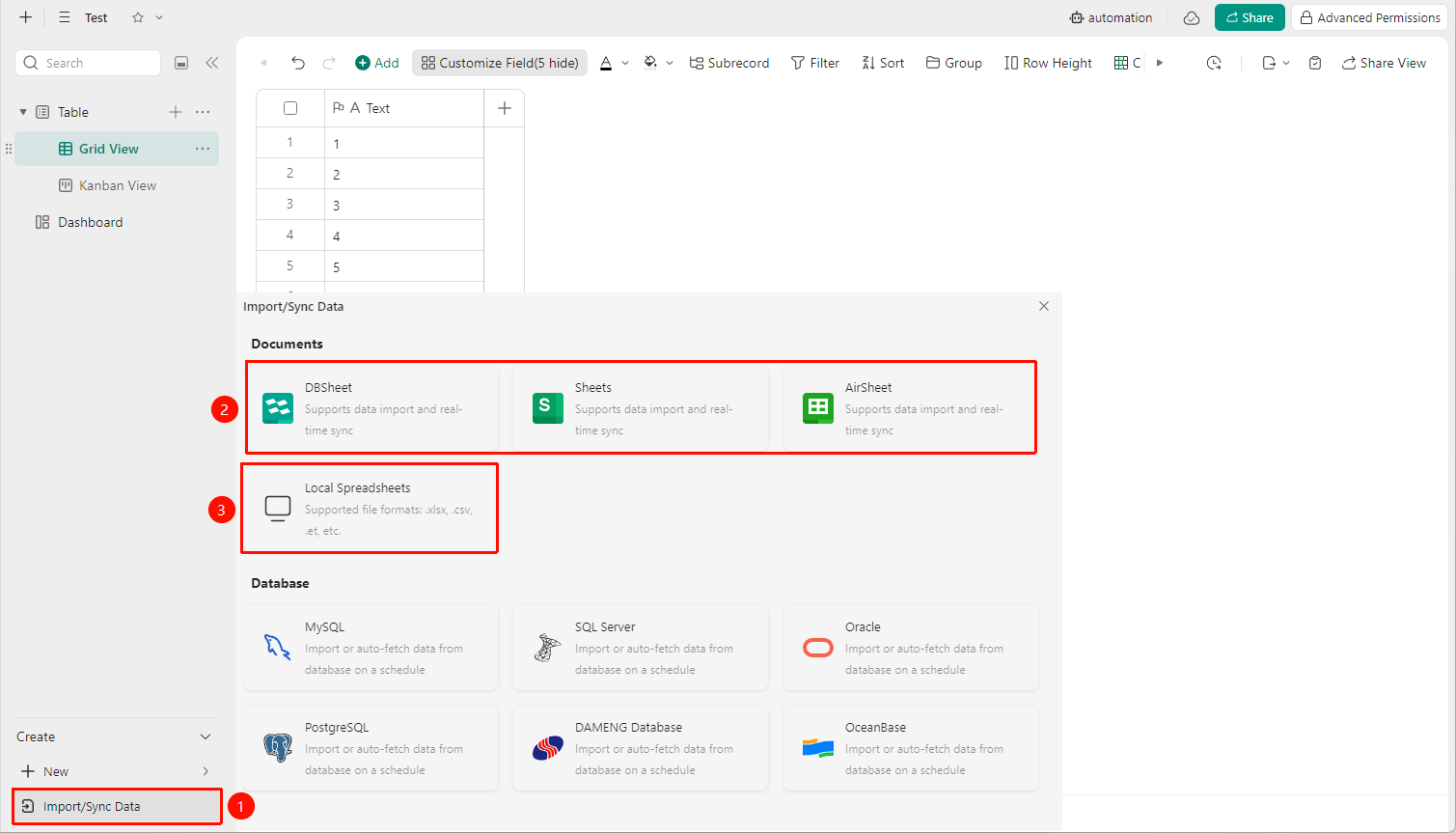
- Open the target DBSheet and click the "Import/Sync Data" button in the lower left corner
- In the pop-up interface, select DBSheet or Local spreadsheet file
- Select DBSheet, Sheets, or AirSheet: You need to further select the data source to import, and you can check "Synchronize Data" to achieve real-time synchronization with the imported multidimensional table data.
- Select local spreadsheets: After selecting the file to import, click Confirm to complete the import
Import/Sync Data from Database
Feature Entry
"Import/Sync Data" button → Select database
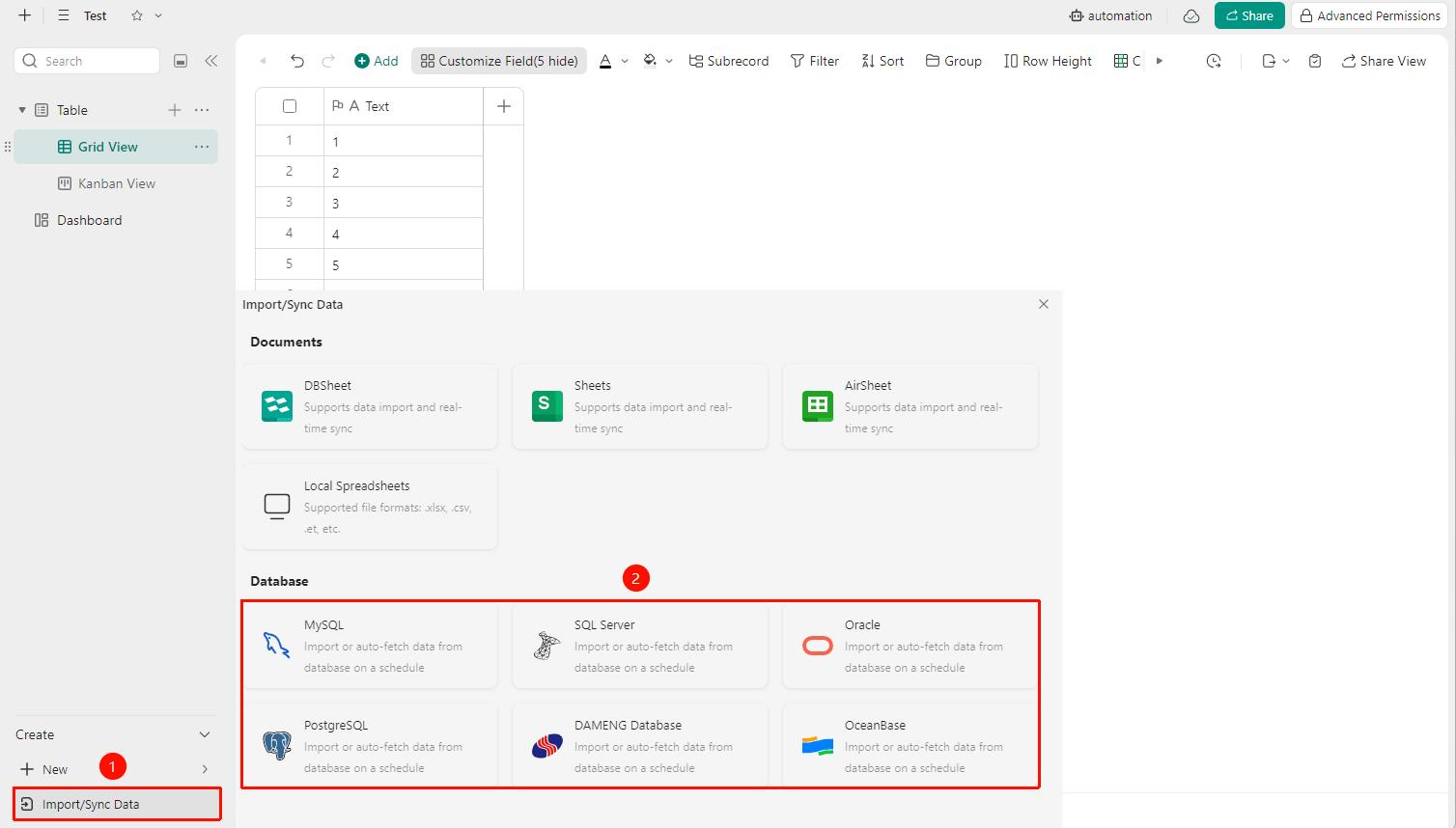
- Open the target DBSheet and click the "Import/Sync Data" button in the lower left corner
- In the pop-up interface, select the Database type:
- MySQL
- SQL Server
- Oracle
- PostgreSQL
- Dameng Database
- OceanBase
- Enter information such as port, address, username, and password
- Click Add to complete the import
Append Import Data
Feature Entry
Data table → "More Actions" button ("…" icon) → "Append Import Data" button
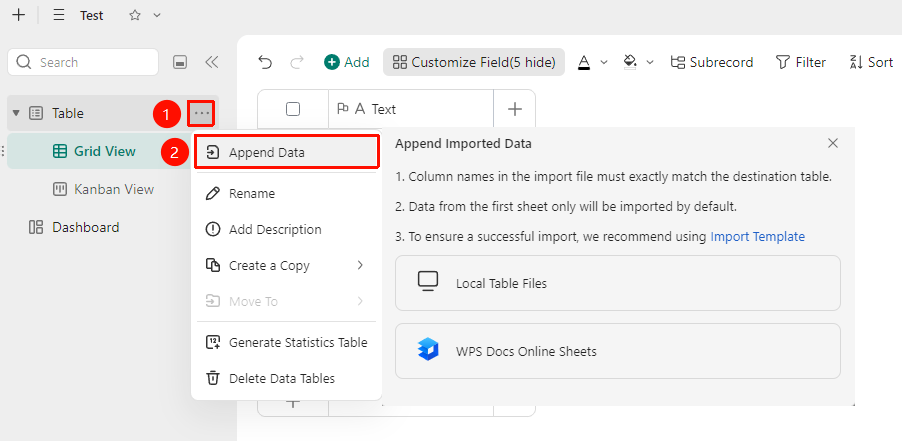
- Find the data table to which you want to append imported data
- Click the More Actions button ( "…" icon) on the right side of the data table
- Click the "Append Import Data" button
- Select: Local spreadsheet file or Online spreadsheet
- After selecting the file, click Confirm to complete the import
- The column names in the imported file must exactly match those in the DBSheet
- By default, data from the first sheet of the imported file is used for import
- To ensure a smooth import, you can click the "Standard Template" button to download a template, enter data, and then import
FAQ
Q1: What should I do if some field types are incorrectly recognized after import?
- Solution: After the import is complete, you can manually modify the field type in Field Management. It is recommended to check the table content before importing and keep the cell format consistent within each column.
Notes
- It is recommended that the amount of data imported at one time should not exceed 100,000 rows to avoid excessively long processing times
- Before importing, it is recommended to clean up empty rows and columns in the original Excel file to improve import quality