Feature Summary
The Row Height feature allows you to adjust the height of each row in a data table, enabling cell content to be fully displayed or optimizing the visual layout.
Feature Description
| Feature Dimension | Description |
|---|---|
| Membership Restriction | No membership restriction |
| Version Restriction | No version restriction |
Steps
Adjust Row Height
Feature Entry
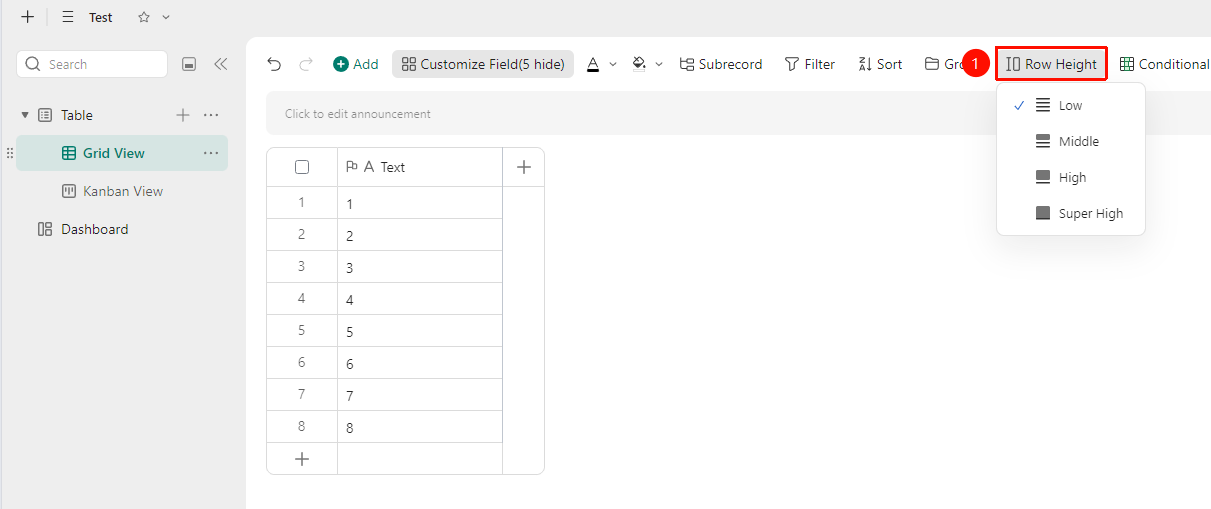
"Toolbar" → "Row Height" button
- Click the top toolbar
- Click the "Row Height" button
- Select the height type:
- Low
- Medium
- High
- Extra High
FAQ
Q1: Does the multi-dimensional table support custom row height values?
- Solution: Currently, the multi-dimensional table does not support custom row height values. You can only select from the preset row height options.
Notes
- Row height adjustments only affect the display of the current view and do not affect the data content.
- Excessively small row heights may cause incomplete content display, affecting data review efficiency.
- Row heights in different views can be adjusted independently without interfering with each other.