Feature Summary
The Find feature allows you to quickly search for records containing specific keywords in a multidimensional table, helping you pinpoint target data within large datasets. Core capabilities include:
- Search records across the entire table by keyword
- Display the number of search results in real time
- Highlight matching keywords
- Restore the complete data view after clearing the search
Feature Description
| Feature Dimension | Description |
|---|---|
| Membership Restriction | No membership restriction |
| Version Restriction | No version restriction |
Steps
Performing a Find Operation
Feature Entry
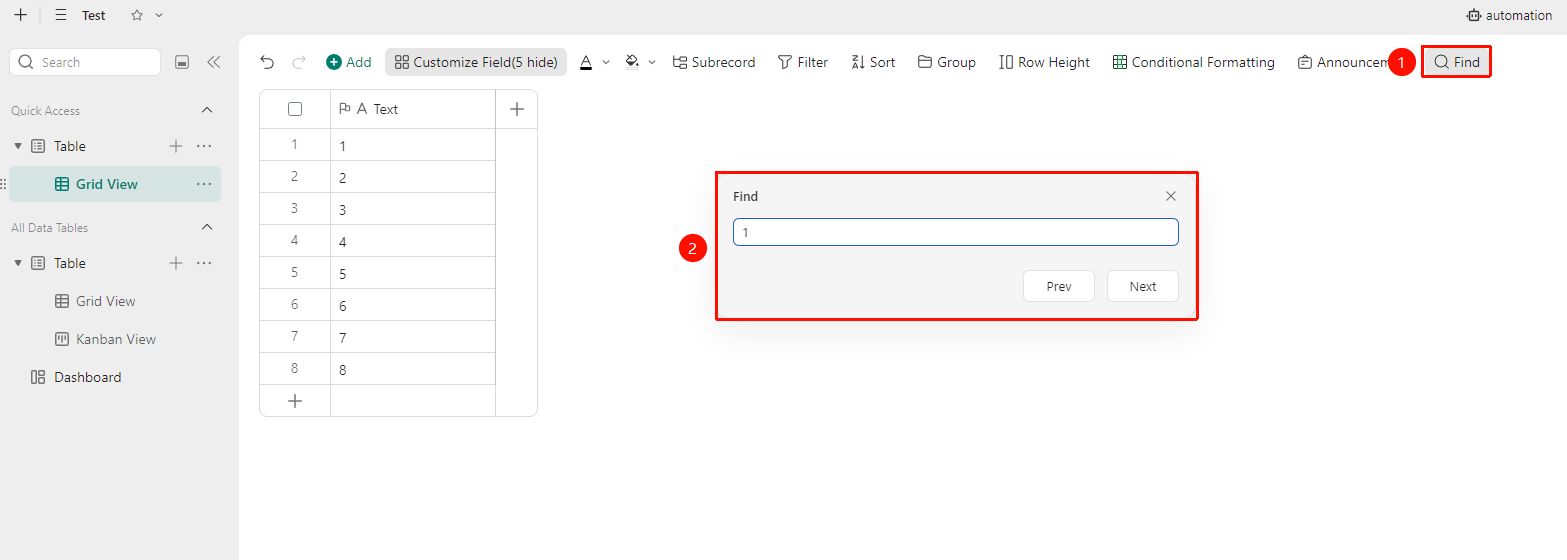
"Toolbar" → "Find" button
- Click the Find button in the toolbar to open the search box
- Enter the keyword you want to find in the search box
- The system will filter and highlight records containing the keyword in real time
- The bottom status bar displays the number of matching records
FAQ
Q1: The Find feature cannot find the content I entered?
- Solution: Please verify that the keyword is spelled correctly and that the content exists in the visible records of the current view. Filtering and grouping may affect the search scope. It is recommended to clear other filter conditions before searching.
Q2: What is the difference between Find and Filter?
- Solution: Find is an instant search operation that displays matching results in real time as you enter keywords, suitable for quick location. Filter is a conditional filtering operation that allows you to set complex filtering rules, suitable for continuously viewing a dataset that meets the conditions.
Q3: How can I use Find and Filter at the same time?
- Solution: First use the Filter feature to set basic conditions, then use the Find feature to search by keyword within the filtered result set. The two can be used together to narrow the search scope.
Notes
- The Find feature is a global search and matches content across all fields
- Search keywords are not case-sensitive
- Search results are only effective within the current view scope. The find state will be cleared after switching views.