Feature Summary
The Add to Quick Access feature allows users to pin frequently used views to the "Quick Access" area in the left sidebar of a DBSheet, eliminating the need to search for them one by one and enabling one-click access to target views, significantly improving switching efficiency.
Feature Description
| Feature Dimension | Description |
|---|---|
| Membership Restriction | No membership restriction |
| Version Restriction | No version restriction |
Steps
Add a View to Quick Access
Feature Entry
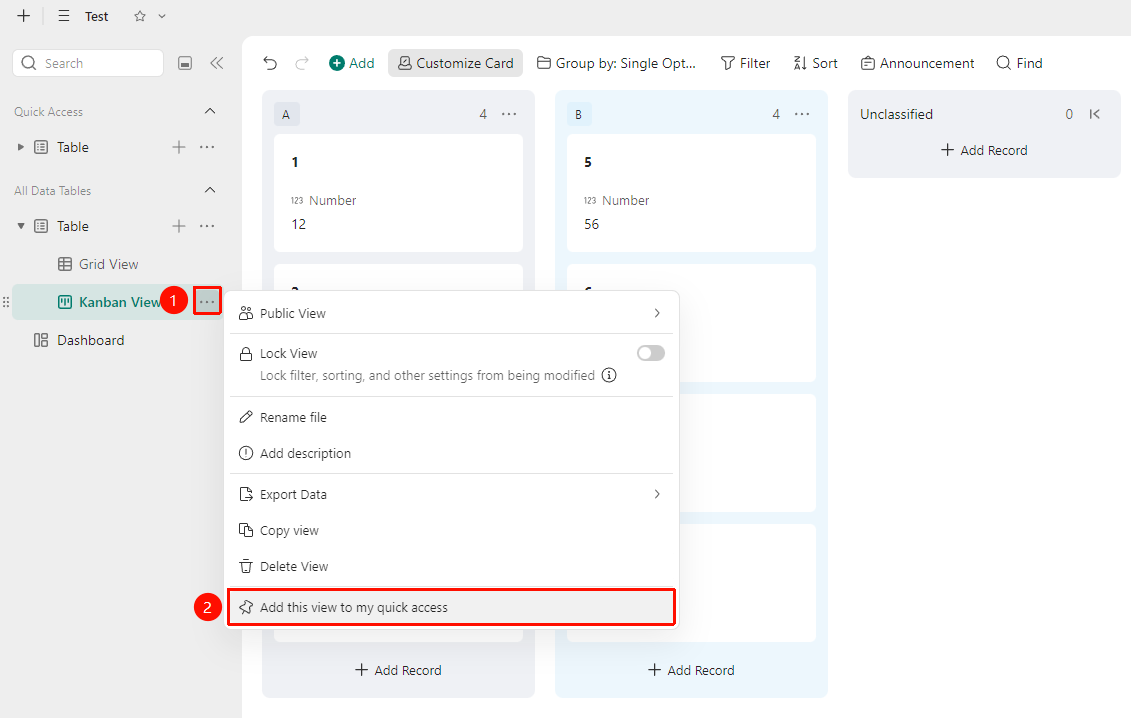
DBSheet left sidebar → "More actions" button to the right of the data table view → "Add this view to my Quick Access"
- Open a DBSheet that contains multiple data tables and views
- In the data table area of the left sidebar, find the data table view you want to add to Quick Access
- Click the "More actions" button (…) icon to the right of the view name to expand the action menu
- Select "Add this view to my Quick Access" at the bottom of the menu
- After successful addition, the view will automatically appear in the "Quick Access" area at the top of the left sidebar
Remove from Quick Access
Feature Entry
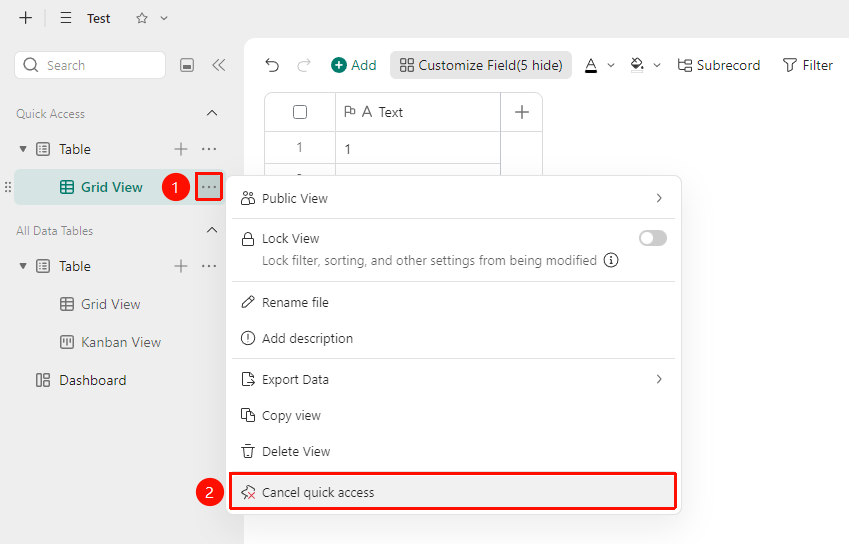
DBSheet left sidebar → Quick Access area → "More actions" button to the right of the data table view → "Remove from Quick Access"
- In the "Quick Access" area of the DBSheet left sidebar, find the view you want to remove
- Click the "More actions" button (…) icon to the right of the view name to expand the action menu
- Select "Remove from Quick Access" at the bottom of the menu
- The view will be removed from the "Quick Access" area
FAQ
Q1: The view displays abnormally after being added to Quick Access
- Solution: Check whether the filter, sort, or group conditions of the original view have been modified. The view in Quick Access will synchronize and display the latest status of the original view. Refresh the page to restore normal display.
Q2: Can multiple views from the same data table be added to Quick Access
- Solution: Yes. Different views of the same data table (such as Gantt view, table view, board view, etc.) can all be added to the Quick Access area separately, making it convenient to quickly switch between different dimensions to view data.
Q3: Will data be lost after removing from Quick Access
- Solution: No. Removing from Quick Access only removes the shortcut entry for that view from the "Quick Access" area in the left sidebar. The view is still retained in " Data Tables", and all data and settings are unaffected.
Notes
- Quick Access is configured on a per-user basis. Each collaborator can independently manage their own Quick Access list without affecting the view settings of others.
- The added view link is a shortcut entry to the original view. Any modifications to the original view (such as renaming, adjusting filter conditions, etc.) will be synchronously reflected in Quick Access.
- The Quick Access area is located at the top of the left sidebar. When many views are added, you can scroll up and down to view all added views, or click the "△" button to the left of the data table to collapse/expand the data table.