Feature Summary
The Add Description feature allows you to create descriptions for data tables, dashboards, and views in a DBSheet. It can be used to record data table purposes, field rules, collaboration guidelines, and other information, helping team members quickly understand the table structure and usage methods.
Feature Description
| Feature Dimension | Description |
|---|---|
| Membership Restriction | No membership restriction |
| Version Restriction | No version restriction |
Steps
Add Description
Feature Entry
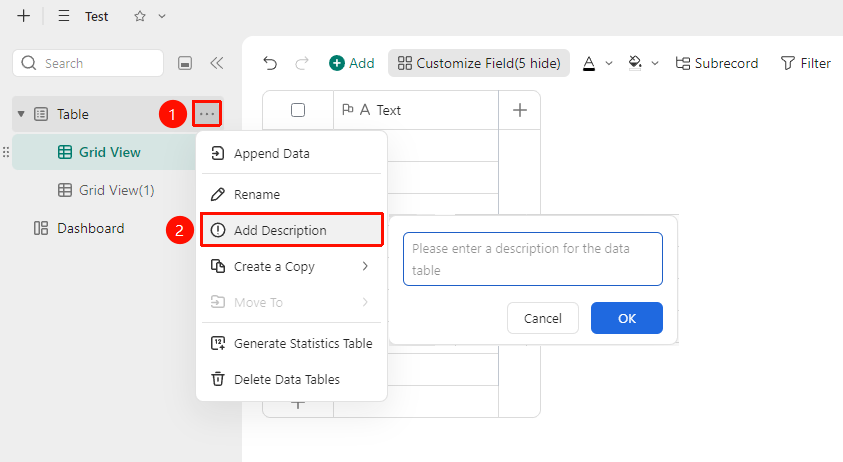
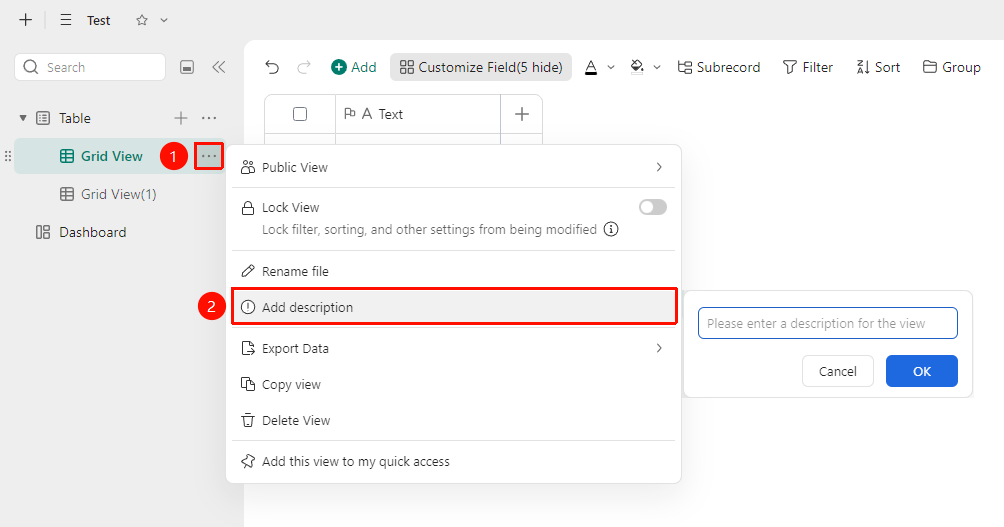
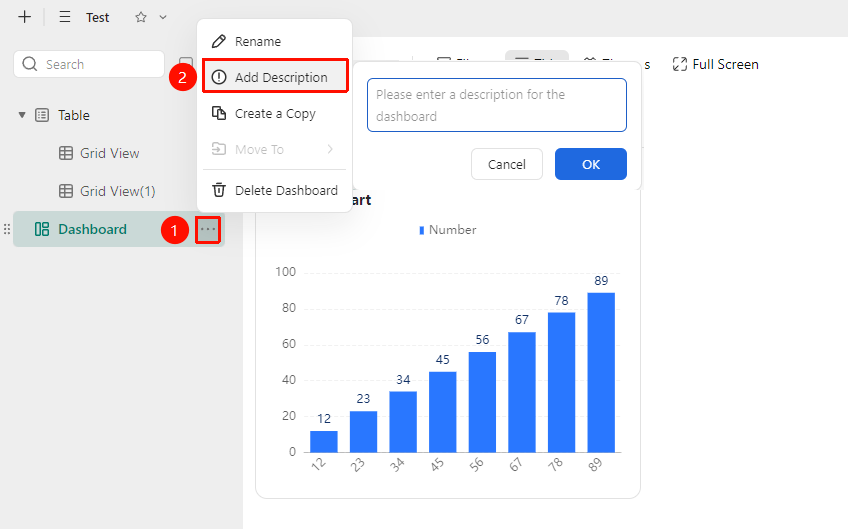
Left data table panel → "More actions" → "Add Description"
- Open the target DBSheet, and in the left data table list panel, find the data table, dashboard, or view for which you want to add a description.
- To the right of the data table, dashboard, or view name, click "More actions" → "Add Description".
- The system will automatically create a description bar and enter the editing interface.
- After editing, click "Confirm" to save the description.
- The added description will be displayed as supplementary information below the data table, dashboard, or view name.
- If you enter the "Add Description" editing page again, clear the description, and save it, the supplementary description will no longer be displayed.
FAQ
Q1: Where can I view the description after adding it?
- Solution: After adding a description, the description page will be displayed below the corresponding data table, dashboard, or view in the left navigation panel. Click to switch and view it.
Q3: What content types are supported in the description?
- Solution: Only text content input is supported. If you need to add rich text descriptions, you can use the "Announcement" feature of the DBSheet.
Notes
- The description content is visible to all users who have permission to view this DBSheet.
- The description follows its associated data table, dashboard, or view, and supports drag-and-drop to adjust its arrangement order in the left navigation panel.