Feature Summary
The Copy View feature quickly generates a new view with exactly the same configuration as the original, including filter conditions, sort rules, group settings, and field visibility. This allows users to make adjustments on that basis without configuring from scratch, greatly improving the efficiency of multi-view management.
Feature Description
| Feature Dimension | Description |
|---|---|
| Membership Restriction | No membership restriction |
| Version Restriction | No version restriction |
Steps
Copy a View
Feature Entry
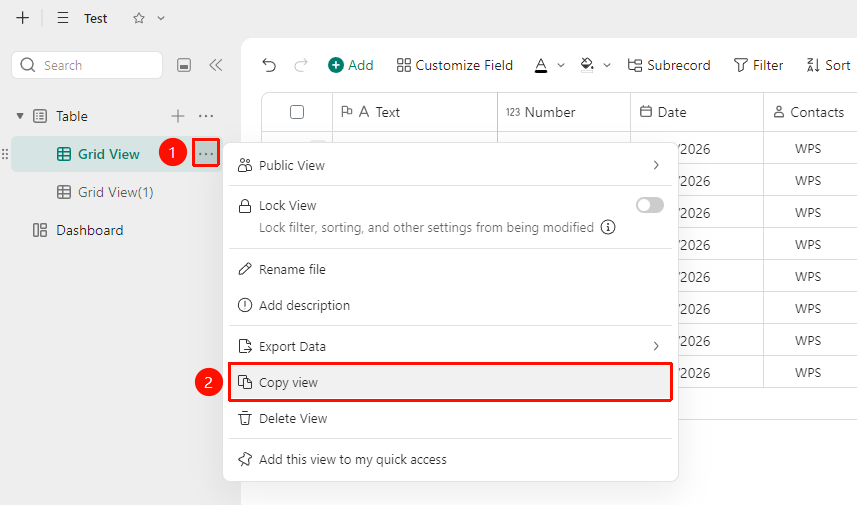
Left view list → Click the "..." button to the right of the view → "Copy View"
- Open the target DBSheet and locate the data table containing the target view in the left data table bar.
- In the left view list, click the "..." more actions button to the right of the view you want to copy.
- Select "Copy View" from the pop-up menu.
- The system will automatically generate a new view under the current view with exactly the same configuration as the original.
- The default name of the generated new view is the original view name plus a suffix. You can double-click the view name to "Rename" it.
FAQ
Q1: Will the data also be duplicated after copying a view?
- Answer: No. Copying a view copies the display configuration of the view (filtering, sorting, grouping, field visibility, etc.). The new view and the original view share the same underlying data. Modifying data in either view will be synchronized.
Q2: Can the copied view be used for other data tables?
- Answer: Currently, copying a view only takes effect within the current data table and does not support cross-table copying. If you need to use a similar view in another data table, you need to manually create and configure the view in the target data table.
Q3: If the original view is modified after copying, will it affect the new view?
- Answer: Yes. After copying is complete, the new view and the original view share the same underlying data. Modifying data in either view will be synchronized.
Notes
- The new view is generated below the current view by default, and its default name is the original view name plus a suffix.
- If the original view is locked, the copied new view is unlocked by default. You can enable locking as needed.
- Personal view settings will be copied along with the view. Pay attention to view visibility.