Feature Summary
The rename feature allows users to modify the names of data sheets, views, and dashboards in DBSheet, making the naming more aligned with actual business needs and team collaboration standards, and helping collaborators quickly identify their purpose.
Feature Description
| Feature Dimension | Description |
|---|---|
| Membership Restriction | No membership restriction |
| Version Restriction | No version restriction |
Steps
Rename
Feature Entry ①
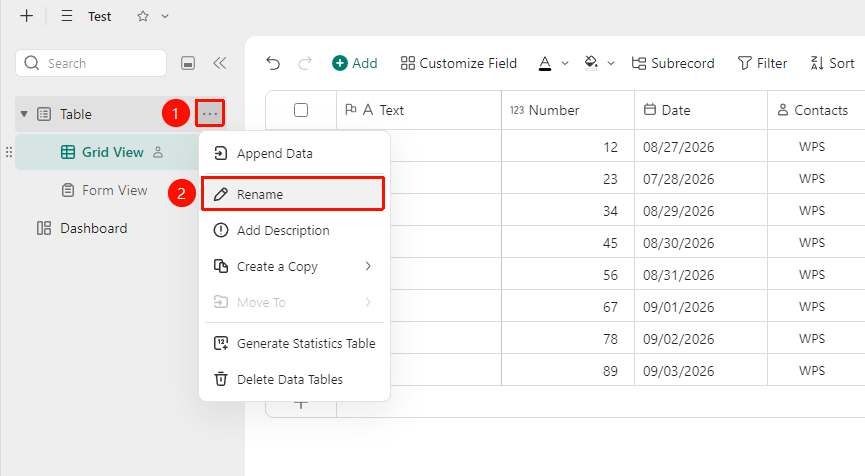
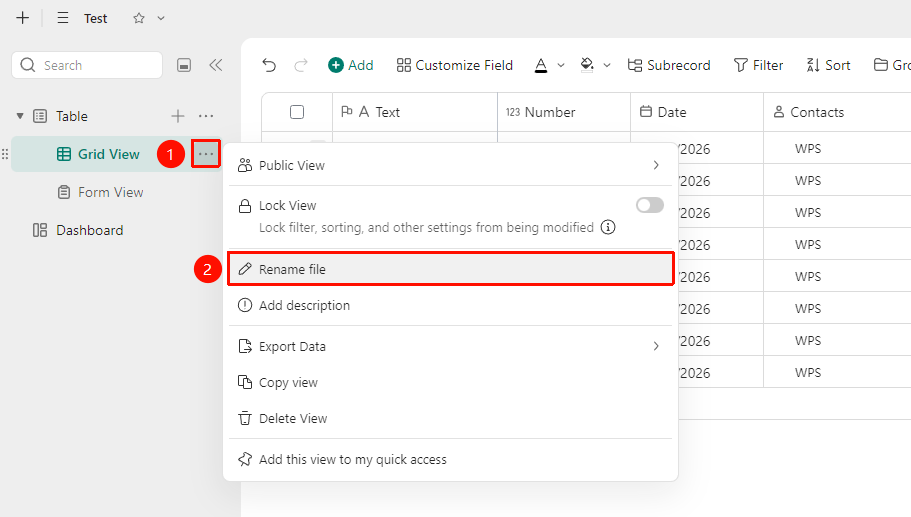
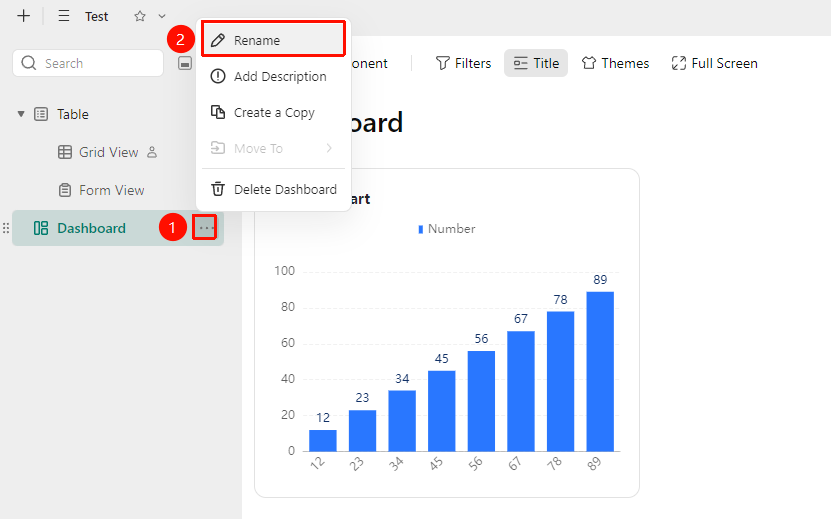
Left data sheet panel → 「More actions」 →「Rename」
- Open the target DBSheet, and find the data sheet, view, or dashboard you want to rename in the left data sheet panel.
- Click the 「More actions」 button (... icon) to the right of the data sheet, view, or dashboard to expand the dropdown menu.
- Select 「Rename」 from the pop-up menu.
- The data sheet name will become editable.
- Enter the new data sheet name and press Enter to confirm and complete the change.
Feature Entry ②
Double-click the data sheet, view, or dashboard name in the left panel.
- Open the target DBSheet, and find the data sheet, view, or dashboard you want to modify in the left data sheet panel.
- Directly double-click the target name.
- The name will become editable.
- After entering the new name, click on a blank area or press Enter to complete the rename.
FAQ
Q1: The name seen by collaborators has not updated after renaming.
- Solution: Data sheet name changes are synced to all collaborators in real time. If other collaborators still see the old name, please confirm that they have refreshed the page or reopened the file.
Q2: A prompt says the name already exists when renaming.
- Solution: Duplicate names for data sheets, views, or dashboards are not allowed within the same DBSheet. Please change it to a unique name. It is recommended to add identifiers such as numbers or dates to the name.
Q3: Can I batch rename multiple data sheets?
- Solution: Currently, DBSheet does not support the batch rename feature; renaming must be done one by one. It is recommended to plan data sheet naming conventions in advance to reduce the frequency of subsequent modifications.
Notes
- Rename operations are synced to all collaborators in real time. Please confirm that the change will not affect others' work before making it.
- After a data sheet name is changed, formulas, linked fields, and other references to that data sheet will automatically update their reference relationships.
- It is recommended to use concise and clear naming to make it easier for team members to quickly identify the purpose of the data sheet.