Feature Summary
The Create Copy feature allows you to quickly duplicate a new copy that is structurally and data-wise identical to the original data sheet or dashboard, making it convenient for users to test, back up, or create data variants without affecting the original data.
Feature Description
| Feature Dimension | Description |
|---|---|
| Membership Restriction | No membership restriction |
| Version Restriction | No version restriction |
Steps
Create a Dashboard Copy
Feature Entry
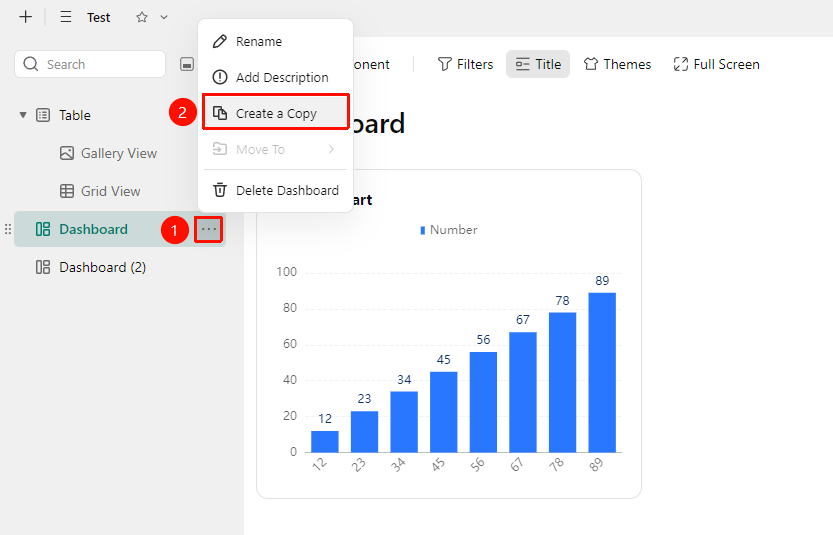
Left data sheet panel → "More Actions" → "Create Copy"
- Open the target DBSheet, and locate the dashboard you want to copy in the left data sheet panel.
- Click the "More Actions" button (... icon) to the right of the dashboard name to expand the drop-down menu.
- Select "Create Copy" from the drop-down menu.
- The system will automatically generate a dashboard copy that is completely identical to the original in structure and data.
- After generation, right-click the copy name and select "Rename" to distinguish it.
Create a Data Sheet Copy
Feature Entry
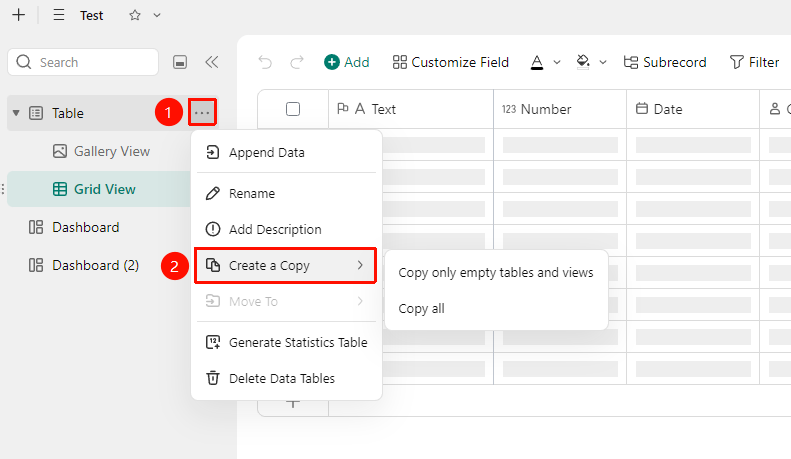
Left data sheet panel → "More Actions" → "Rename"
- Open the target DBSheet, and locate the data sheet you want to rename in the left data sheet panel.
- Click the "More Actions" button (... icon) to the right of the data sheet name to expand the drop-down menu.
- Select "Create Copy" from the drop-down menu to expand the following options.
- Click "Copy empty sheet and views only" to create a copy with the same structure but without Records.
- Click "Copy all content" and the system will automatically generate a dashboard copy that is completely identical to the original in structure and data.
FAQ
Q1: The created copy is missing some data.
- Solution: The copy will completely replicate all data and structure of the original data sheet/dashboard. If data is found to be missing, it may be because the data in the original data sheet/dashboard was being modified during the process.
Q2: Formula fields in the copy have reference errors.
- Solution: Formula fields in the copy will retain the reference relationships to the original data sheet. If you need to reference the copy's own data, you need to manually modify the data sheet reference targets in the formulas.
Q3: Does the copy occupy Drive space?
- Solution: After creation, the copy is independent of the original data sheet/dashboard and occupies the same amount of space as the original.
Notes
- The copy will completely replicate the structure, data, views, and field settings of the original data sheet.
- After creation, the copy is independent of the original sheet; modifications to the copy will not affect the original data.
- After creation, the copy occupies the same amount of space as the original, so please be mindful of the file size.