Feature Summary
The comment feature allows users to add comments on cells or data rows in the table view, supports @mentioning specific collaborators, and facilitates team discussions and feedback around specific data.
Feature Description
| Feature Dimension | Description |
|---|---|
| Membership Restriction | No membership restriction |
| Version Restriction | No version restriction |
Operation Steps
Add Comment
Feature Entry
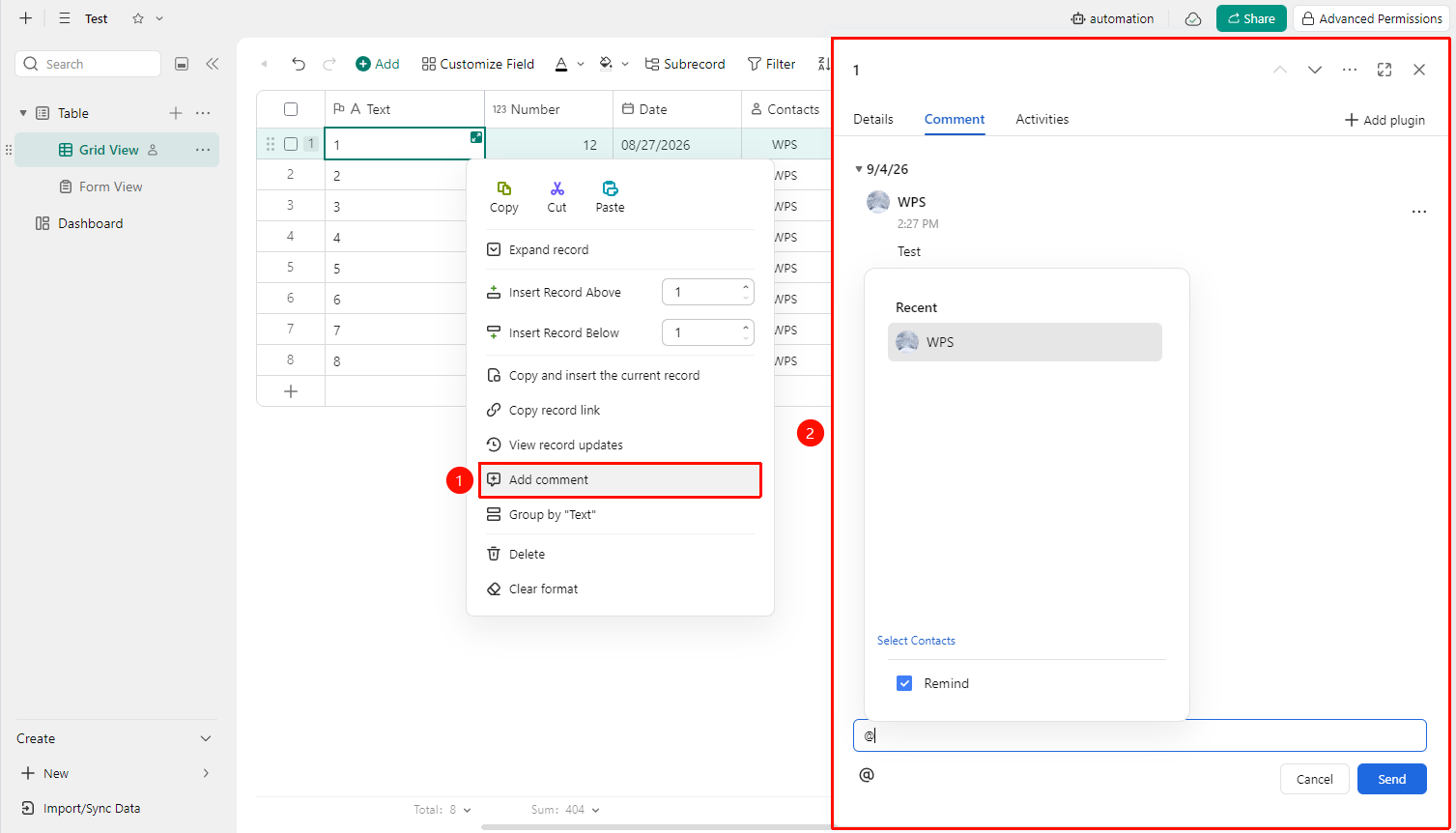
Right-click cell →「Insert Comment」
- Open the table view of the target DBSheet and select the cell or data row where you want to add a comment
- Right-click and select 「Insert Comment」 from the pop-up menu
- In the comment input box that pops up on the right side of the page, enter your comment content
- To remind a specific member, enter @ and select the corresponding member, then check 「Notify them via message」
- Click 「Send」 to complete adding
- After adding a comment, the comment count will be displayed on the data row indicator
Manage Comments
Feature Entry
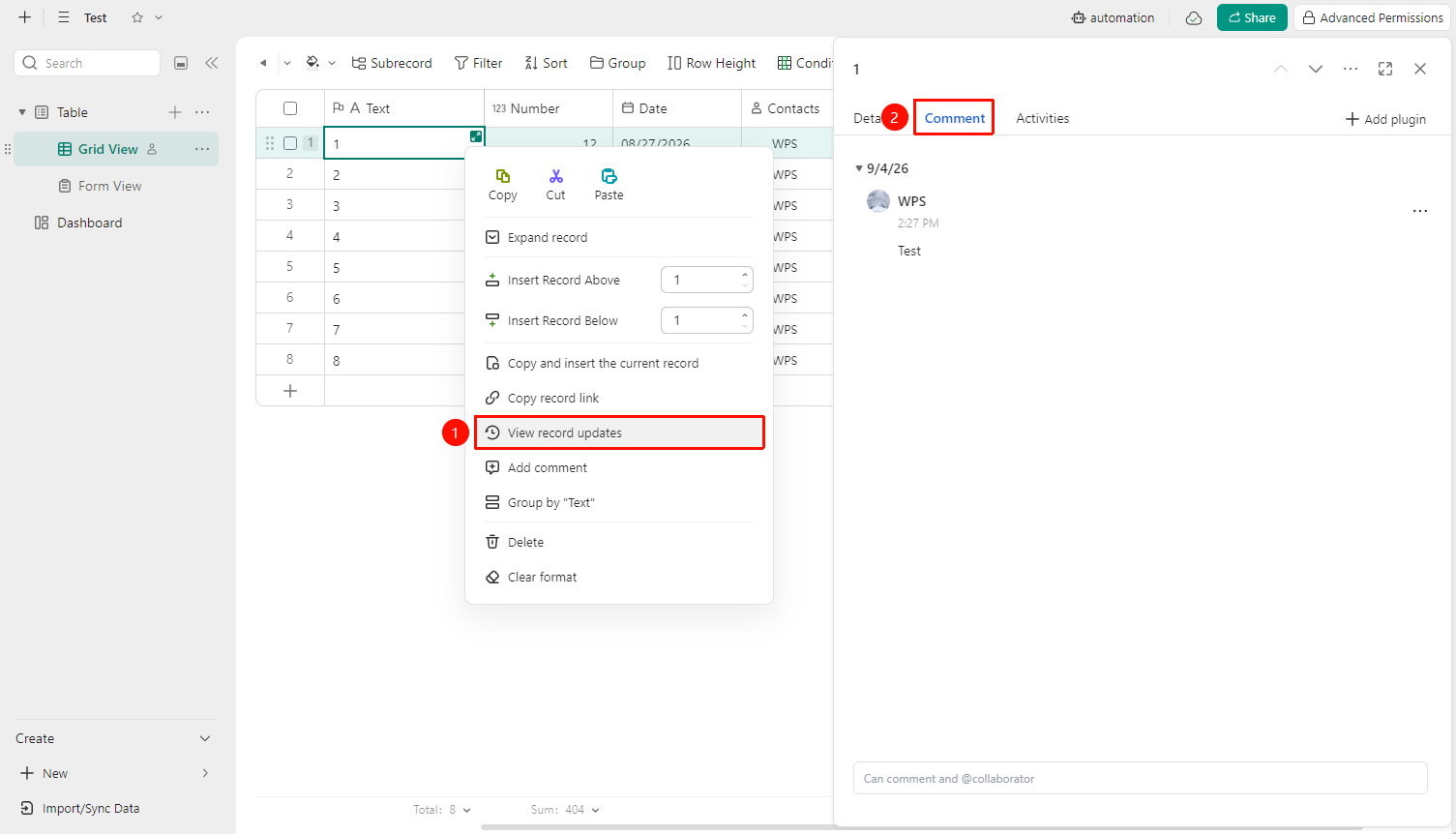
Right-click cell →「View Record Activity」
- In the table view, right-click the cell or data row for which you want to view comments
- Select 「View Record Activity」 from the pop-up menu
- In the Record Activity panel that pops up on the right side of the page, switch to the 「Comments」 tab to view all added comments for that Record
- Continue adding comments in the input box
- Click the 「...」 icon on the right side of a comment to delete unwanted comments
- After all comments are deleted, the comment count will no longer be displayed on the data row indicator
Notes
- Comment content is only visible to members who have access to that Record; members without sufficient permissions cannot view it
- Comments support viewing history, displayed in chronological order; older comments require scrolling up to find
- Comments do not support re-editing; please confirm the content is correct before publishing. If changes are needed, delete the comment and add a new one