Feature Summary
The Kanban view displays data records as cards categorized by fields, similar to a project management Kanban board. It is suitable for tracking task statuses, managing business processes, and team collaboration.
Feature Description
| Feature Dimension | Description |
|---|---|
| Membership Restriction | No membership restriction |
| Version Restriction | No version restriction |
Steps
Creating a Kanban View
Feature Entry
「Data Table」→「+」Icon →「Kanban View」Option
- Open the target multi-dimensional table and click the 「+」 icon on the right side of the data table
- Select Kanban View, then select the grouping criteria
- Click the Card Management button to set the card cover and cover effect
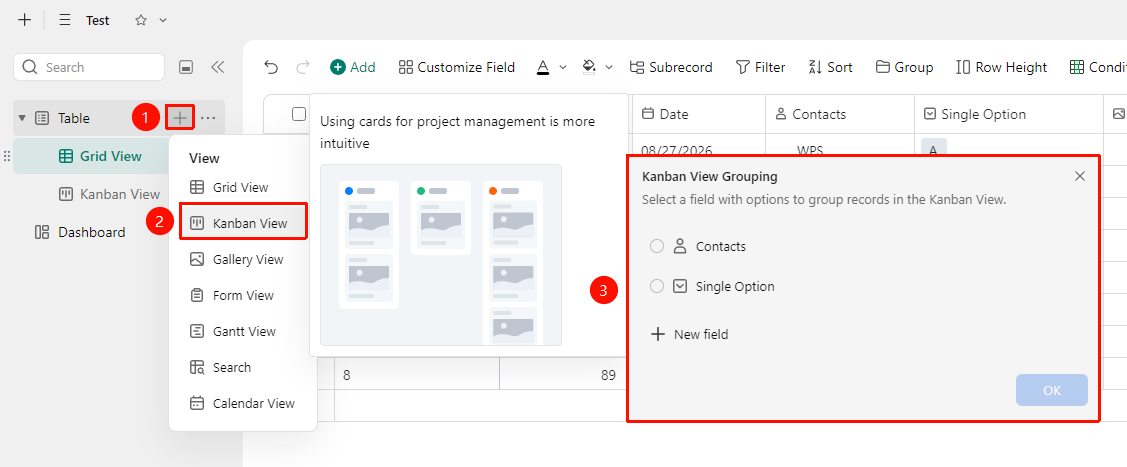
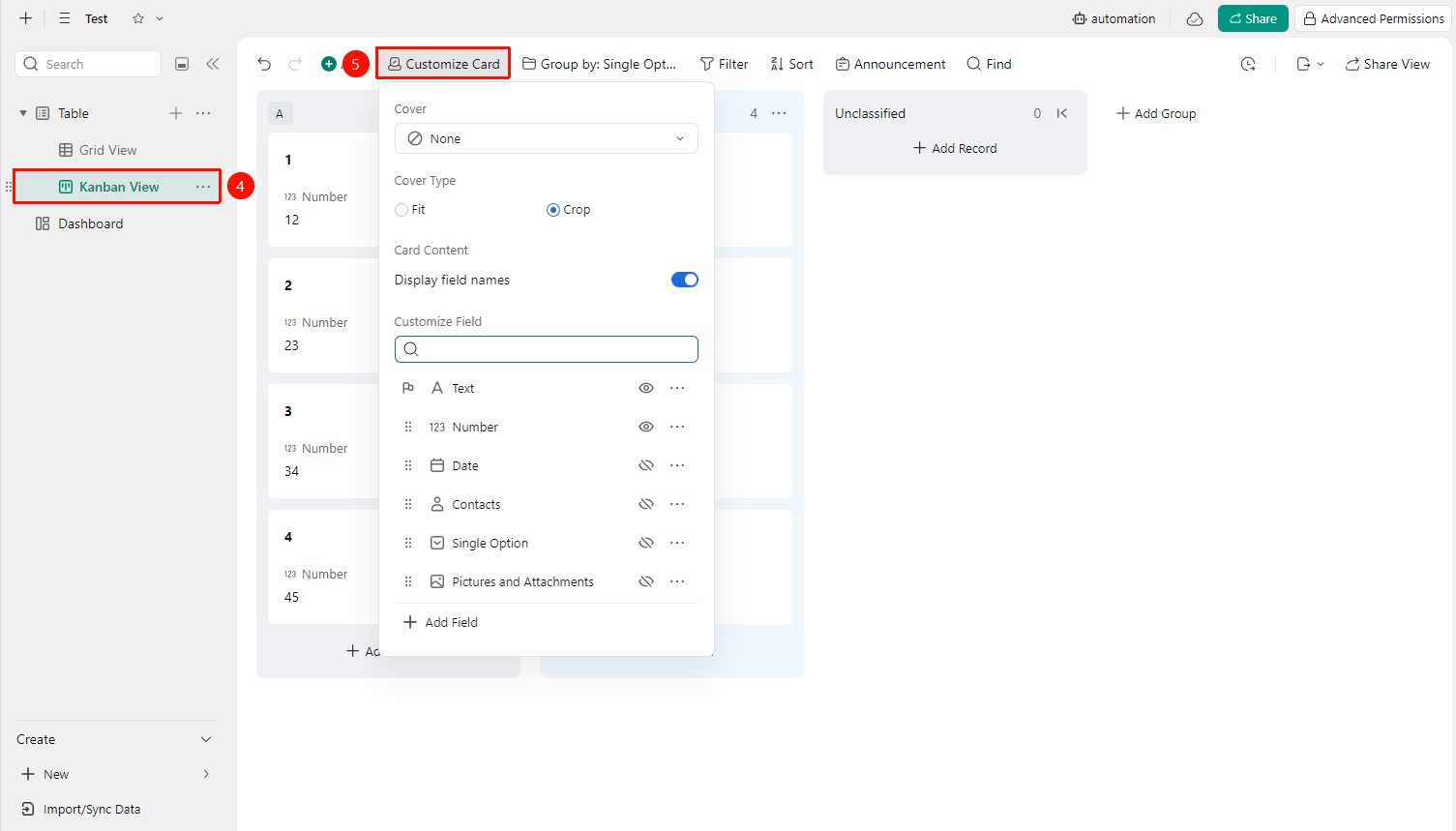
Kanban View Grouping Basis
Feature Entry
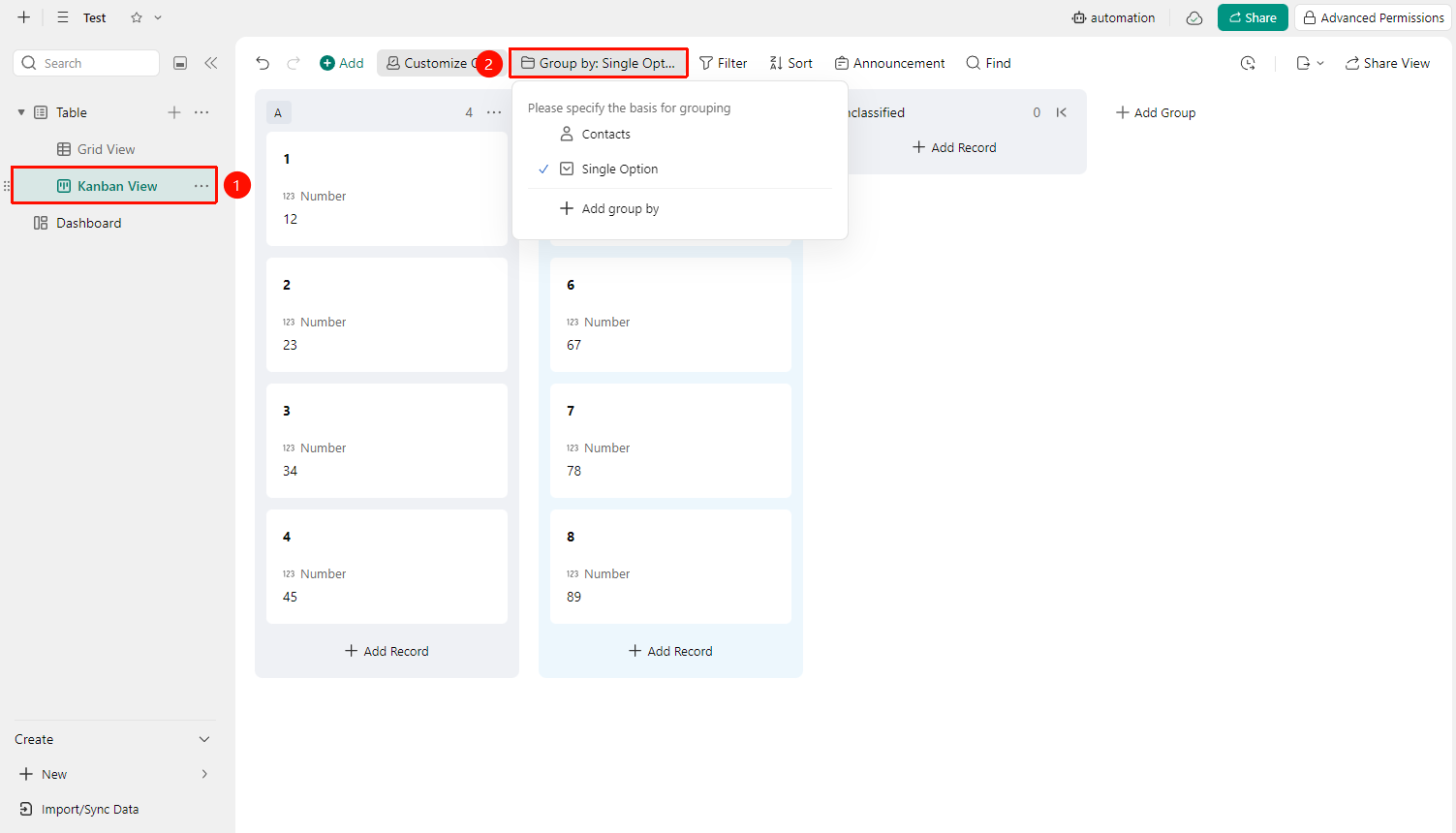
「Kanban View」→「Grouping Basis」Button
- Click any Kanban view
- Click the 「Grouping Basis」 button at the top
- Select an existing field as the grouping basis, or add a new grouping basis
FAQ
Q1: No cards are displayed in a column of the Kanban view?
- Solution: Check whether there are matching records under the value of that grouping field. If a record has no value for that field, the card will appear in the 「Ungrouped」 column. Please confirm whether the record's fields have been filled in correctly.
Q2: How to change the grouping field of the Kanban board?
- Solution: Click the Grouping Basis button in the upper right corner of the Kanban view and switch to another field for grouping. The Kanban board will automatically rearrange according to the new field. The original data will not be affected.
Notes
- The content displayed on the Kanban card is determined by the fields already shown in the view
- The Kanban view is suitable for using single-select fields as the grouping basis