Feature Summary
The Time field is one of the basic field types in a multidimensional table, used to record specific time information (hours, minutes, seconds). It supports point-and-click entry and custom time display formats, making it suitable for scenarios requiring precise time records, such as attendance check-in, meeting times, and task durations.
Feature Description
| Feature Dimension | Description |
|---|---|
| Membership Restriction | No membership restriction |
| Version Restriction | No version restriction |
Steps
Create a Time Field
Feature Entry
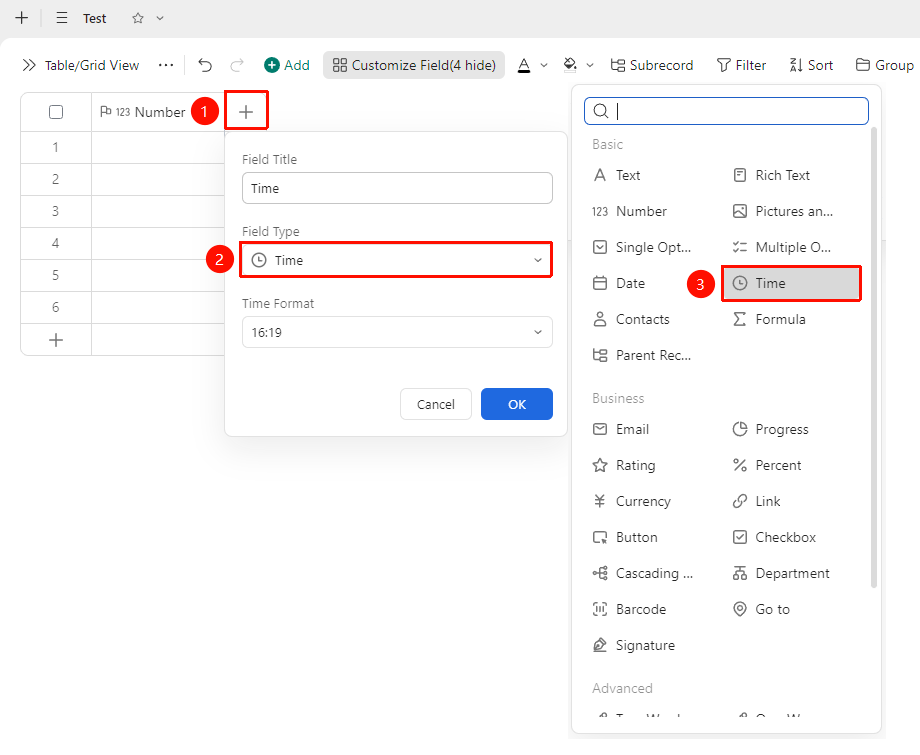
「+」 button on the right side of the header → 「Time」 field
- Click the 「+」 button on the right side of the header
- Select the 「Time」 field from the pop-up field type list
- Enter the field name and click 「OK」 to complete creation
Set Time Format
Feature Entry
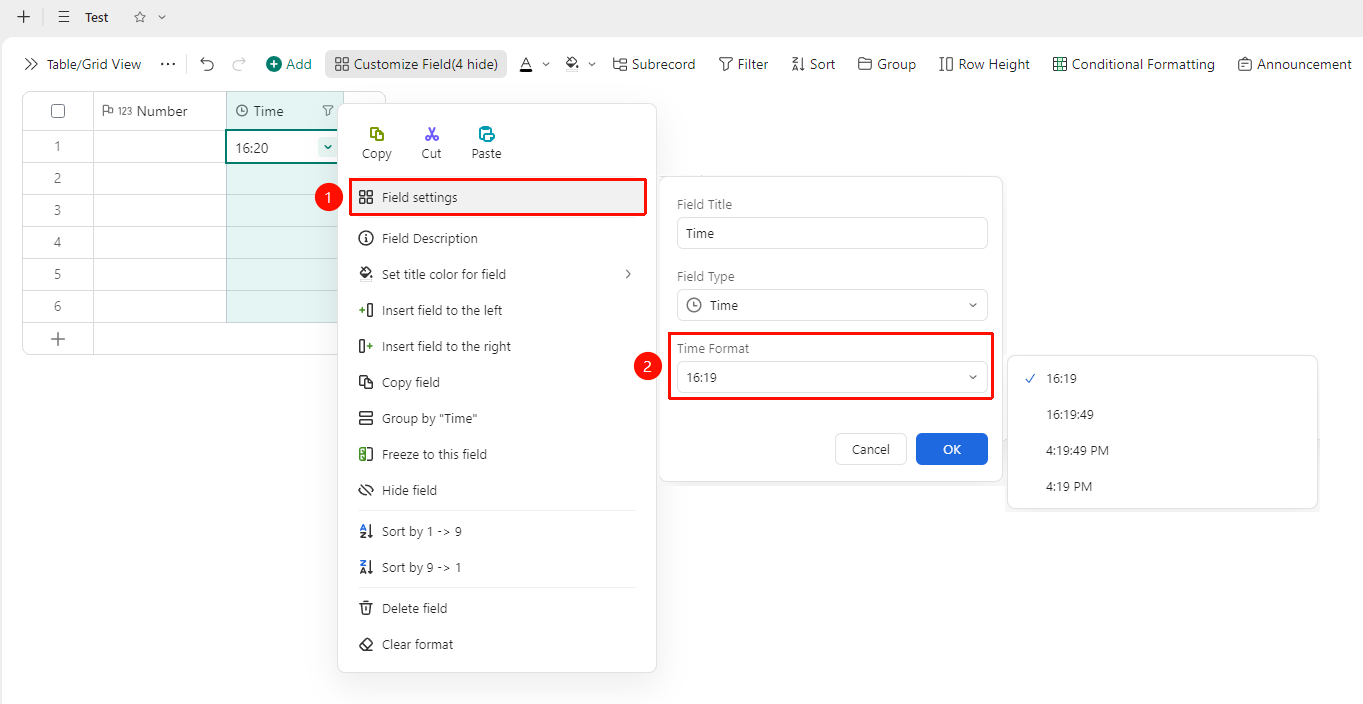
Right-click 「Field Title」 → 「Field Settings」 → 「Format」 option
- Right-click the time field title and select 「Field Settings」
- In the 「Format」 option, you can choose the time display format:
- 24-hour format: e.g.,
14:30 - 12-hour format: e.g.,
2:30 PM
- Select the appropriate display format as needed and click 「OK」 to save
Enter Time
Feature Entry
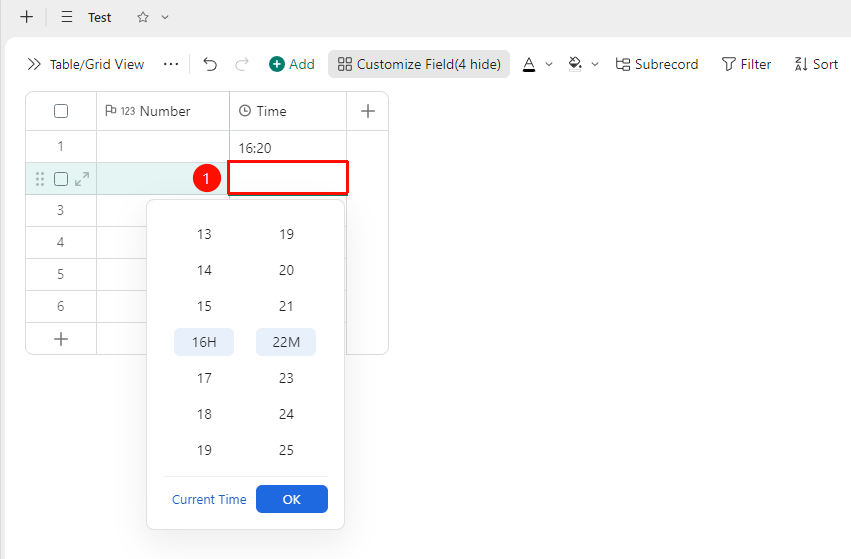
「Target Cell」 → Pop-up time picker → Select time
- Click the target cell, and the system will pop up a time picker
- Use the hour, minute, and second selectors to point and click the corresponding time value
- You can also manually enter the time directly in the input box
FAQ
Q1: What is the difference between a Time field and a Date field?
- Solution: The Date field records year, month, and day information, while the Time field records hour, minute, and second information. If you need to record both date and time, you can enable the 「Show Time」 option in the Date field.
Q2: How can I make the Time field automatically record the current time?
- Solution: The Time field itself does not currently support a default value that automatically fills in the current time. If you need to automatically track time, you can use the 「Created Time」 or 「Last Modified Time」 fields in advanced fields, and the system will automatically record the corresponding moment.
Q3: What should I do if the entered time format is incorrect?
- Solution: Ensure that you enter the time according to the format set in the field settings (e.g., enter
14:30for 24-hour format, or select AM/PM for 12-hour format). It is recommended to use the time picker for point-and-click entry to avoid manual input format errors.
Notes
- Time fields and Date fields are independent types and cannot be mixed
- The 「Created Time」 and 「Last Modified Time」 in advanced fields are automatically filled by the system and do not support manual editing
- Time fields are compared in chronological order when sorting and filtering