Feature Summary
The collaboration/sharing feature allows you to upload local documents to the Cloud, enabling real-time online collaborative editing by multiple users. It supports inviting others to view or edit documents via links, QR codes, and other methods, significantly improving team collaboration efficiency.
Feature Description
| Feature Dimension | Description |
|---|---|
| Membership Restriction | No membership restriction; available to all users |
| Version Restriction | No version restriction; ensure sufficient Cloud space capacity |
| Number of Collaborators | Up to 50 people editing simultaneously online |
Steps
Enable Collaboration via the Share Button
Feature Entry
Top-right corner of the menu bar → 「Share」 button
- Open the document in WPS Office and click the 「Share」 button in the top-right corner
- Turn on the View/Edit with others switch to activate collaboration mode
- Click Upload Now and wait for the document to automatically switch to collaboration mode
- After the upload is complete, set the link permission (can view/can edit)
- Click Copy Link and send it to your contacts; they can start collaborating once they open the link
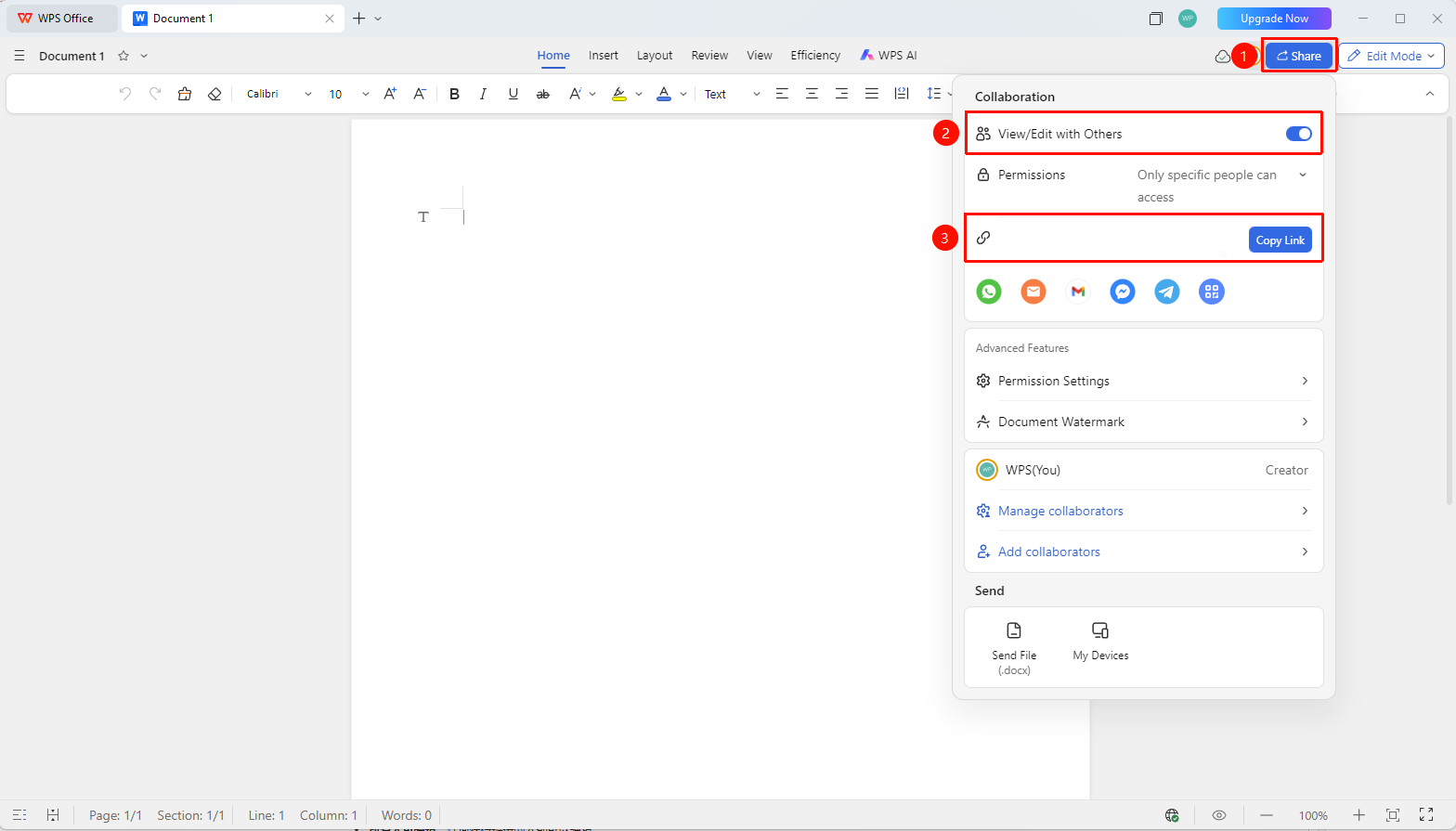
Set Link Permissions
Feature Entry
「Share」 button → 「Link Permission」 dropdown menu
- On the sharing page, click the 「Link Permission」 dropdown menu
- The following permission options can be set:
- Everyone can edit: Anyone with the link can edit
- Everyone can view: Anyone with the link can view
- Anyone can view and comment: Anyone with the link can view and add comments
- Specified people can edit/view/comment: Only invited collaborators can operate
3.Link validity period can be set (e.g., 7 days, 30 days, permanent)
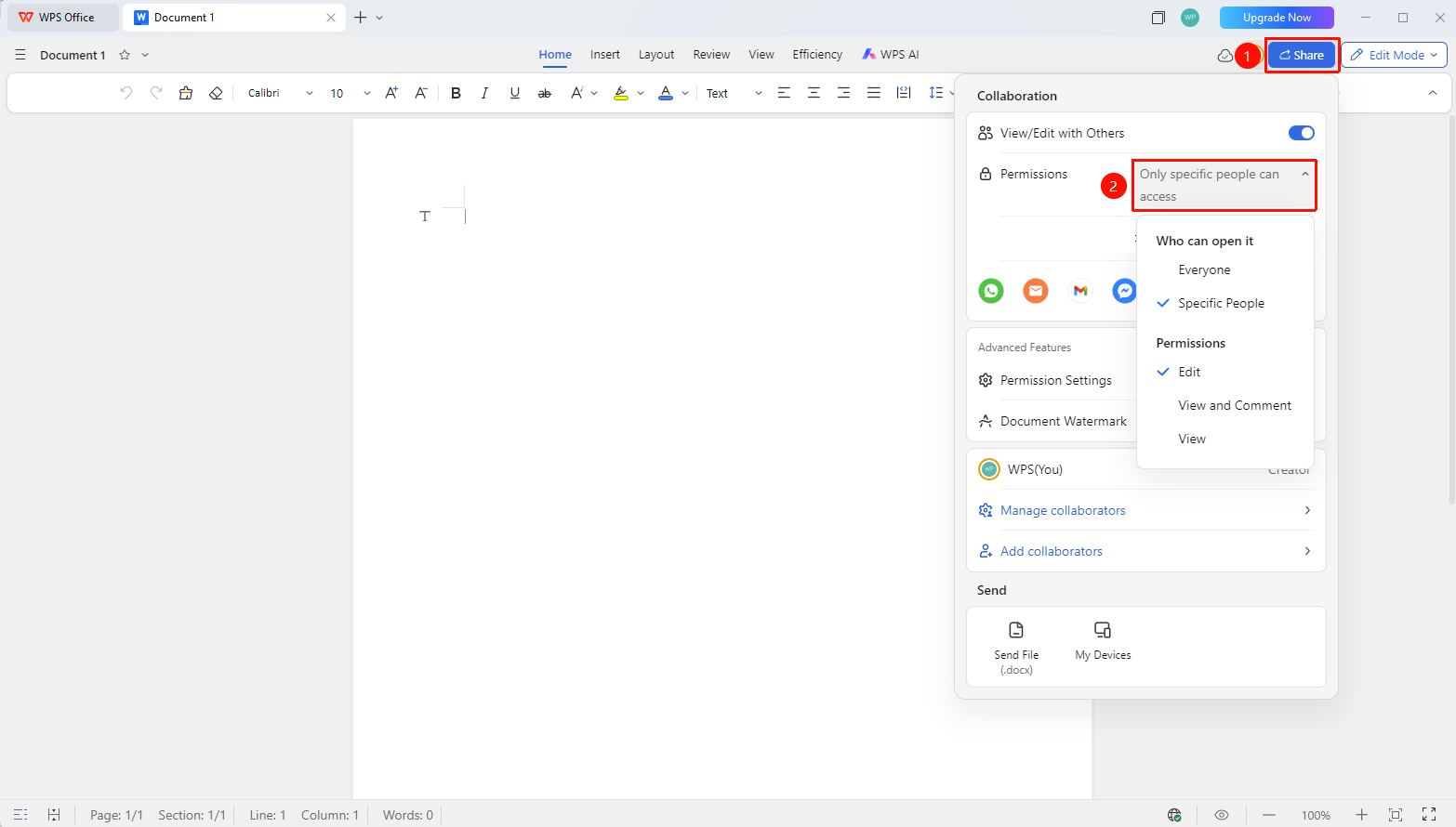
FAQ
Q1: Where is the document saved after enabling collaboration?
- Solution: After enabling collaboration, the document is automatically uploaded to WPS Cloud Documents and saved in Personal Space, supporting multi-device synchronized access.
Q2: Can I see other people's edits during collaboration?
- Solution: Yes. During real-time collaboration by multiple people, all participants' edits are synchronized and displayed in real time, with each collaborator's cursor and edited content highlighted in different colors.
Q3: How can I check who modified the document content?
- Solution: Open the document, click the top-left menu 「三」 → 「History Versions & Records」 → 「Collaboration Record」 to view each collaborator's operation time and modified content.
Notes
- Ensure you have signed in to your WPS account before enabling collaboration
- In collaboration mode, the document is automatically saved to the Cloud; the local copy will not be updated automatically
- Link permissions can be modified at any time and take effect immediately upon setting
- Collaboration Records retain historical versions, allowing you to restore to a previous version at any time