Feature Summary
The Download/Export As feature supports downloading cloud documents to a local device, or exporting them to various formats such as PDF, images, and Excel, making it convenient for users to use and share documents in different scenarios.
Feature Description
| Feature Dimension | Description |
|---|---|
| Membership Restriction | No Membership restriction |
| Version Restriction | No version restriction |
Operation Steps
Download Cloud Documents
Feature Entry
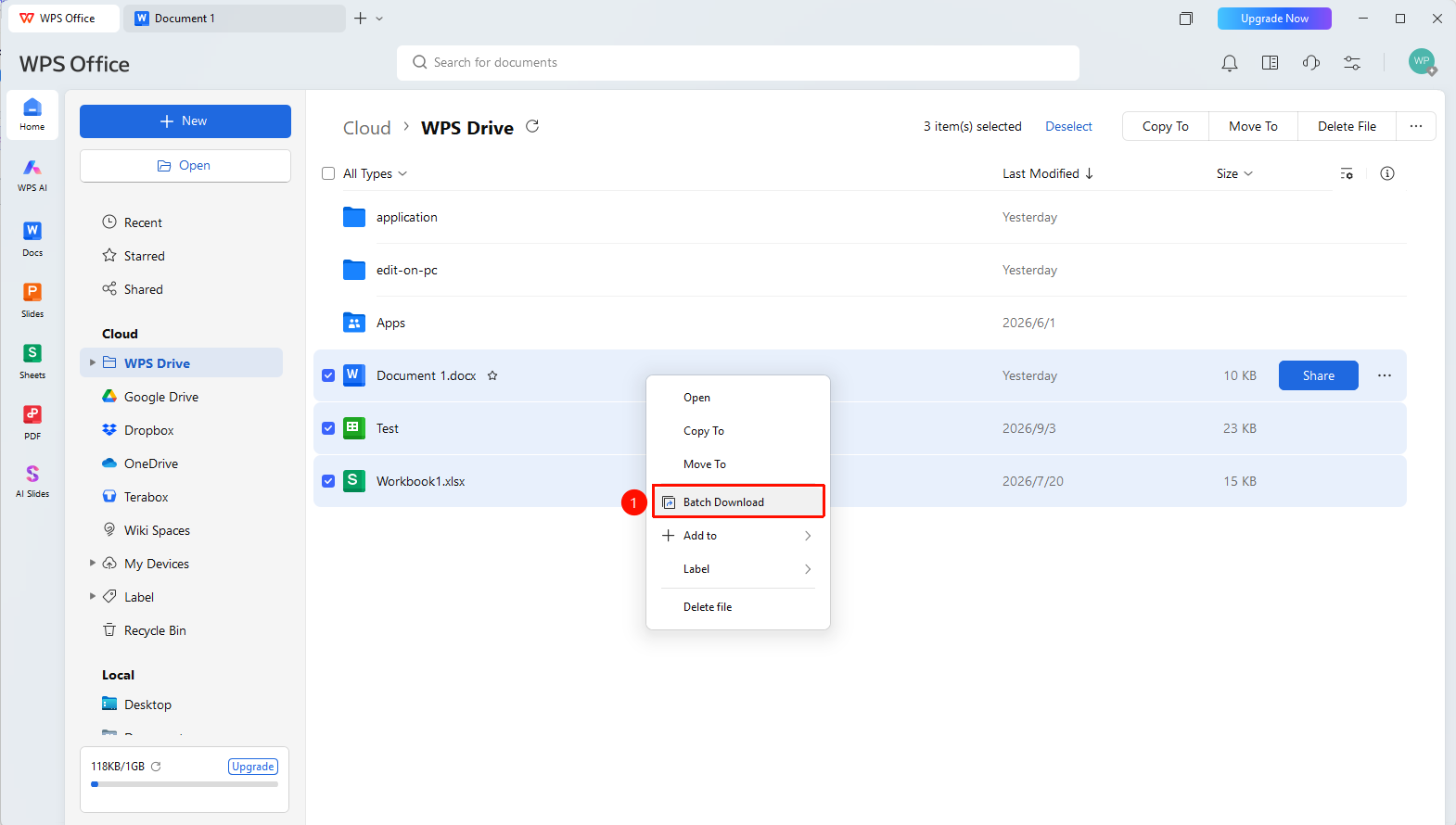
「File Operations」 button → 「Download」 option
- Open the cloud document and click the File Operations (three-line icon) in the upper left corner
- Select the 「Download」 option
- Select the save path
- Click Save
Right-click to Download Cloud Documents
Feature Entry
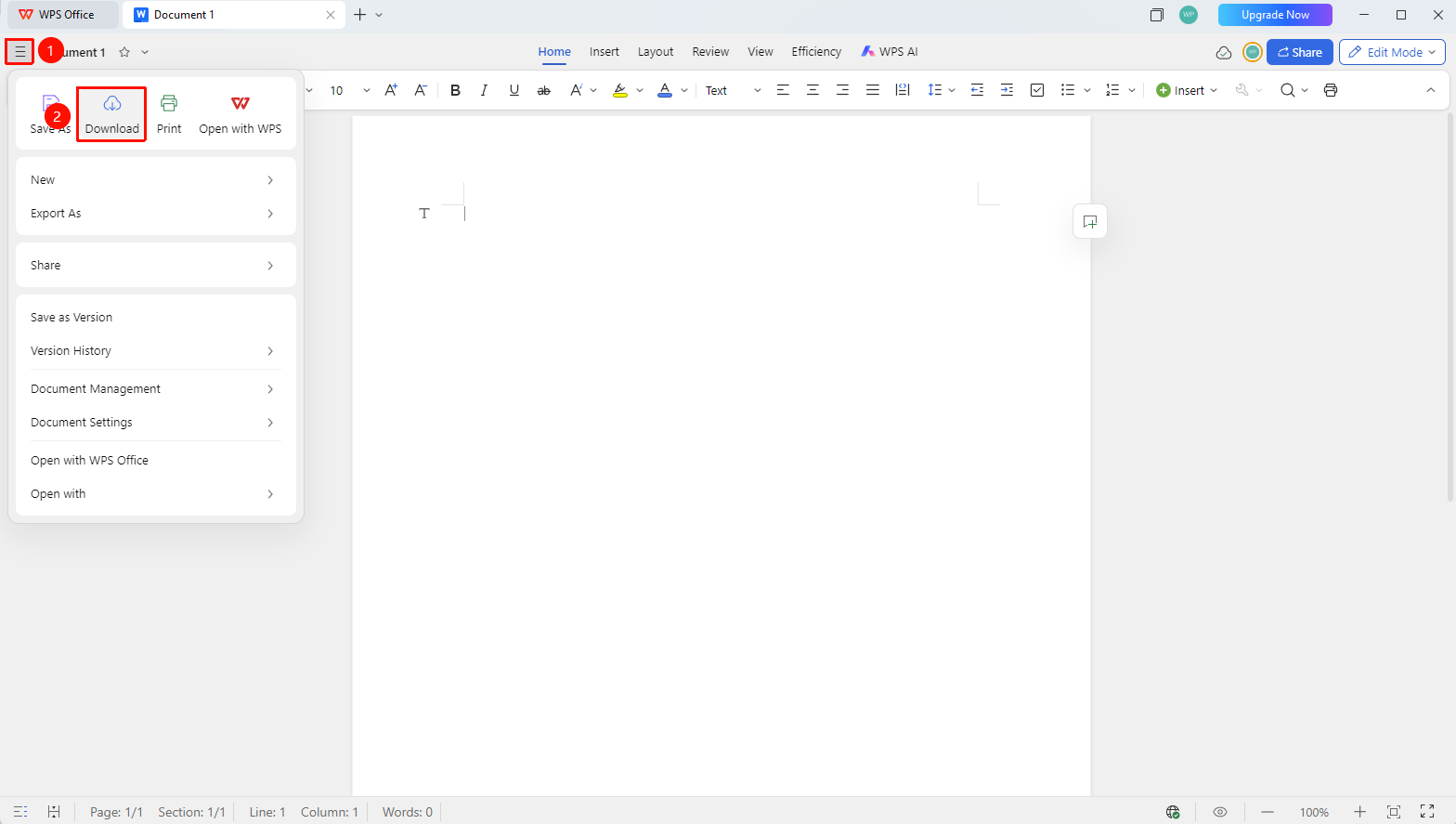
Right-click the cloud document in the file list → 「Download」 option
- Without opening the file, right-click the cloud document you need to download in the file list
- In the pop-up right-click menu, click the 「Download」 option
- Select the save path
- Click Save
Batch Download Files
Feature Entry
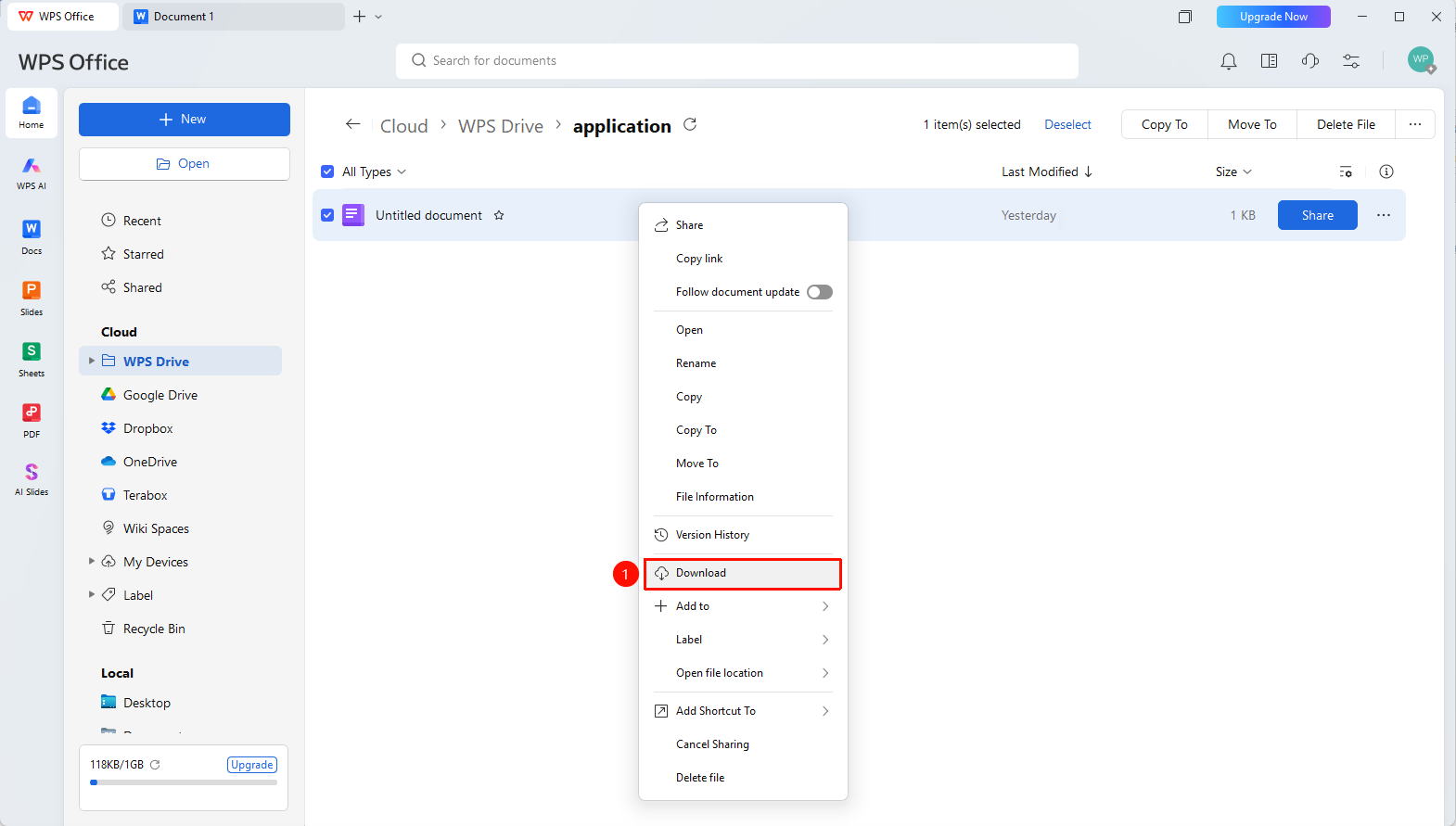
「Multi-select」 files in the cloud space → Right-click menu → 「Batch Download」 option
- Enter Personal Space
- Multi-select files in the cloud space
- Right-click and select 「Batch Download」