Feature Summary
The History Version feature automatically saves Document editing Records, supports viewing, previewing, and restoring to any historical version, effectively preventing content loss due to misoperation, and is an important safeguard feature for Cloud Document collaboration.
Feature Description
| Feature Dimension | Description |
|---|---|
| Membership Restriction | No membership restriction; all users can use it |
| Version Restriction | No version restriction; the Document must be uploaded to the Cloud |
Operation Steps
View History Versions
Feature Entry 1
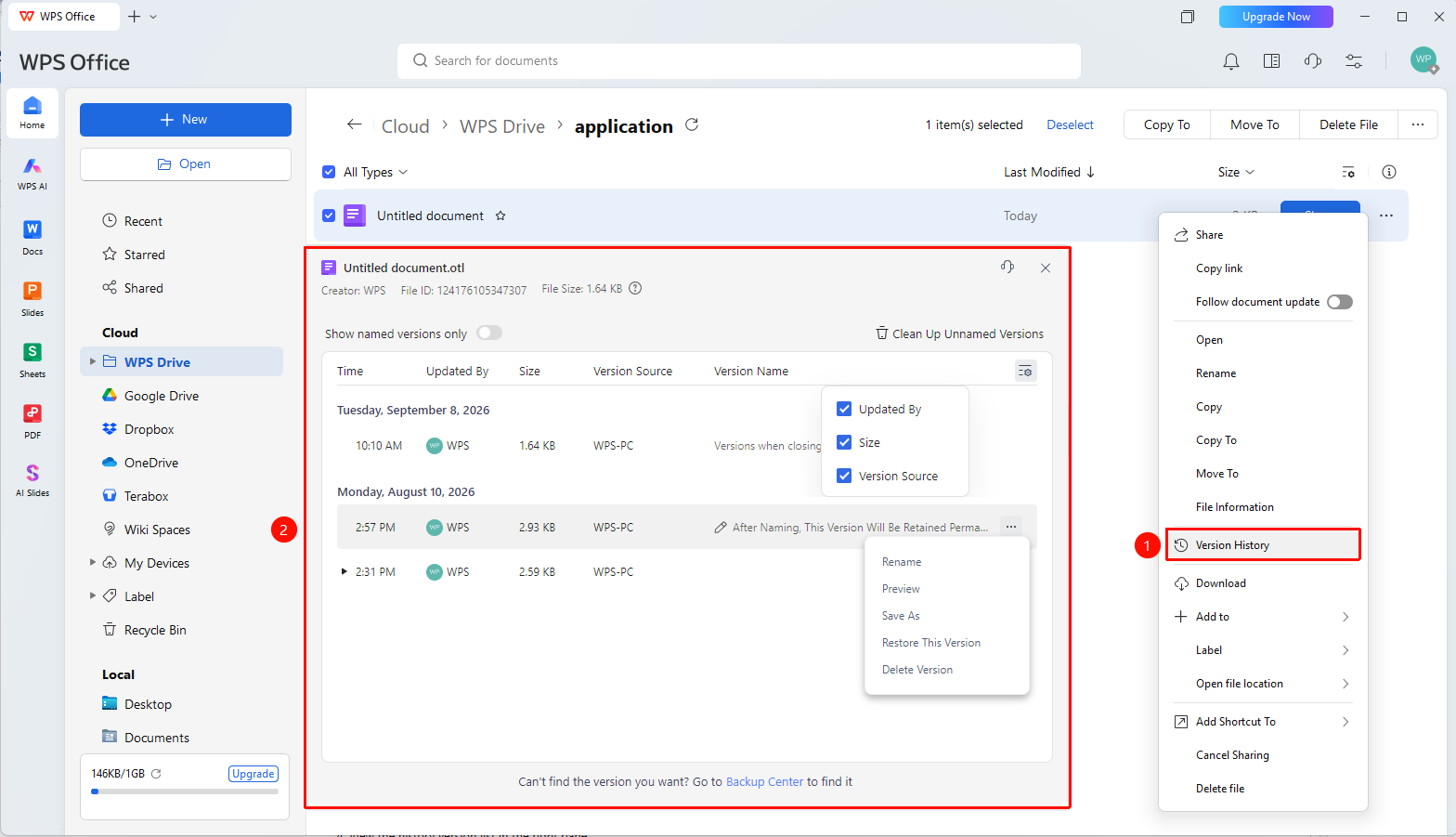
Right-click menu on document → "Version History"
- Locate the target document in the cloud document list
- Right-click the document to bring up the right-click menu
- Select "Version History" to display a list of version history, sorted in reverse chronological order.
- Quickly filter for desired version history using "Custom List"
- Click the "..." button to the right of an existing version history to quickly preview, save as, rename, etc
Feature Entry 2
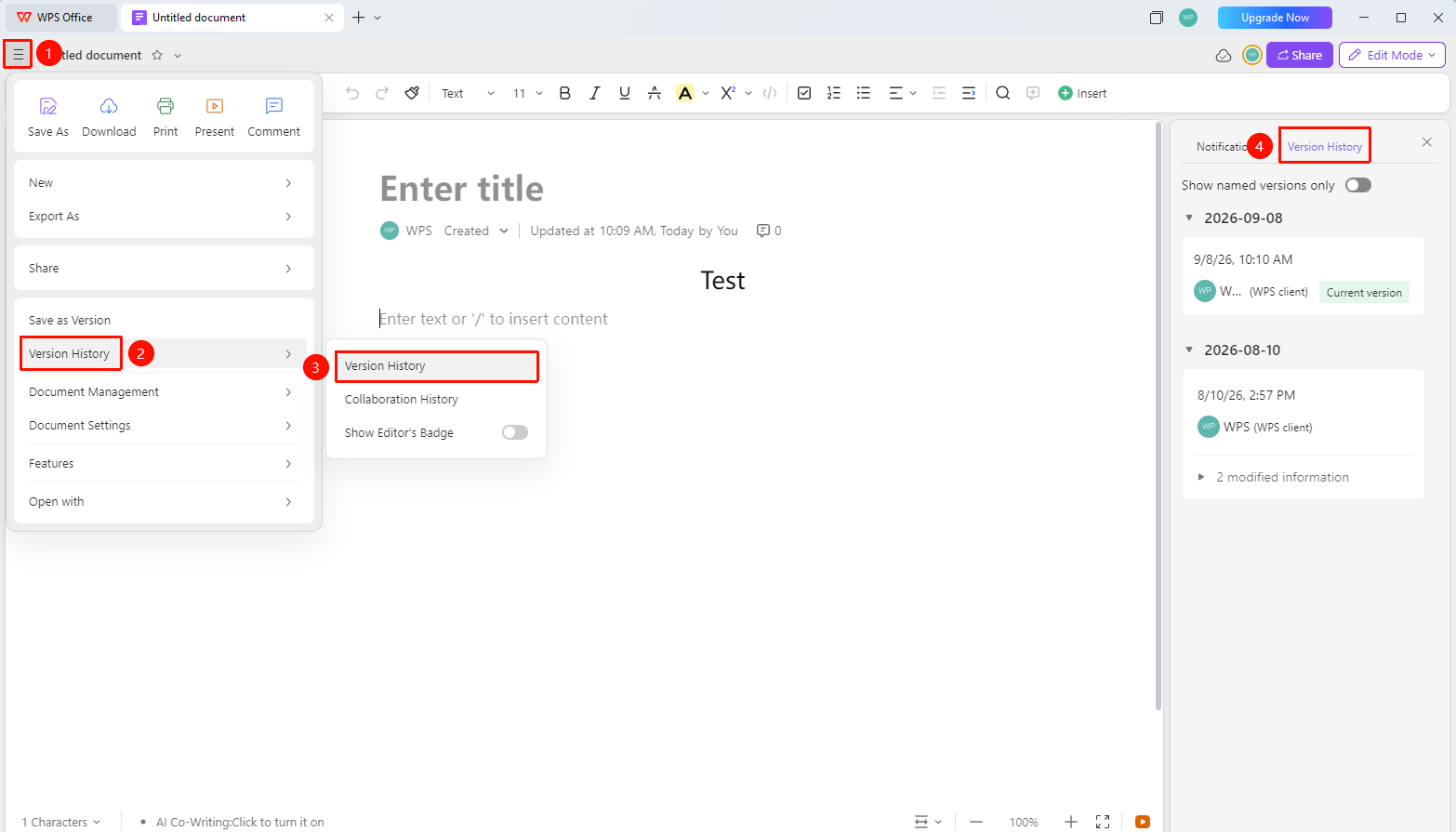
"File Operations" button → "History Records" option → "History Versions" button
- Open the Cloud Document and click the File Operations button (three-line icon) in the upper left corner
- Select the "History Records" option
- Click the "History Versions" button
- View the history version list in the right pane
History Version Operations
Feature Entry
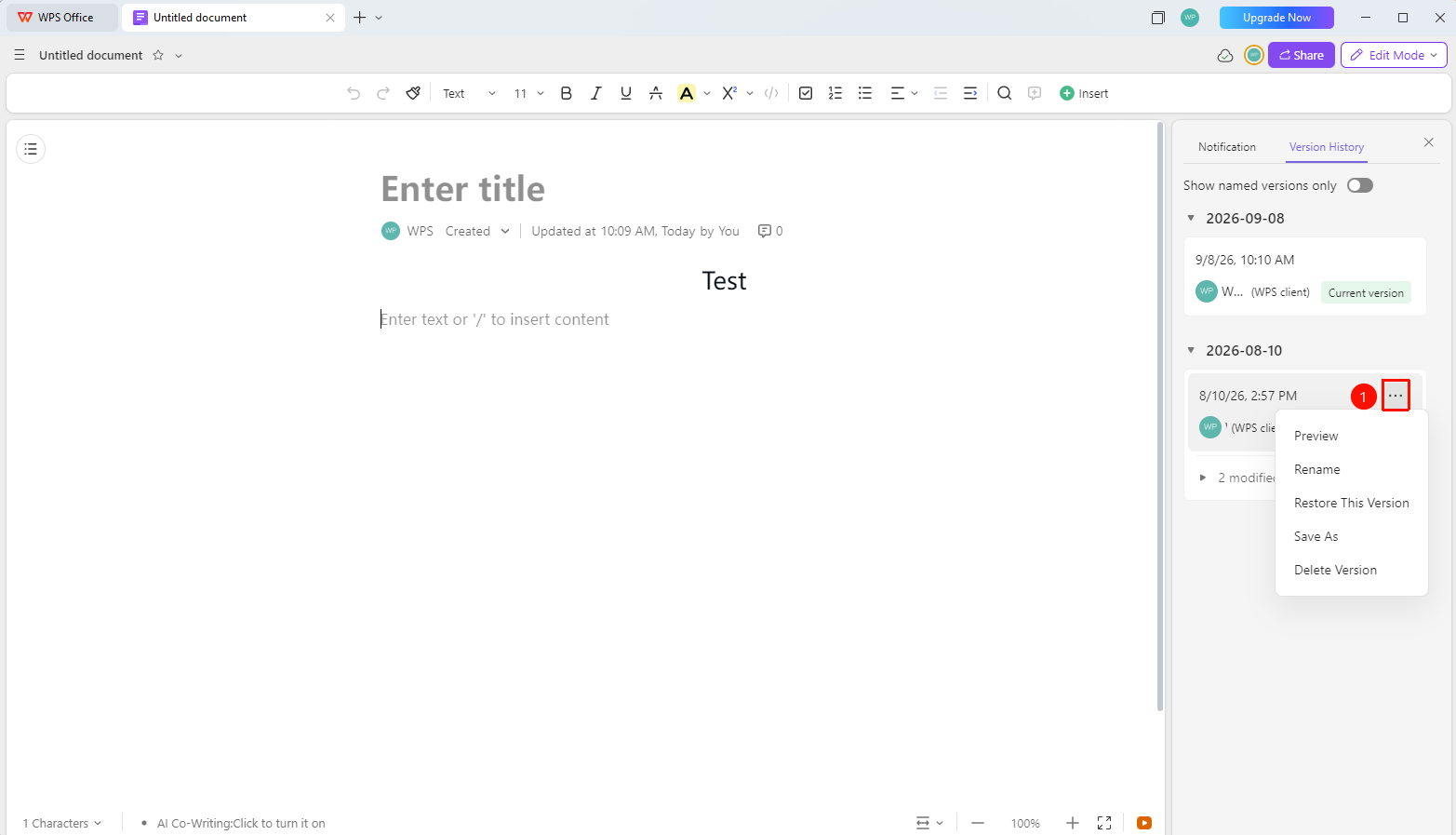
"History Versions Panel" → "More" button
- In the history versions panel, select the version you want to operate on and click the "More" button
- Choose from the following options in the menu that appears:
- Preview: Preview the history version
- Rename: Rename the history version
- Restore This Version: Revert the document content to this version
- Save As: Save the history version as a new file
- Delete Version: Delete this history version
FAQ
Q1: Do local files have history versions?
- Solution: The History Version feature is only applicable to files uploaded to the Cloud. For local files, you can view the backup center Records.
Q2: Will the current content be lost after restoring a history version?
- Solution: The restore operation will overwrite the current content. It is recommended to preview first to confirm whether you need to restore that version, or use "Save As" to keep the current version.
Q3: How can I see who modified the Document?
- Solution: In the history version list, you can see the "Updater" information for each version to understand who made the modification.