Feature Summary
The add tag feature allows you to add custom tags to cloud documents, making it easy to categorize, manage, and quickly find documents by tag.
Feature Description
| Feature Dimension | Description |
|---|---|
| Membership Restriction | No membership restriction |
| Version Restriction | No version restriction |
Operation Steps
Add Tag
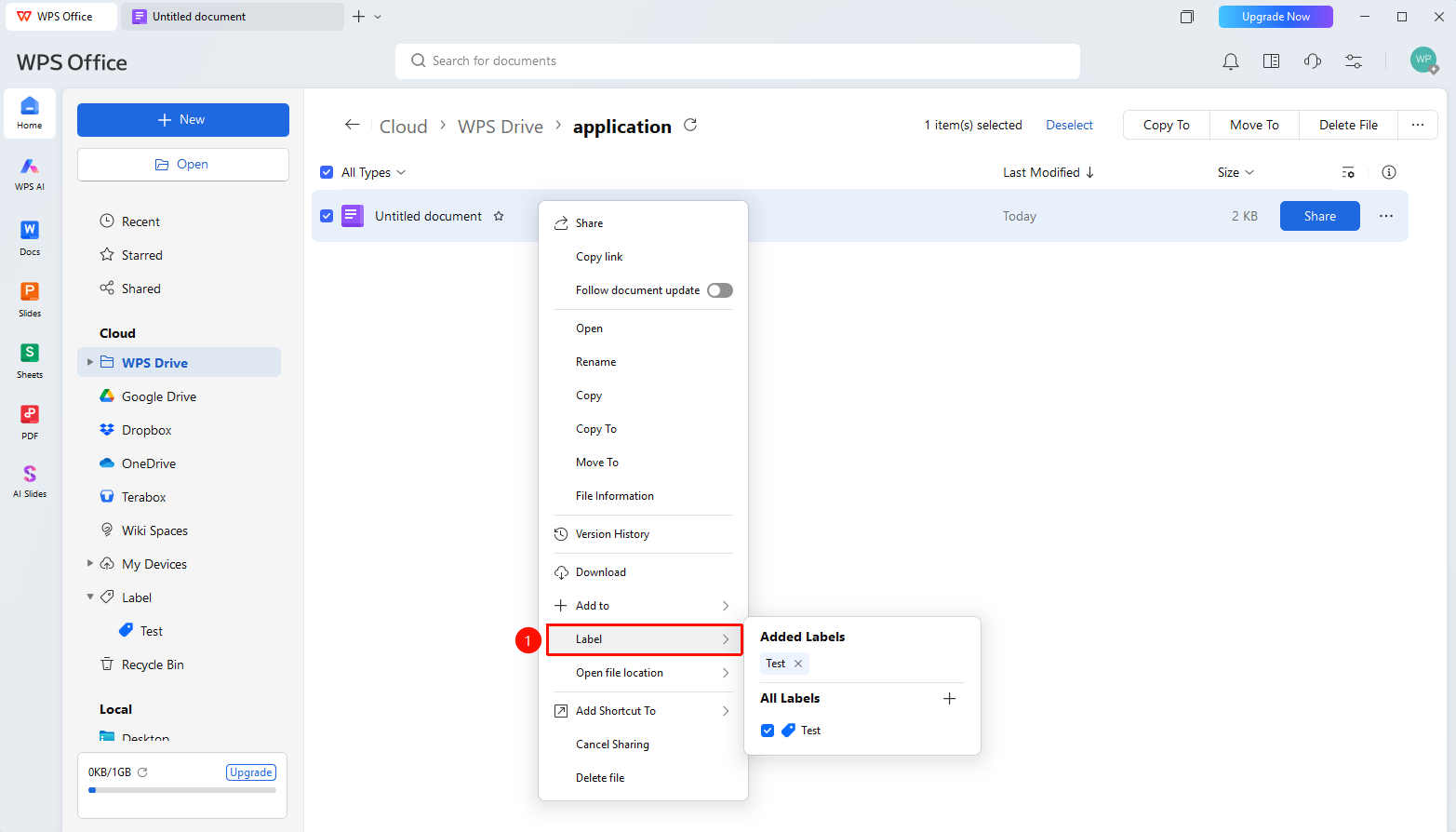
Feature Entry ①
Document right-click menu → 「Add Tag」
- Locate the target document/folder in the cloud document list
- Right-click the document/folder
- Select 「Tag」
- Click 「+」 to add a new tag or select an existing tag to add
- Click the 「X」 on an existing tag to remove that tag from the document
Feature Entry ②
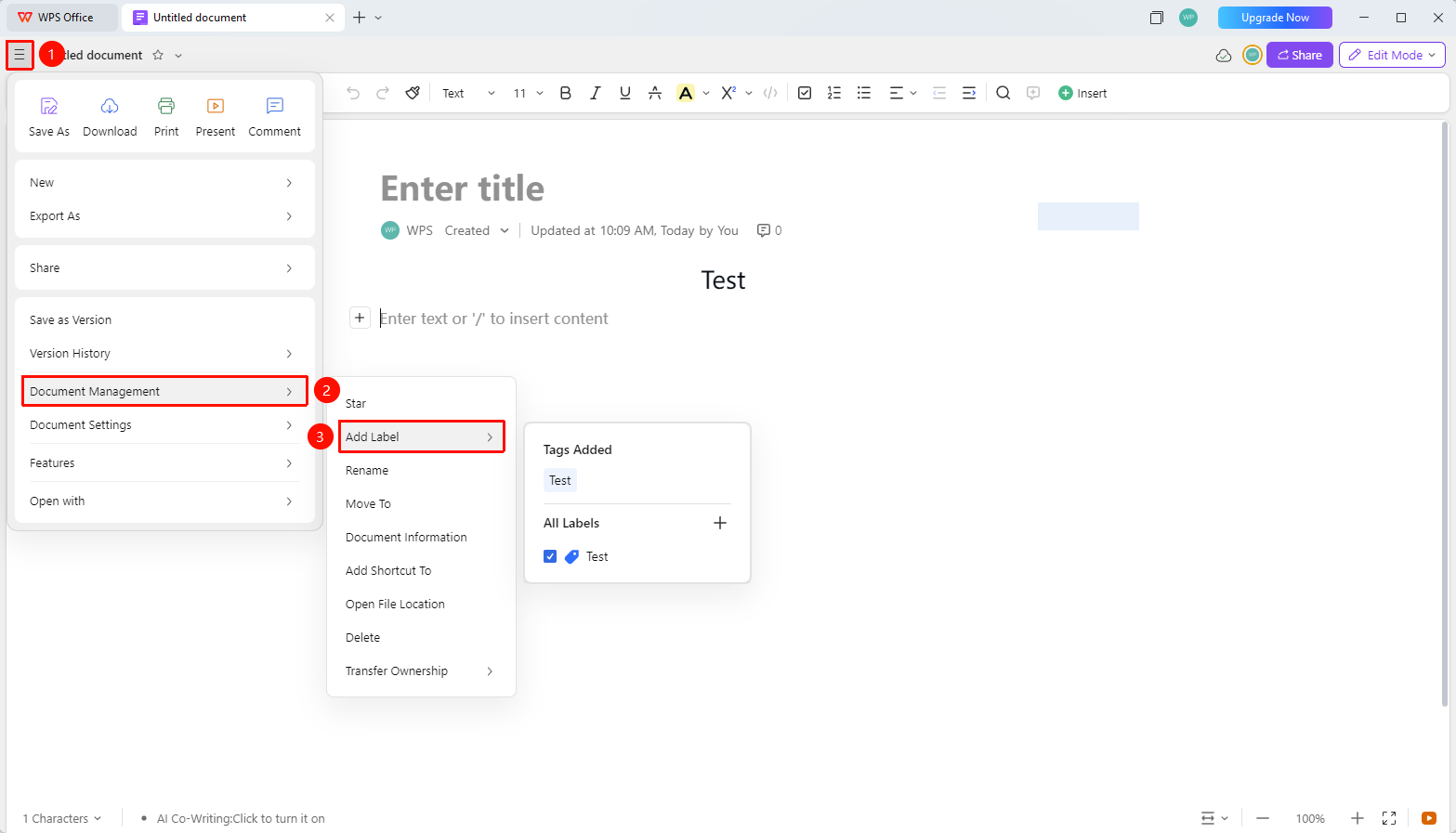
File Operations → 「Document Management」 → 「Add Tag」
- Open the collaboration tab where you want to add tags, and click the 「File Operations」 button (☰) icon in the upper left corner
- Click 「Document Management」 → 「Add Tag」 in sequence
- Select 「Tag」
- Add a new tag or select an existing tag to add
Manage Tags
Feature Entry
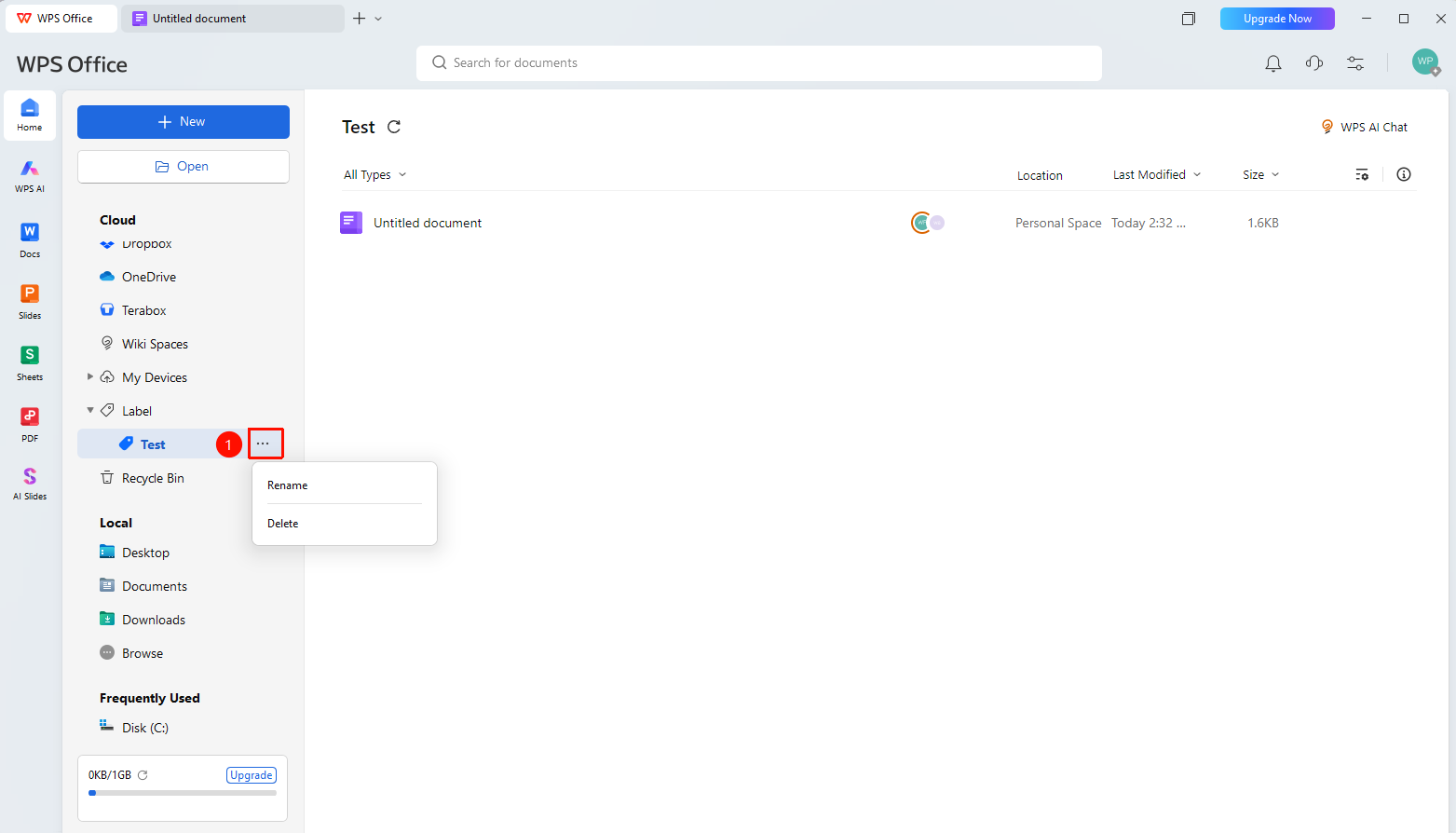
WPS Home left sidebar → 「Tag」
- Find the tag folder in the left sidebar of WPS Home
- Click a specific tag to view all files under that tag
- Click the 「More Options」 button (...) icon on the right side of the tag folder to expand the dropdown management menu
- Manage tag content in the dropdown menu
- 「Rename」 : Rename the tag name
- 「Delete」 : Delete the tag
FAQ
Q1: Can a document have multiple tags?
- Solution: Yes, a document supports adding multiple tags, facilitating multi-dimensional categorization and management.
Q2: How to manage existing tags?
- Solution: You can right-click a tag in the 「Tag」 folder to edit or delete existing tags.
Q3: Will deleting a tag delete the files?
- Solution: No, files will not be deleted. Files still need to be manually selected for deletion.
Notes
- A document can have multiple tags