Feature Summary
Copy files from Cloud Documents to a target folder while keeping the original files in their original location, enabling documents to be stored in multiple places.
Feature Description
| Feature Dimension | Description |
|---|---|
| Membership Restriction | No membership restriction |
| Version Restriction | No version restriction |
Steps
Right-Click to Copy a File
Feature Entry
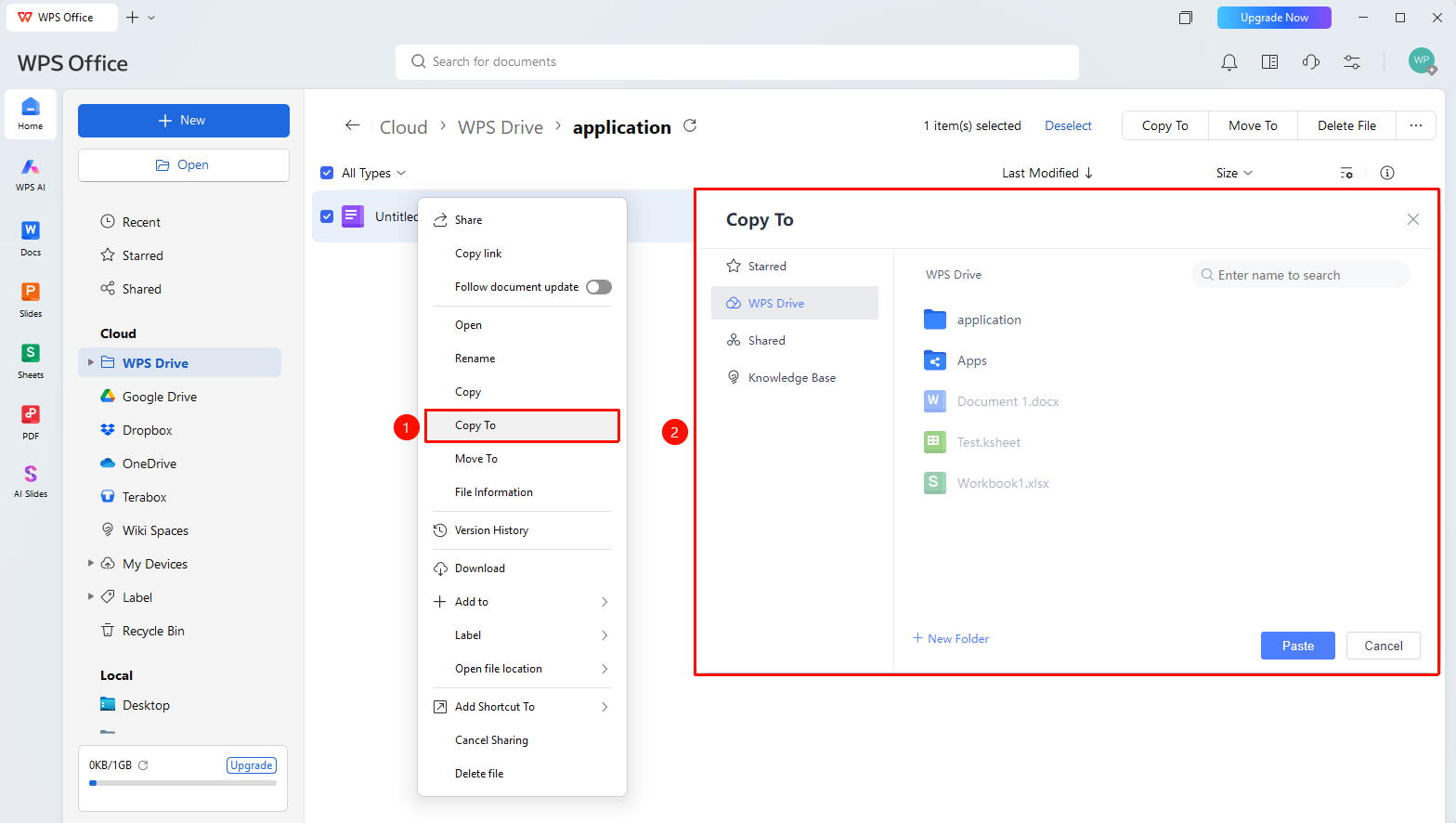
Document List → Right-Click Menu → 「Copy To」
- Open WPS and go to a document list page such as 「Personal Space」, then find the file you want to copy
- Right-click the target file and select 「Copy To」
- In the pop-up window, select the target folder and click 「Paste」 to complete
Batch Copy Files
Feature Entry
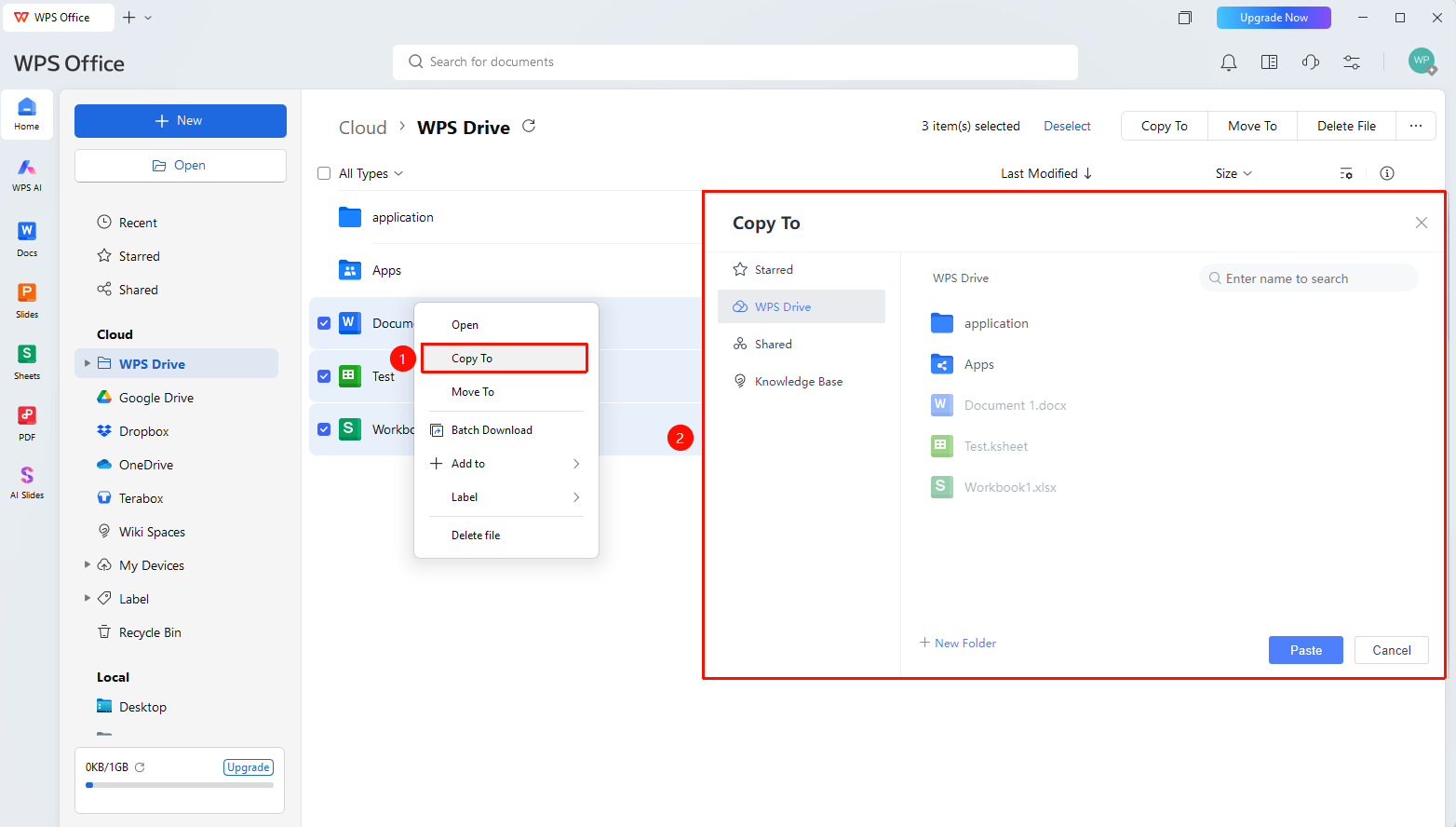
Document List → Select Files → 「Batch Operations」 → 「Copy To」
- In the document list, select multiple files you want to copy
- Click 「Copy To」 in the batch operations bar
- Select the target folder and click 「Paste」 to complete the copy
FAQ
Q1: What is the difference between copying a file and moving a file?
- Solution: After copying a file, the original file remains in its original location; after moving a file, the original file is no longer kept in its original location.
Q2: Copying files takes too long?
- Solution: If the files are large, batch copying may take a long time. Please wait patiently for the data to be copied and migrated.
Q3: What are the requirements for batch copying?
- Solution: For the batch copy feature, please pay attention to the remaining Drive space. Insufficient remaining Drive space will cause the copy to be interrupted and fail.
Notes
- The original file is not affected; two copies of the file will exist after copying
- When copying to a shared folder, the copied file will automatically inherit the permission settings of the target folder
- The copy operation supports cross-directory copying