Feature Summary
Move unwanted files or folders in cloud documents to Trash, freeing up cloud space and managing documents.
Feature Description
| Feature Dimension | Description |
|---|---|
| Membership Restriction | No membership restriction |
| Version Restriction | No version restriction |
Steps
Method 1: Right-click to Delete
Feature Entry
Personal Space list → Right-click menu → "Delete File"
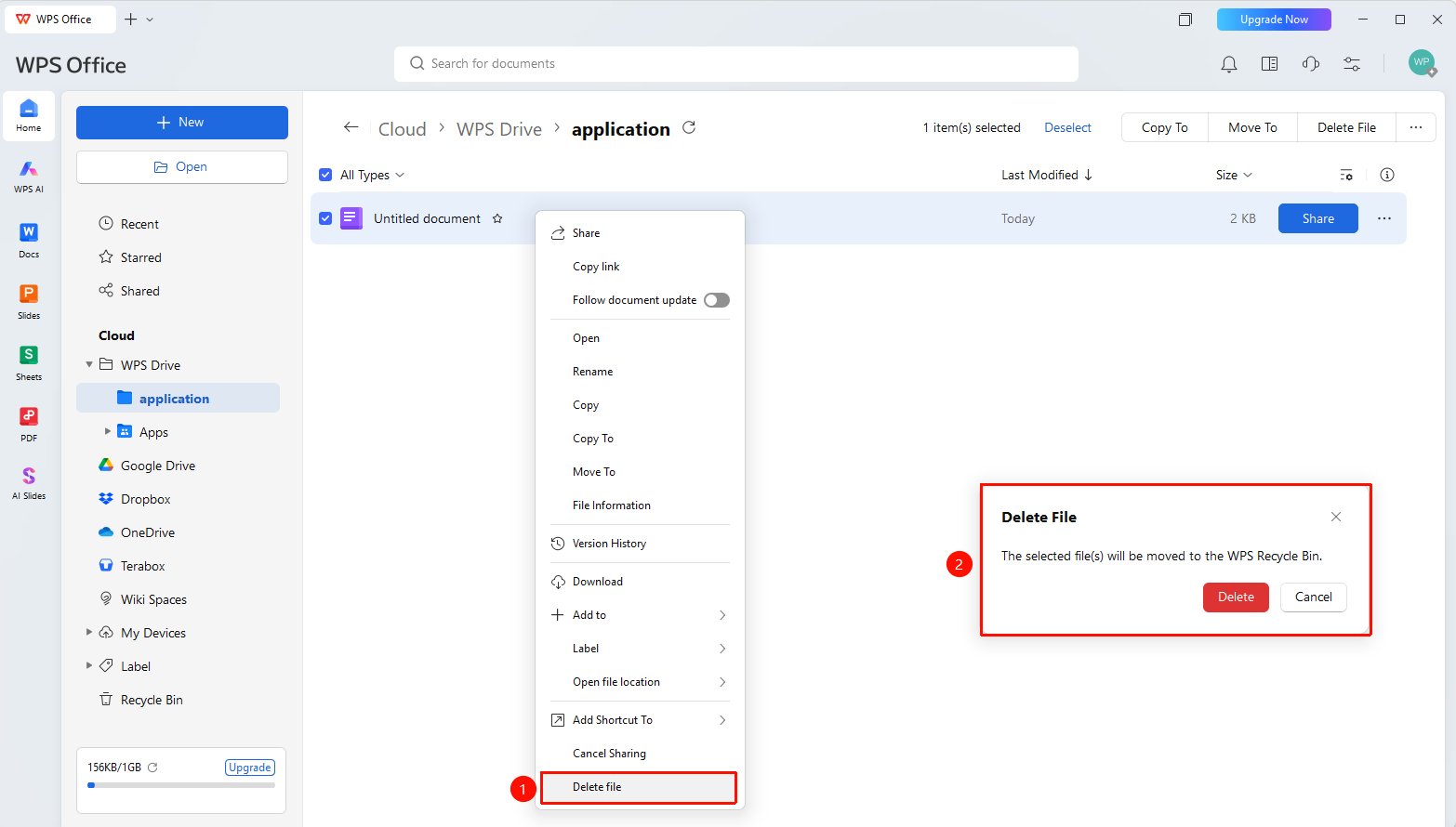
- Open WPS, navigate to the cloud drive path such as "WPS Cloud Drive" or "My Devices", and locate the file you want to delete.
- Right-click the target file and select "Delete File"
- Click "Delete" in the confirmation dialog that appears
Method 2: Batch Delete
Feature Entry
Personal Space → Select files → "Batch Operations" → "Delete File"
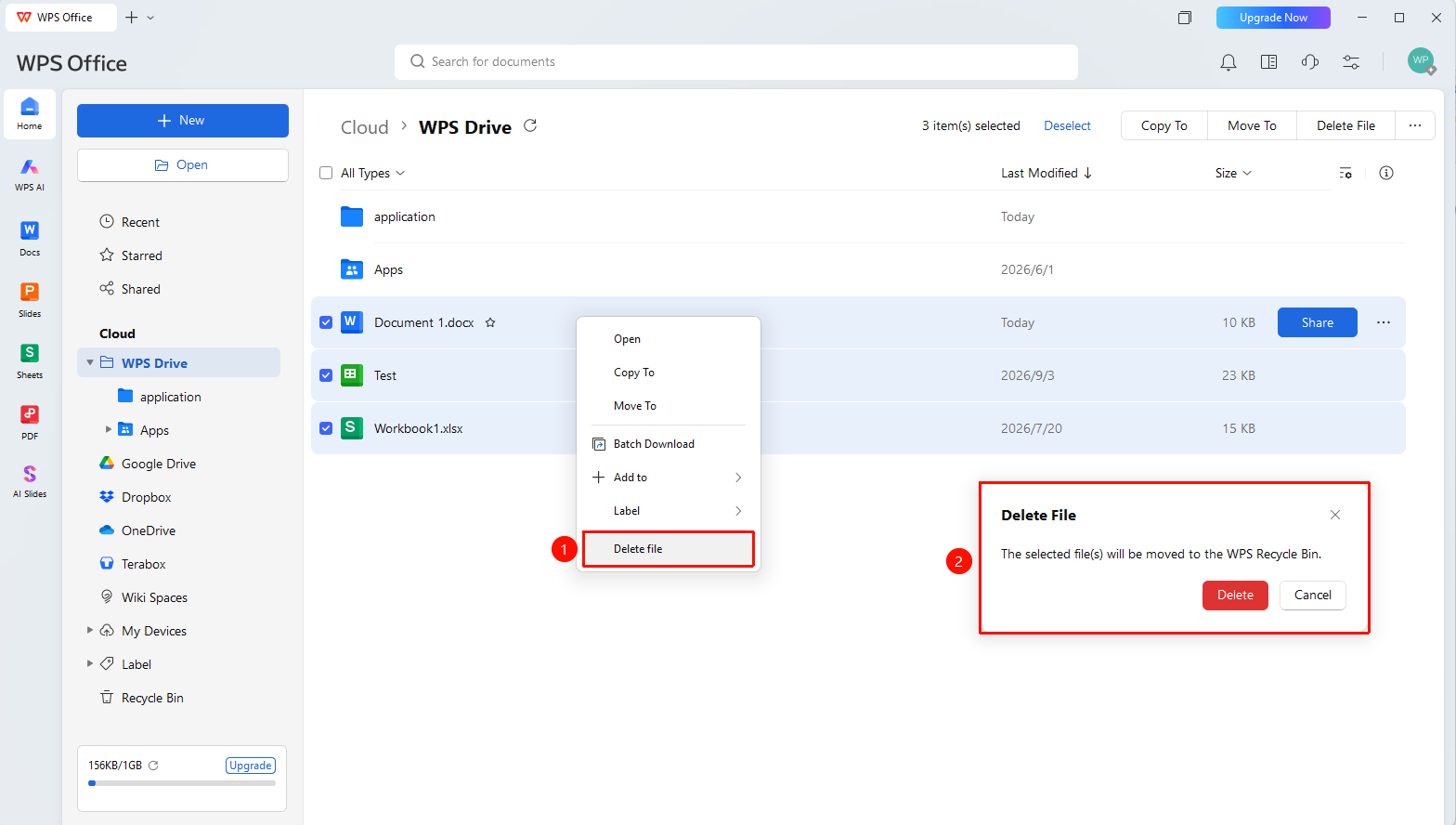
- Check multiple files you want to delete in the cloud document list
- Click "Delete File" in the top batch operation bar
- Confirm the deletion
FAQ
Q1: Can deleted files be recovered?
- Solution: Yes. Deleted files are moved to "Trash", and can be restored from Trash during that period.
Q2: How to permanently delete files?
- Solution: Go to "Trash", select the file and delete it again, or click "Empty Trash" to permanently delete the file.
Q3: Will deleting a file in a shared folder affect other members?
- Solution: Deleting a file in a shared folder will affect all members simultaneously. It is recommended to confirm with collaborators before deleting.
Notes
- After deletion, files are first moved to Trash, not permanently deleted.