Feature Summary
The Add Collaborator feature supports inviting others to jointly edit or view documents through various methods, including Contacts selection and link sharing, to quickly assemble a collaboration team.
Feature Description
| Feature Dimension | Description |
|---|---|
| Membership Restriction | Free to use |
| Version Restriction | Collaboration mode must be enabled |
Operation Steps
Add Collaborators from Contacts
Feature Entry
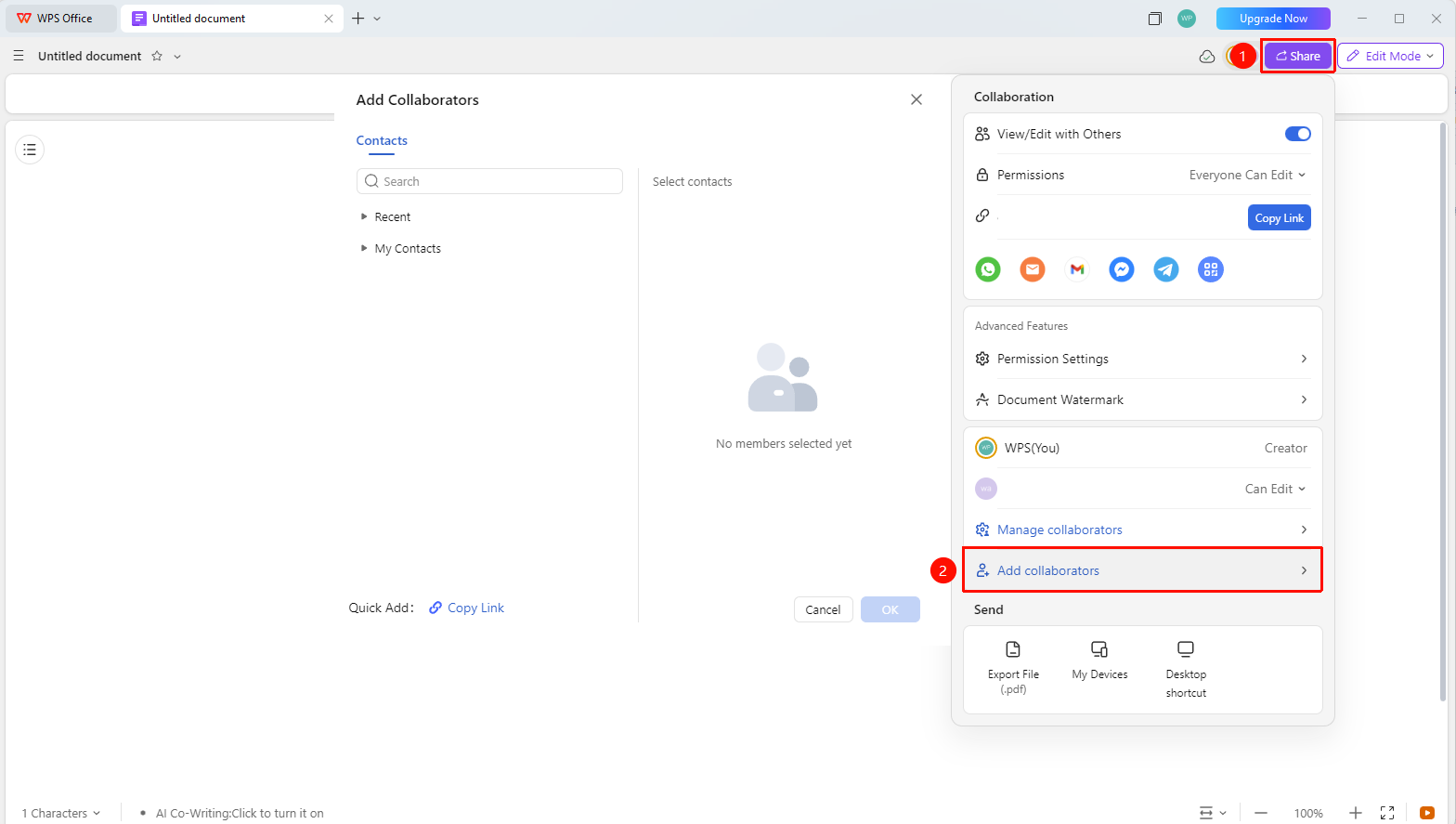
「Share」→「Add Collaborator」→「Select from Contacts」
- Open the document and click 「Share」 in the upper right corner
- Click 「Add Collaborator」
- Select 「Select from Contacts」
- Search or browse Contacts and select the members to invite
- Set member permissions (can edit/view only)
- Click 「Confirm」 to send the invitation
Add Collaborators via Link
Feature Entry
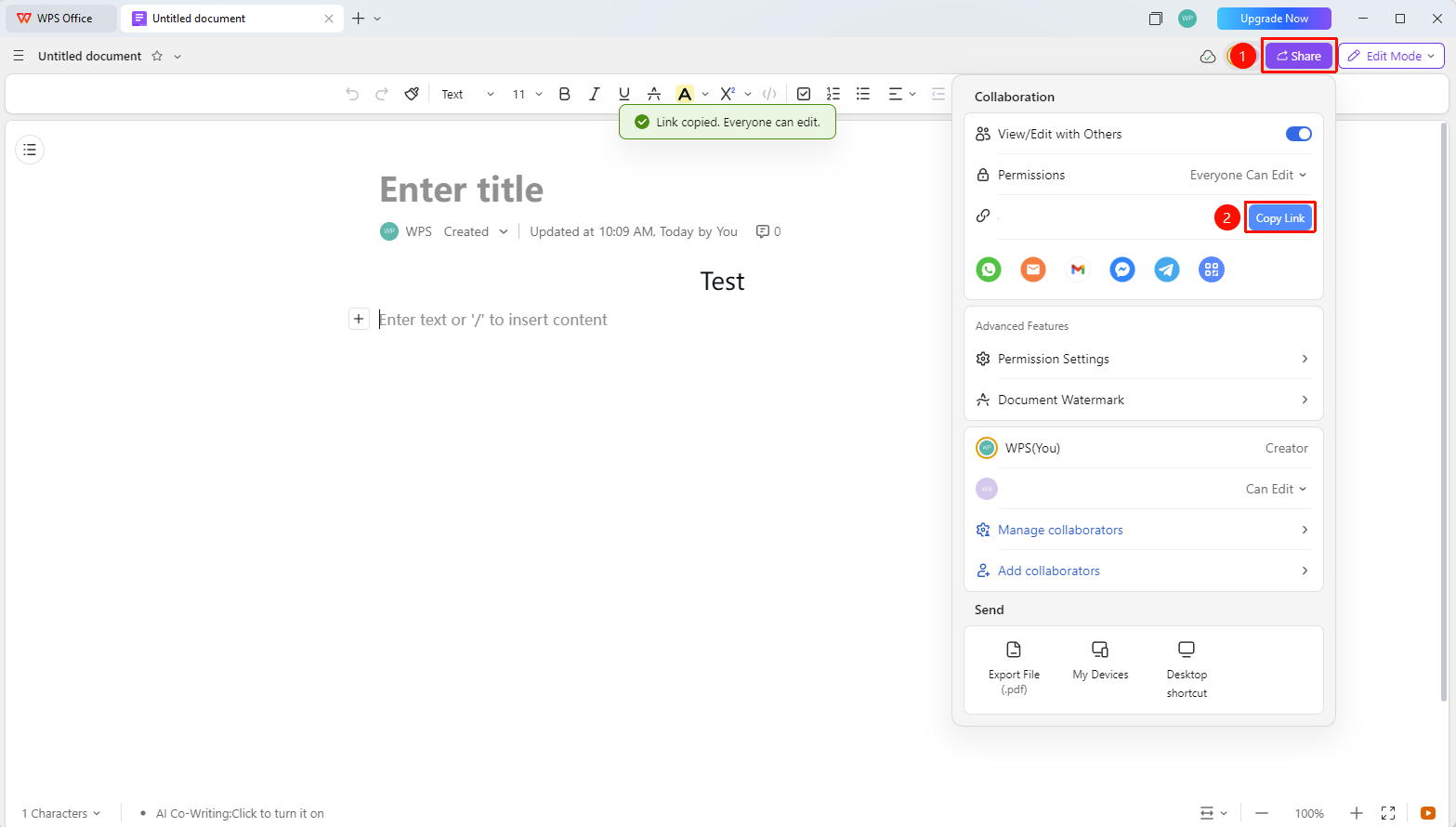
「Share」→「Copy Link」
- Click 「Share」 in the upper right corner of the document
- Set the link permissions
- Click 「Copy Link」
- Send the link to friends (Email, WPS collaboration, etc.)
- The recipient can access the document by clicking the link
FAQ
Q1: What if the invited person does not have a WPS account?
- Solution: They can sign in using a third-party account such as Email, or access after signing up for a new account.
Q2: The invited person does not receive the notification?
- Solution: Check if there is a WPS account with the same name, or directly copy the link and send it to them.
Q3: Can I invite multiple people at the same time?
- Solution: Yes. Batch selection or direct invitation via link is supported.
Notes
- It is recommended to set the permission level before adding collaborators
- Collaborator permissions can be modified or revoked at any time
- It is recommended to use the 「Specific People」 permission for sensitive documents
- Right-click a file on the WPS homepage → 「Document Permissions」 to manage document permissions
- Right-click a file on the WPS homepage → 「Copy Link」 to quickly enable collaboration mode and invite members to join