Feature Summary
Displays recently opened documents, allowing users to quickly resume unfinished work.
Feature Description
| Feature Dimension | Description |
|---|---|
| Membership Restriction | No membership restriction |
| Version Restriction | No version restriction |
Operation Steps
View Recent List
Feature Entry
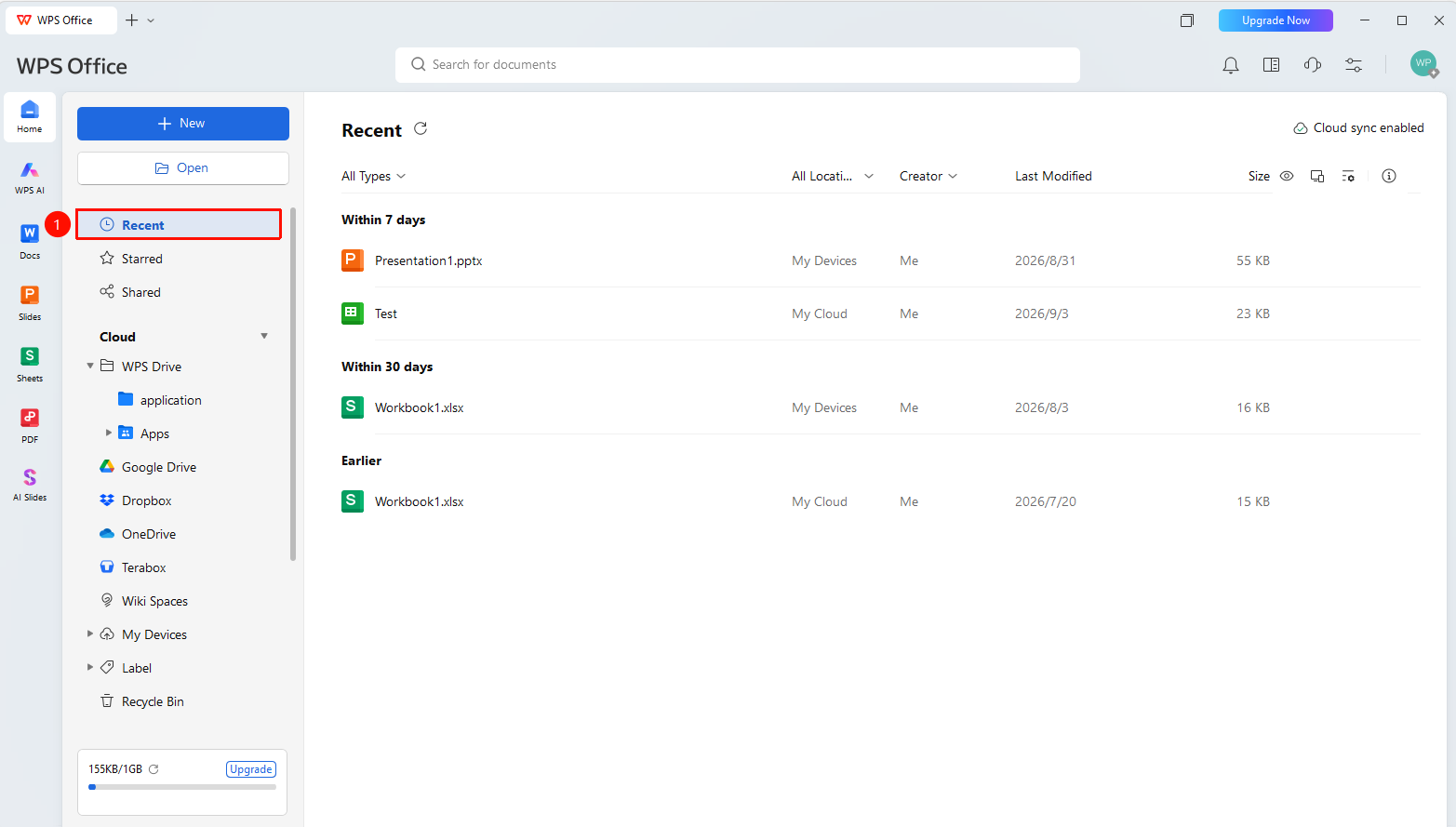
WPS left navigation bar "Recent List"
- Open WPS and click the "Recent List" option in the left navigation bar
- You can view a list of all recently opened documents
- You can view the file storage location, creator, last modified time, and size
- Click a document to open it directly and continue editing
Recent List Settings
Feature Entry
WPS left navigation bar "Recent List" → top settings area
- Open WPS and click the "Recent List" option in the left navigation bar
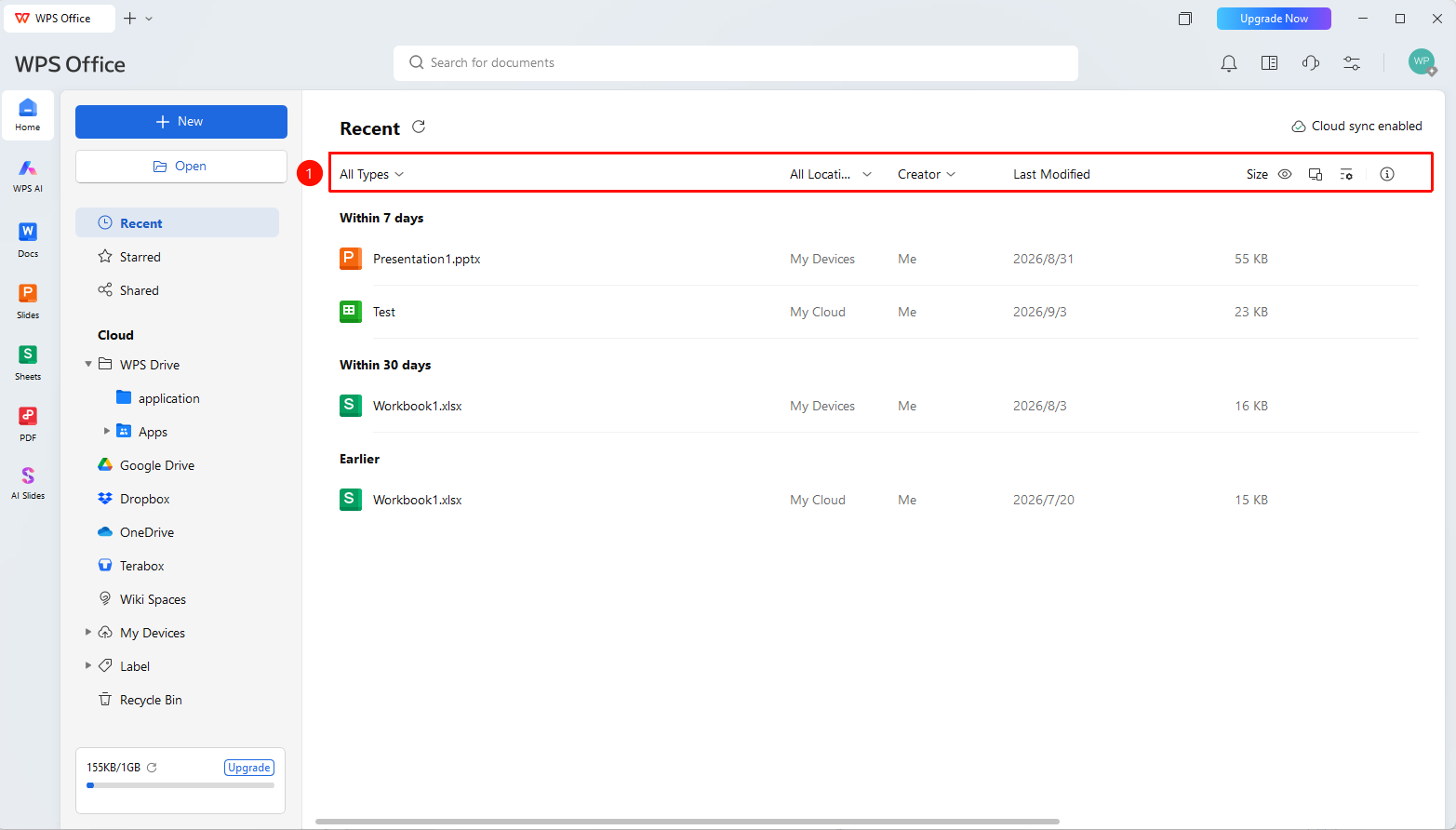
- Configure the following settings in the top settings area of the page:
- "All Types" : Click to filter by desired file type
- "Creator" : Filter open records by file creator
- "Hide Recent Records" : Hide/Show recent records
- "Creator" : Filter open records by file creator
- "Settings" : Set the display view and custom list display elements
- "File Info" : Display file information for the selected cloud document
Delete Open Record
Feature Entry
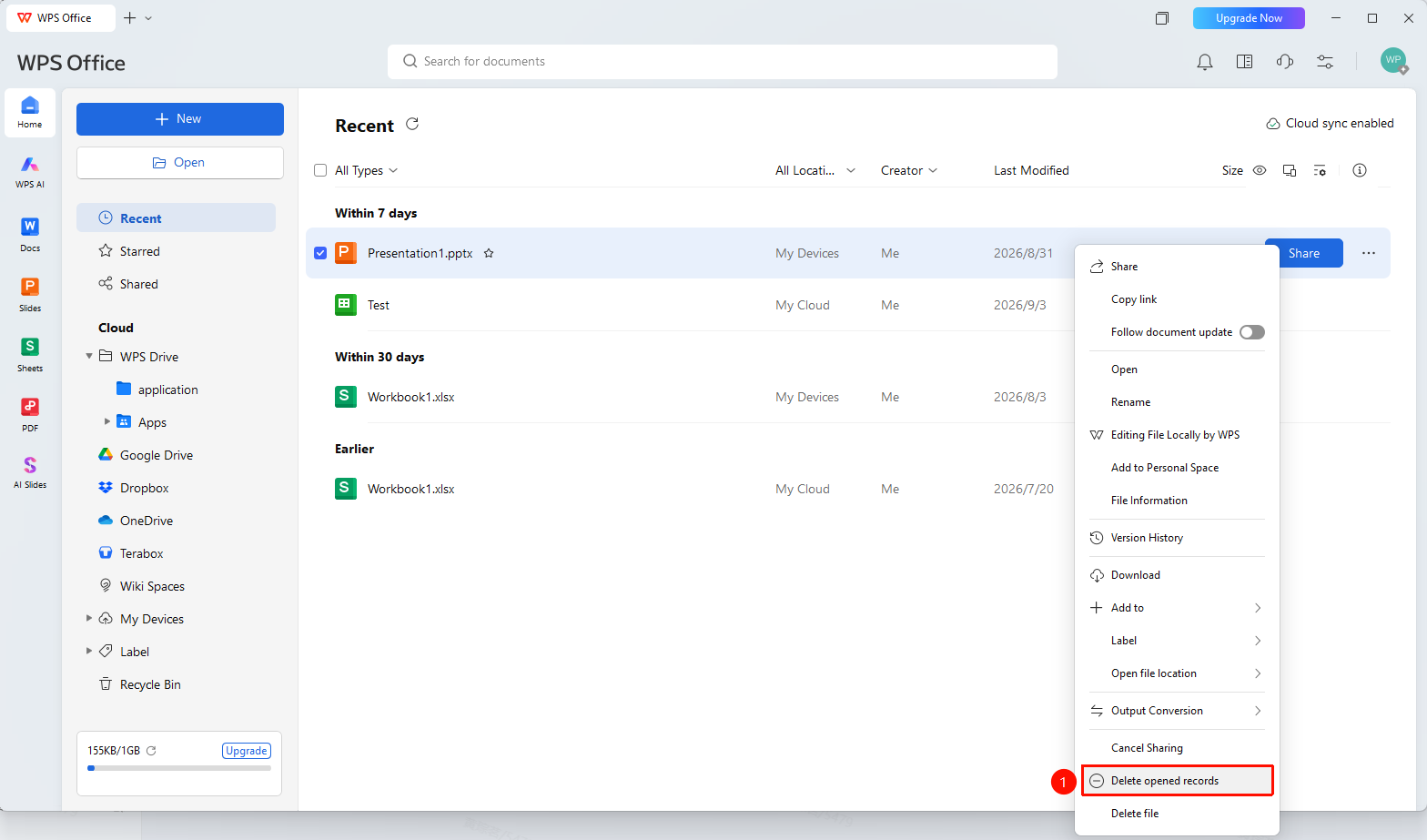
"Recent List" file menu → "Delete Open Record"
- Open WPS and click the "Recent List" option in the left navigation bar
- Select the file whose open record you want to delete
- Click the "Menu" button (...) icon on the far right, or right-click
- Select "Delete Open Record" from the menu that appears
- This will delete the open record of the selected file, but will not delete the file itself
Hide Recent Records
Feature Entry
"Recent List" file menu → "Hide Recent Records"
- Open WPS and click the "Recent List" option in the left navigation bar
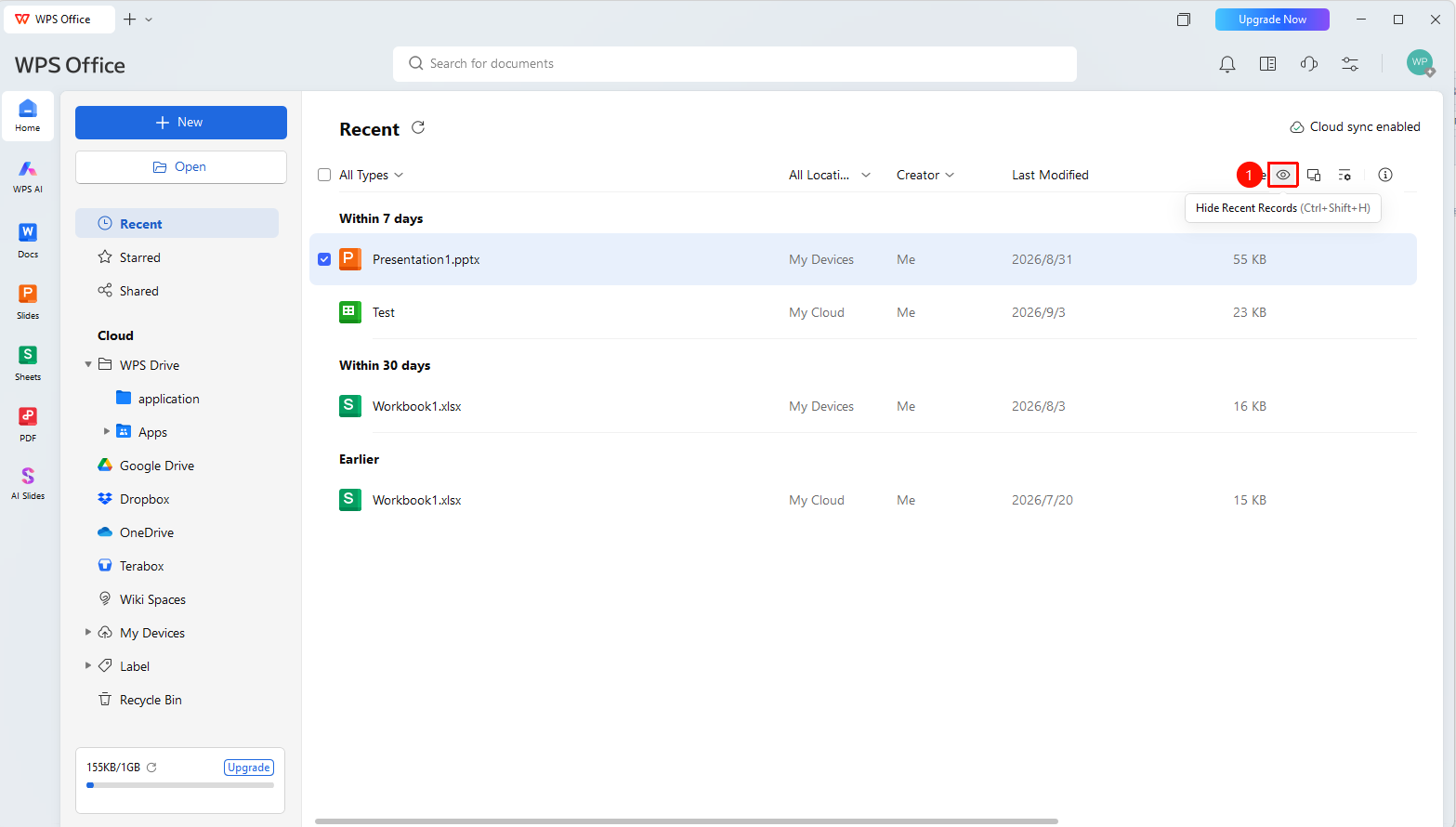
- Click the "Hide Recent Records" option at the top of the page
- This will hide the recent records for this account with one click
- Click again to show the recent list again
FAQ
Q1: Can the recent list be viewed across devices at most?
- Solution: The recent list displays records of recently operated documents. After signing in to your account and enabling cloud sync, the recent list can be synced across devices.
Q2: How to completely disable recent list records?
- Solution: File records in the recent list are automatically updated and cannot be completely disabled. It is recommended to hide the list or manually delete open records.
Q3: Documents in the recent list cannot be opened across devices?
- Solution: Sign in with the same WPS account and verify whether the document is a local file on the original device that has not yet been uploaded to the cloud. It must be uploaded to the cloud before it can be viewed across devices.
Notes
- Recent list records are bound to the WPS account and synced across devices
- The recent list only displays file access paths and does not occupy cloud space
- Hiding recent records only hides the open file records; it does not delete them