Feature Summary
Star important or frequently used cloud documents for quick access in the star list.
Feature Description
| Feature Dimension | Description |
|---|---|
| Membership Restriction | No membership restriction |
| Version Restriction | No version restriction |
Steps
Star/Unstar
Feature Entry
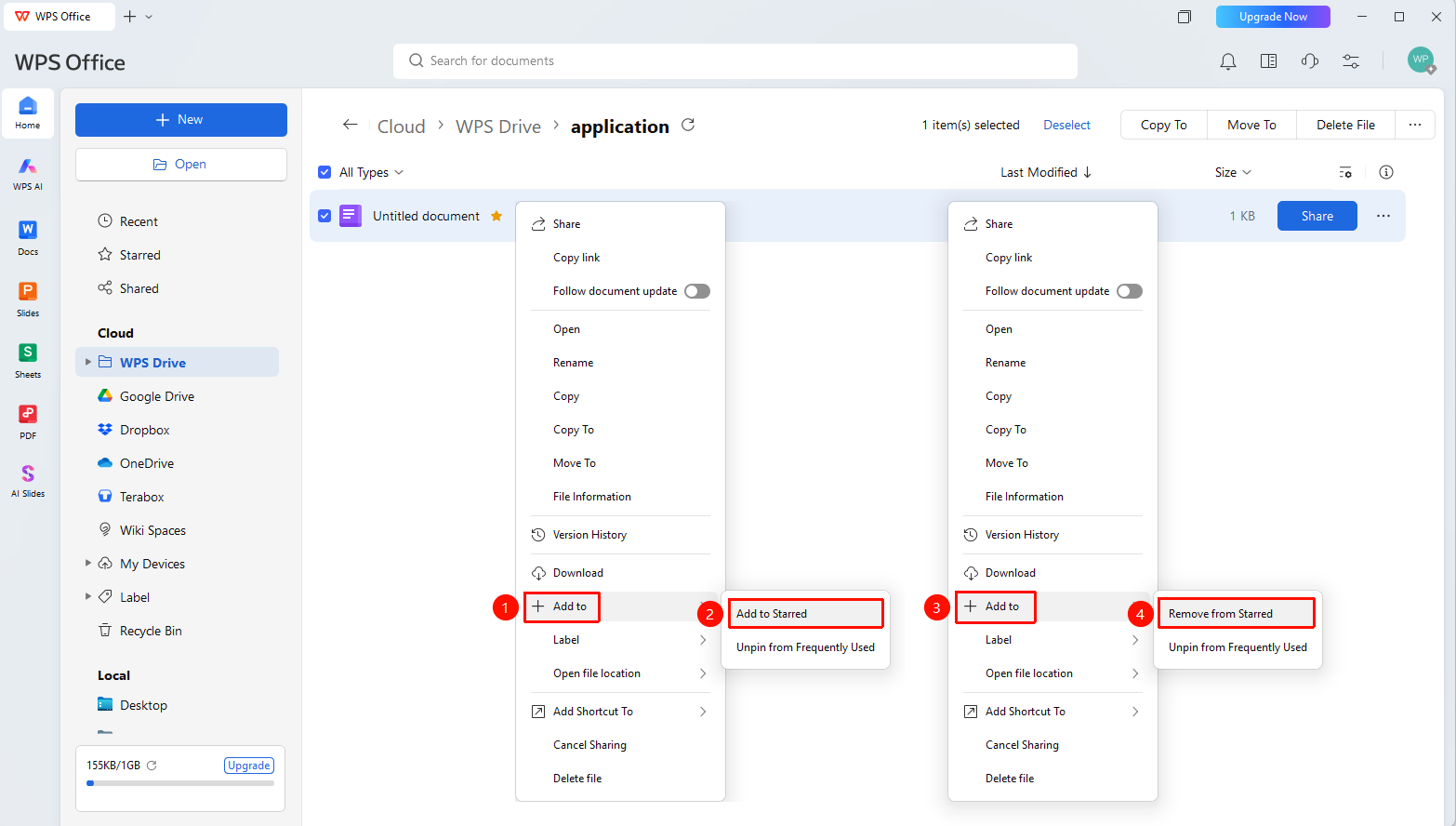
Personal Space list → Right-click file → "Add to" → "Star"
- Open WPS and go to the Personal Space page
- Find the file you want to star and right-click it
- Select "Add to" → "Star" in sequence to complete starring
- Click "Add to" → "Unstar" again to unstar the document
View Starred Files
Feature Entry
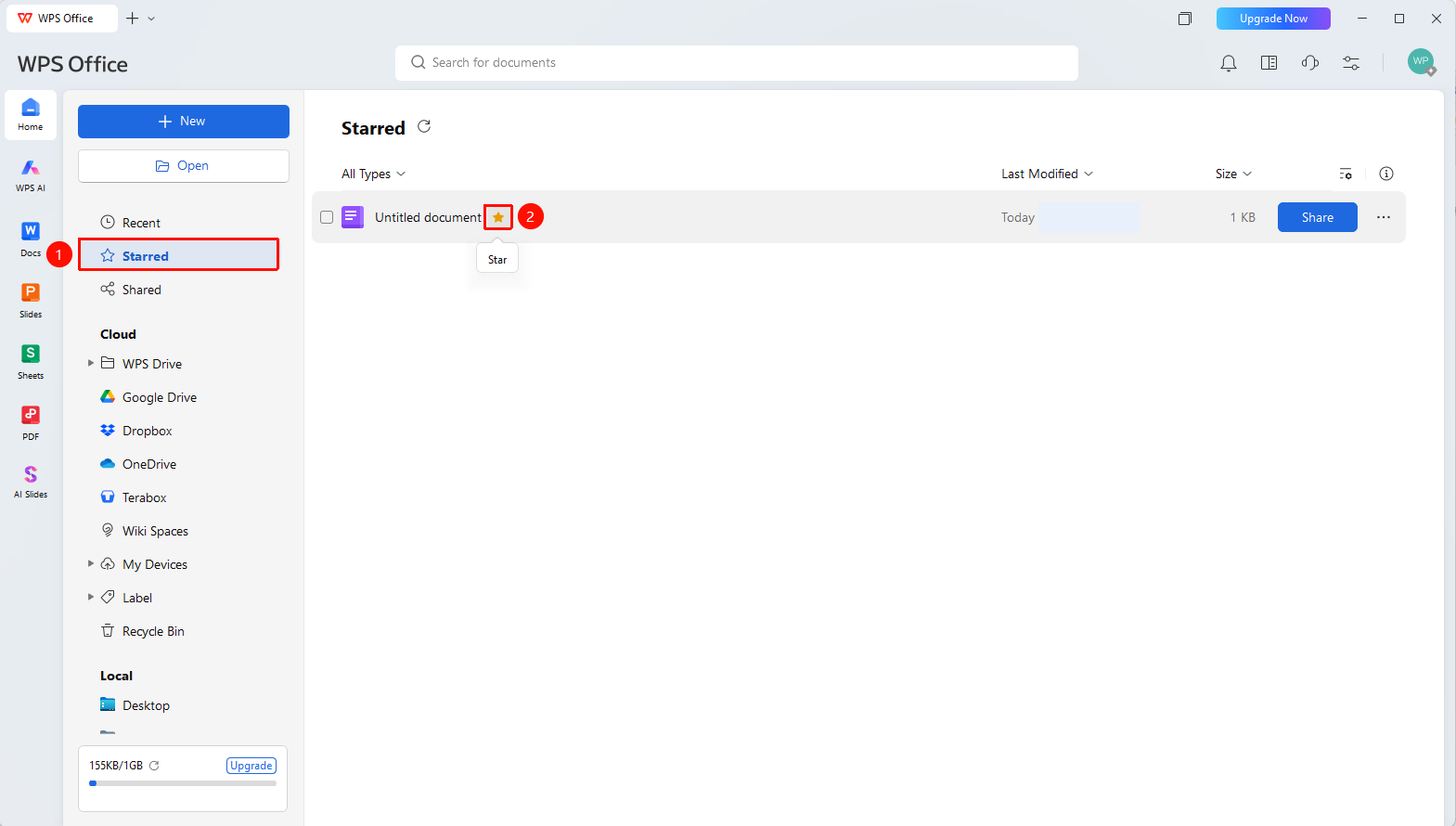
Left navigation bar → "Star"
- Select and switch to the "Star" tab in the left navigation bar
- All starred files will be displayed here
- Double-click to open a starred document
- Click the "★" icon after the file name to unstar the document
FAQ
Q1: Will stars sync across devices?
- Solution: Yes. Star settings will sync to your WPS account, and you can directly view starred files after signing in across devices.
Q2: How do I unstar a file?
- Solution: Right-click the starred file and select "Unstar" again to remove it.
Q3: Can folders be starred?
- Solution: Yes. Folders also support starring, making it easy to quickly access frequently used directories.
Notes
- There is no upper limit on the number of stars
- Starred files will sync to all signed-in devices
- You can quickly star/unstar by hovering over a cloud document/folder name