Feature Summary
Temporarily stores deleted cloud documents, allowing you to restore accidentally deleted files or permanently clean up cloud storage space.
Feature Description
| Feature Dimension | Description |
|---|---|
| Membership Restriction | No membership restriction |
| Version Restriction | Includes some membership features |
Steps
Restore Deleted Files
Some features require a membership subscription to use. Please look for the membership icon before use.
Feature Entry
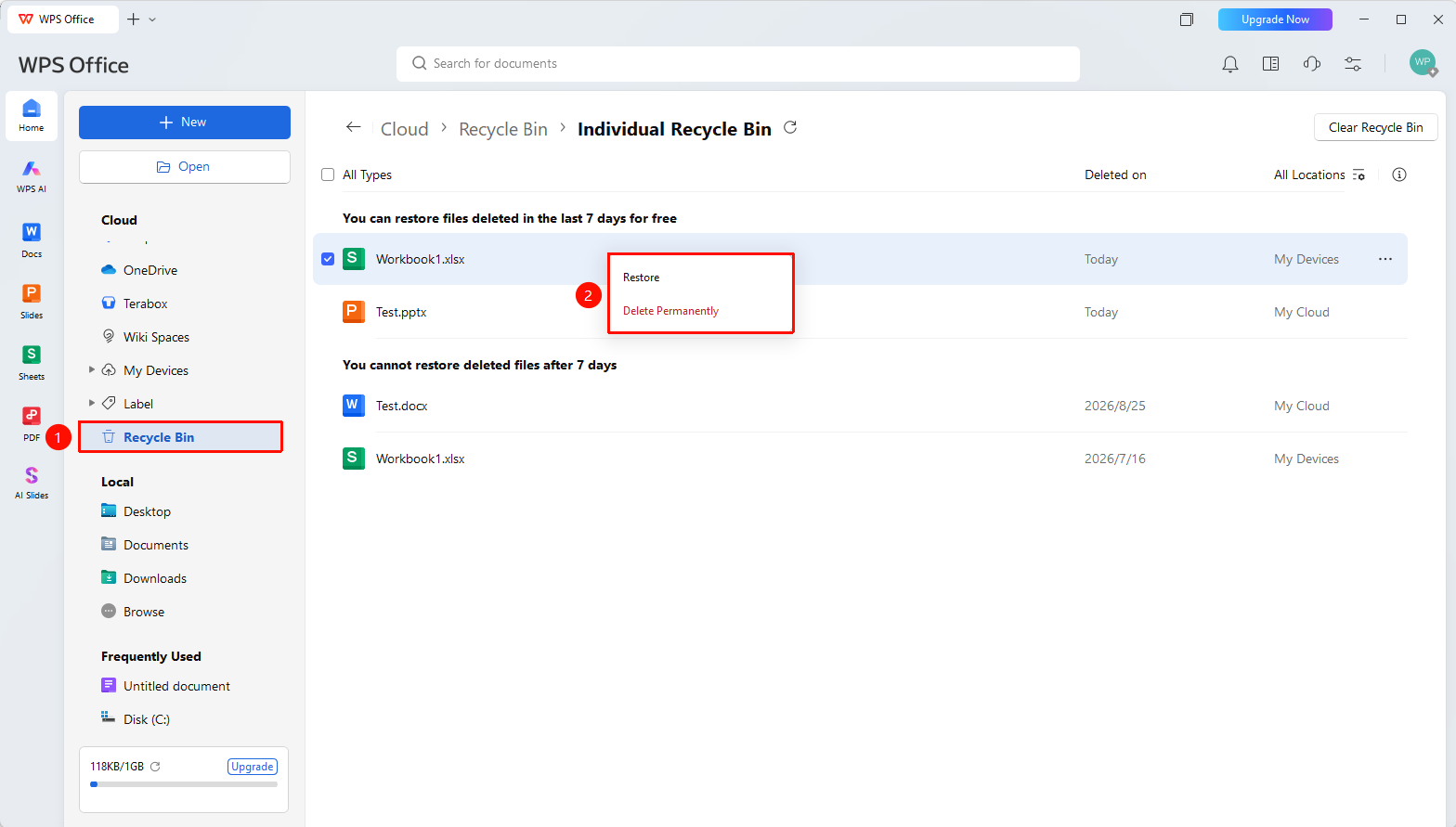
「Cloud Documents」→「Recycle Bin」→Right-click file→「Restore」
- Open WPS and click 「Recycle Bin」 in the left navigation bar.
- Right-click the file you need to restore and select 「Restore」.
- Click the checkbox in front of a file to select multiple files for batch 「Restore」 / 「Permanently Delete」.
- Files deleted within 7 days can be restored for free. Files deleted more than 7 days ago require a membership subscription to restore.
Empty Recycle Bin
Feature Entry
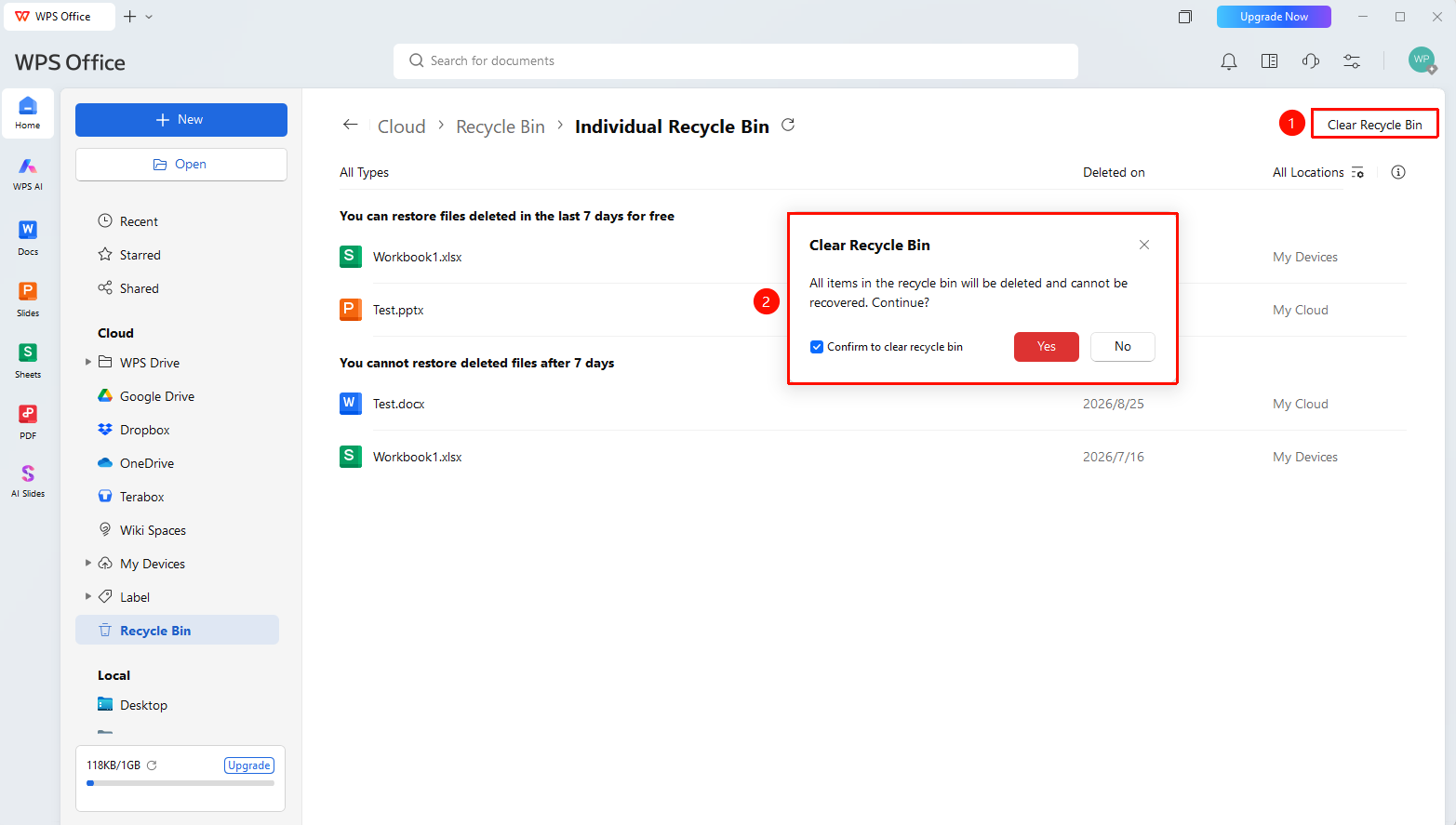
「Recycle Bin」→「Empty Recycle Bin」
- Go to the Recycle Bin page.
- Click the 「Empty Trash」 button at the top.
- After confirmation, all files in the Trash will be permanently deleted.
FAQ
Q1: Can permanently deleted files be restored?
- Solution: Files cannot be restored after the Trash is emptied. Please proceed with caution.
Q2: Can shared files be restored here after deletion?
- Solution: After files in a shared folder are deleted, they will be moved to the shared folder owner's Trash. You can contact the owner to perform the restoration.
Q3: Will deleted local files be moved to the WPS Recycle Bin?
- Solution: No. Deleted local files will be moved to the system Recycle Bin. Only deleted WPS Cloud Documents will be moved to the WPS Recycle Bin.
Notes
- The Empty Recycle Bin operation is irreversible.