Feature Summary
Provides a quick access bar with high-frequency entry points, allowing you to quickly locate frequently used folders and files.
Feature Description
| Feature Dimension | Description |
|---|---|
| Membership Restriction | No membership restriction |
| Version Restriction | No version restriction |
Steps
Add Frequent Location
Feature Entry
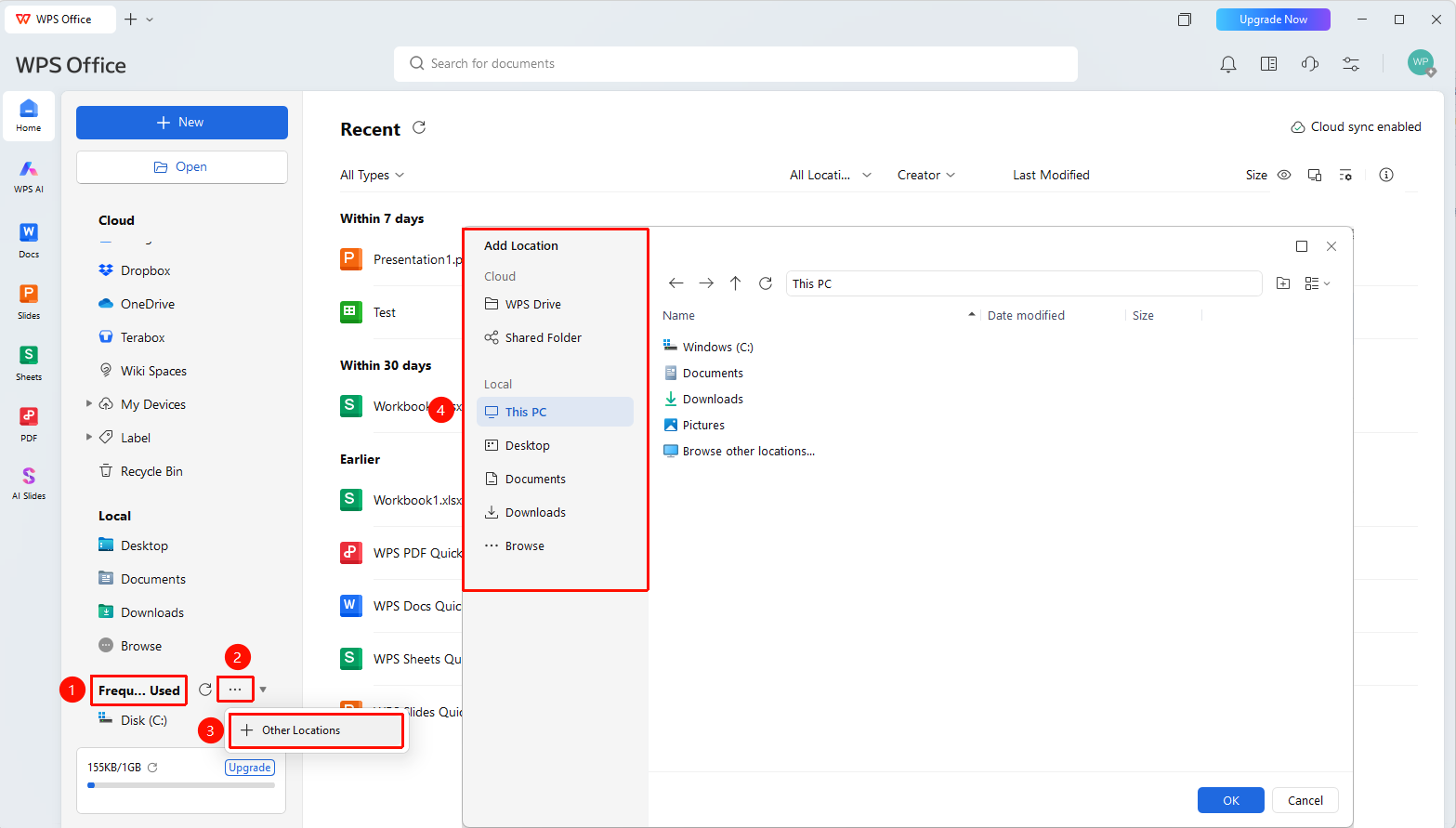
WPS Home left sidebar → "Frequent"
- Open WPS and click the "Frequent" tab in the left navigation bar
- Click "..." below the tab → "Other Locations"
- You can add other locations to Frequent (e.g., My Computer, Documents, a local folder, etc.)
- Once added, you can quickly open them without switching interfaces
Add Frequent Drive Files
Feature Entry
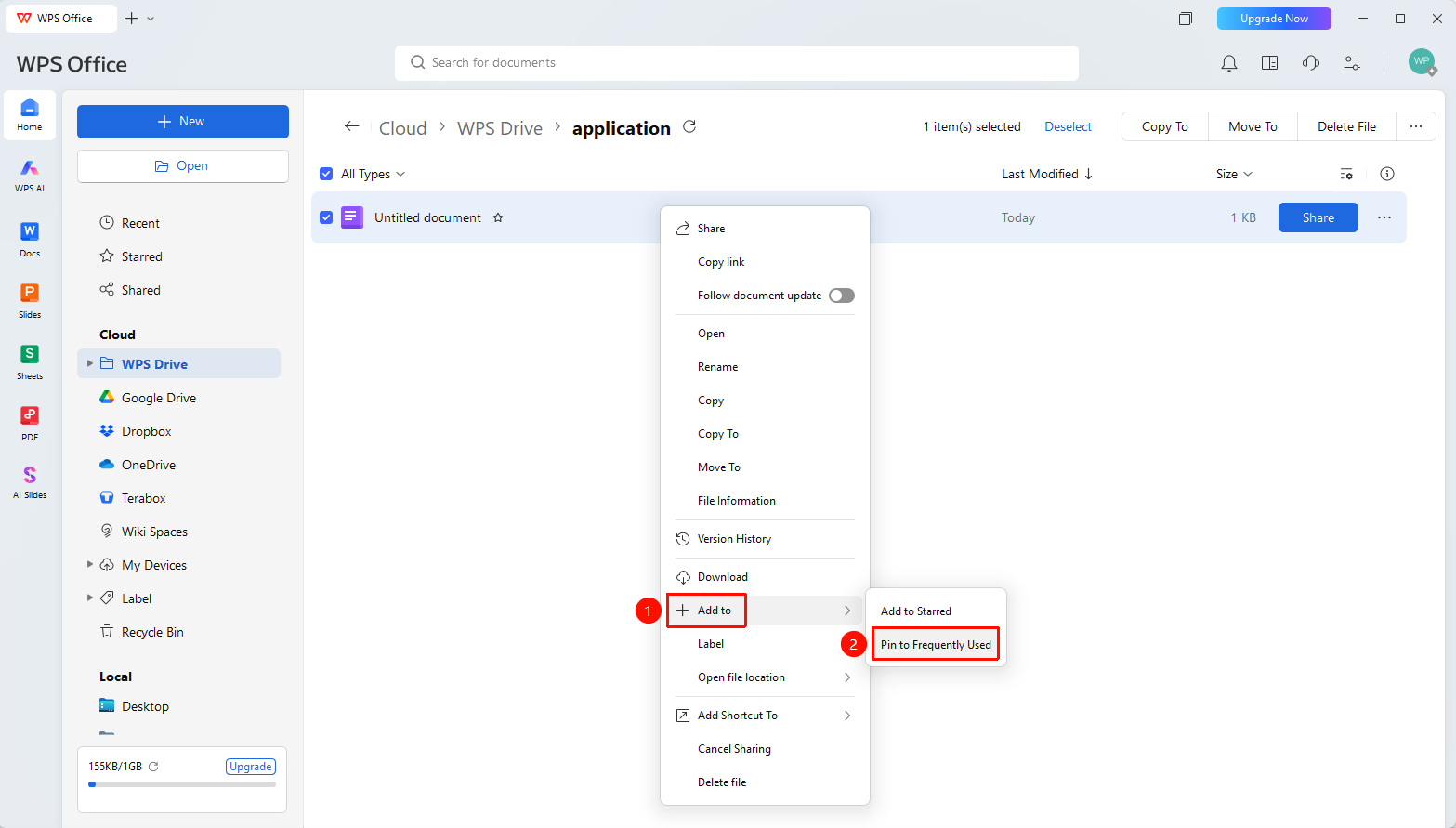
Right-click file/folder → "Add to" → "Pin to Frequent"
- Find the folder or file you want to pin in Cloud Documents
- Right-click and select "Add to" → "Pin to Frequent"
- Once pinned, you can quickly access it from the Frequent list
Unpin File
Feature Entry
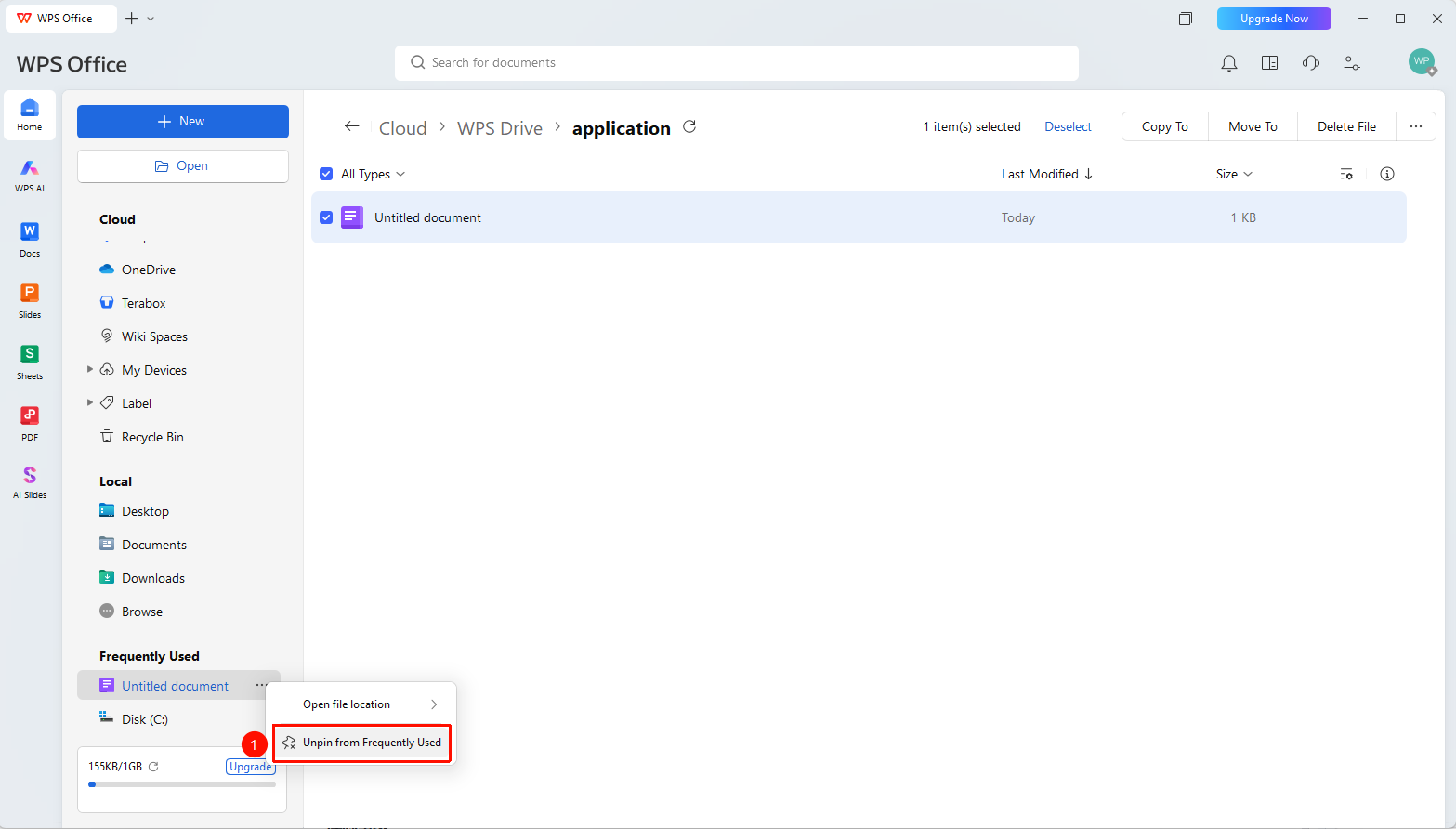
WPS Home left sidebar → "Frequent"
- Open WPS and click the "Frequent" tab in the left navigation bar
- Right-click the pinned location or file added below the tab
- Select "Unpin"
- The pinned location will be removed
FAQ
Q1: Will the settings in the Frequent list sync across devices?
- Solution: Yes. Pinned settings will sync to your WPS account, and you will see the same Frequent list after signing in on other devices.
Q2: How do I unpin an item?
- Solution: Right-click the pinned item in the Frequent list and select "Unpin" to remove it.
Q3: What is the maximum number of items I can add to the Frequent list?
- Solution: There is no strict upper limit for the Frequent list. It is recommended to manage it based on usage frequency to keep the list concise and efficient.
Notes
- The Frequent list supports pinning both folders and files
- Pinned settings sync across devices
- Supports adding files directly by dragging and dropping