Feature Summary
After enabling Document Cloud Sync, you can access documents opened on this computer from your phone or other computers, enabling automatic cross-device document synchronization.
Feature Description
| Feature Dimension | Description |
|---|---|
| Membership Restriction | No membership restriction |
| Version Restriction | No version restriction |
Steps
Enabling the Document Cloud Sync Feature
Feature Entry
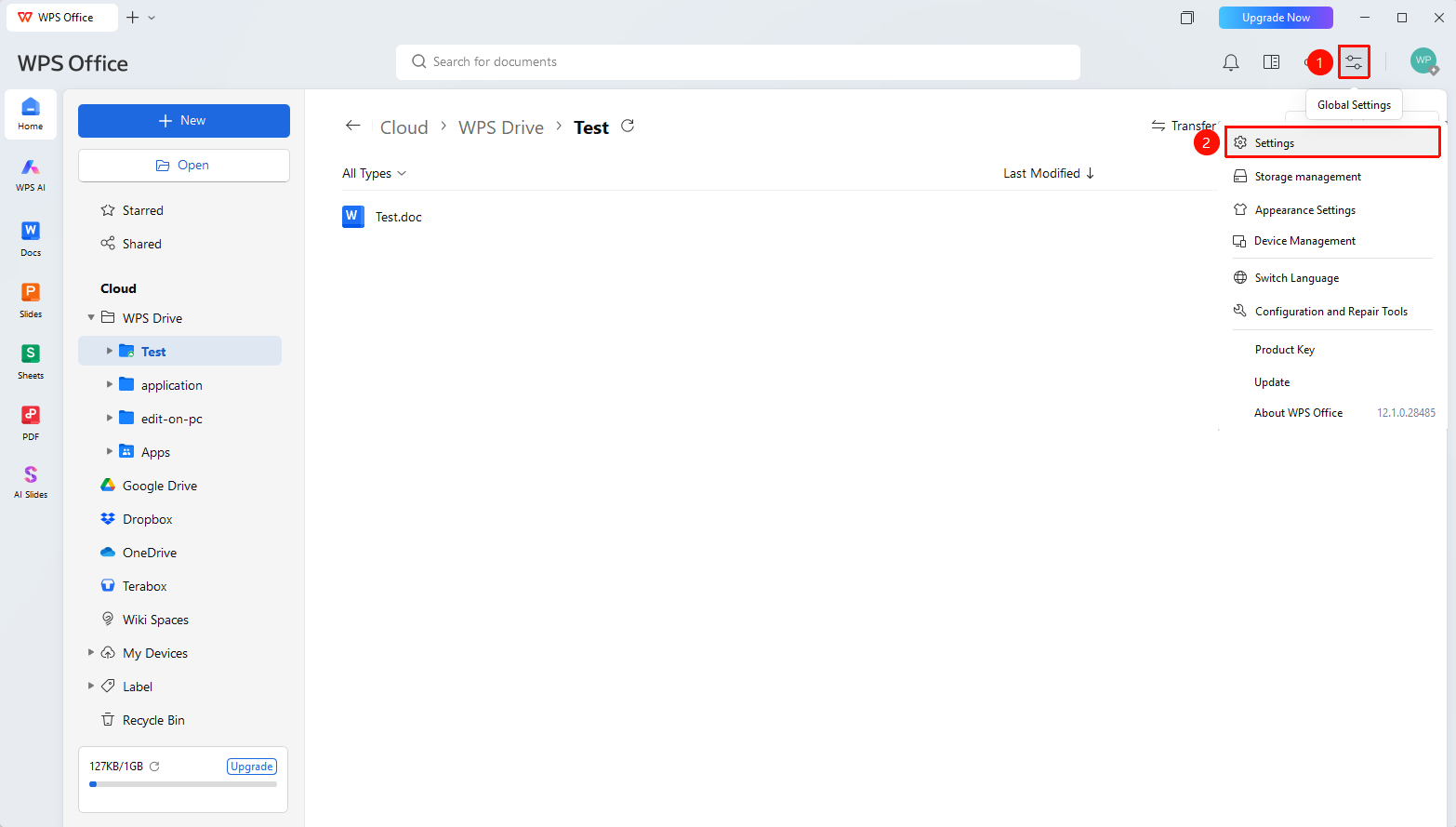
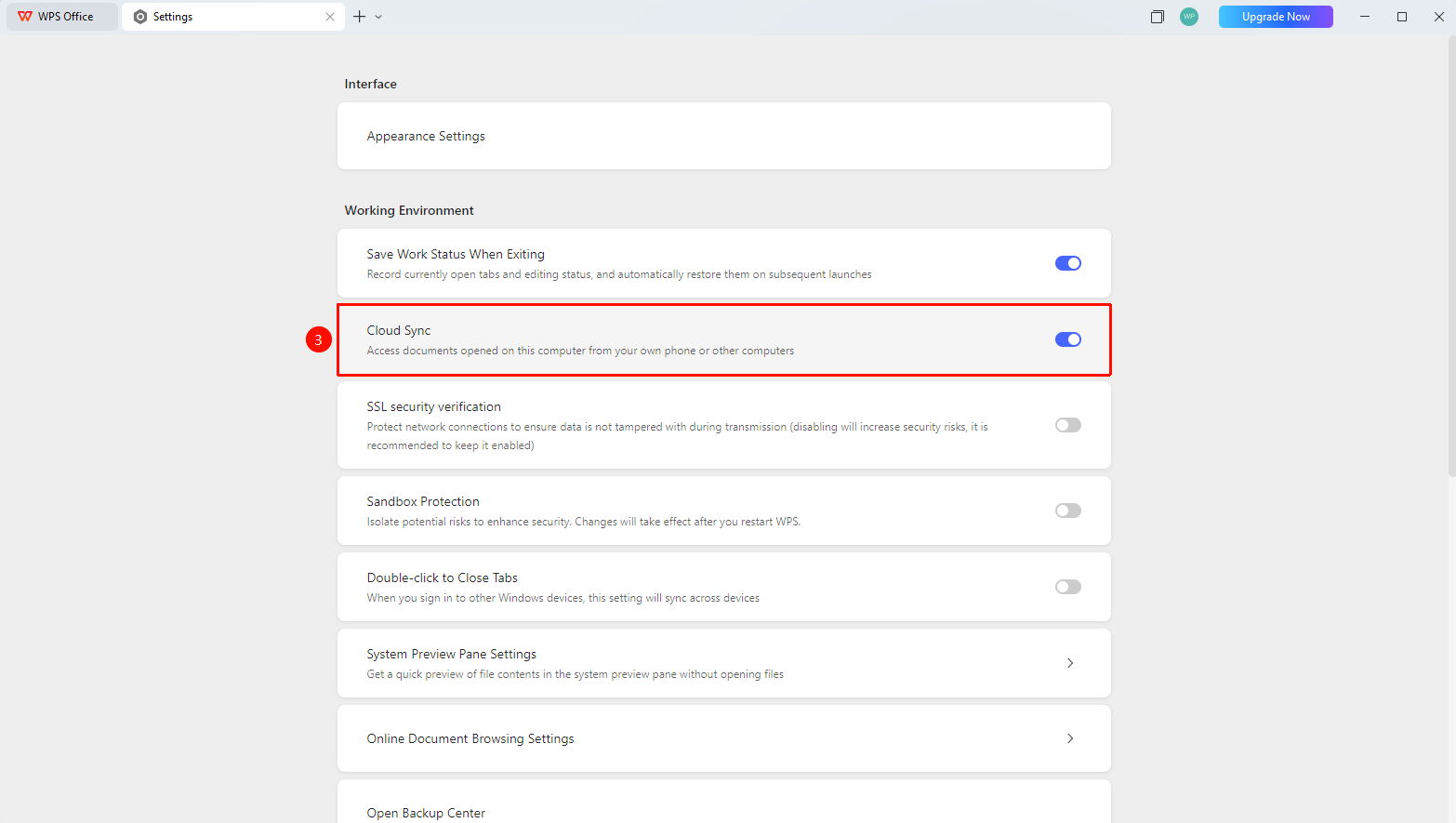
WPS Home → Top-right corner "Global Settings" button → "Settings" option → Enable "Document Cloud Sync"
- Open the WPS client and go to the Home page.
- In the top-right corner of the page, click the "Global Settings" button (icon is "≡").
- In the drop-down menu, click the "Settings" option.
- On the Settings page, find "Document Cloud Sync" and click the toggle switch on the right to enable it.
FAQ
Q1: What is the difference between Document Cloud Sync and Sync Folder?
- Solution: Document Cloud Sync automatically syncs documents opened and saved on this machine to the "My Devices" path in the Cloud without manual setup. Sync Folder performs bidirectional real-time sync of a specified local folder to the Cloud and requires manually adding the folder.
Q2: After enabling Document Cloud Sync, will previously opened files be automatically synced?
- Solution: Only local files opened through WPS after the feature is enabled will be automatically synced. Files that existed before enabling will not be automatically uploaded; they must be uploaded manually or synced via the Sync Folder feature.
Q3: Can files synced via Document Cloud Sync be viewed on a mobile device?
- Solution: Yes. Ensure you sign in with the same account on the mobile device, and you can view them in the "Personal Space" path within the WPS mobile app.
Notes
- Document Cloud Sync is one-way sync (local → Cloud). Changes made in the Cloud will not be automatically synced back to the local device.
- You can also enable/disable "Document Cloud Sync" in the "Cloud Function Settings" within WPS Cloud Drive.