Feature Summary
Desktop Cloud Sync automatically syncs your computer's desktop folder to the Cloud in both directions, enabling real-time updates of desktop files across devices.
Feature Description
| Feature Dimension | Description |
|---|---|
| Membership Restriction | No membership restriction |
| Version Restriction | No version restriction |
Steps
Enable Desktop Cloud Sync
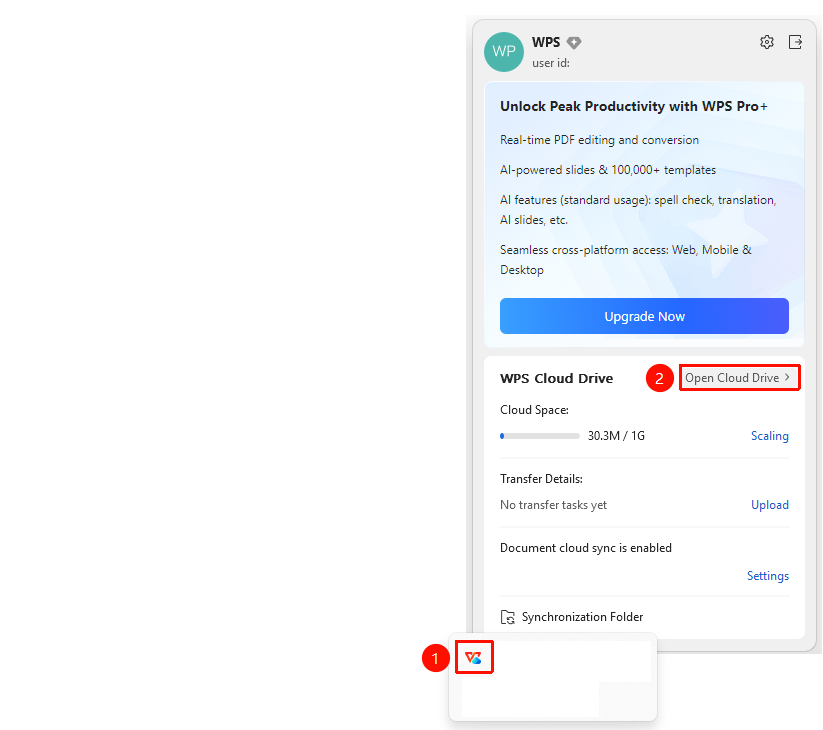
Feature Entry
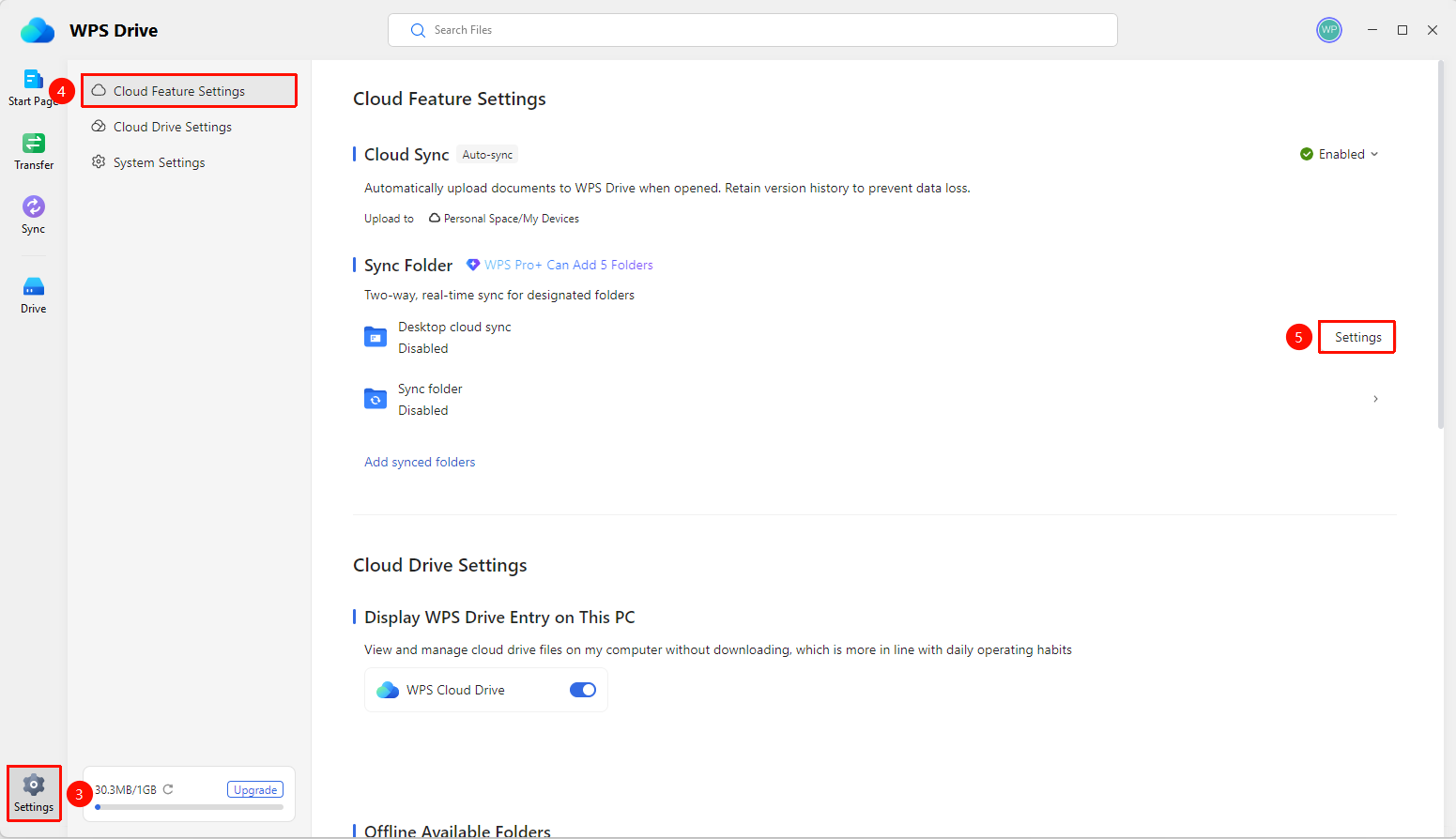
「WPS Drive」page → 「Settings」icon → 「Cloud Feature Settings」option → 「Sync Folders」area → 「Desktop Cloud Sync」→ 「Settings」button
- Open WPS Drive.
- Click the 「Settings」 icon (gear shape) in the lower-left corner.
- In the left panel, confirm you are on the 「Cloud Feature Settings」 page.
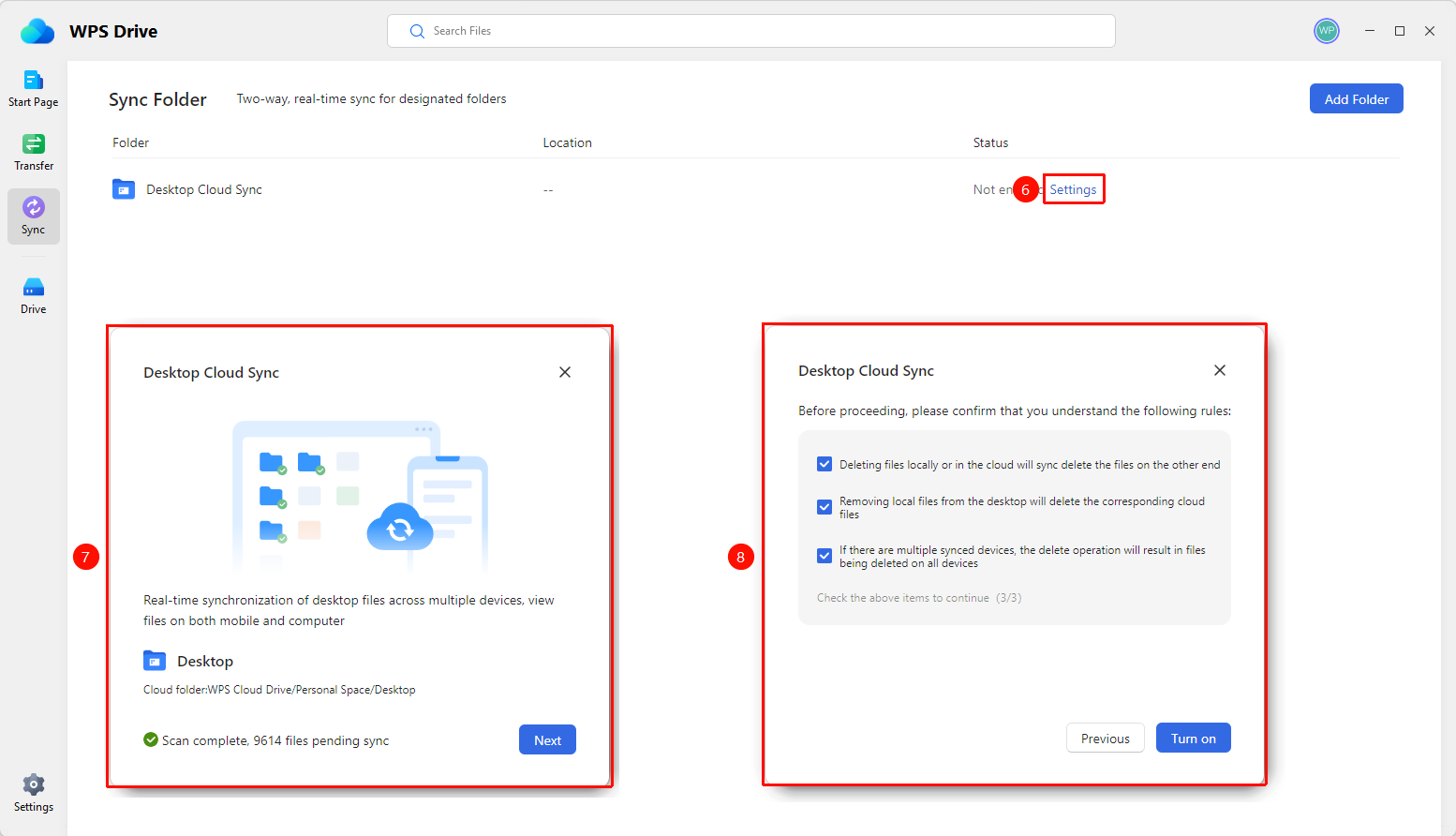
- In the 「Sync Folders」 area, find 「Desktop Cloud Sync」 and click the 「Settings」 button on the right.
- Enable Desktop Cloud Sync in the pop-up settings window.
Check Sync Status
Feature Entry
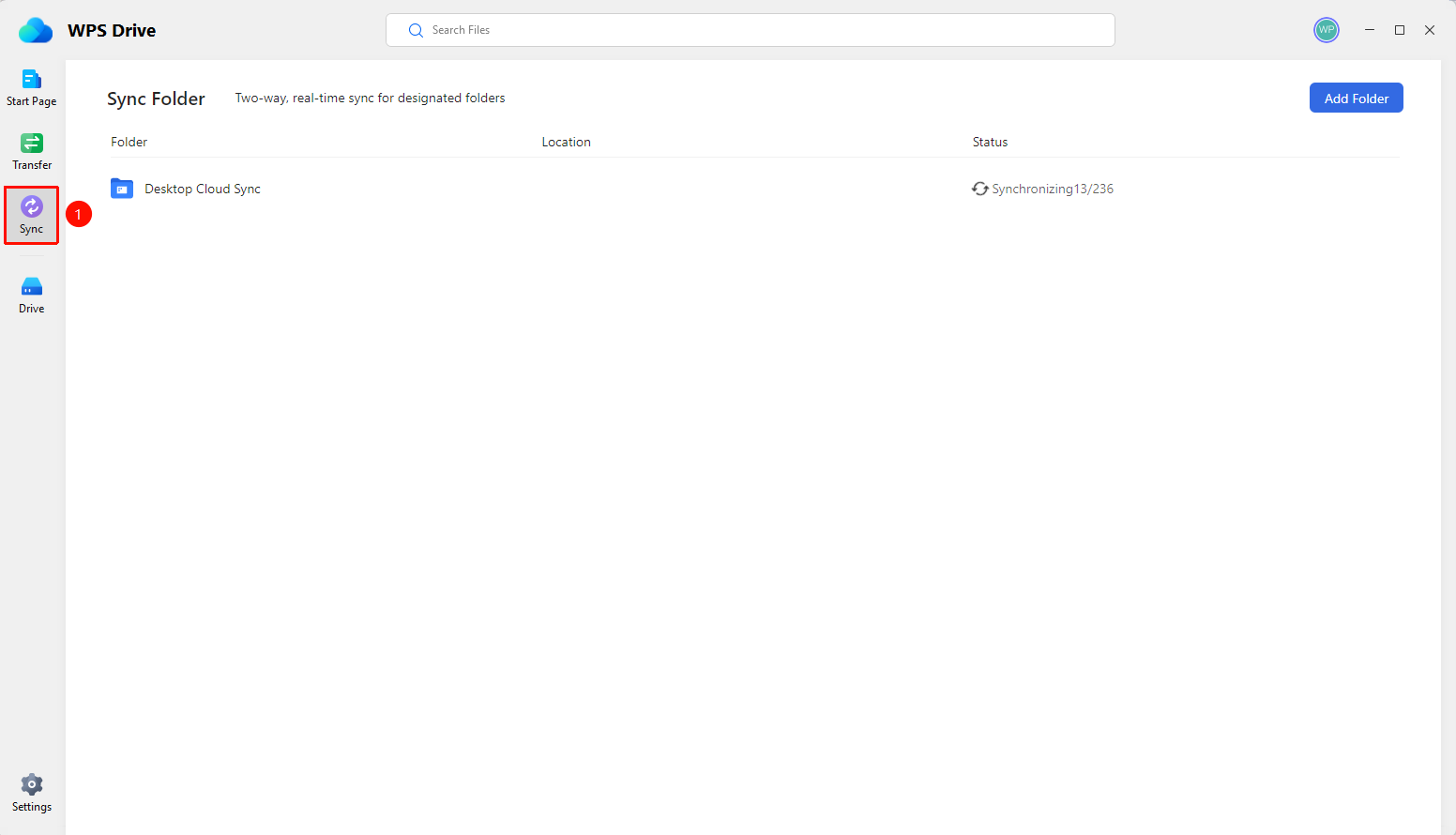
「WPS Drive」page → 「Sync」option → 「Desktop Cloud Sync」status
- Open WPS Drive.
- In the left navigation bar, click the 「Sync」 option to view the status of 「Desktop Cloud Sync」.
- A status of 「Enabled/Synchronizing」 indicates the sync feature is running normally.
- A status of 「Disabled」 indicates it has not been enabled yet.
FAQ
Q1: What is the difference between Desktop Cloud Sync and Sync Folders?
- Solution: Desktop Cloud Sync is a sync feature specifically for the desktop folder, which can be enabled with one click. Sync Folders requires you to manually select any local folder for bidirectional sync.
Notes
- Desktop Cloud Sync is bidirectional. Deleting files in the Cloud will also delete the corresponding local desktop files. Please exercise caution.
- It is recommended not to store excessively large files on the desktop to avoid long sync times.
- After disabling Desktop Cloud Sync, previously synced files will not be deleted.