Feature Summary
Sign in to multiple accounts simultaneously in the WPS client to flexibly switch between organization accounts and personal accounts, making it easy to manage documents and benefits under different accounts.
Feature Description
| Feature Dimension | Description |
|---|---|
| Membership Restrictions | No membership restrictions |
| Version Restrictions | No version restrictions |
Operation Steps
Multi-Account Sign In
Feature Entry
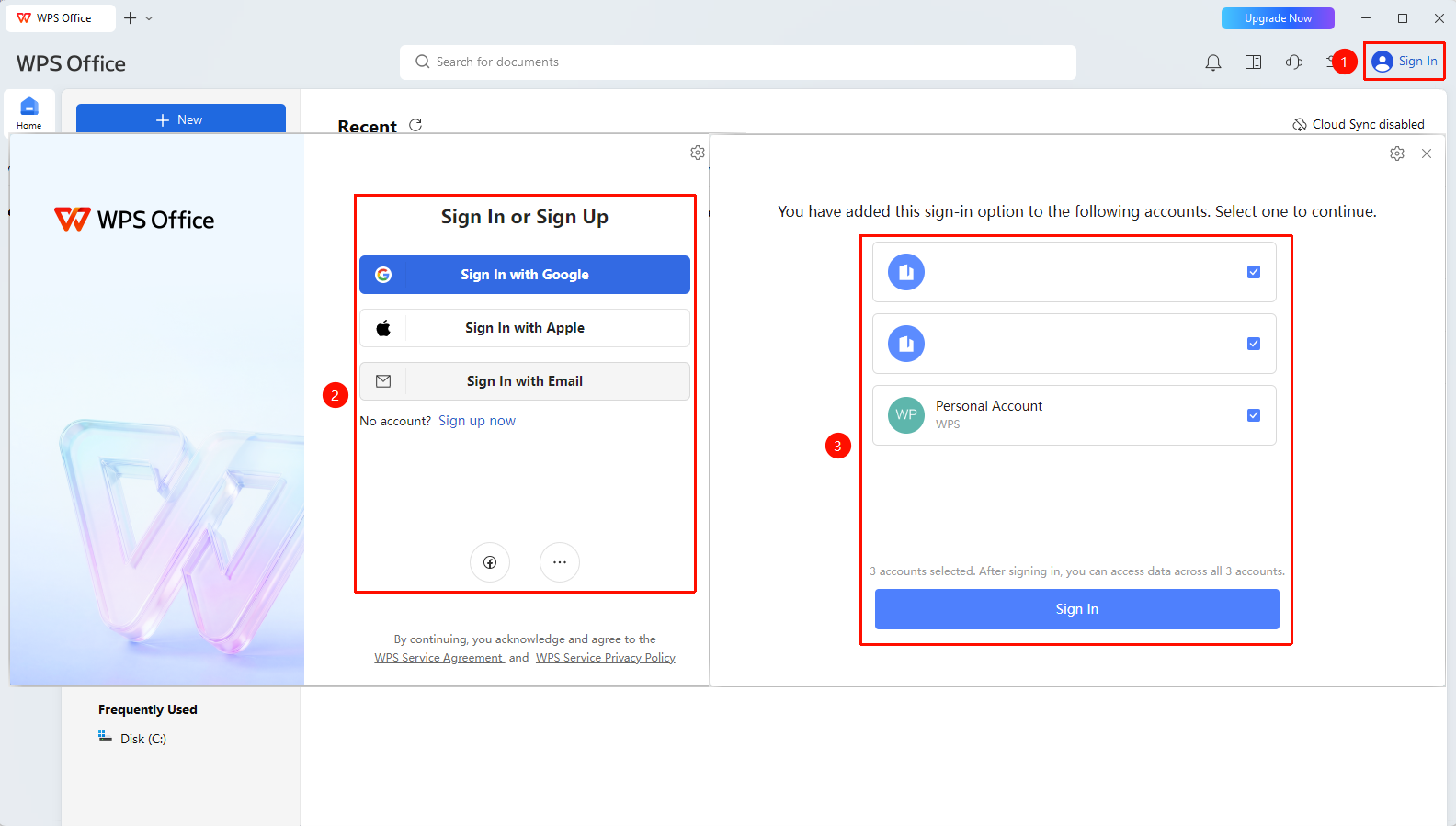
Top right corner of WPS homepage → "Sign In"
- Open the WPS Office client
- Click the "Sign In" button in the top right corner
- Select the desired login method.
- Verify your account
- If multiple accounts are registered under the login method, all bound accounts will be displayed
- Select the accounts you wish to log in to and click "Confirm Login" to log in
Add Another Account
Feature Entry
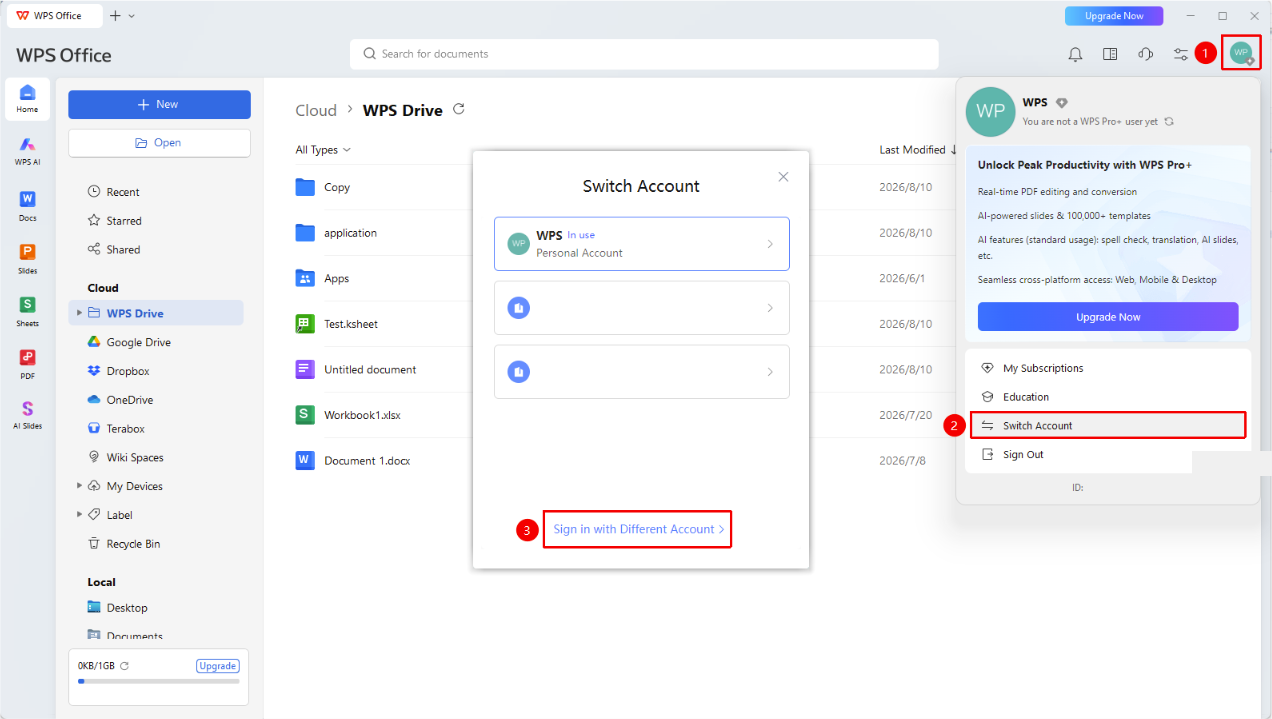
WPS homepage → profile picture → "Sign in to another account"
- After logging in to the current account, move and hover the mouse over the "profile picture" in the top right corner, to expand drop-down menu
- In the drop-down menu, select "Switch Account" to expand the login interface
- Click Log in to Another Account
- Enter the sign in information for the second account
- After signing in, you can see multiple accounts in the profile picture menu
Switch Between Multiple Accounts
Feature Entry
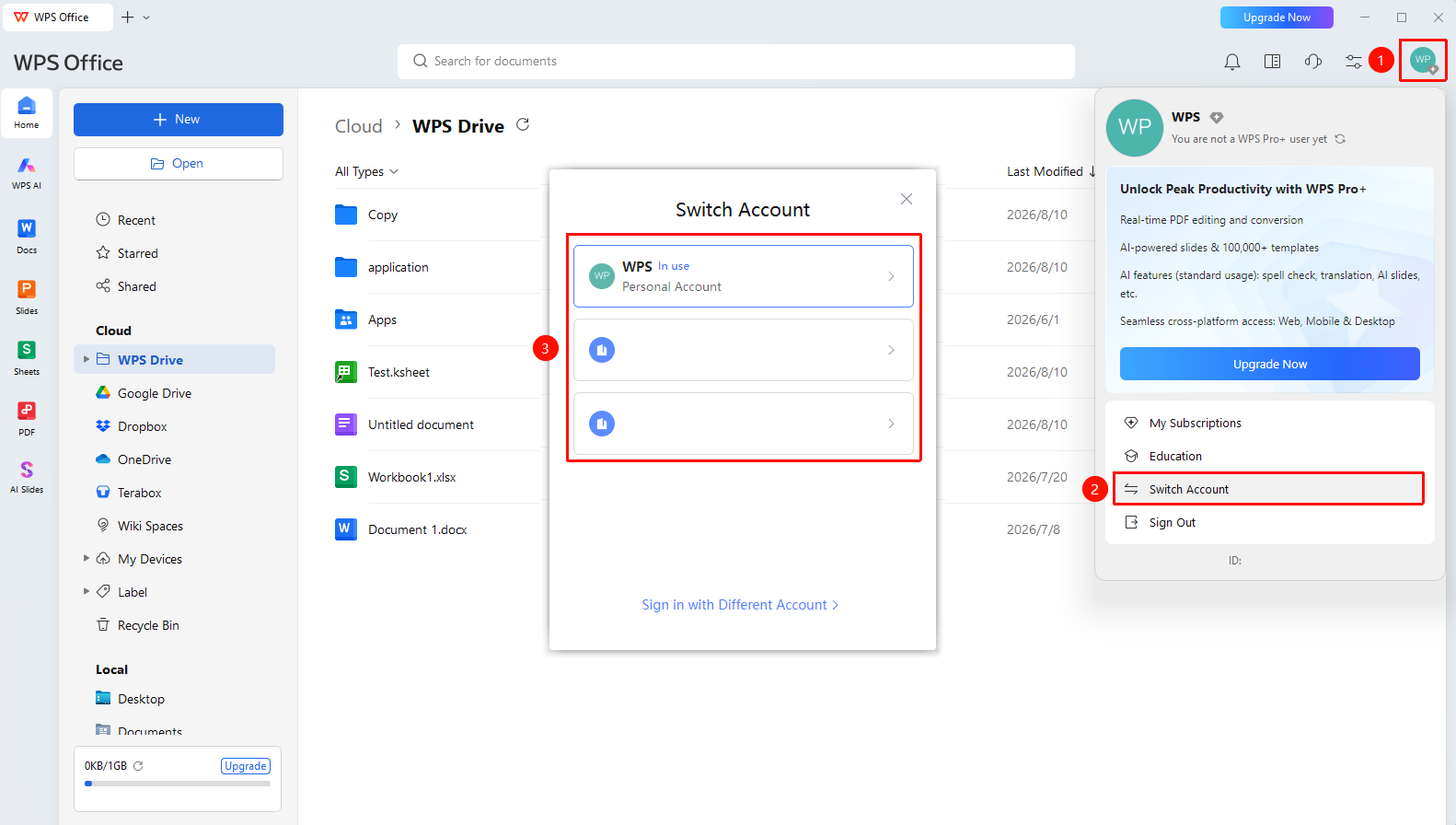
WPS homepage → profile picture → account list
- Move and hover the mouse over the "profile picture" in the upper right corner, to expand drop-down menu
- Select the "Switch Account" button from the drop-down menu.
- In the account list, you can see all signed-in accounts
- Click the target account you want to switch to
- The system automatically switches to that account, and cloud documents and benefits switch accordingly
FAQ
Q1: Will files get mixed up when signing in to multiple accounts?
- Solution: No, they will not get mixed up. The cloud documents and benefits for each account are independent of each other. After switching accounts, the content displayed corresponds to that account.
Q2: What is the maximum number of accounts I can sign in to simultaneously?
- Solution: WPS supports signing in to multiple accounts simultaneously. It is recommended to sign in to 2-3 frequently used accounts for easier management.
Q3: How do I sign out of one account when signed in to multiple accounts?
- Solution: Move the mouse to the profile picture in the top right corner, switch to the account you want to sign out of, and then click Sign Out.
Notes
- Multi-account sign in is suitable for scenarios where you use both work and personal accounts
- The cloud document list will automatically refresh when switching accounts
- The membership benefits for each account are calculated independently