Feature Summary
Quickly switch sign in accounts in the WPS client without re-entering your password, making it easy to switch between multiple accounts.
Feature Description
| Feature Dimension | Description |
|---|---|
| Membership Restrictions | No membership restrictions |
| Version Restrictions | No version restrictions |
Steps
Switch Accounts via the Profile Picture Menu
Feature Entry
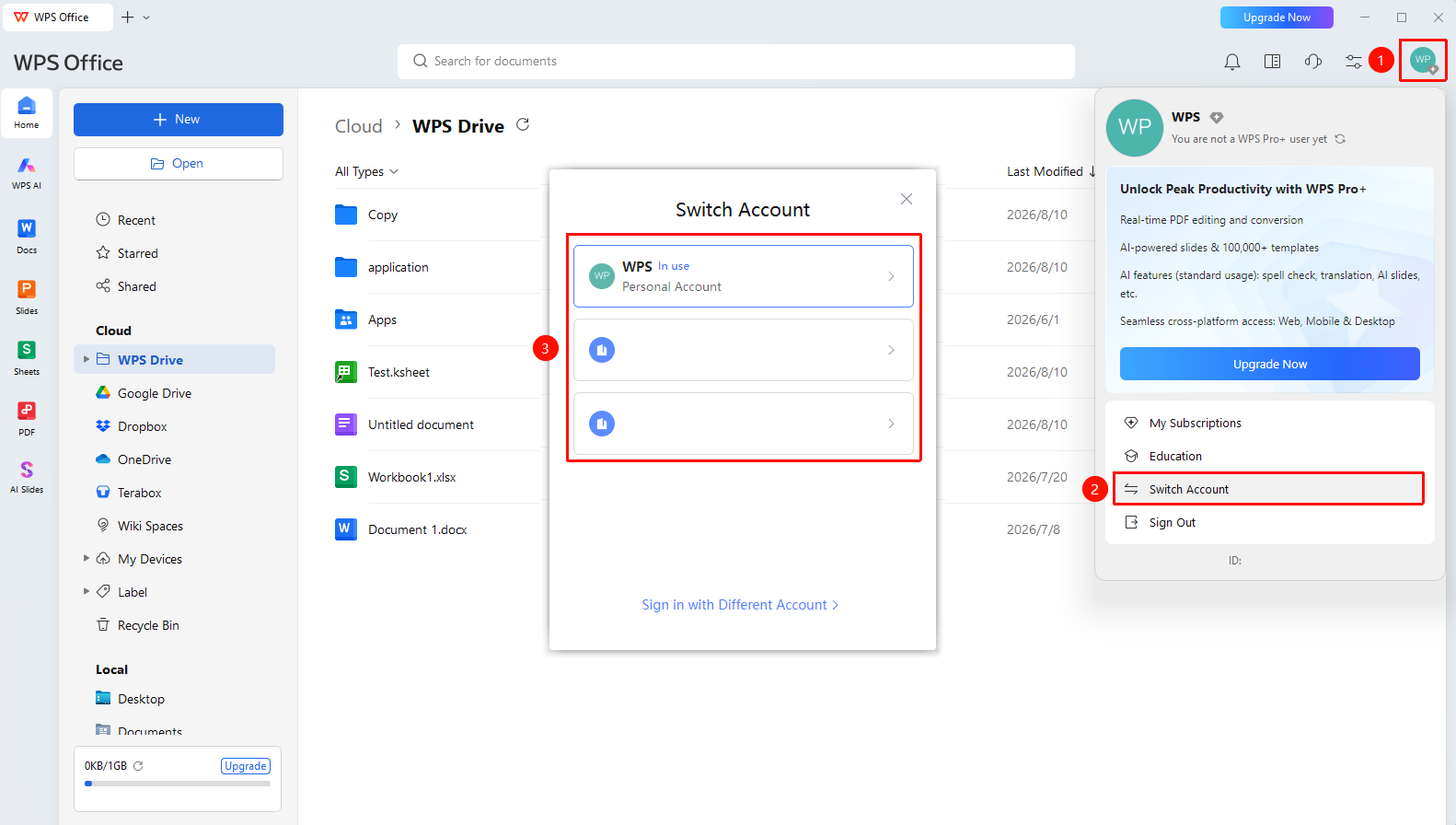
WPS Home → Profile Picture → Switch Account
- Open the WPS Office client
- Move your mouse to the "Profile Picture" icon in the upper right corner
- View the list of signed-in accounts in the pop-up menu
- Click the target account you want to switch to
- The system will switch automatically, and your documents and cloud space will change accordingly
[Screenshot placeholder]
Sign In to a New Account After Switching
Feature Entry
WPS Home → Profile Picture → "Sign In to Another Account"
- Move your mouse to the "Profile Picture" icon in the upper right corner
- Select "Sign In to Another Account"
- Enter the sign in information for the new account
- After signing in successfully, switch again via the Profile Picture menu
FAQ
Q1: Will my local files be lost after switching accounts?
- Solution: No, they will not be lost. Switching accounts only affects access permissions for cloud documents; local files are not affected.
Q2: Will my membership benefits change after switching accounts?
- Solution: Yes, they will. After switching accounts, the membership benefits currently in use will change to the benefits of the target account.
Q3: Will frequent account switching affect usage?
- Solution: It will not affect normal usage, but the cloud document list will refresh and load when switching. It is recommended to switch flexibly based on actual needs.
Notes
- It is recommended to save the document you are editing before switching accounts
- After switching accounts on a public device, remember to Sign Out to ensure security
- The cloud sync status will update automatically after switching accounts