Feature Summary
Sign out of the currently signed-in account from the WPS client to protect personal privacy and document security. Suitable for use on public devices or when switching accounts.
Feature Description
| Feature Dimension | Description |
|---|---|
| Membership Restriction | No membership restriction |
| Version Restriction | No version restriction |
Operation Steps
Sign Out of Current Account
Feature Entry
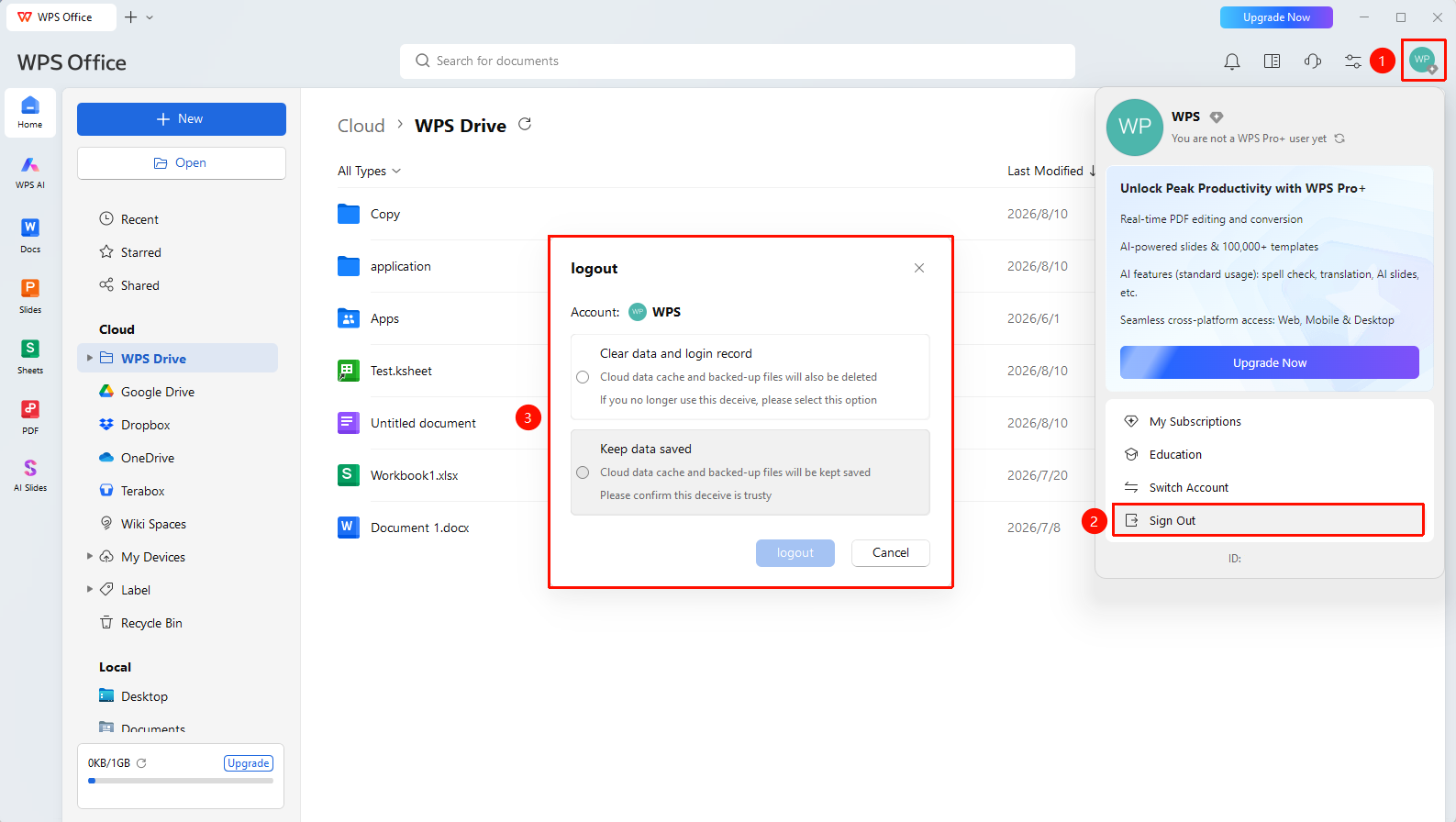
WPS Home → Profile Picture → 「Sign Out」
- Move the mouse to the 「Profile Picture」 icon in the upper right corner of WPS
- Select 「Sign Out」 from the drop-down menu
- Select 「Sign Out of Current Account」 / 「Sign Out of All Accounts」 to expand the next step's checkbox menu
- 「Clear data and delete sign-in Record」 : This will also delete your cloud document cache and file backups on this machine
- 「Keep data for next use」 : This will keep your cloud document cache and file backups on this machine
- After checking the box, click 「Sign Out」
- The system will sign out of the current account and return to the not signed-in state
Frequently Asked Questions
Question 1: Will cloud documents be lost after signing out?
- Solution: No, they will not be lost. Cloud documents are stored on cloud servers. Access can be restored after signing back into the account.
Question 2: How to sign out of the account on all devices?
- Solution: After signing in, go to the personal center to manage logged-in devices, can view the list of online devices and choose to remotely sign out of other devices.
Precautions
- Be sure to sign out after using on public devices or shared computers
- Please confirm that local files have been saved before signing out