Feature Summary
In an organization's intranet environment, configure a proxy server to allow the WPS client to connect to WPS normally, completing operations such as authorization verification, cloud services, and member feature calls.
Feature Description
| Feature Dimension | Description |
|---|---|
| Membership Restrictions | No membership restrictions |
| Version Restrictions | No version restrictions) |
Operation Steps
: Client Proxy Configuration
Feature Entry
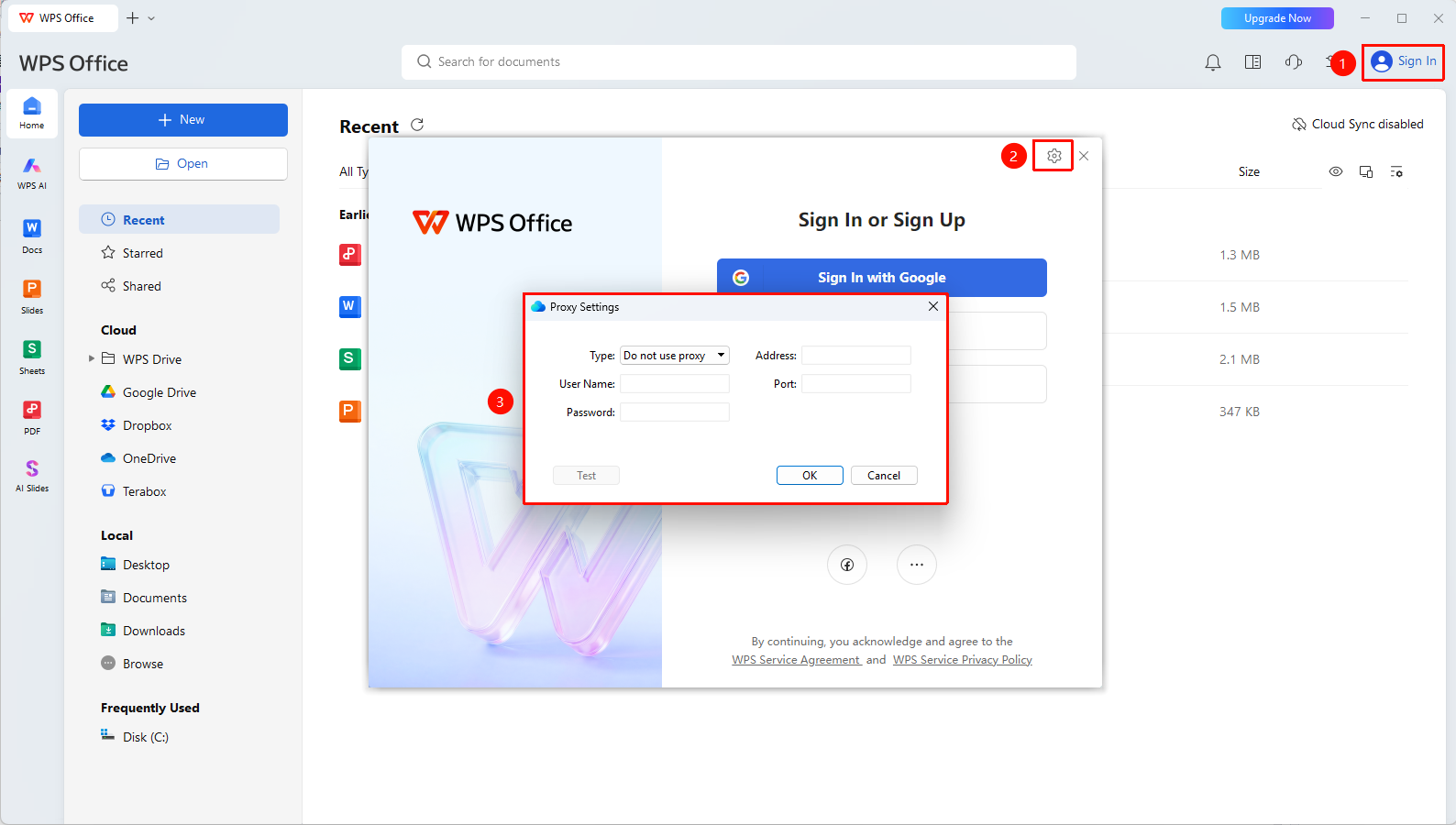
The "Settings" button in the upper right corner of the sign in page
- Open the WPS Office client
- Click the "Sign In" button in the upper right corner
- Select "Settings" to enter the proxy settings interface
- Select "Manual Proxy Settings"
- Based on the obtained proxy information, fill in the following:
- Type: HTTP Proxy/System Proxy
- Proxy Address: Organization proxy server address
- Proxy Port: Proxy server port number
- Proxy Username/Password: If the organization proxy requires authentication, fill in the corresponding credentials
- After saving the configuration, click OK to apply the changes
FAQ
Question 1: What should I do if WPS still cannot connect to Cloud services after configuring the proxy?
- Solution: Check if the proxy address and port are correct, and contact the organization's IT department to confirm whether the proxy server supports HTTPS traffic forwarding.
Question 2: Will configuring the proxy affect WPS local features?
- Solution: No, it will not. The proxy only affects Cloud features that require internet access (such as Cloud Document sync, AI features, authorization verification, etc.). Local editing features can be used normally.
Notes
- The proxy address and port are uniformly provided by the organization's IT department. Do not fill them in arbitrarily.
- Some organization proxies require HTTPS certificate trust. Please contact IT operations for assistance.
- After switching network environments (e.g., from the company network to a home network), it is recommended to disable the proxy settings to avoid affecting normal usage.