Feature Summary
Bind an email address to your WPS account for receiving verification codes and account security verification, enhancing account security.
Feature Description
| Feature Dimension | Description |
|---|---|
| Membership Restriction | No membership restriction |
| Version Restriction | No version restriction |
Steps
Bind Email
Feature Entry
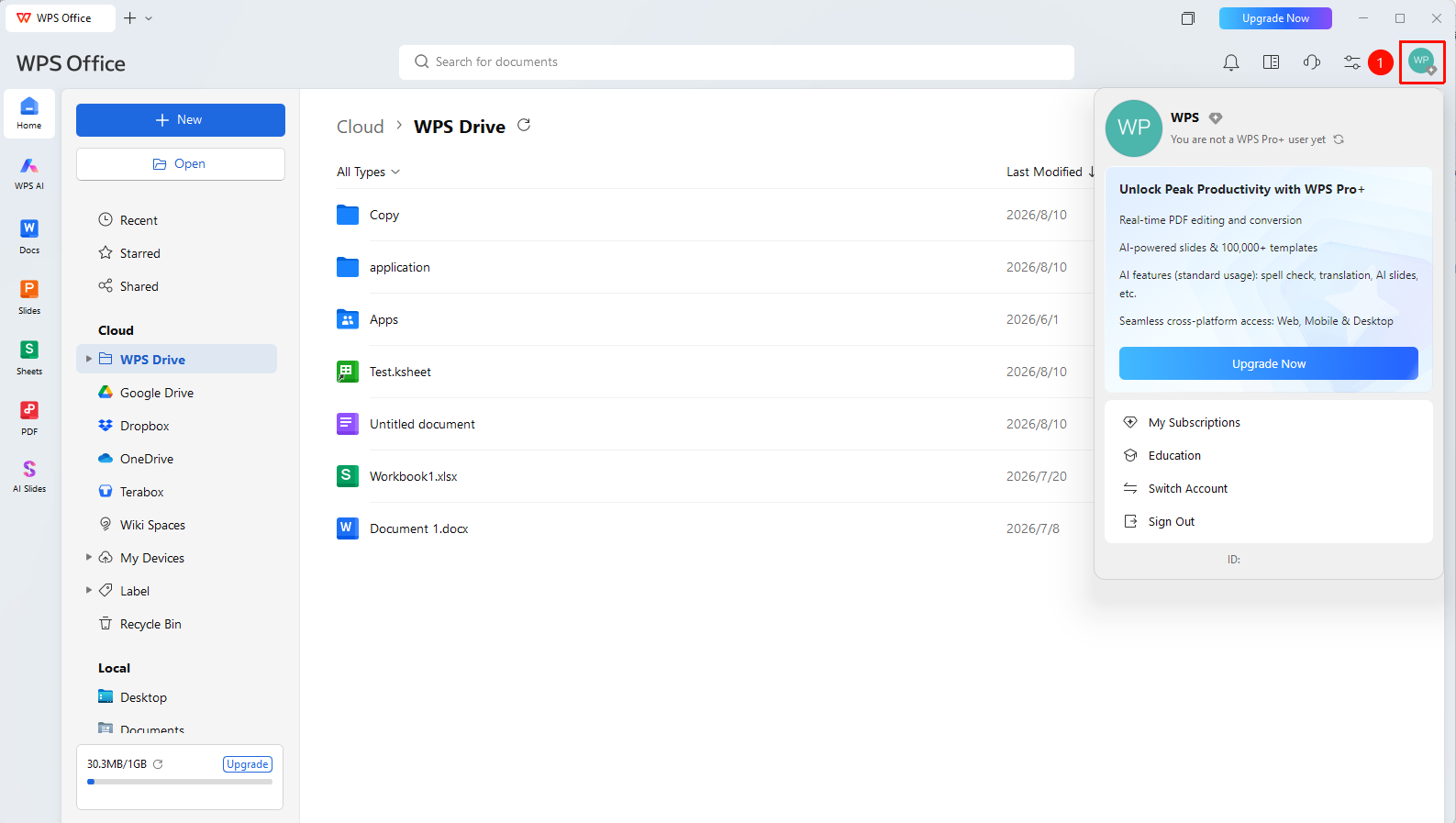
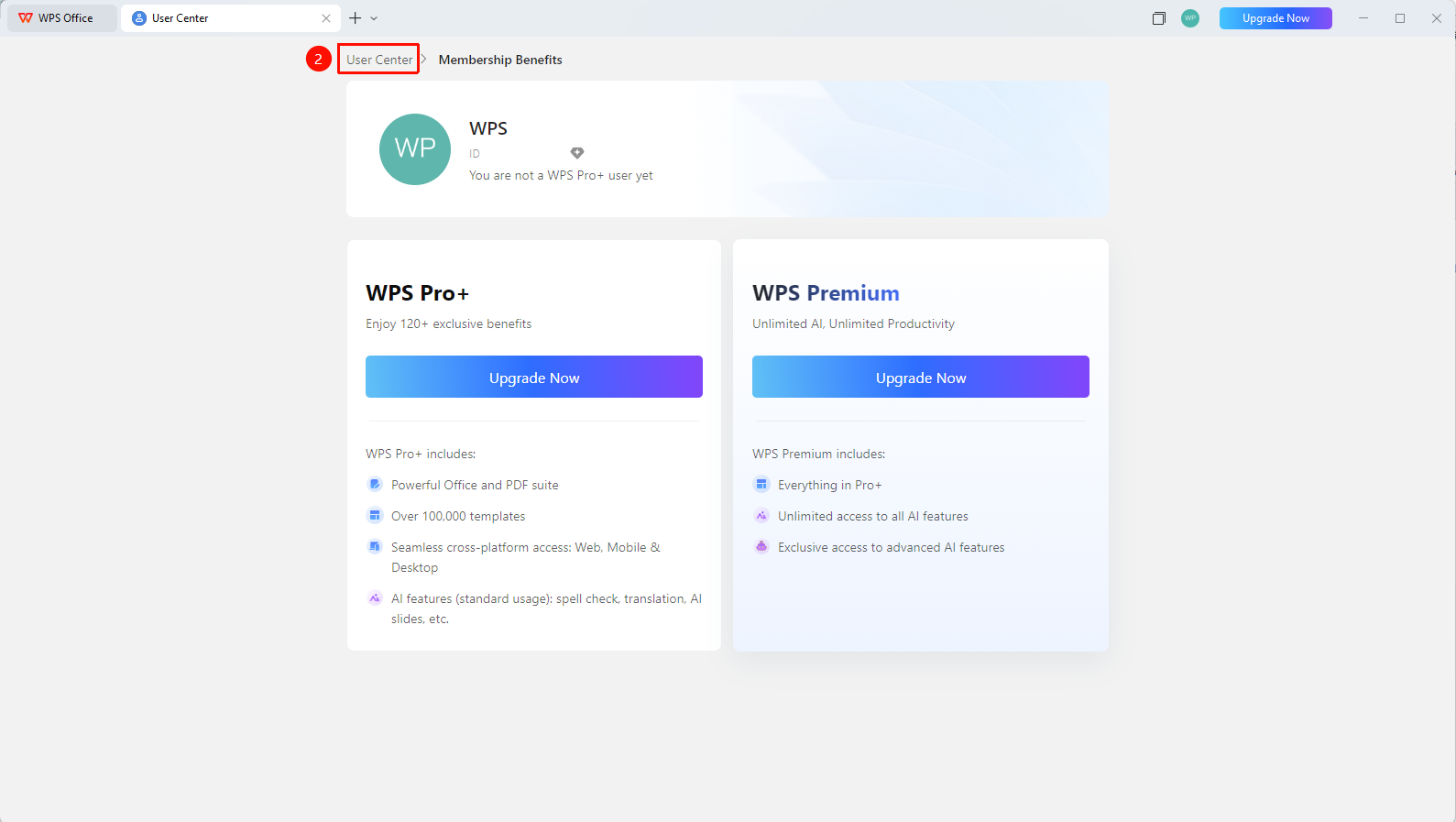
WPS Home → profile picture → personal account → Change Email
- Click the 「profile picture」 icon in the upper right corner of WPS
- Click the 「personal account」 butten to enter 「personal account」
- Find the 「Bind Email」 option
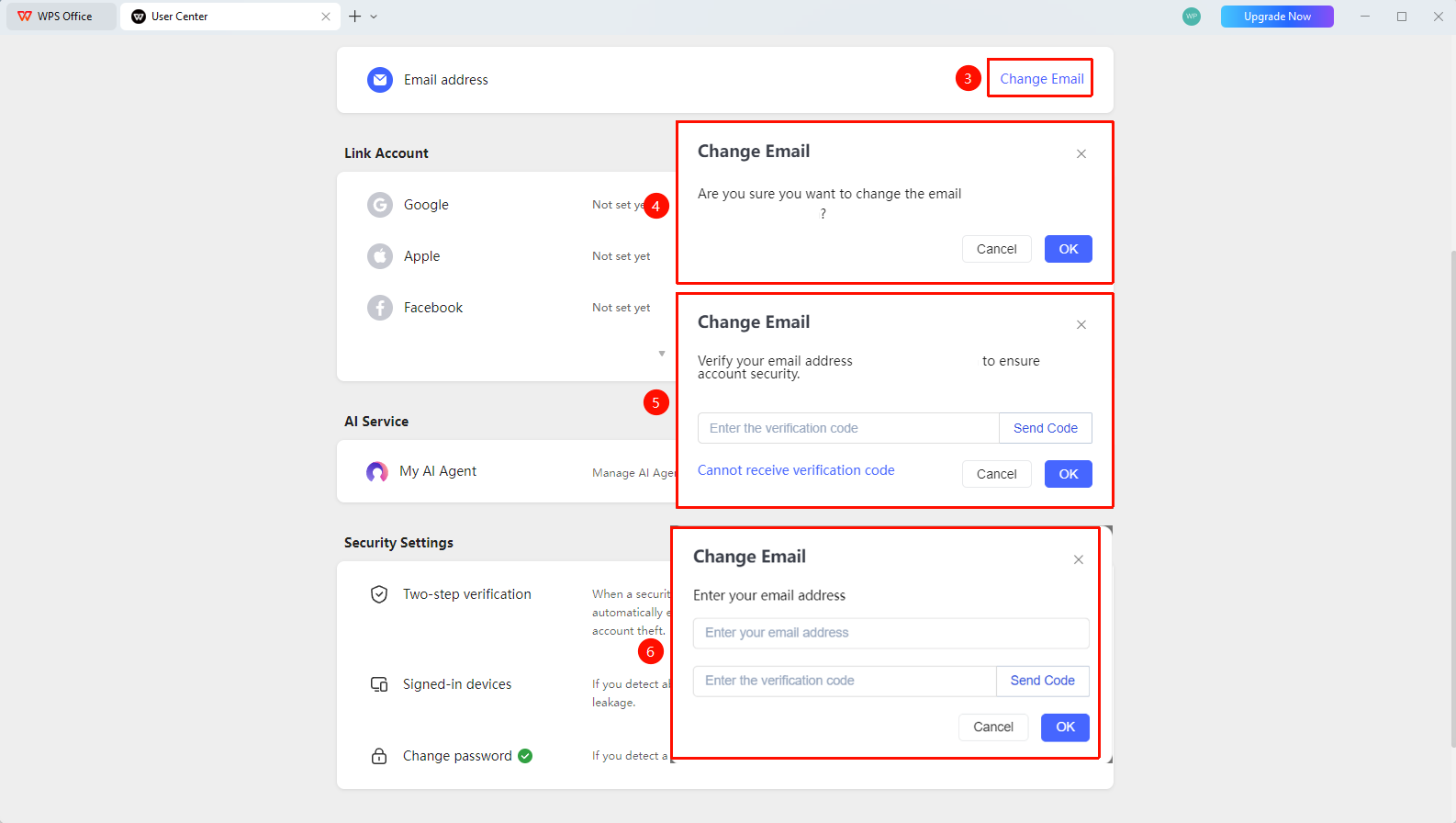
- Click the 「Change Email」 button
- Use the original email to receive a verification code for identity verification
- Enter the new email address
- Enter the verification code received by the new email
- Confirm to complete the email change
FAQ
Q1: Can I unbind my email after binding it?
- Solution: Yes. Select 「Change Email」 in the Bind Email settings.
Q2: Can one email be bound to multiple WPS accounts?
- Solution: One email can only be bound to one WPS personal account and cannot be bound repeatedly.
Q3: What should I do if I don't receive the verification code for the bound email?
- Solution: Check if the email address is entered correctly, check the spam folder, confirm that the email is receiving mail normally, and try changing the email.
Q4: What should I do if the original email is no longer in use and I want to change the binding?
- Solution: Select 「Change Email」 in the Bind Email settings, then click 「Unable to receive verification code」.
Notes
- It is recommended to bind a frequently used email
- Changing the email requires verification of the original binding information
- Email can be used to sign in to WPS account