Feature Summary
Set/change the sign in password for your WPS account to enhance account security, or reset the password via your linked phone number or email if you forget it.
Feature Description
| Feature Dimension | Description |
|---|---|
| Membership Restriction | No membership restriction |
| Version Restriction | No version restriction |
Steps
Reset Password
Feature Entry
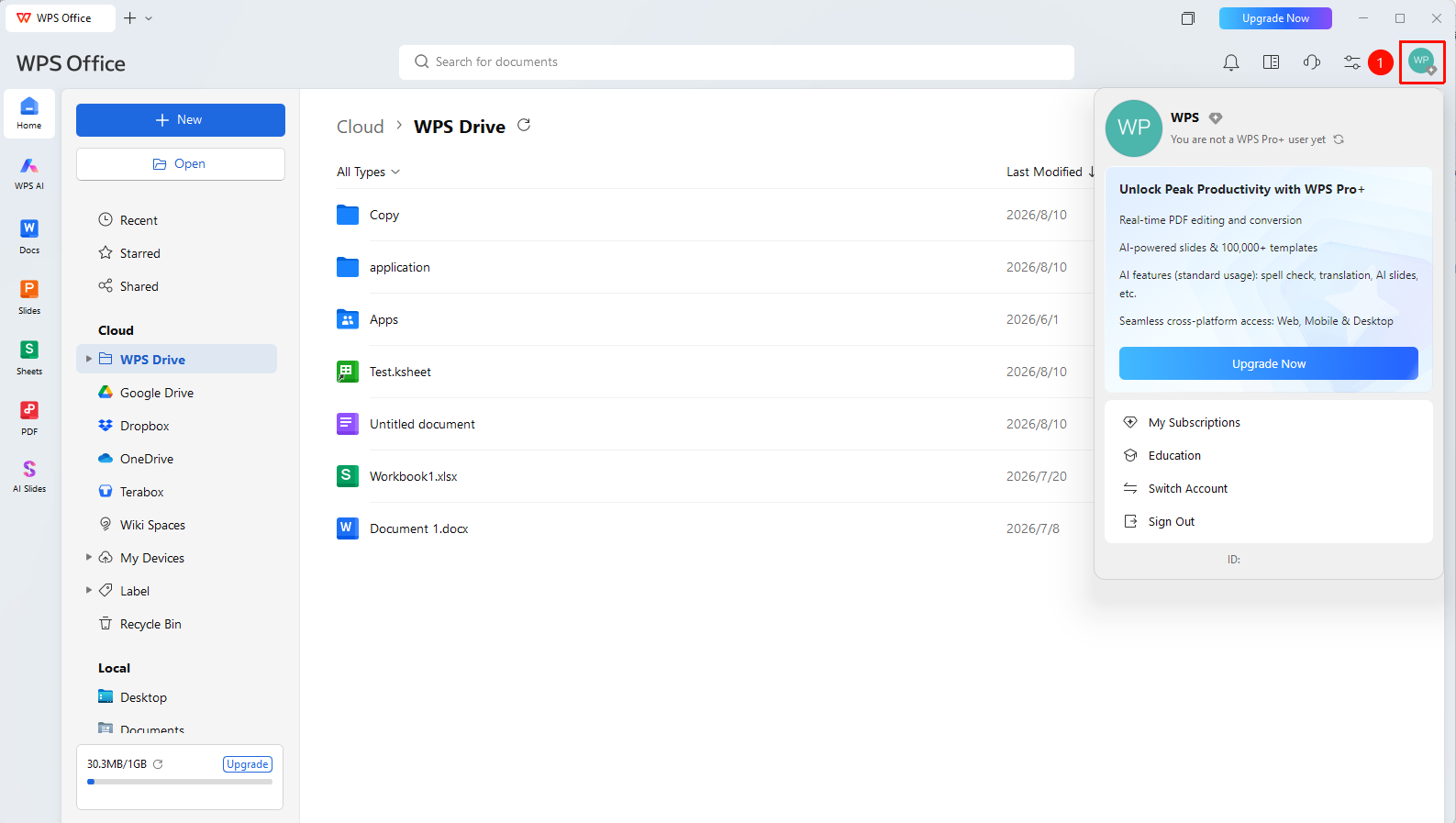
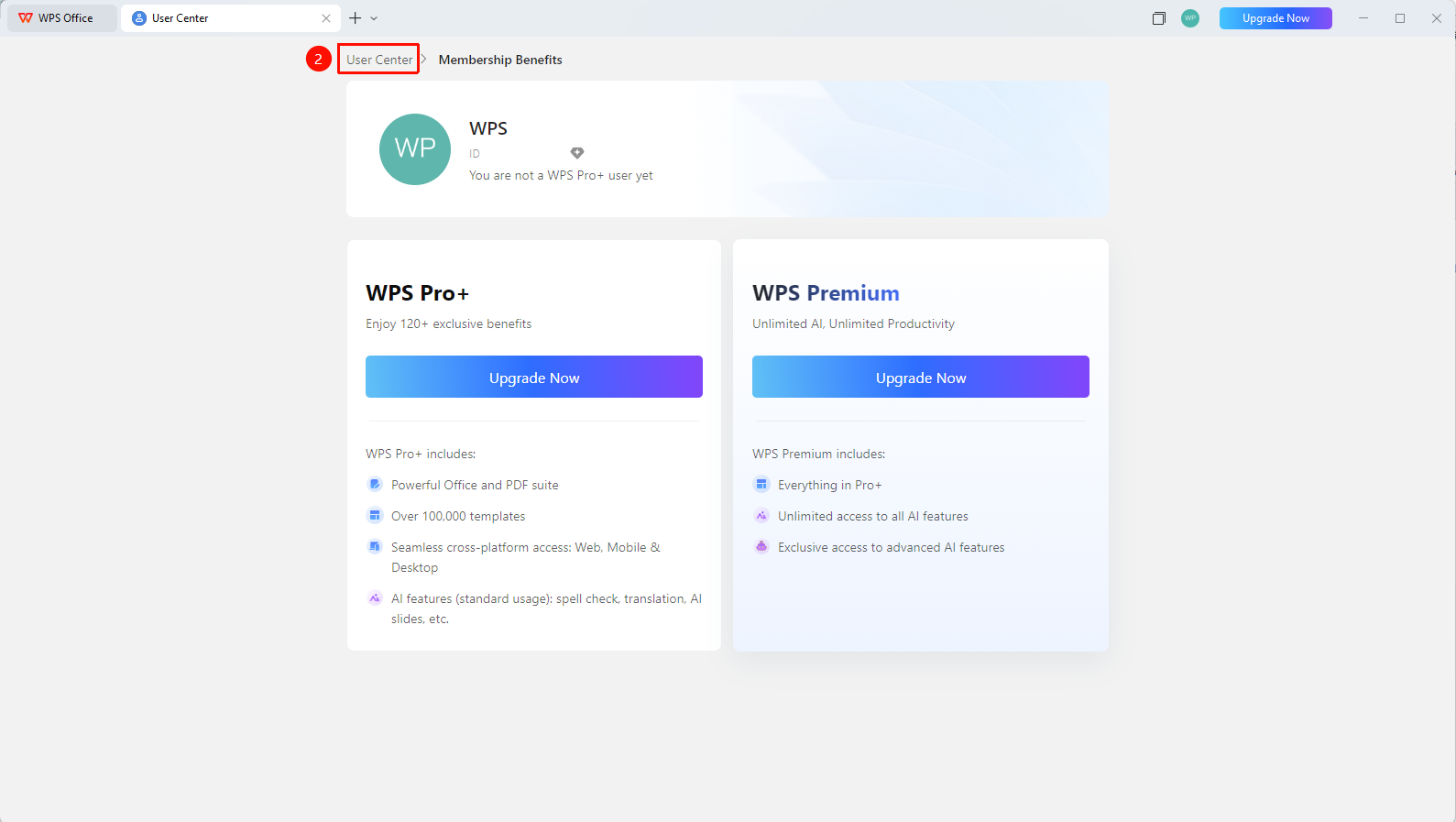
WPS Home → profile picture → Personal Center → Change Password
- Click the 「profile picture」 icon in the upper right corner of WPS
- Click the 「Personal Center」button to enter the「Personal Center」
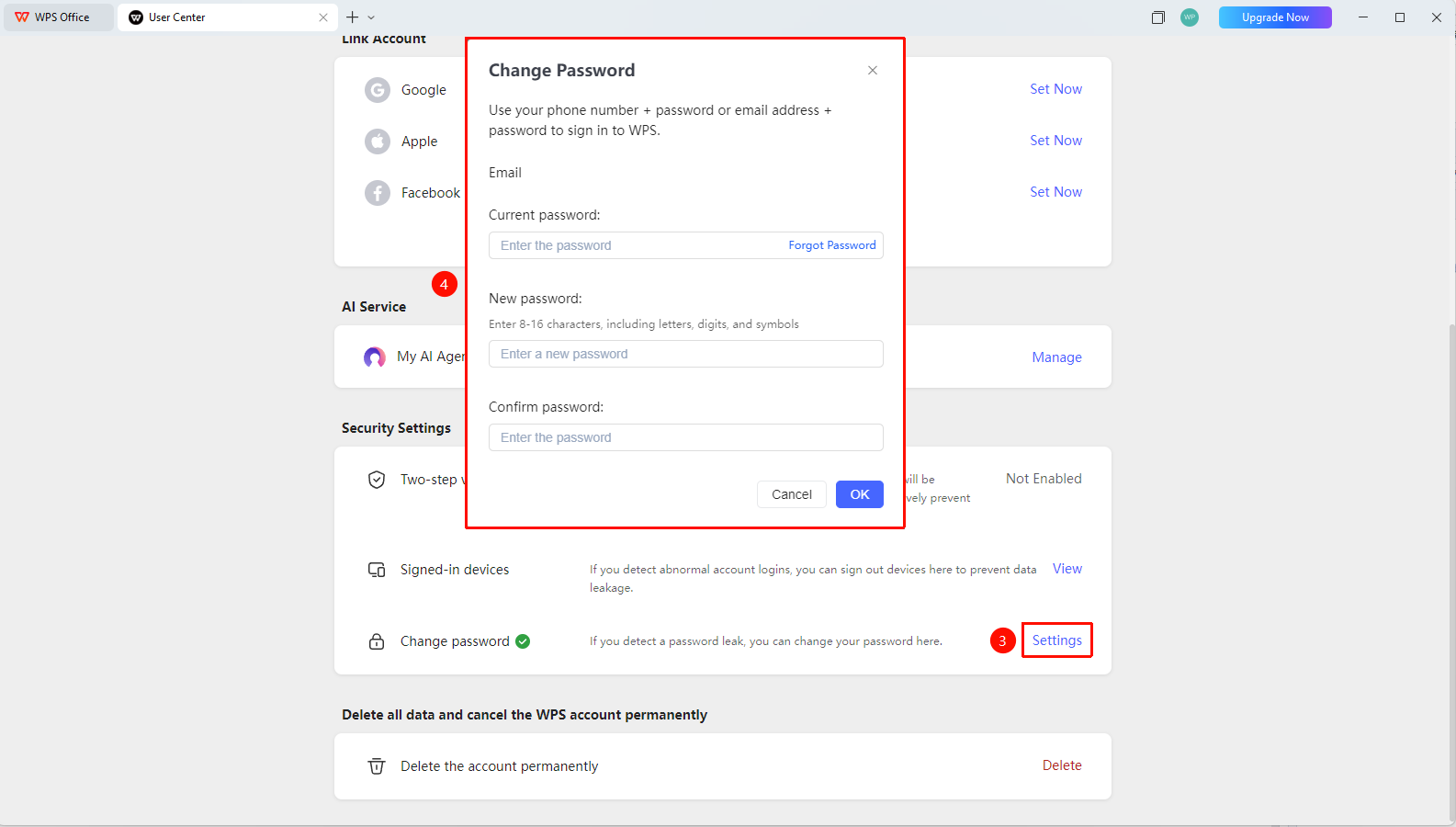
- Find the 「Security Settings」 section
- Click the 「Settings」 button to the right of 「Change Password」
- Enter the current password
- Enter and confirm the new password (password must be 8-16 characters and contain a combination of 3 of the following: uppercase letters, lowercase letters, digits, or symbols)
- Click 「Confirm」 to complete password setup
If you forgot your password, click 「Forgot Password」 and verify via Email
FAQ
Q1: What are the password requirements?
- Solution: It is recommended to set a strong password of at least 8 characters, including letters, digits, and special characters. Avoid using simple passwords such as birthdays or phone numbers.
Q2: What should I do if I forgot my password and cannot receive the verification code?
- Solution: Contact WPS official customer service, provide relevant identity verification documents, and have the customer service assist in recovering the account.
Notes
- Changing your password regularly can enhance account security
- Try to use different passwords for different platforms
- After changing your password, it is recommended to update your sign in information on other devices