Feature Summary
The WPS client supports switching classic skin themes, adjusting desktop icon styles, and configuring homepage layout display through Appearance Settings, meeting personalized office needs.
Feature Description
| Feature Dimension | Description |
|---|---|
| Membership Restriction | No membership restriction |
| Version Restriction | No version restriction |
Operation Steps
Access via the Global Settings Dropdown Menu
Feature Entry
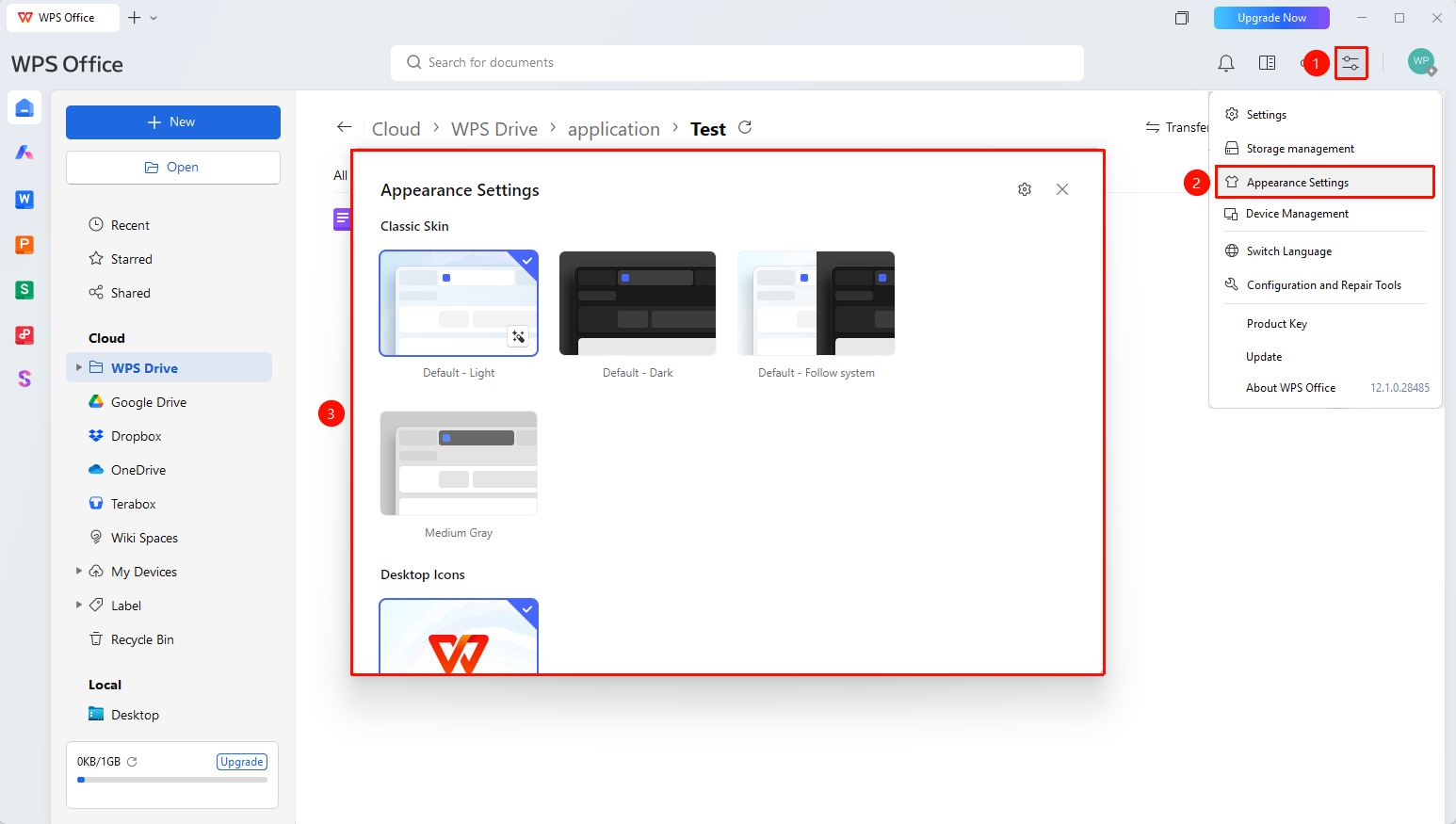
"Global Settings" button → "Appearance Settings" option
- Open the WPS client
- Click the "Global Settings" button in the upper right corner
- Directly click "Appearance Settings" in the dropdown menu
Access via the Settings Page
Feature Entry
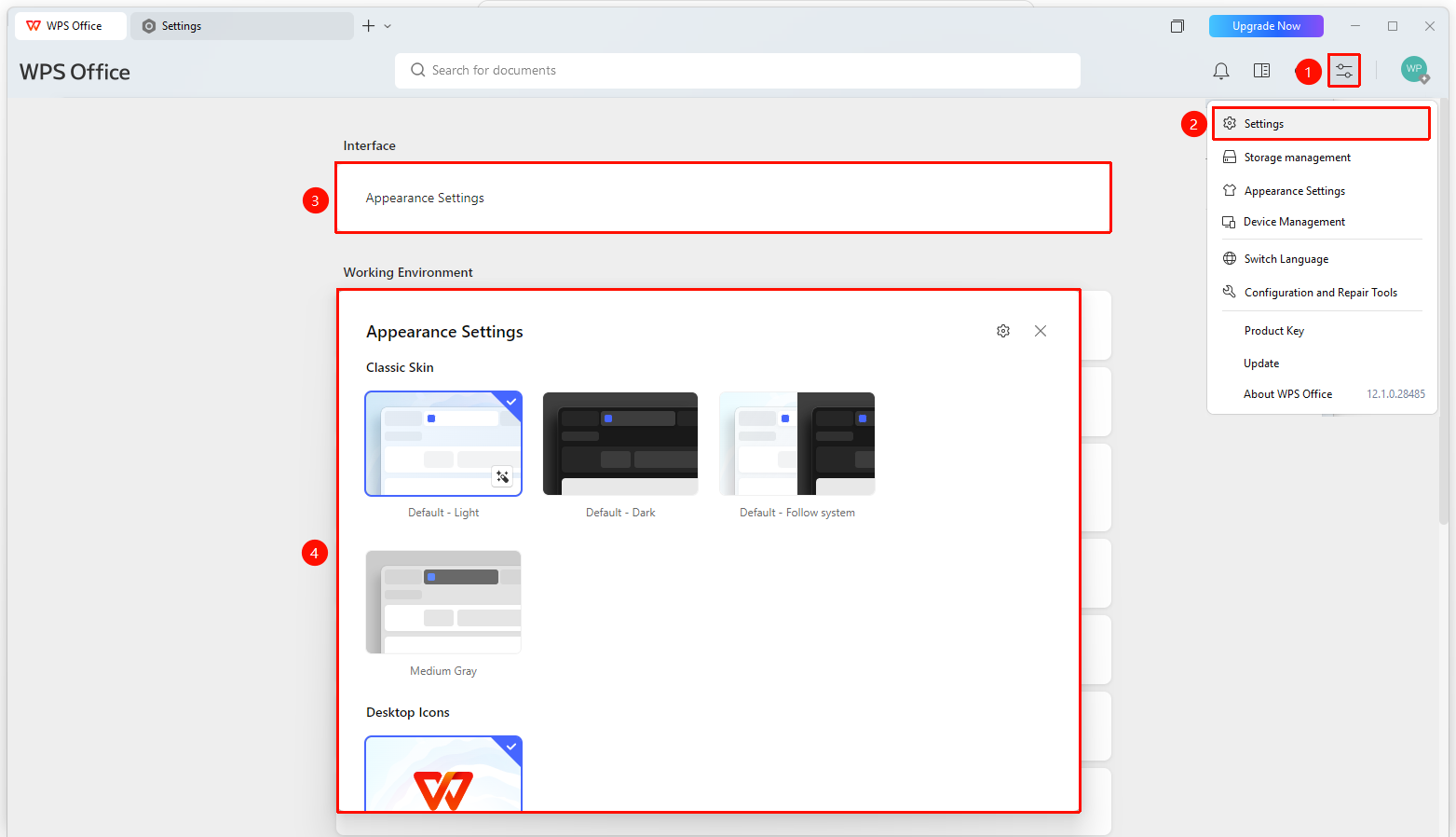
"Global Settings" button → "Settings" option → "Appearance Settings"
- Open the WPS client
- Click the "Global Settings" button in the upper right corner
- Select the "Settings" option
- Click "Appearance Settings" in the Settings page
Switching Classic Skin Themes
Feature Entry
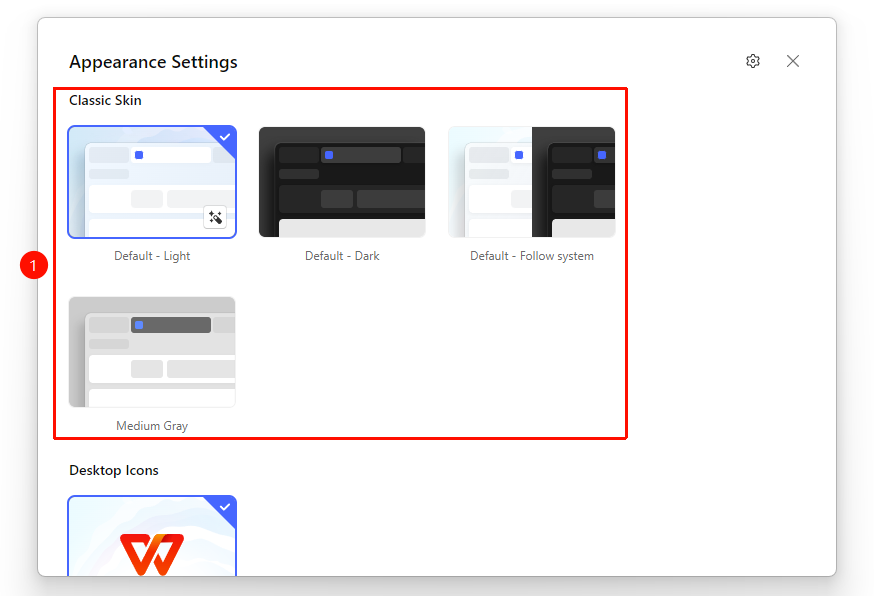
"Appearance Settings" page → "Classic Skin" area
- Enter the "Appearance Settings" page
- Select the target theme in the "Classic Skin" area:
- "Default - Light": Light interface
- "Default - Dark": Dark interface
- "Default - Follow System": Automatically switch based on system theme
- "Medium Gray": Gray interface
3.The selection takes effect immediately
Adjusting Homepage Layout Display
Feature Entry
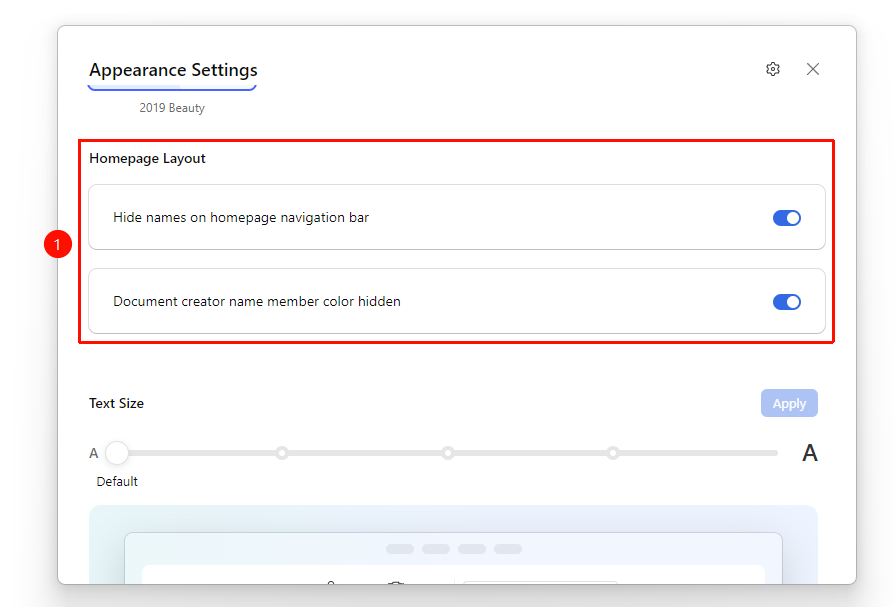
"Appearance Settings" page → "Homepage Layout" area
- Enter the "Appearance Settings" page
- Configure the following options in the "Homepage Layout" area:
- "Hide Homepage Main Navigation Bar Names": Hide the navigation names in the homepage sidebar, displaying only icons
- "Hide Document Creator Name Membership Colors": Hide the membership color identifier of the creator name in the document list
3.The setting takes effect immediately after checking
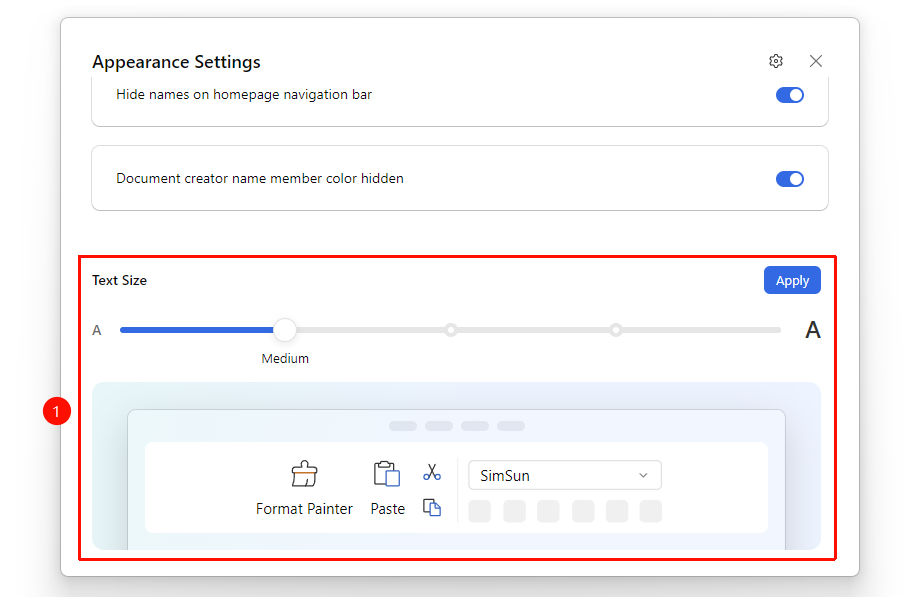
Adjusting Interface Font Size
Feature Entry
"Appearance Settings" page → "Interface Font Size" section
- Go to the "Appearance Settings" page.
- Use the slider in the "Interface Font Size" section to adjust the font size.
- Preview the font size in real-time; click "Apply " to save the changes.
FAQ
Q1: What is the difference between the two ways to access Appearance Settings?
- Solution: Accessing directly via the Global Settings dropdown menu involves fewer steps; entering the Settings page first and then accessing Appearance Settings is suitable for scenarios where other settings need to be adjusted simultaneously.
Q2: Do I need to restart after switching the classic skin?
- Solution: No, the selection takes effect immediately without needing to restart the WPS client.
Notes
- Both access methods lead to the same Appearance Settings page.
- All appearance settings adjustments take effect immediately without needing to restart.
- The hide options for the homepage layout only affect the homepage display and do not affect the document editing interface.