Feature Summary
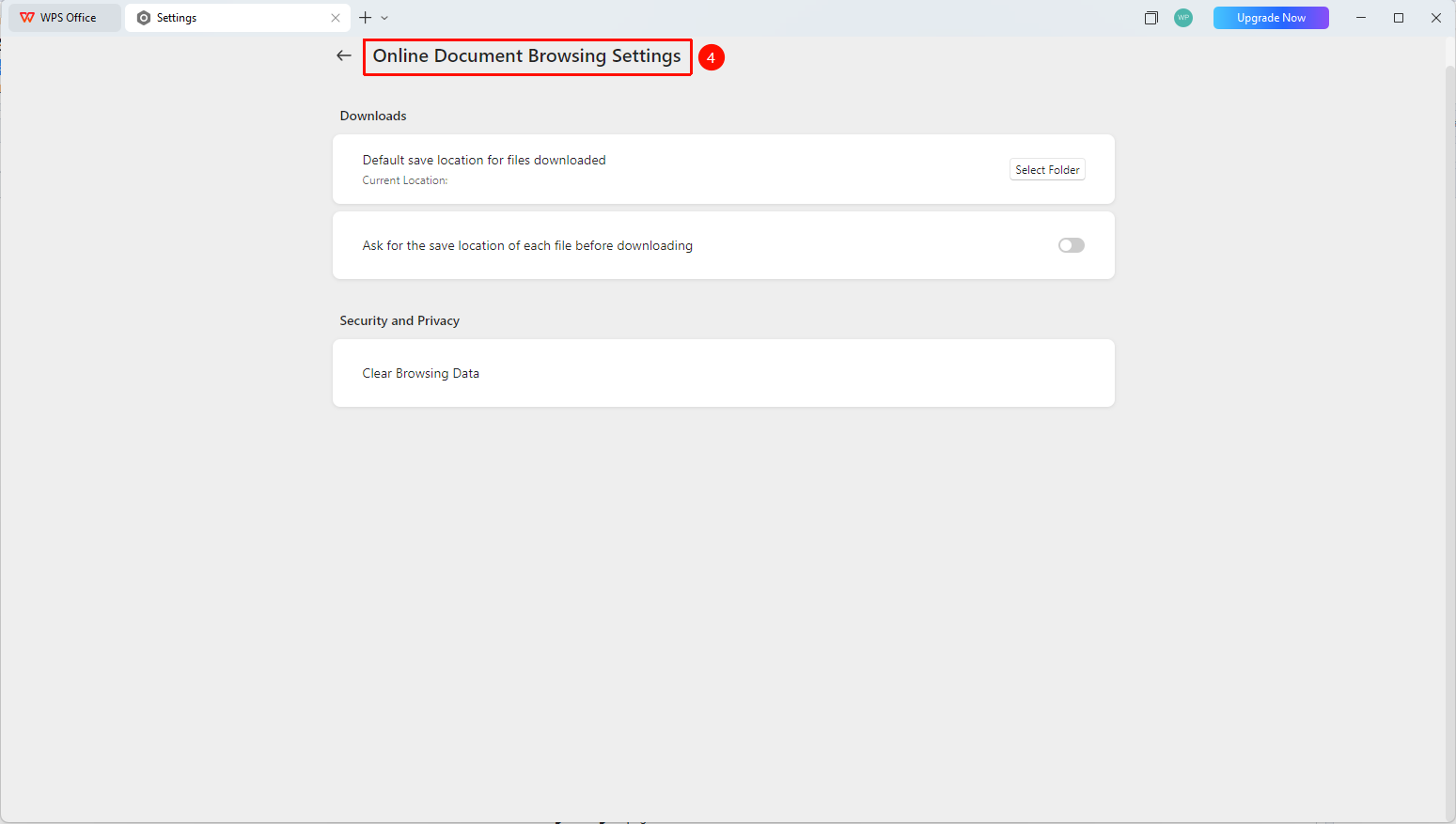
Online Document browsing settings are used to configure the default file download save location, ask where to save before downloading, and clear browsing data, managing the download and privacy behavior of Online Document.
Feature Description
| Feature Dimension | Description |
|---|---|
| Membership Restriction | No membership restriction |
| Version Restriction | No version restriction |
Operation Steps
Enter Online Document Browsing Settings
Feature Entry
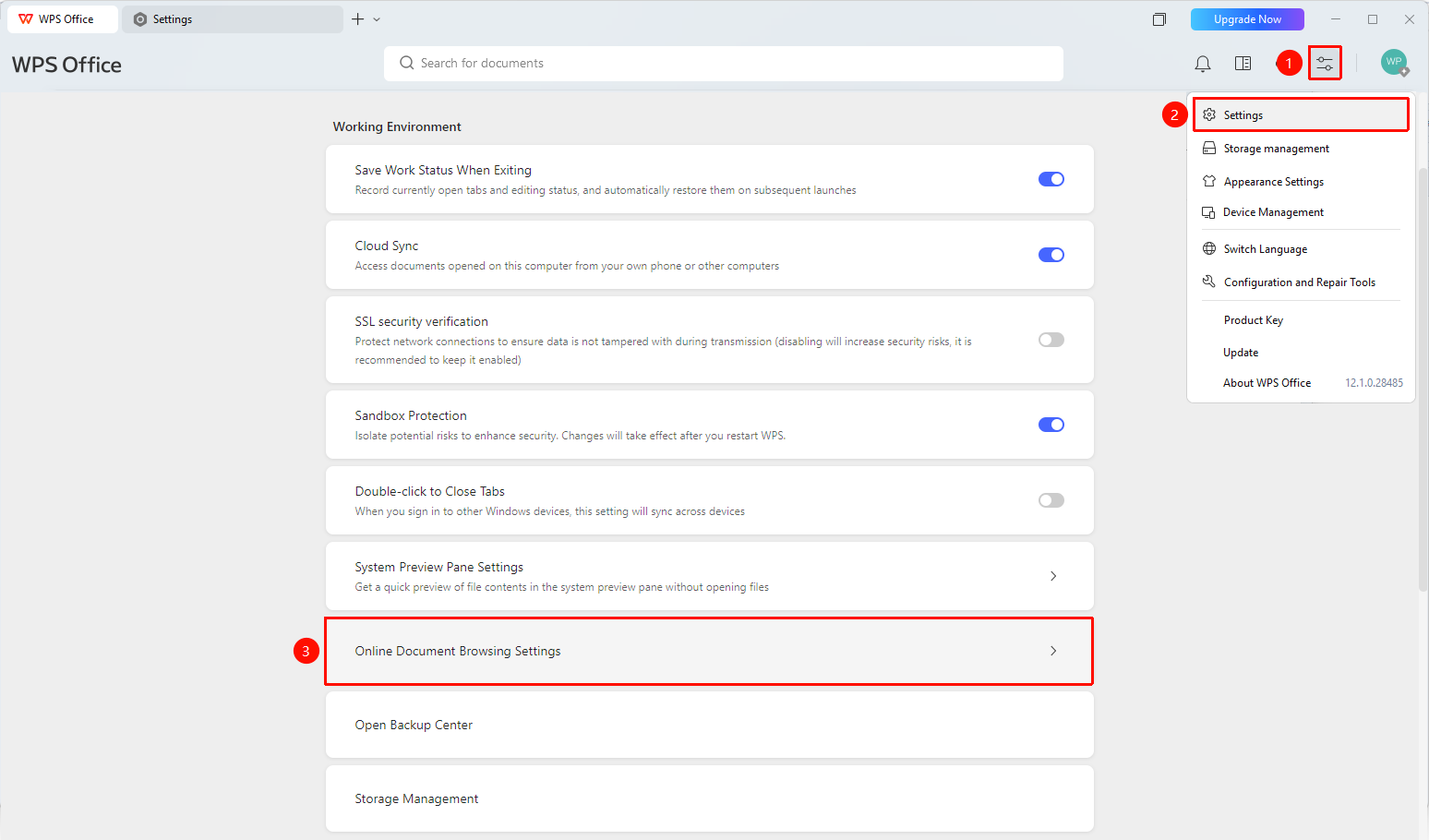
「Global Settings」 button → 「Settings」 option → 「Online Document Browsing Settings」
- Open the WPS client
- Click the 「Global Settings」 button in the upper right corner
- Select the 「Settings」 option
- Under the 「Work Environment」 group, click 「Online Document Browsing Settings」
Set Default File Download Save Location
Feature Entry
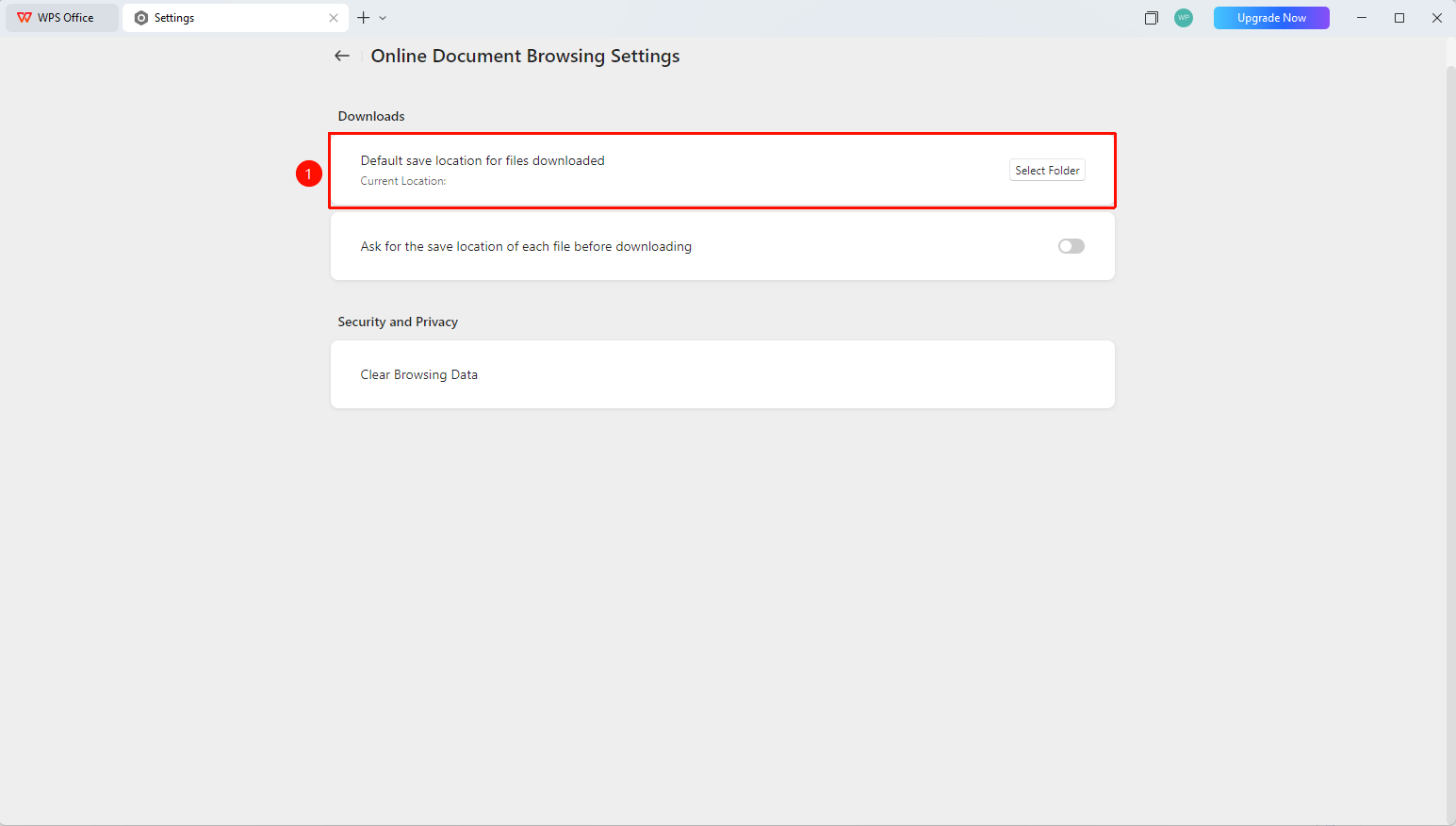
「Online Document Browsing Settings」 page → 「Download」 area → 「Default file download save location」
- Enter the 「Online Document Browsing Settings」 page
- In the 「Download」 area, view the current default file download save location
- Click the 「Select Folder」 button
- In the pop-up folder selection dialog, re-select the save path
- After selection, the save path is automatically updated
Set Ask Where to Save Before Downloading
Feature Entry
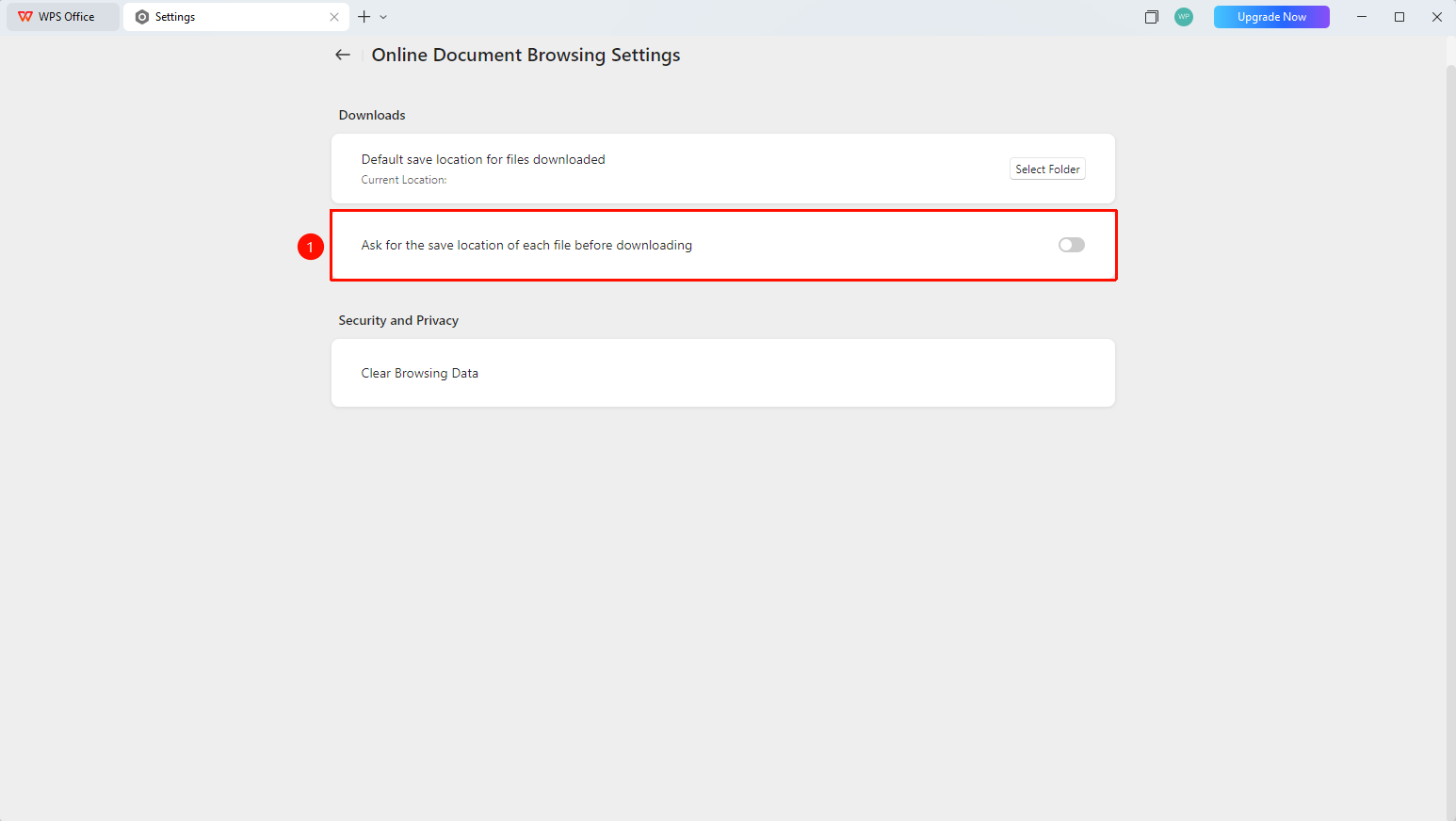
「Online Document Browsing Settings」 page → 「Download」 area → 「Ask where to save each file before downloading」
- Enter the 「Online Document Browsing Settings」 page
- In the 「Download」 area, find the 「Ask where to save each file before downloading」 checkbox
- After checking, a save location dialog will pop up each time a file is downloaded
- After unchecking, files will be saved directly to the default location
Clear Browsing Data
Feature Entry
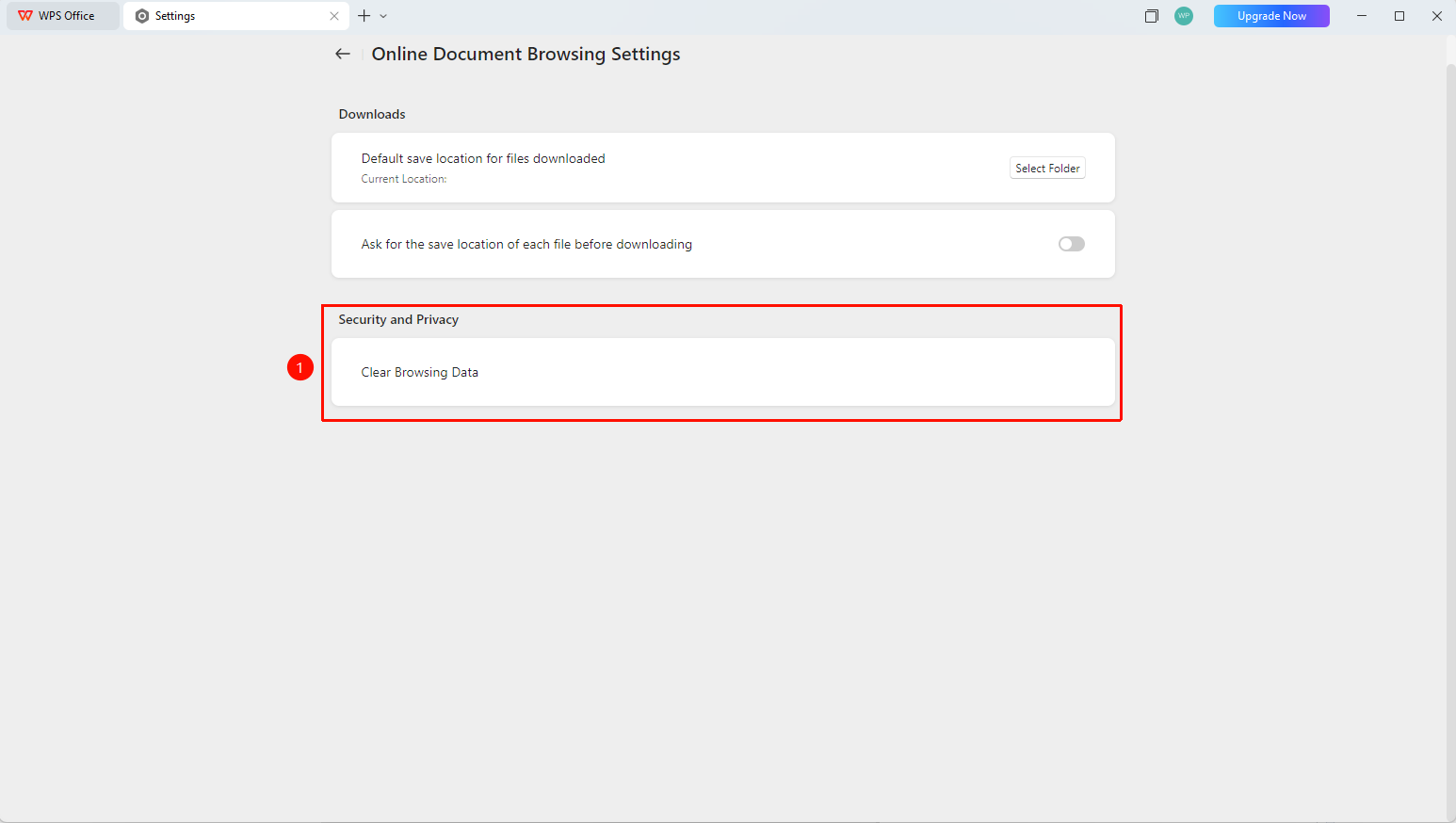
「Online Document Browsing Settings」 page → 「Security and Privacy」 area → 「Clear browsing data」
- Enter the 「Online Document Browsing Settings」 page
- In the 「Security and Privacy」 area, click the 「Clear browsing data」 button
- The system automatically clears the browsing records and temporary data of Online Document
FAQ
Q1: How to modify the default file download save location?
- Solution: On the Online Document browsing settings page, click the 「Select Folder」 button to re-select the save path.
Q2: What is the purpose of asking where to save before downloading?
- Solution: When enabled, a save location dialog will pop up each time a file is downloaded, making it convenient to custom save locations; when disabled, files will be automatically saved to the default location.
Q3: Will clearing browsing data affect saved documents?
- Solution: No, clearing browsing data only cleans the browsing records and temporary data of Online Document, and does not affect the content of saved documents.
Notes
- Asking where to save before downloading can prevent files from being saved directly to the default path, facilitating classified storage as needed.
- Clearing browsing data is a one-time operation and cannot be recovered after clearing.