Feature Summary
The Configuration and Repair Tool is an integrated management tool for WPS Office, providing system-level features such as diagnostics and repair, reset and repair, update settings, feature customization, and other options.
Feature Description
| Feature Dimension | Description |
|---|---|
| Member Restrictions | No member restrictions |
| Version Restrictions | No version restrictions |
Steps
Open Configuration and Repair Tool
Feature Entry
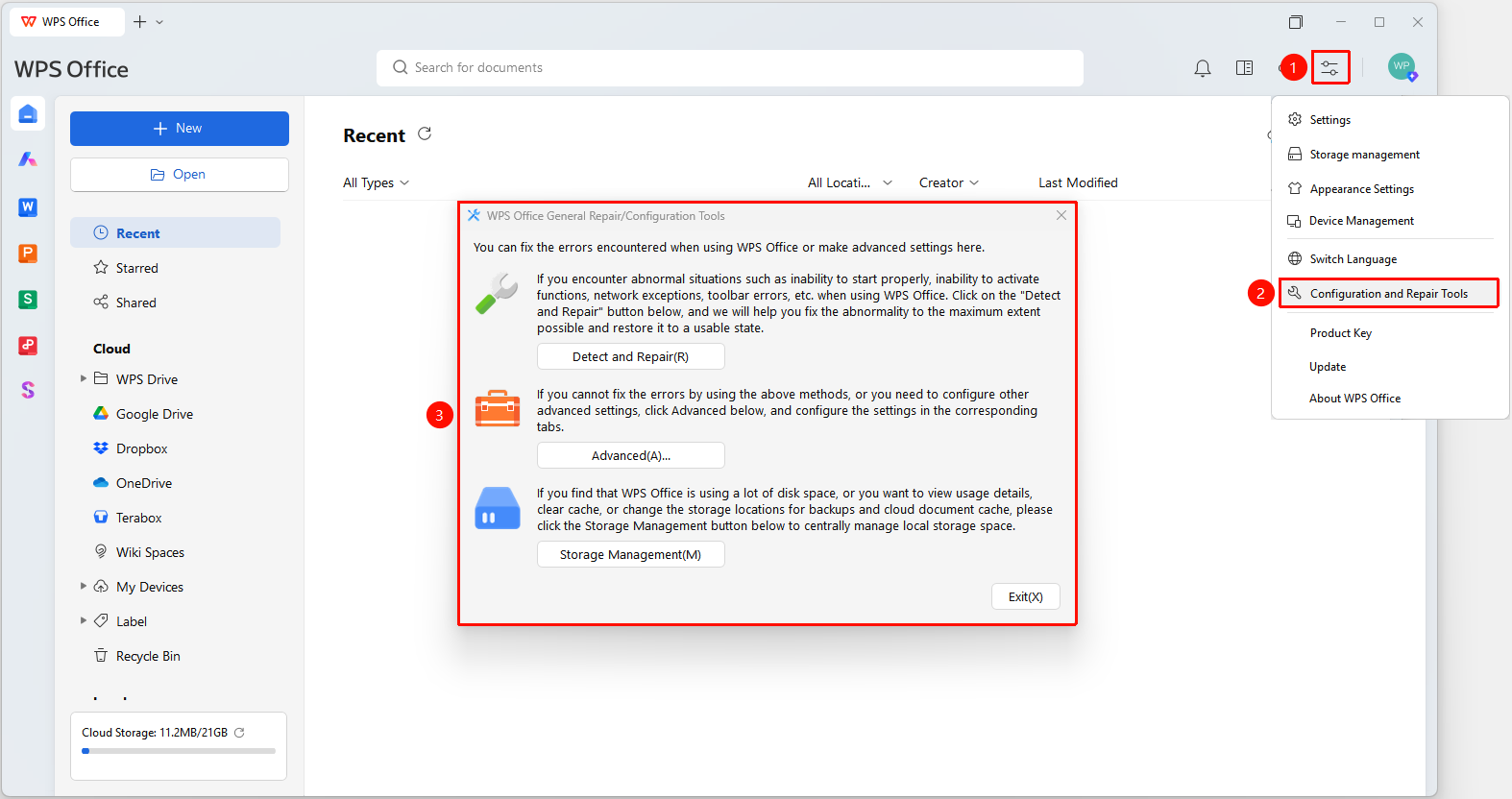
Global Settings button > Configuration and Repair Tool option
- Open the WPS Office desktop app.
- Click the Global Settings button (icon "≡") in the upper-right corner.
- Select Configuration and Repair Tool from the drop-down menu.
- The WPS Office Integrated Repair/Configuration Tool dialog box will appear.
Use Diagnostics and Repair
Feature Entry
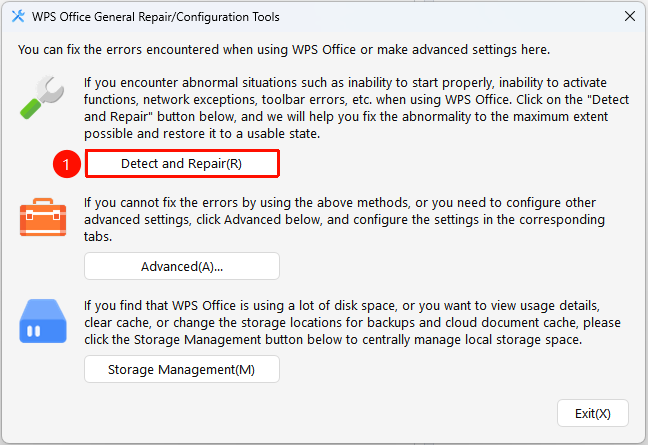
WPS Office Integrated Repair/Configuration Tool dialog box > Start Repairing button
- Open the WPS Office Integrated Repair/Configuration Tool dialog box.
- Click the Start Repairing button.
- The system will automatically run the diagnostic tool and display the progress.
- Once completed, the diagnostic results and repair status will be displayed.
- If there are unresolved issues, click Feedback to submit them.
Enter Advanced Configuration
Feature Entry
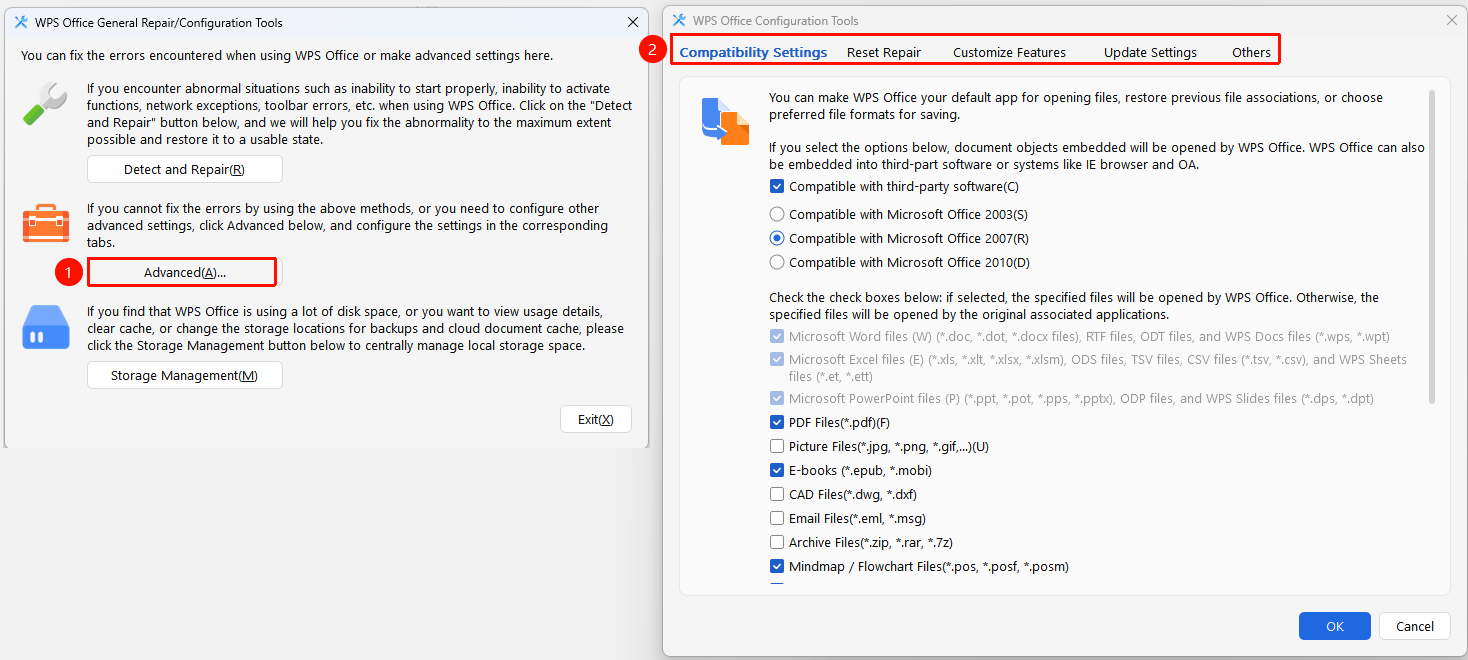
WPS Office Integrated Repair/Configuration Tool dialog box > Advanced button
- Open the WPS Office Integrated Repair/Configuration Tool dialog box.
- Click the Advanced button.
- The WPS Office Configuration Tool dialog box will appear.
- Multiple tabs are displayed at the top, including: Compatibility Settings, Backup and Cleanup, Reset and Repair, Feature Customization, Update Settings, and Other Options.
- Click the corresponding tab to enter the specific configuration page.
Reset and Repair
Feature Entry
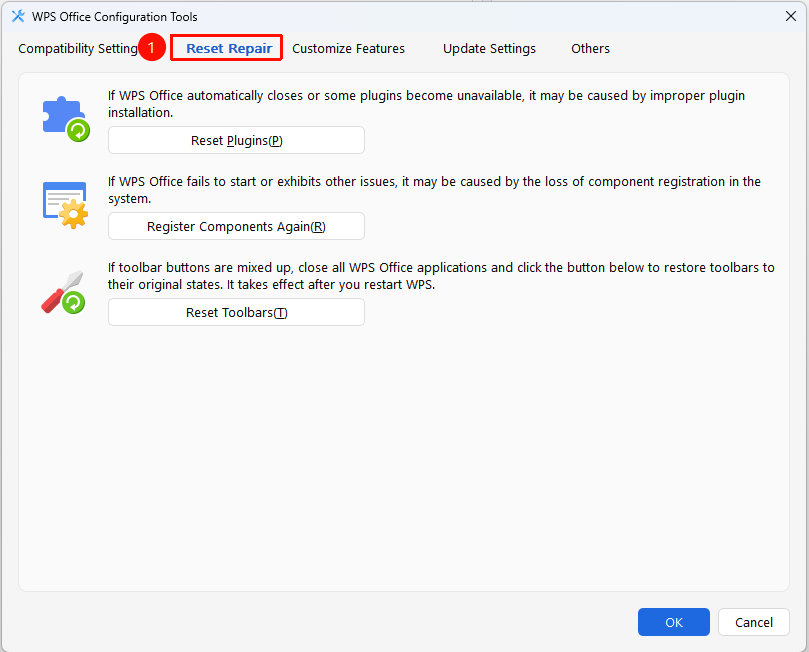
WPS Office Configuration Tool > Reset and Repair tab
Open the WPS Office Configuration Tool dialog box.
Switch to the Reset and Repair tab.
Select the items to reset as needed and click the corresponding button (requires a restart to take effect):
- Reset Plugins: Fix issues caused by incomplete plugin installation.
- Register Components Again: Fix startup exceptions caused by missing component registration.
- Reset Toolbars: Restore toolbars to their initial state.
Update Settings
Feature Entry
WPS Office Configuration Tool > Update Settings tab
Open the WPS Office Configuration Tool dialog box.
Switch to the Update Settings tab.
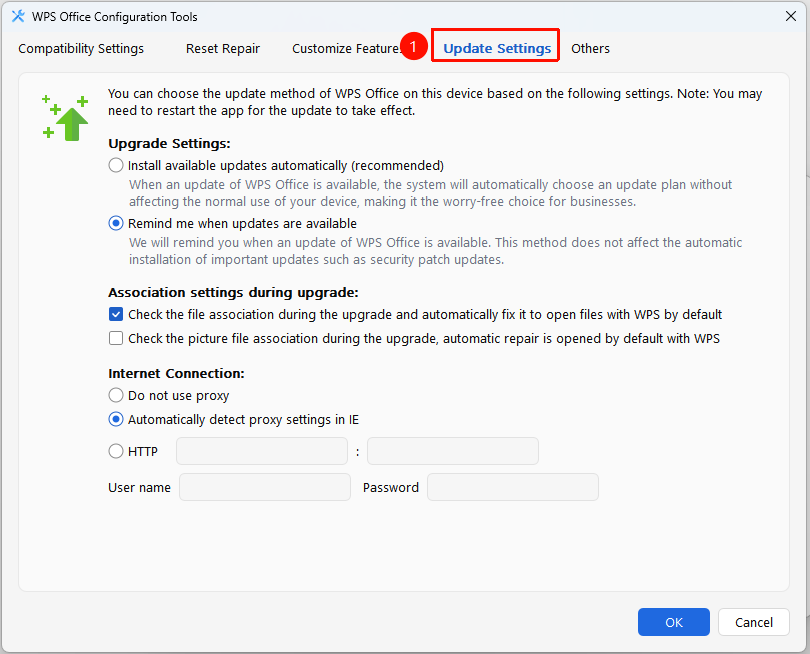
Configure the following update options:
- Update Mode: Install updates automatically or Notify me when updates are available
- Association Settings: Check file associations when updating, Check image associations when updating
- Internet Connection: Do not use proxy / Automatically detect IE proxy settings / HTTP
Other Options
Feature Entry
WPS Office Configuration Tool > Other Options tab
Open the WPS Office Configuration Tool dialog box.
Switch to the Other Options tab.
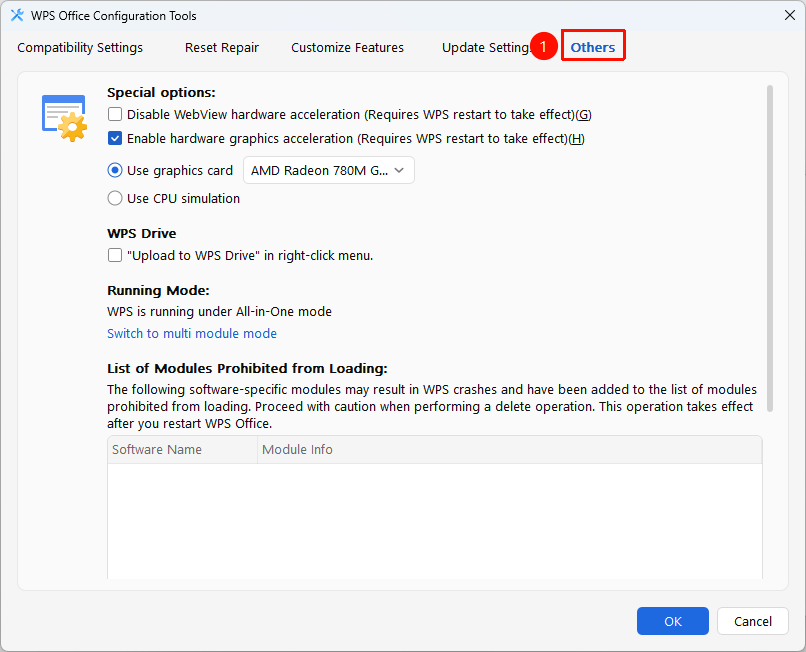
Configure the following options:
- Special Options: Disable WebView hardware acceleration, Enable hardware graphics acceleration
- Running Mode: Switch to the legacy multi-component mode
- Disable Loading List: View and manage modules that cause WPS Office to crash
Feature Customization
Feature Entry
WPS Office Configuration Tool > Feature Customization tab
Open the WPS Office Configuration Tool dialog box.
Switch to the Feature Customization tab.
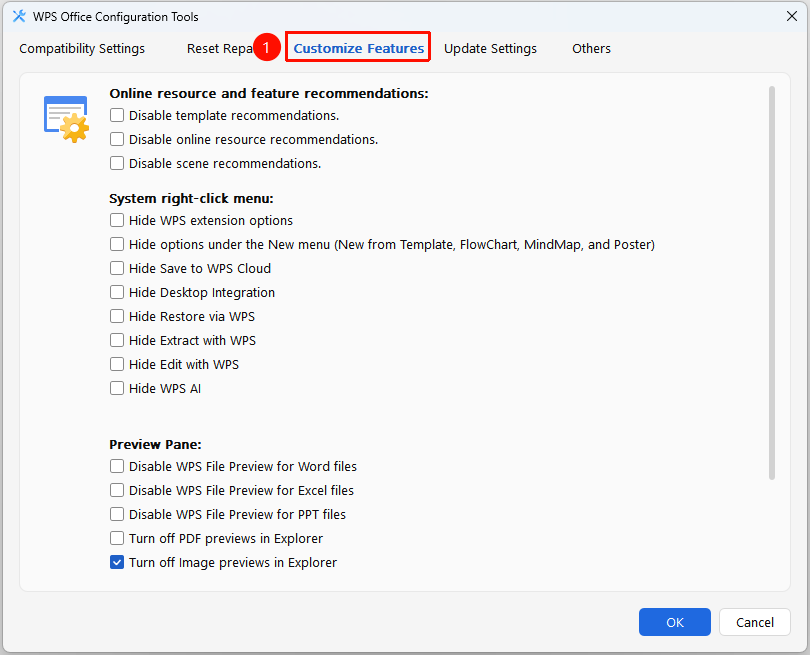
Configure the following options:
- Online Resources and Feature Recommendations: Turn off template recommendations, online resource recommendations, and scenario-based feature recommendations.
- System Context Menu: Hide shortcut menu items of WPS Office extensions.
- Preview Pane: Turn off preview for WPS Docs, Sheets, Slides, PDFs, and images.
- Cloud Document Performance Optimization:
- Default (Recommended): Automatically optimize document opening speed based on device performance and usage habits.
- Maximum: Always open documents at maximum speed, which may use more system resources.
FAQ
Q1: What is the purpose of the Configuration and Repair Tool?
- Solution: It is mainly used to resolve abnormal situations such as WPS Office startup exceptions, features failing to launch, network errors, and toolbar errors, while providing advanced configuration options.
Q2: What is the difference between Diagnostics and Repair and Reset and Repair?
- Solution: Diagnostics and Repair automatically scans and fixes common issues. Reset and Repair allows you to specifically reset plugins, register components again, or reset toolbars.
Q3: Will the repair feature delete my documents?
- Solution: No. The repair feature only fixes the configuration and components of the software itself. It will not delete or modify your documents.
Notes
- Close all WPS Office windows before using the repair feature.
- Resetting plugins, registering components again, and resetting toolbars require a restart of WPS Office to take effect.
- The advanced configuration contains multiple tabs, which can be configured separately as needed.