Feature Summary
Multidimensional tables offer a rich set of field types, among which the Numbering field is suitable for specific data scenarios. The Numbering field automatically generates a unique number for each record and supports custom numbering rules and formats. It is suitable for scenarios requiring automatic numbering, such as task numbers and work order numbers.
Feature Description
| Feature Dimension | Description |
|---|---|
| Membership Restriction | No membership restriction |
| Version Restriction | No version restriction |
Operation Steps
Create a Numbering Field
Feature Entry
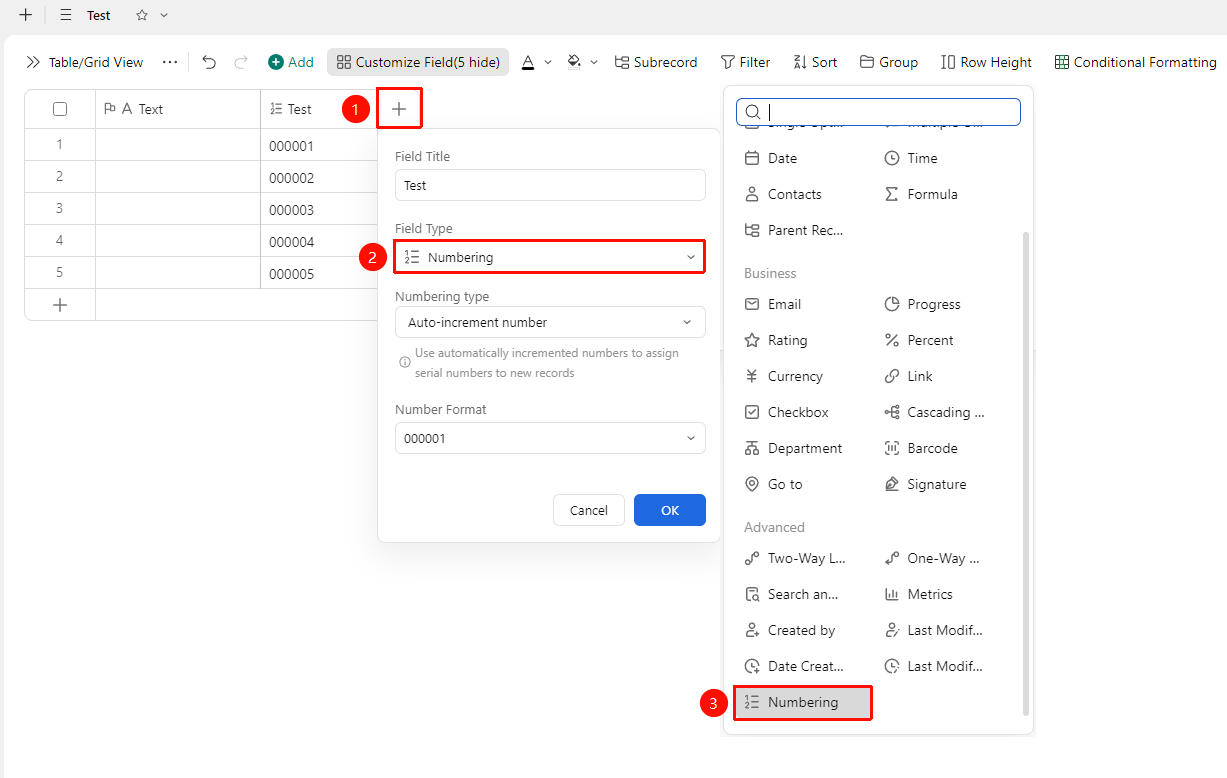
Click the "+" button on the right side of the header → Select the "Numbering" field type
- In the data table, click the "Add Field" button (+ sign) on the right side of the header
- In the field type list, find and select the "Numbering" type
- Enter the field name as prompted and click "Confirm" to create
- After the field is created, enter data in the cells according to the input method for this type
Configure Number Type
Feature Entry
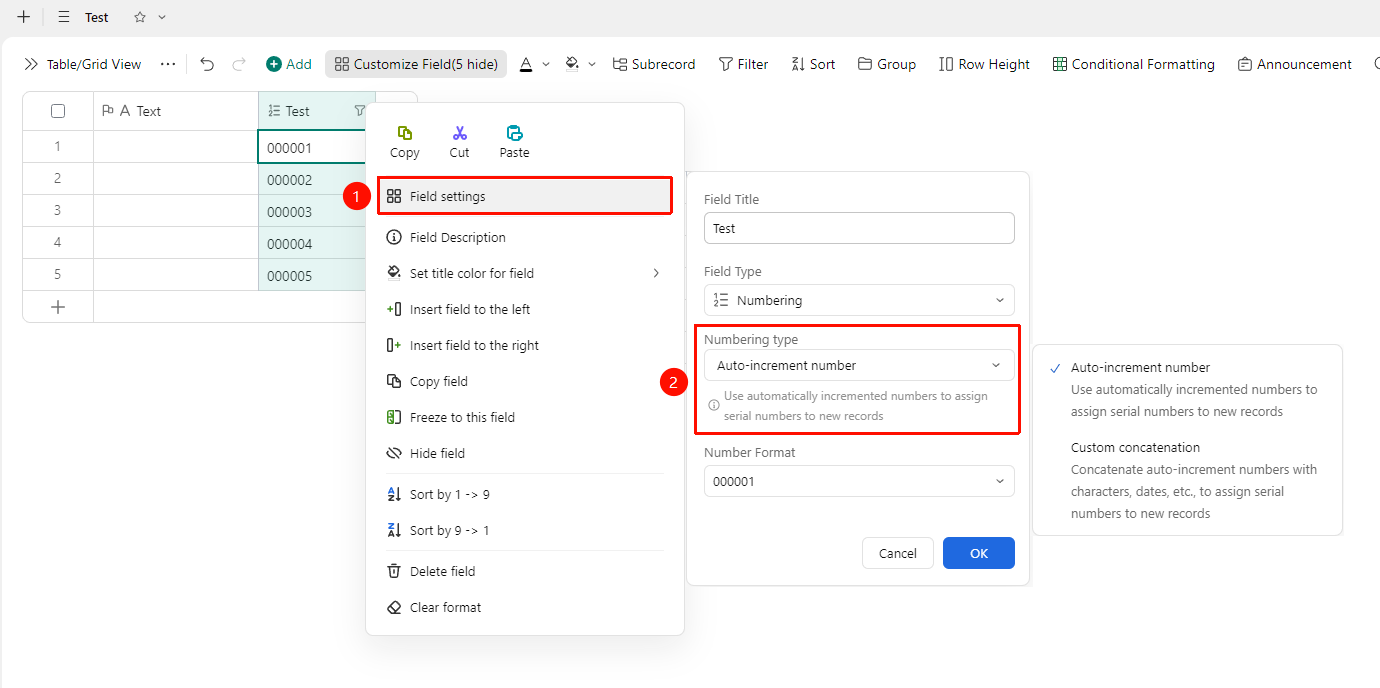
Right-click the field → "Field Settings" button → "Number Type" drop-down menu
- Right-click the field and select the "Field Settings" button
- In the pop-up settings panel, click the "Number Type" drop-down menu
- In the drop-down menu, you can choose:
- Auto-increment Number type: Uses automatically incrementing numbers to assign sequence numbers to new records
- Custom Concatenation type: Concatenates auto-increment numbers with characters, dates, etc., to assign sequence numbers to new records
- After selecting the number type, confirm to save the configuration
FAQ
Q1: Can the Numbering field be changed to another type after creation?
- Solution: Yes. Select "Field Type" in the field settings, choose the new type, and confirm. Note: Data anomalies may occur when data formats are incompatible. It is recommended to back up the field data before making changes.
Q2: Can the data in the Numbering field be used for filtering and grouping?
- Solution: Yes. Data from all field types supports filtering and grouping, and the Number field is equally applicable, helping to quickly locate and classify records in the data table.
Notes
- After creating the field, it is recommended to carefully check whether the input method and format validation rules meet expectations
- Changing the field type may cause existing data formats to mismatch; please proceed with caution
- The data in this field supports export to multiple file formats, facilitating external collaboration