Feature Summary
When you encounter file corruption, unreadable files, or format error prompts upon opening a document, the Document Recovery feature can attempt to restore the document content and structure. This helps you retrieve your existing work and reduce rework caused by file corruption.
Feature Description
| Feature Dimension | Description |
|---|---|
| Membership Limits | Available for both WPS Pro+ and WPS Premium |
| Version Limits | Applicable to the latest version on the WPS official website |
Steps
Feature Entry ①
Feature Entry
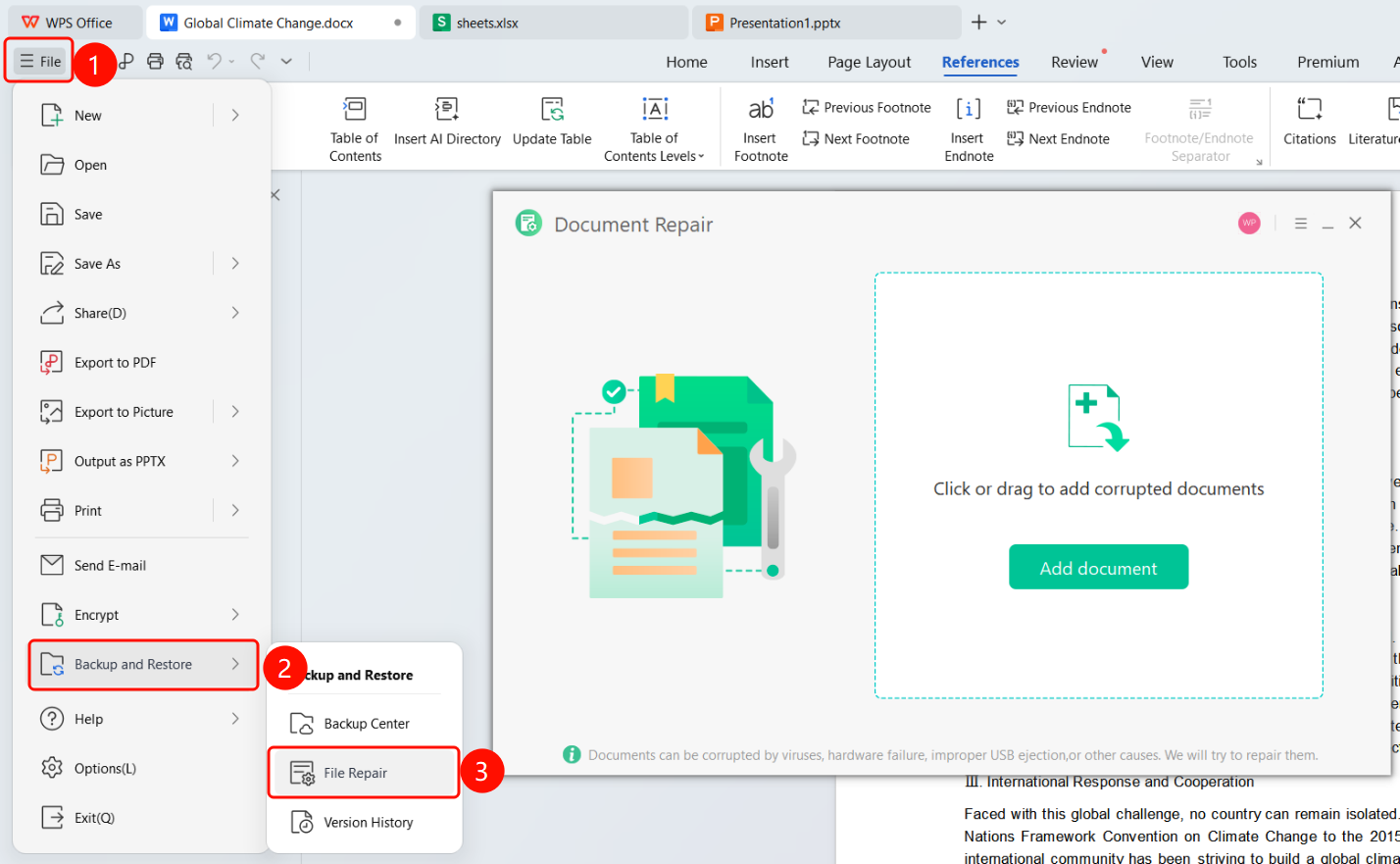
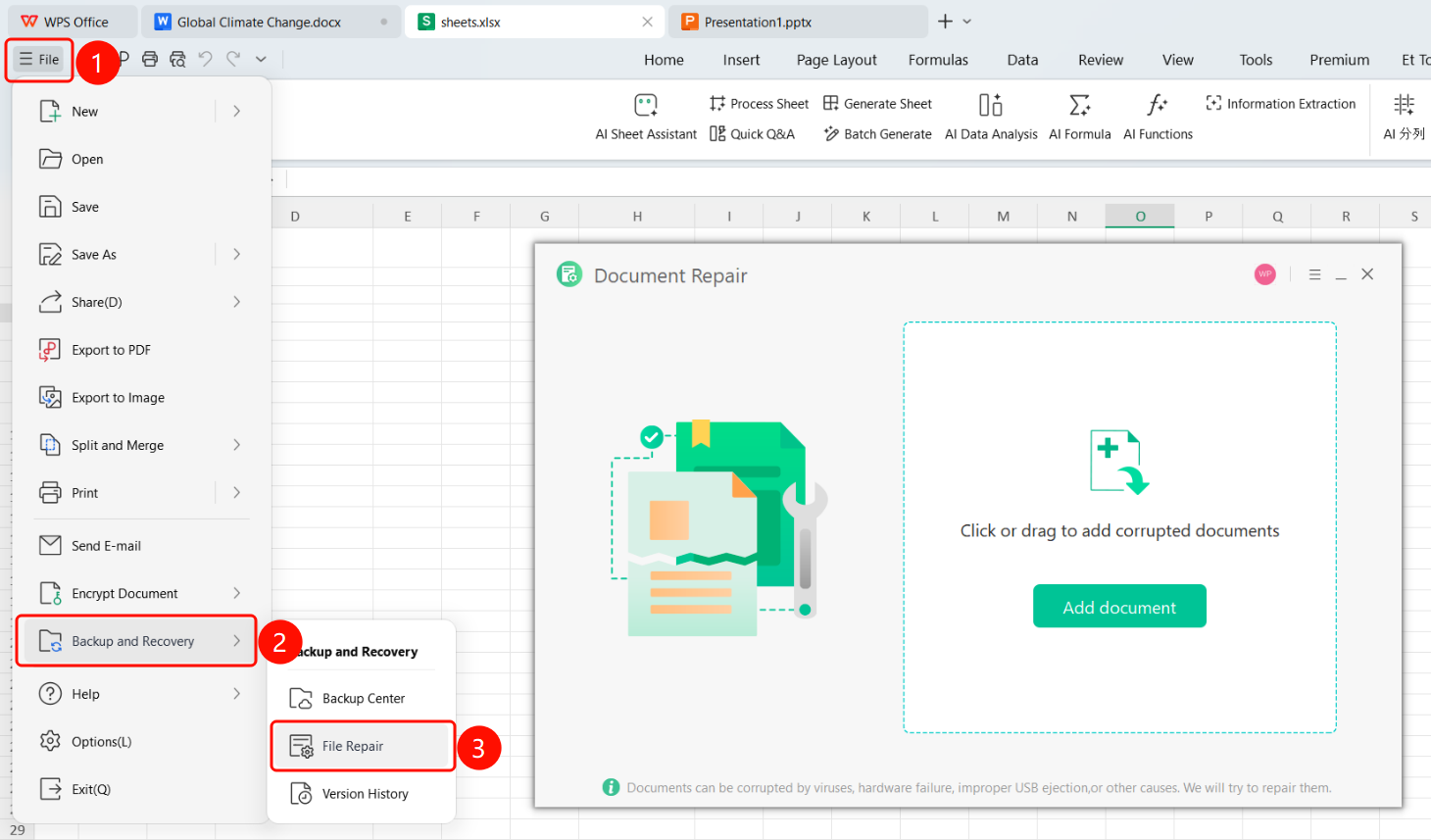
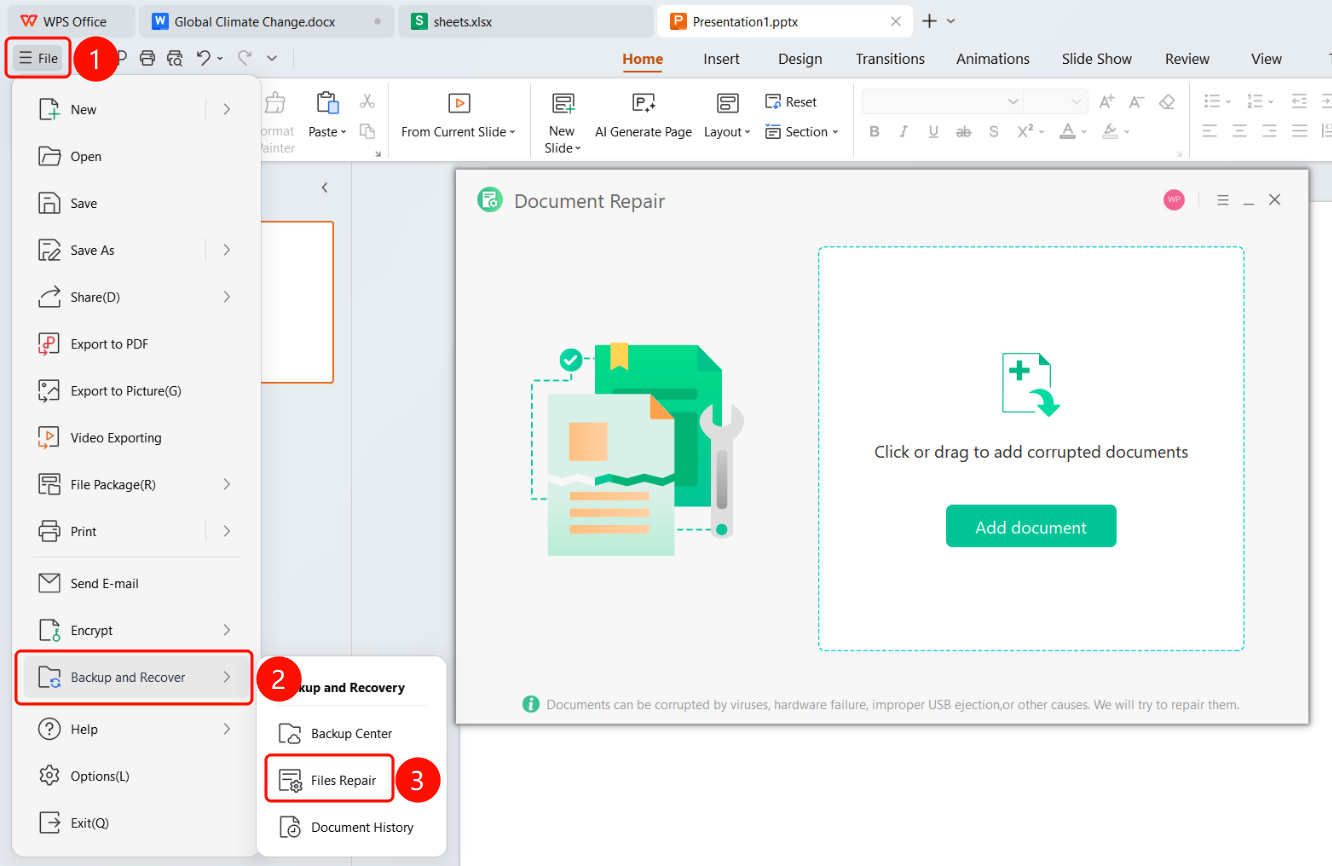
File tab > Backup & Recovery > Document Recovery
- Open WPS Office (Writer, Spreadsheets, or Presentation).
- Click the File tab in the upper left corner.
- Select Backup & Recovery from the dropdown menu.
- Click the Document Recovery option.
- The system will display the Document Recovery interface.
Feature Entry ②
Feature Entry
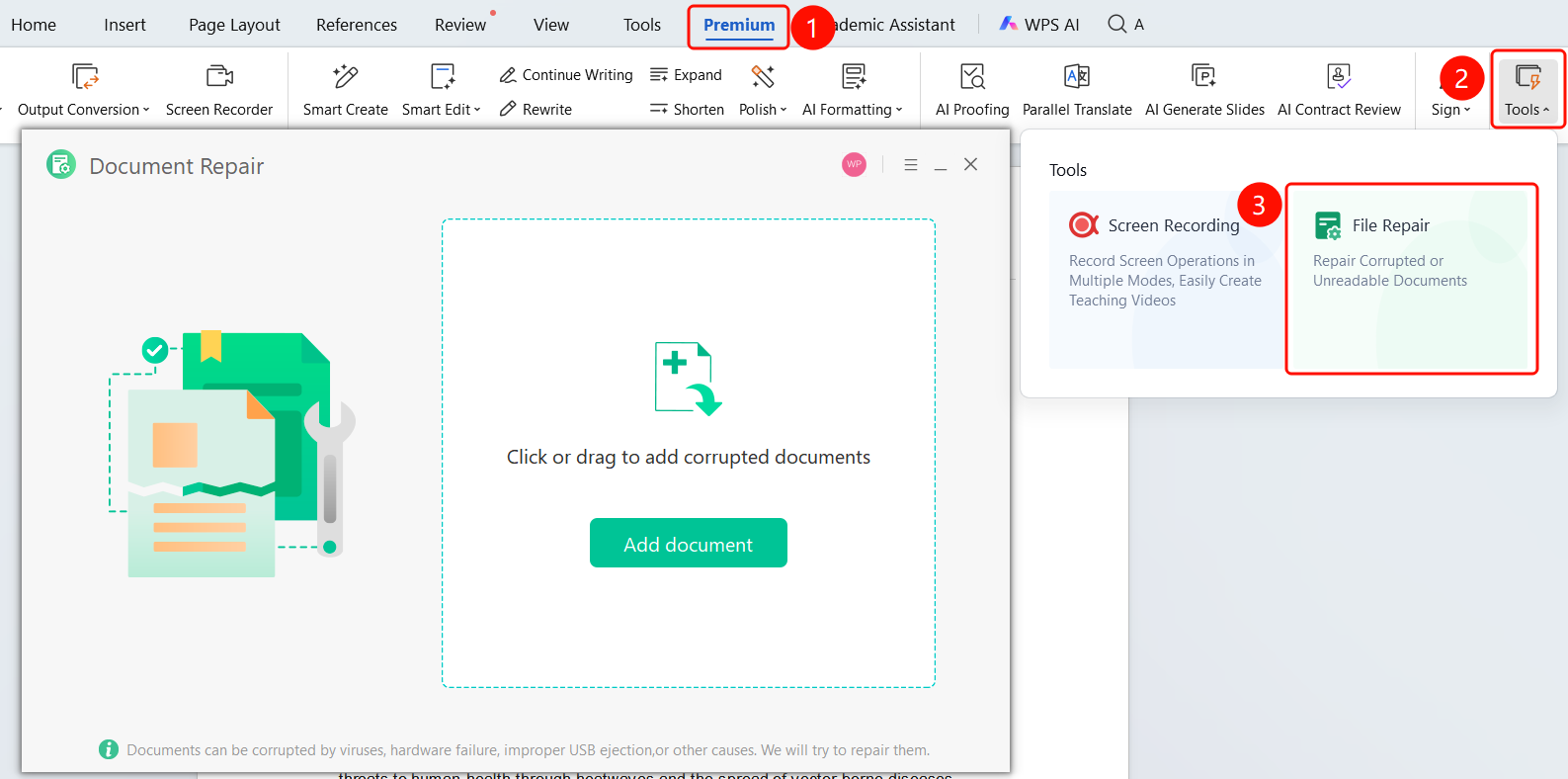
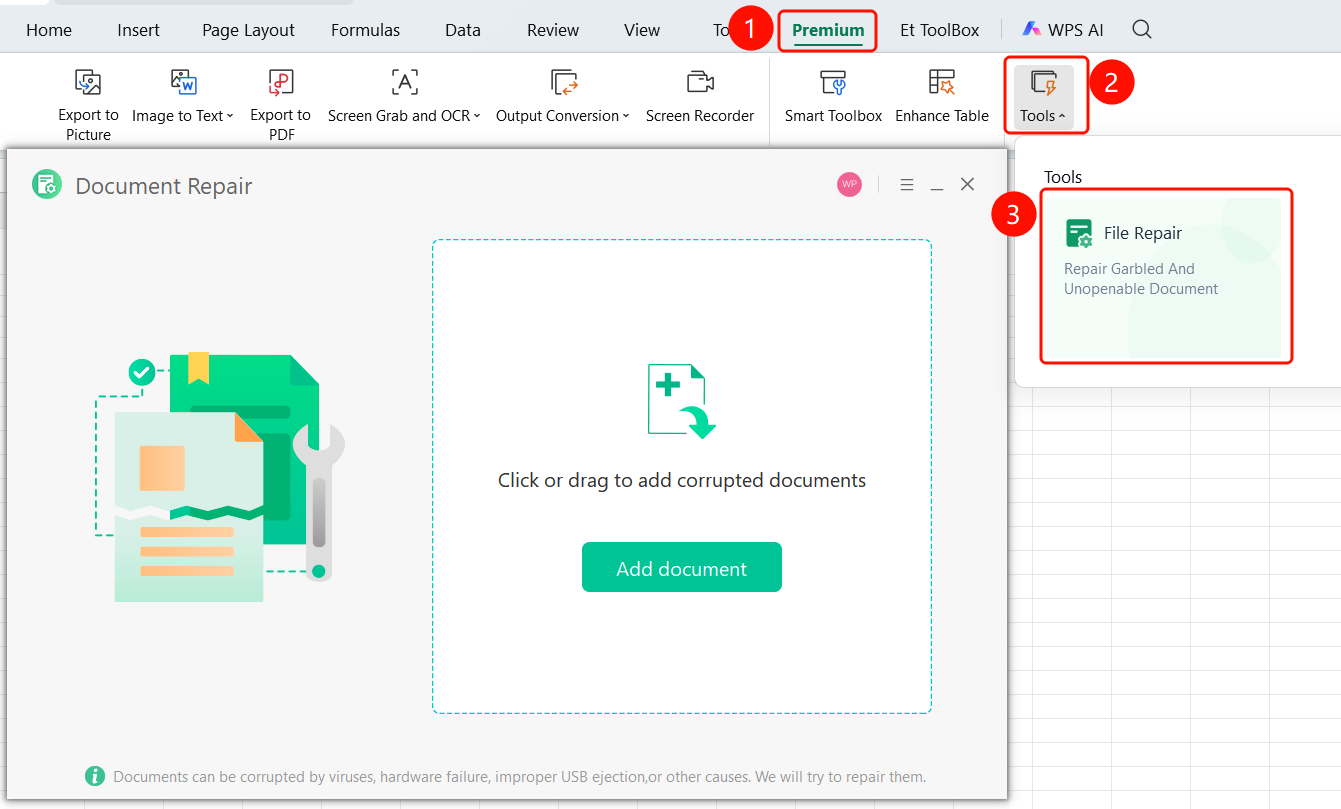
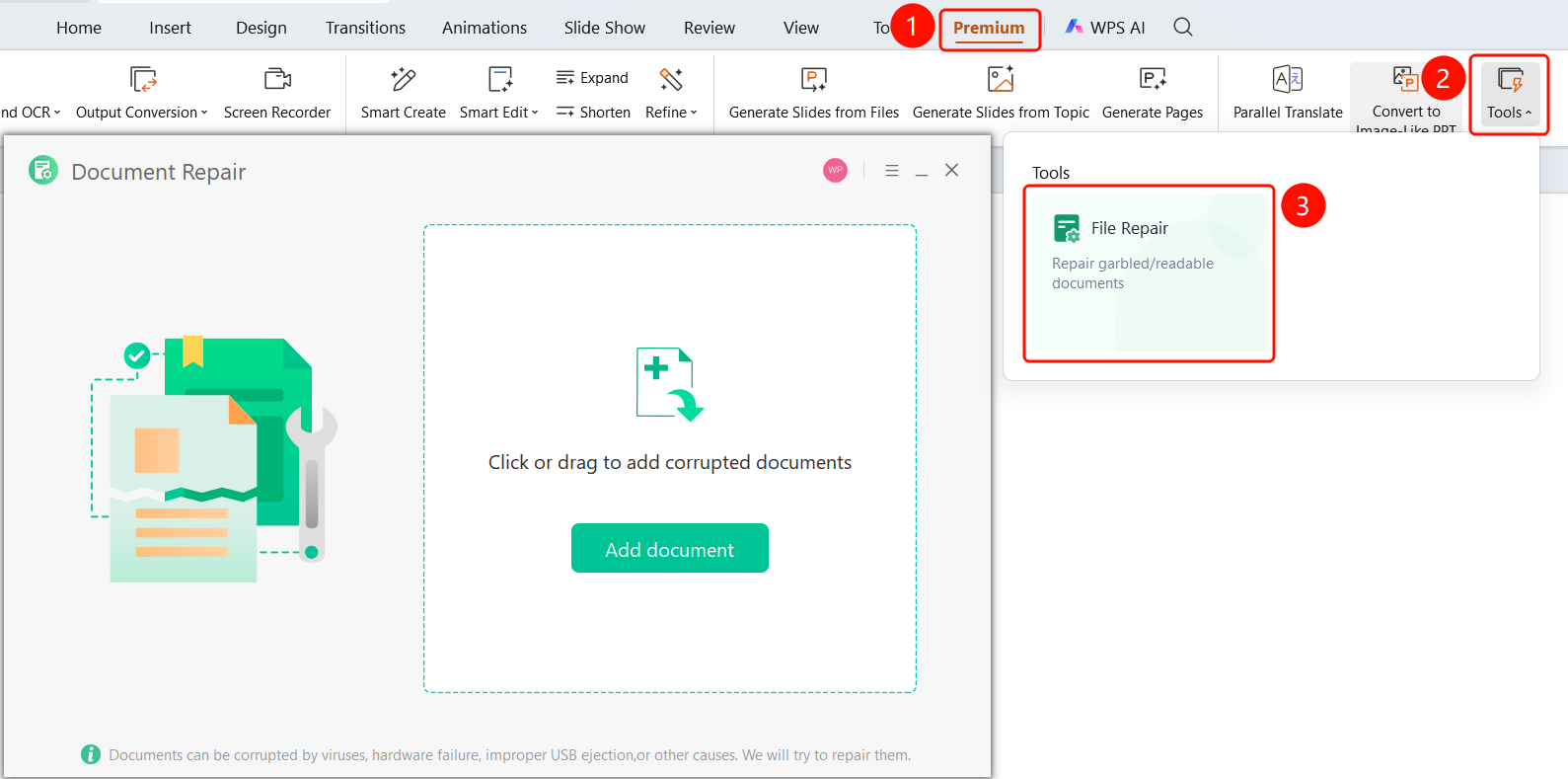
Premium tab > Convenient Tools > Document Recovery
- Open WPS Office (Writer, Spreadsheets, or Presentation).
- Click the Premium tab on the top menu bar.
- Find and click the Convenient Tools button on the right side of the toolbar.
- Select Document Recovery from the dropdown menu.
- The system will display the Document Recovery interface.
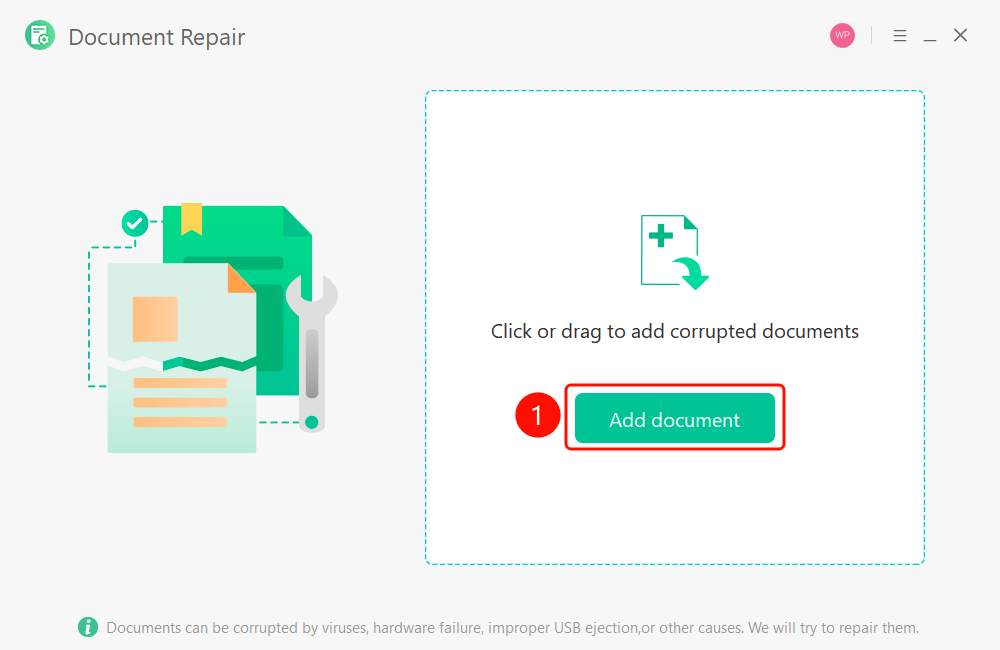
Add Document
Feature Entry
Document Recovery interface > Add Document button
- In the Document Recovery interface, click the Add Document button.
- Alternatively, drag and drop the corrupted document directly into the interface.
- Choose the document file that needs to be recovered.
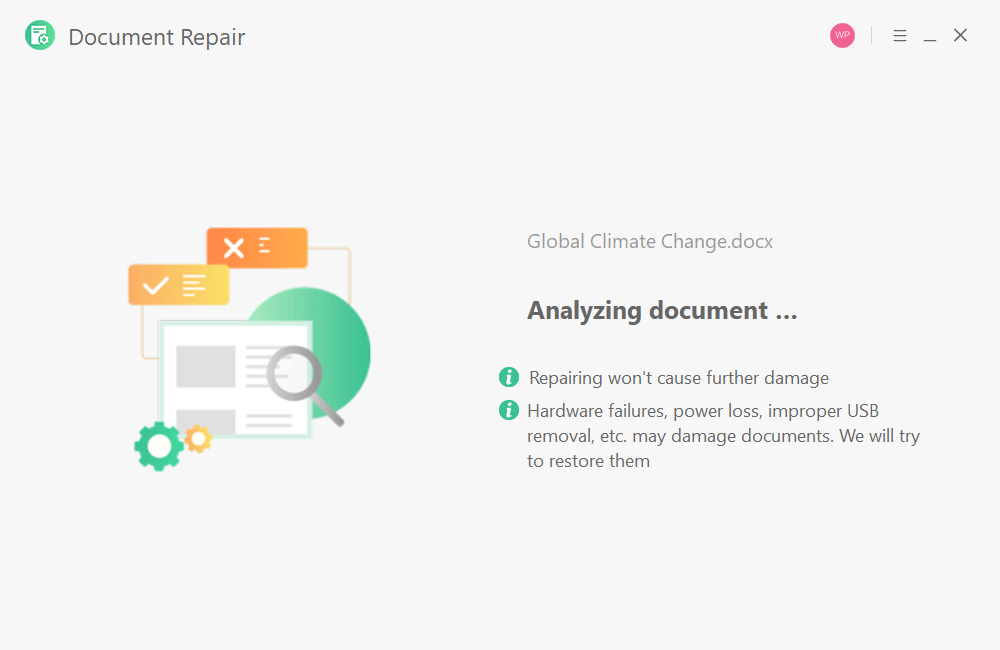
- The system will start analyzing the document.
Analyze Document
The system will automatically analyze the document. This process will not cause secondary damage to the document. The analysis time depends on the document size and corruption level. Please wait patiently.
Preview Content
Feature Entry
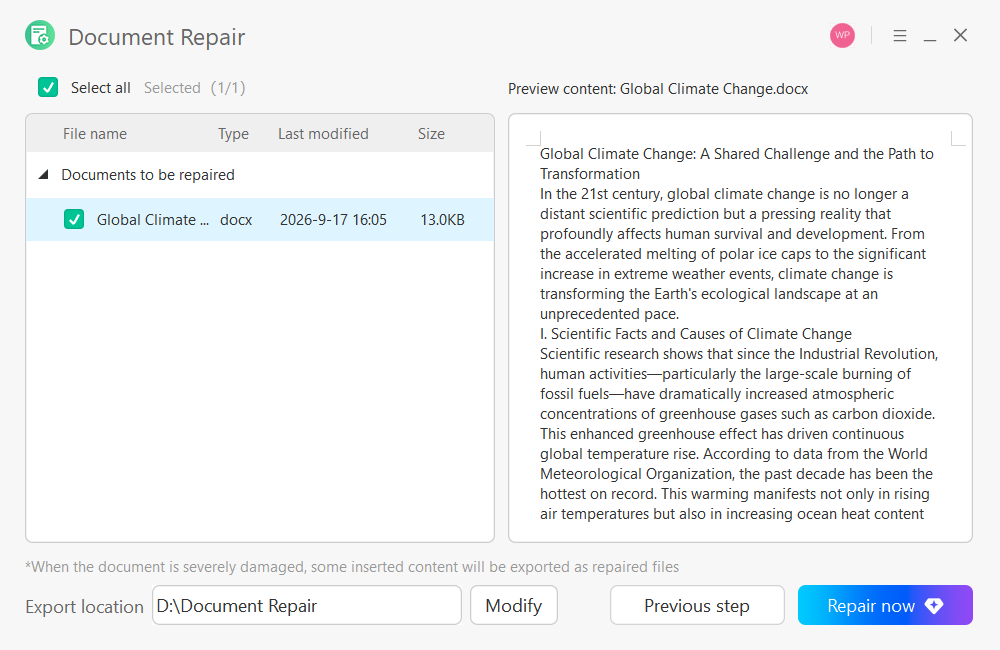
Analysis complete interface
- After the analysis is complete, the list of documents to be recovered is displayed on the left.
- You can view the document content in the preview window on the right.
- Confirm the Export Location (default is D:\Document Recovery).
- To change the export location, click the Modify button.
- After confirming that everything is correct, click the Recover Now button.
Recovery Succeeded
Feature Entry
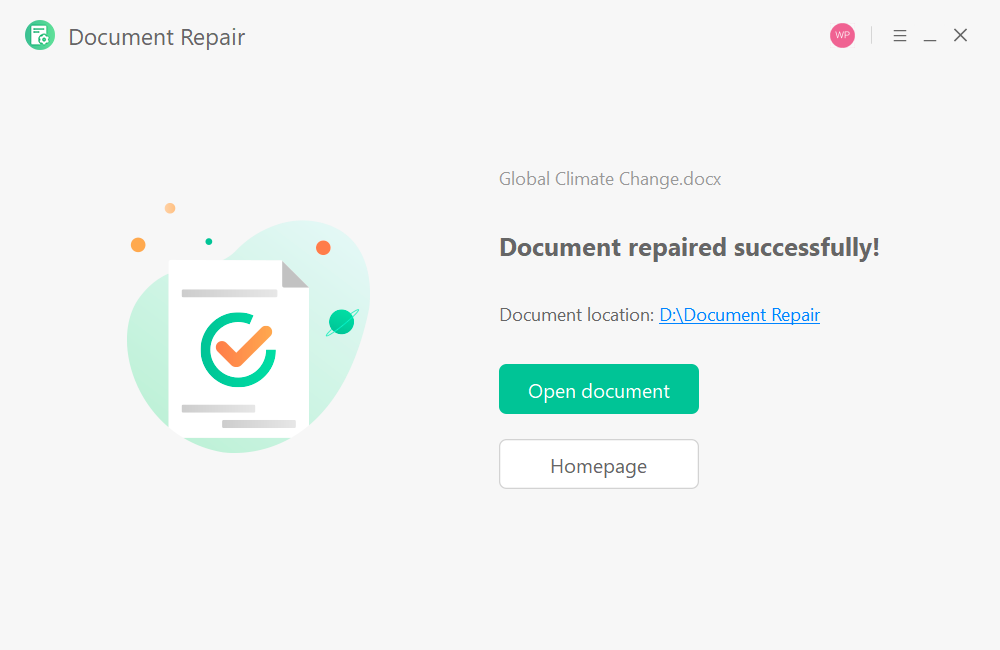
Recovery complete interface
- After a successful recovery, the interface displays the Document recovered successfully! prompt.
- The document save location is displayed (e.g., D:\Document Recovery).
- Click Open Document to open the recovered document directly.
- Click Back to Home to continue recovering other documents.
FAQ
Question 1: What formats does the Document Recovery feature support?
- Solution: It supports recovering common office document formats such as WPS Docs (.doc/.docx), WPS Sheets (.xls/.xlsx), and WPS Slides (.ppt/.pptx).
Question 2: What should I do if the recovery fails?
- Solution: If the document is severely corrupted, it may not be fully recovered. We recommend previewing the content before recovery to confirm the recoverable parts.
Question 3: Do I need to pay for recovery?
- Solution: Document Recovery is a Premium feature. You need to subscribe to WPS Premium to use the full feature.
Notes
- The recovery process will not cause secondary damage to the original document.
- Viruses, hardware failures, USB drive removal errors, and errors when processing documents with third-party tools can cause document corruption.
- We recommend backing up important documents regularly to prevent document corruption.
- When a document is severely corrupted, some inserted content will be exported as recovered files.