Feature Summary
When your thoughts are interrupted or you need to keep writing, AI Co-Writing can intelligently complete the subsequent content based on the existing context. Like a helpful writing assistant, it accompanies you through your creation, helping you maintain a smooth writing flow and improve creative efficiency.
Feature Description
| Feature Dimension | Description |
|---|---|
| Membership Limits | Available for both WPS Pro+ and WPS Premium |
| Version Limits | Applicable to the latest version on the WPS official website |
Steps
Enabling AI Co-Writing
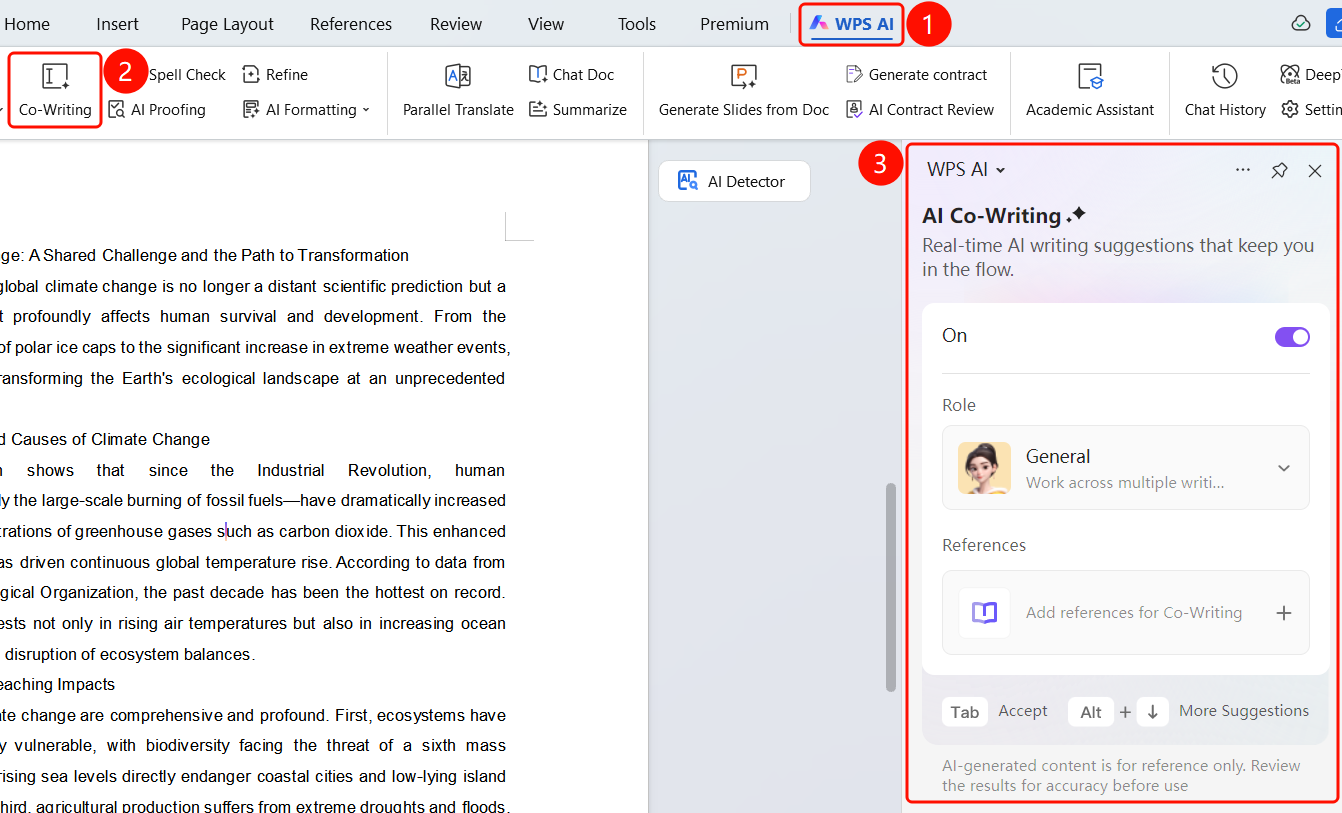
Entry ①
"WPS AI" tab → "Co-Writing"
- Open a WPS Office document.
- Click the WPS AI tab on the top menu bar.
- Find and click the Co-Writing button (pencil icon) on the toolbar.
- The AI Co-Writing sidebar will slide out on the right, with the switch turned on.
Entry ②
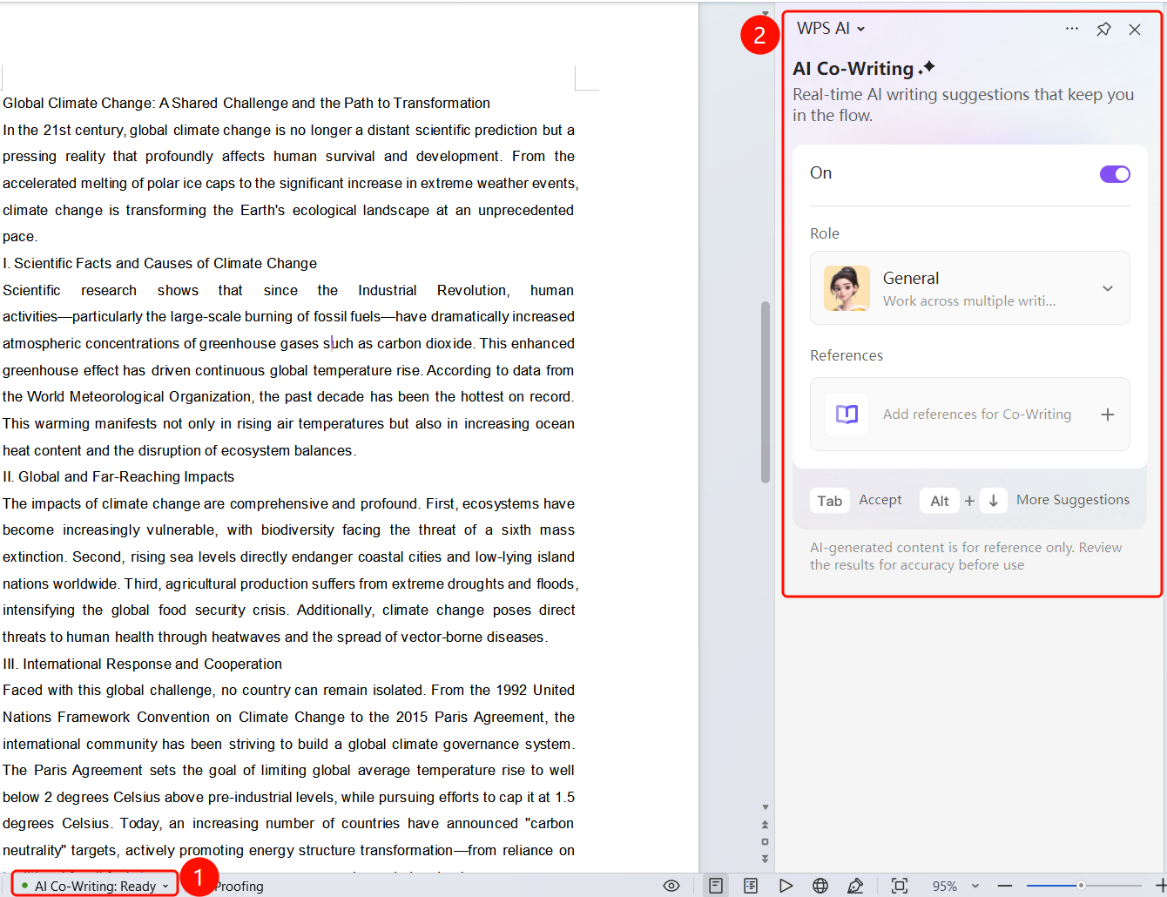
Bottom status bar → "AI Co-Writing: Click to Enable"
- Open a WPS Office document.
- Find the AI Co-Writing: Click to Enable option on the bottom status bar.
- Click it to enable the AI Co-Writing feature.
- The AI Co-Writing sidebar will slide out on the right.
Entry ③
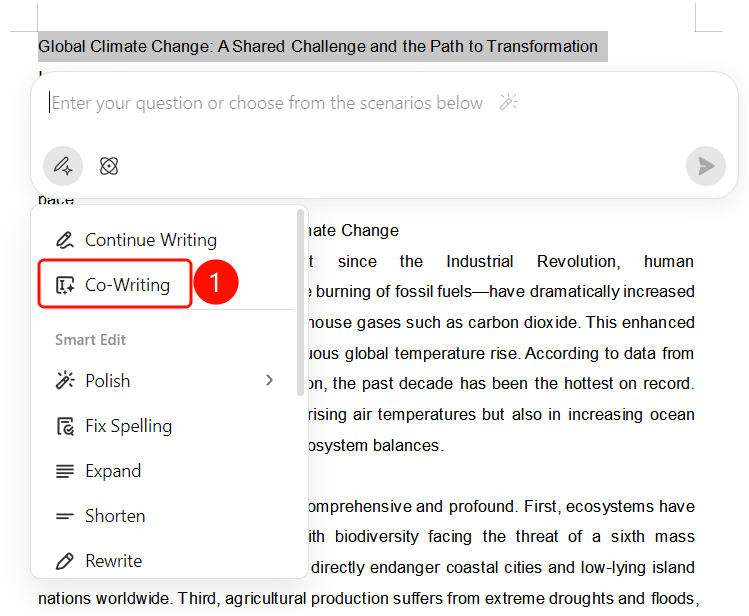
Hover during editing → "Enable"
- Edit your document.
- Hover your mouse over the cursor.
- A floating tooltip "Help you continue writing the next sentence" will appear on the right.
- Click the SlateGray Enable (Tab) button, or press the Tab key on your keyboard to enable it.
Using AI Co-Writing
Entry
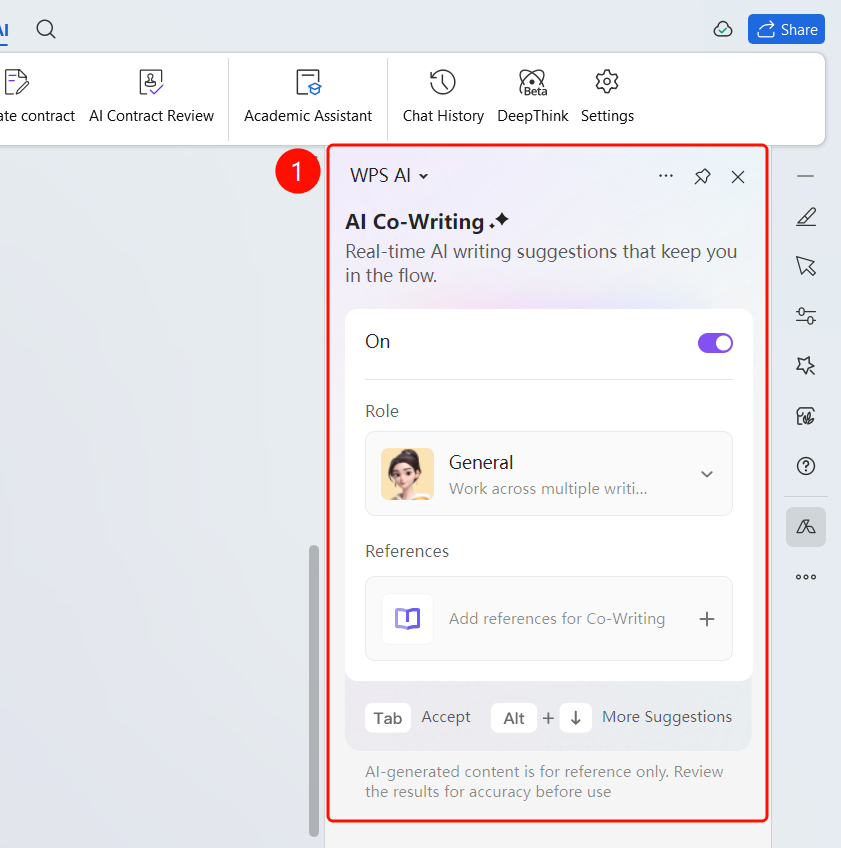
AI Co-Writing sidebar / Editing area
After AI Co-Writing is enabled, continue editing your document.
AI will intelligently generate subsequent content based on the existing context, displayed as gray placeholder text.
"Persona" section: You can choose a co-writing style (such as General). Click ▼ to switch personas.
Press the Tab key to accept the placeholder text.
Press Alt+↓ to view more suggestions.
You can also choose from the floating menu that appears at the cursor:
- Accept Sentence: Shortcut Tab, to accept the AI-generated content.
- View More: Shortcut Alt+↓, to view more writing suggestions.
- Discard Sentence: Shortcut Esc, to discard the current suggestion.
- Disable Co-Writing: To disable the AI Co-Writing feature.
FAQ
Q1: What is the gray placeholder text generated by AI Co-Writing?
- Solution: The gray placeholder text is candidate content intelligently generated by AI based on the context. Press Tab to accept it, or press Esc to discard it. The bottom status bar will display "AI Co-Writing: Pending Decision" or "AI Co-Writing: Pending Acceptance".
Q2: How do I change the persona style of AI Co-Writing?
- Solution: In the AI Co-Writing sidebar, click the ▼ drop-down arrow in the "Persona" section to switch between different co-writing styles (such as General, Academic, Business, etc.). Once selected, AI will generate content based on the chosen style.
Q3: What if I accidentally close the AI Co-Writing sidebar?
- Solution: You can reopen it via the WPS AI tab on the top menu bar → Co-Writing button, or by clicking AI Co-Writing: Click to Enable on the bottom status bar.
Notes
- There is no limit on the number of times WPS Plus and Grand VIP members can use the AI Co-Writing feature.
- AI Co-Writing generates content intelligently based on the existing context. The richer your input, the more accurate the generated content will be.
- You can press Alt+↓ to view more suggestions, or press Esc to discard the current suggestion.
- AI-generated content is for reference only. Please verify the accuracy of the information.