Feature Summary
When you encounter unfamiliar words or paragraphs while reading foreign language documents, AI Select & Translate provides instant and accurate translations to help you overcome language barriers and read international documents smoothly.
Feature Description
| Feature Dimension | Description |
|---|---|
| Membership Limits | Available for both WPS Pro+ and WPS Premium |
| Version Limits | Applicable to the latest version on the WPS official website |
Operating Steps
AI Select & Translate
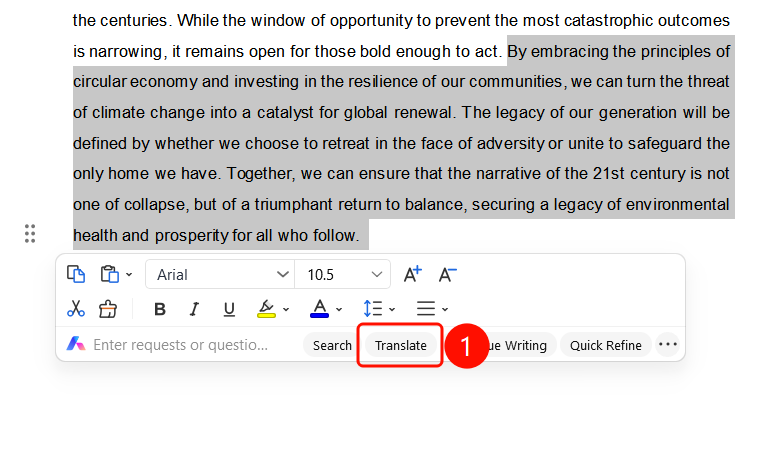
Feature Entry ①
Select text -> Floating toolbar -> "Translate"
- Drag and select the foreign text you want to translate in the document.
- A floating toolbar will pop up above the selected area.
- Click the "Translate" button on the toolbar.
- A translation pop-up window will appear, and the AI will automatically generate the translation.
Feature Entry ②
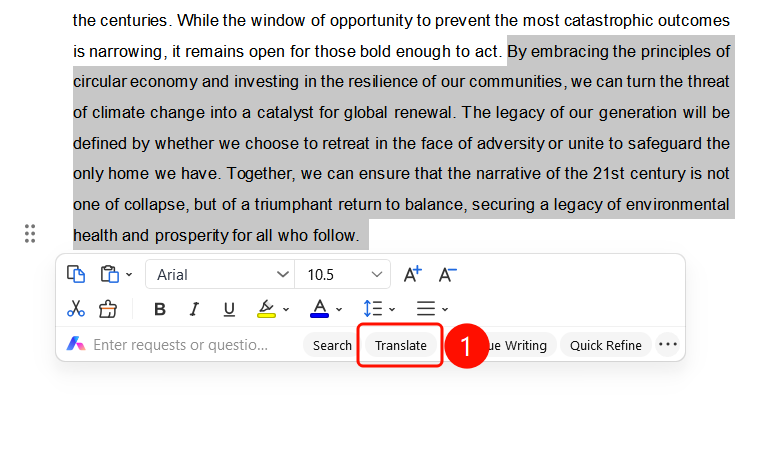
Right-click -> Floating toolbar -> "Select & Translate"
- Drag and select the foreign text you want to translate in the document.
- Right-click the selected text.
- Choose "Select & Translate" from the shortcut menu.
- A translation pop-up window will appear, and the AI will automatically generate the translation.
View Translation Results
Feature Entry
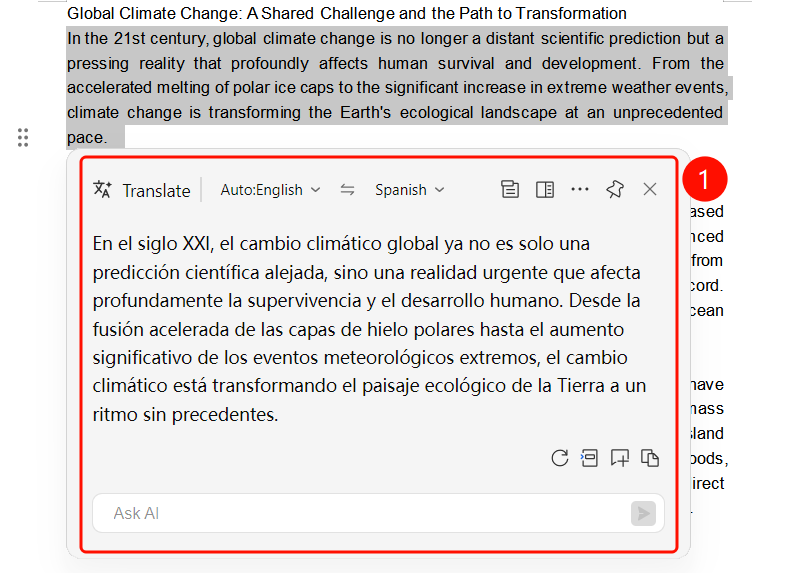
Translation pop-up window
The title of the translation pop-up window is "Translate", with Expand, More, Favorites, and Close buttons in the upper right corner.
The left side displays the source language (Auto-recognize, such as Simplified Chinese) and the target language (such as English), with a switch button in the middle.
The translation area displays the results (such as "deep learning" -> "deep learning, in-depth learning").
Action buttons are provided below:
- "Terminology Dictionary": View related terms.
- "Refresh": Re-translate.
- "Copy": Copy the translation to the clipboard.
An "AI Explain" English definition area is provided at the bottom.
A question input box and a Send button are provided at the very bottom.
FAQ
Question 1: Which languages does AI Select & Translate support?
- Solution: It supports auto-recognition and translation for multiple languages. Both the source and target languages can be manually switched.
Question 2: Can the translation results be copied?
- Solution: Yes. Click the "Copy" icon in the translation pop-up window to copy the translation to your clipboard.
Question 3: What should I do if the translation button does not appear after selecting text?
- Solution: Ensure that you have correctly dragged and selected the text. The floating toolbar will pop up automatically. You can also right-click the selected text and choose "Select & Translate" from the shortcut menu.
Notes
- There is no limit on the number of times WPS Plus and Premium members can use the AI Select & Translate feature.
- It supports auto-recognition for multiple languages, and you can also manually switch the source and target languages.
- The bottom of the translation pop-up window provides AI Explain definitions and a feature to continue asking questions.