Feature Summary
When you need to write a document in a specific format (such as weekly work reports, meeting minutes, or project proposals) but do not know how to organize the content, Smart Create can generate structured documents that meet standard requirements based on preset templates and your instructions. This helps you quickly produce professional and high-quality documents.
Feature Description
| Feature Dimension | Description |
|---|---|
| Membership Limits | Available for both WPS Pro+ and WPS Premium |
| Version Limits | Applicable to the latest version on the WPS official website |
Steps
Smart Create with Templates
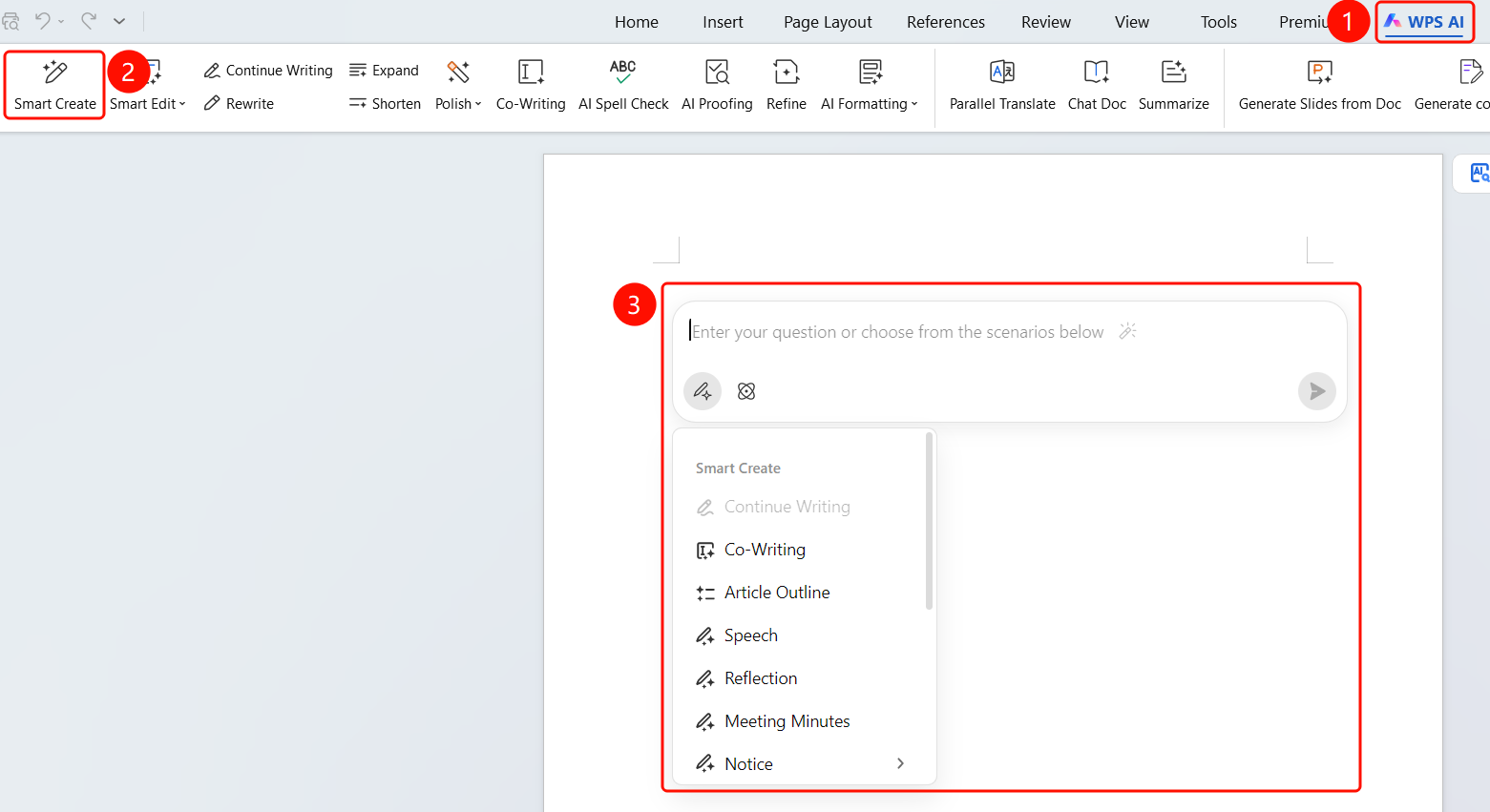
Feature Entry ①
"WPS AI" tab → "Smart Create"
- Open a WPS Office document.
- Click the WPS AI tab on the top menu bar.
- Find and click the Smart Create button (pen icon) in the ribbon.
- The AI writing input box will pop up on the page.
Feature Entry ②
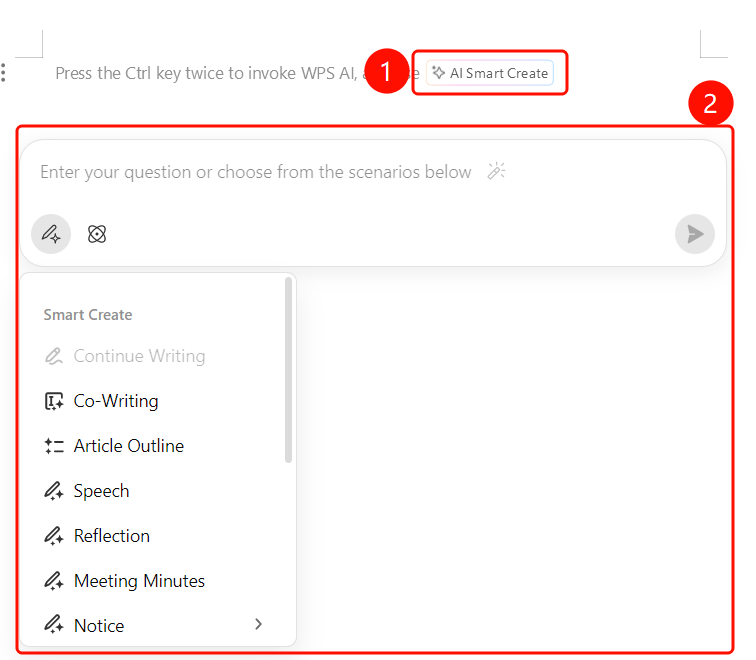
Default entry displayed on a blank page
- Open a blank document.
- The prompt "Press Ctrl twice to wake up WPS AI and use Smart Create" will be displayed by default in the editing area.
- Click the floating button Smart Create (sparkle icon).
Feature Entry ③
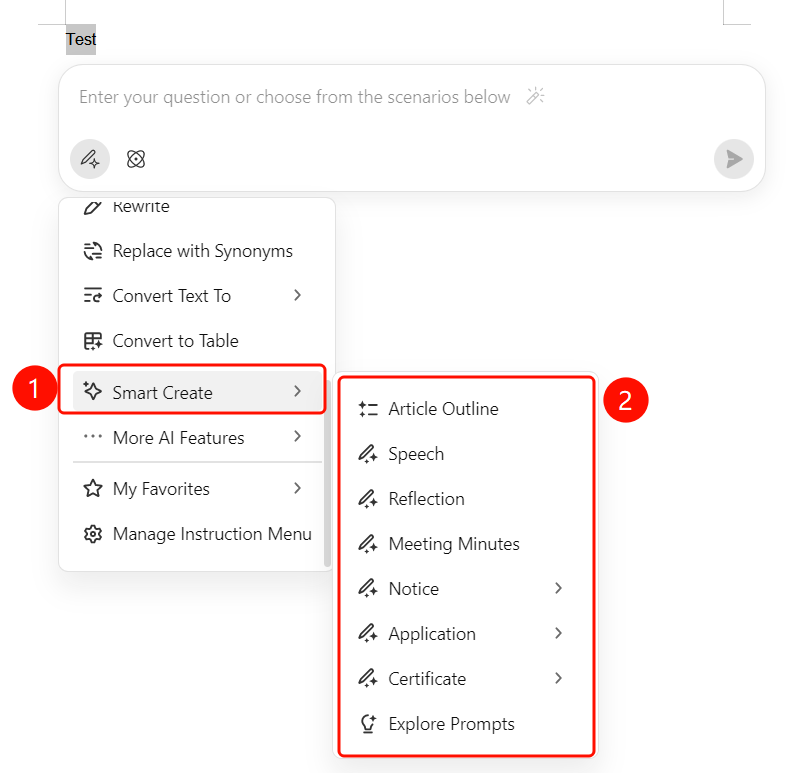
Press Ctrl twice to wake up
- Open a WPS Office document.
- Press the Ctrl key twice in rapid succession.
- Click the appearing Smart Create floating button.
Choose a Template
Feature Entry
AI writing input box → Template list
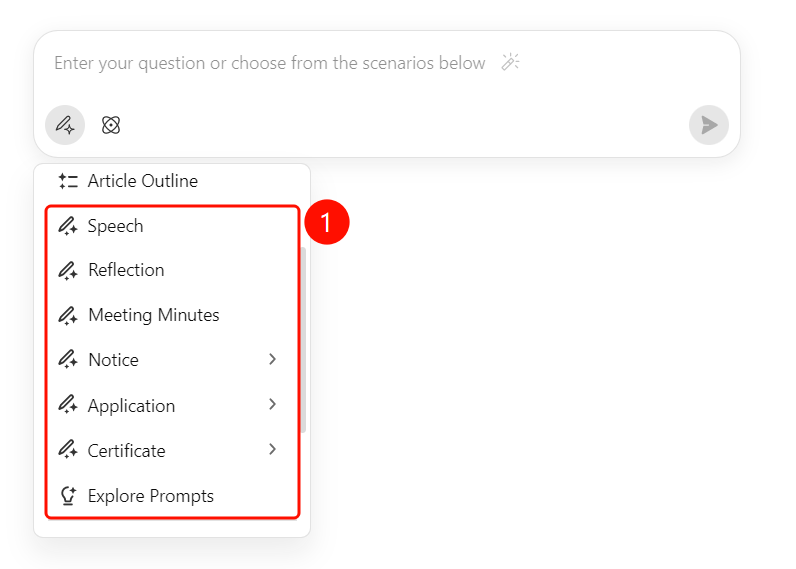
View the default template list in the lower-left corner of the AI writing input box.
The primary menu contains template categories:
- Reflection
- Meeting Minutes
- Notice (hover to expand the secondary menu)
- Application (includes subcategories)
- Certificate (includes subcategories)
- Explore Prompts
- Smart Edit
- More AI Features
Hover your mouse over a primary menu item to expand the secondary menu (for example, "Notice" includes: General Notice, Meeting Notice, Holiday Notice, Interview Notice, Activity Notice, Appointment/Dismissal Notice, Training Notice, and Award Notice).
Click to select the template you need.
Fill in Template Content
Feature Entry
AI writing input box
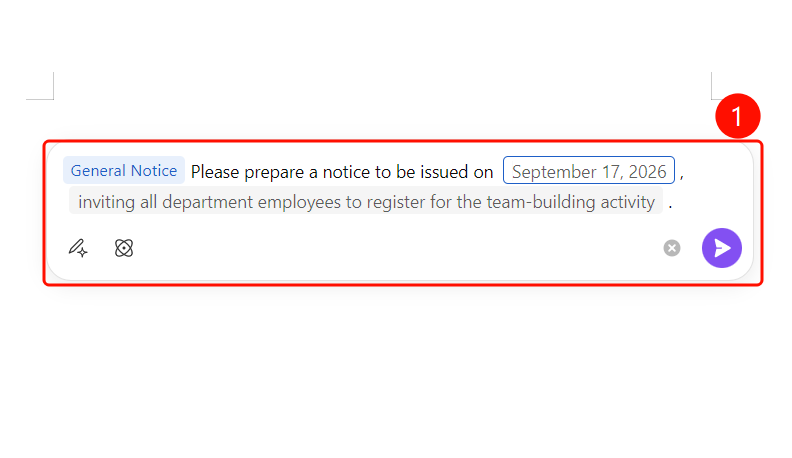
- After selecting a template, the template content is automatically inserted into the input box.
- The template contains editable key information (marked with blue highlight boxes).
- Click the blue highlighted part and change it to your actual content (for example, change "Invite department employees to sign up for team building" to "Mid-Autumn Festival Party").
- You can also modify other fields such as the notice time.
Send and Generate
Feature Entry
AI writing input box → "Send" button
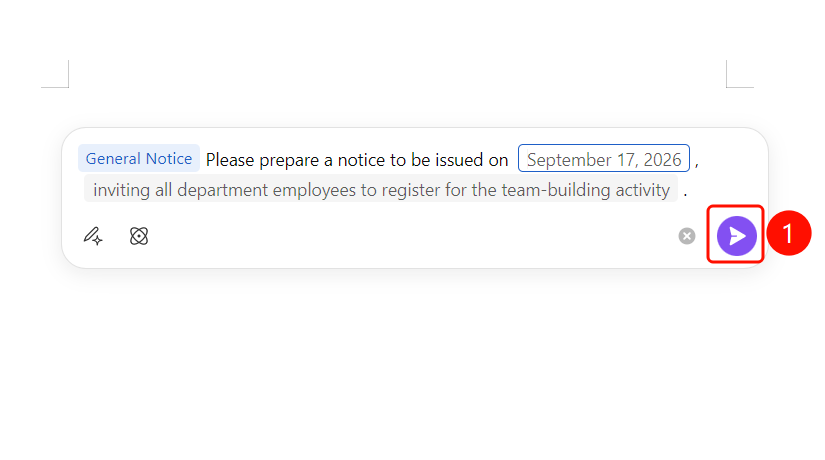
- After filling in the template content, click the purple Send button (paper airplane icon) in the lower-right corner.
- AI will automatically generate the complete document content based on the template and instructions.
- Wait for the generation to complete.
Complete or Adjust
Feature Entry
Bottom floating toolbar
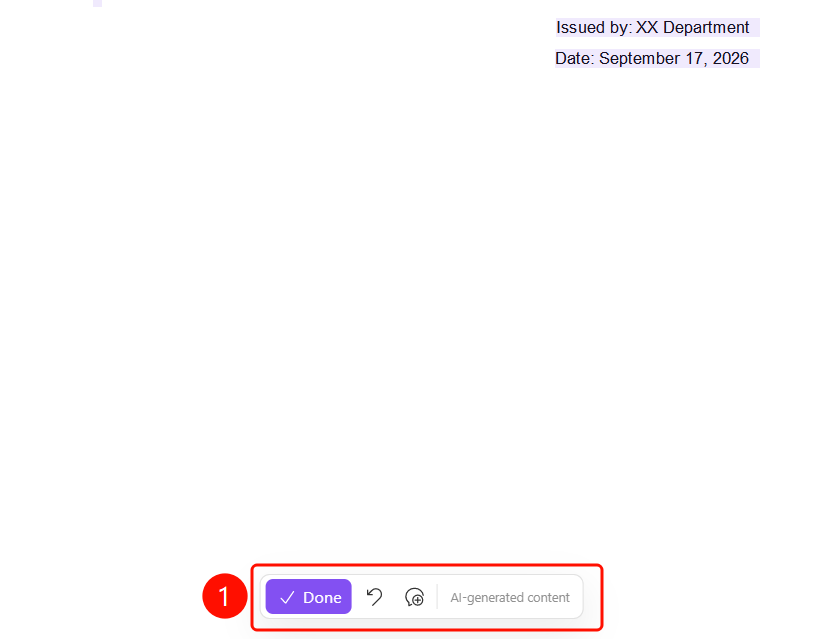
After AI generation is complete, choose one of the following options on the bottom floating toolbar:
- Done (purple button, checkmark icon): Confirm and accept the content generated by AI.
- Regenerate (looping arrows icon): Have AI regenerate the content.
- Undo (curved arrow icon): Undo the previous action.
The Generated by AI label is displayed at the bottom.
FAQ
Question 1: What is the difference between template instructions and pure text instructions?
- Solution: Pure text instructions require you to write the complete requirement description yourself. Template instructions provide a preset document framework where you only need to fill in key information (such as activity name and time), and AI will automatically generate the document according to the template format.
Question 2: What templates are available to choose from?
- Solution: The template list includes common document types such as Reflection, Meeting Minutes, Notice (General/Meeting/Holiday/Interview/Activity/Appointment/Dismissal/Training/Award), Application, and Certificate. You can hover over them to expand secondary categories.
Question 3: What is the blue highlighted content in the template?
- Solution: The blue highlighted parts are editable key information in the template. Click them to replace them with your actual content, and the rest will be automatically generated by AI.
Notes
- There is no limit on the number of times WPS Plus and Premium members can use the Smart Create feature.
- After selecting a template, make sure to check and modify the key information in the blue highlighted parts.
- You can add further supplementary requirements on top of the template.