Feature Summary
When you are staring at a blank document and do not know where to start, Smart Create can automatically generate complete articles, reports, or emails based on the topic or command you enter, helping you quickly complete drafts and overcome writer's block.
Feature Description
| Feature Dimension | Description |
|---|---|
| Membership Limits | Available for both WPS Pro+ and WPS Premium |
| Version Limits | Applicable to the latest version on the WPS official website |
Steps
Feature Entries
Entry ①
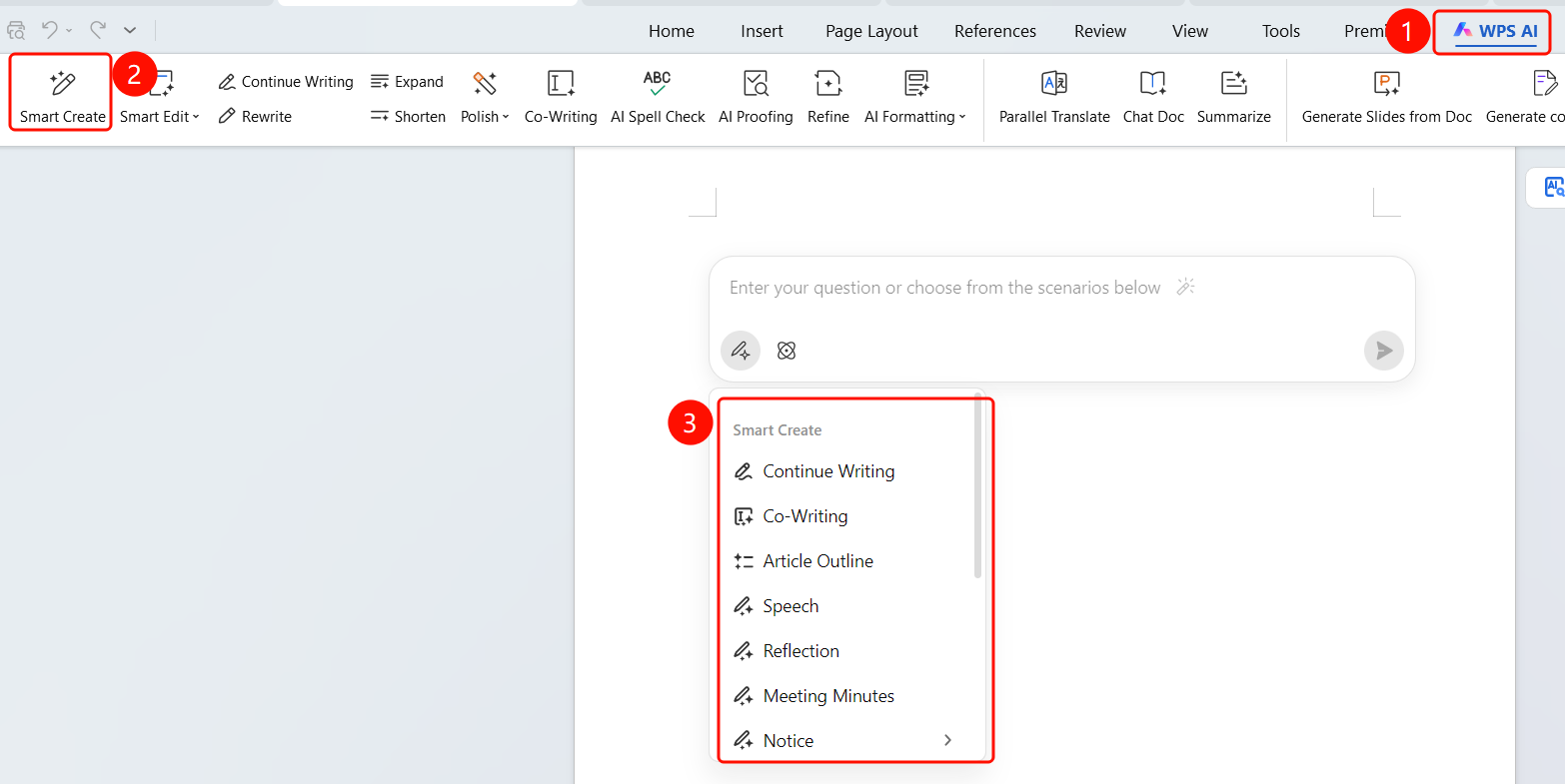
"WPS AI" tab > "Smart Create"
- Open a WPS Office document.
- Click the WPS AI tab on the top menu bar.
- Find and click the Smart Create button (pen icon) in the ribbon.
- The AI writing input box will pop up.
Entry ②
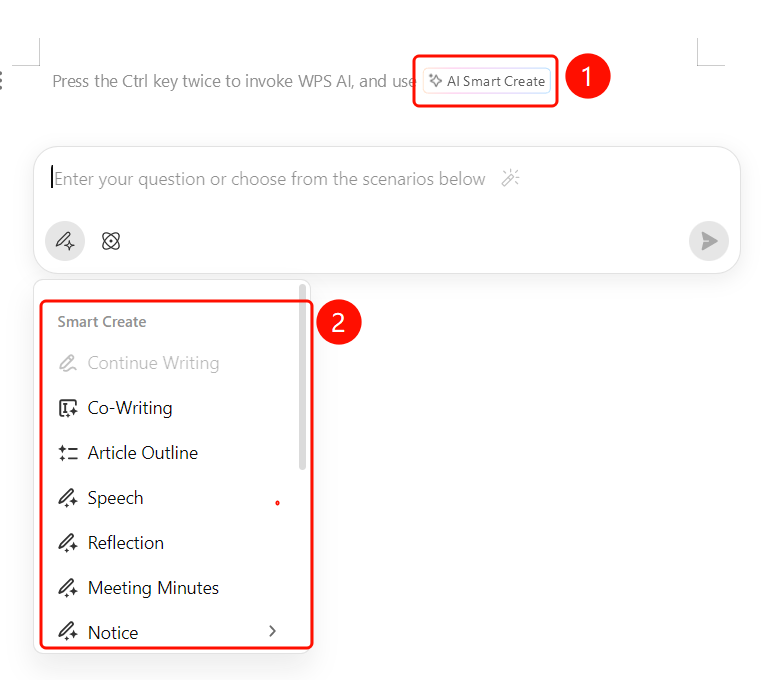
Default entry on blank pages
- Open a blank document.
- The prompt "Press Ctrl twice to wake up WPS AI and use Smart Create" will be displayed by default in the editing area.
- Click the floating Smart Create button (sparkle icon).
- The AI writing input box will pop up.
Entry ③
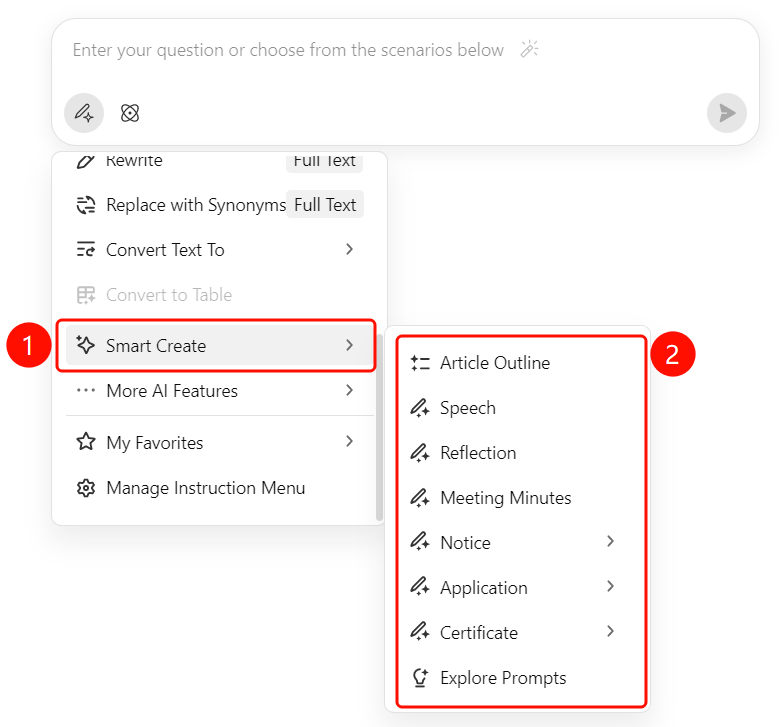
Press Ctrl twice to wake up
- Open a WPS Office document.
- Press the Ctrl key twice in rapid succession.
- The system will wake up the WPS AI feature.
- Click the floating Smart Create button that appears.
- The AI writing input box will pop up.
Enter Commands and Generate
Entry
AI writing input box > "Send" button
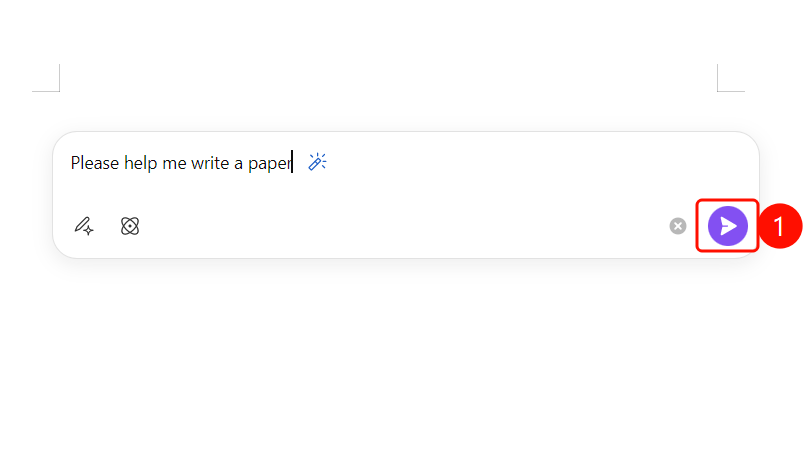
- Enter the topic you want to write about in the AI writing input box (e.g., "Write an article about global climate change").
- You can make adjustments in the bottom-left corner of the input box.
- Click the purple Send button (paper airplane icon) in the bottom-right corner.
- Wait for the AI to generate the complete document content.
Complete or Adjust
Entry
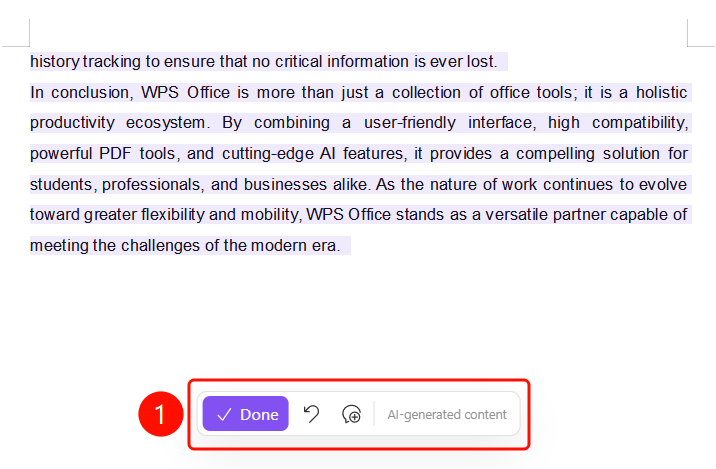
AI generation results > Bottom floating toolbar
Once the AI generation is complete, choose from the bottom floating toolbar:
- Done (purple button, checkmark icon): Accept the AI-generated content.
- Regenerate (circular arrow icon): Have the AI regenerate the content.
- Undo (curved arrow icon): Undo the previous action.
The "Generated by AI" label will be displayed at the bottom.
FAQ
Q1: What should I do if I am not satisfied with the AI-generated content?
- Solution: Click the "Regenerate" button (circular arrow icon) on the bottom floating toolbar, and the AI will regenerate the content based on your original command.
Q2: How can I get the AI to generate content that better meets my needs?
- Solution: Provide a more detailed topic description, keywords, or specific requirements in the input box, such as specifying the format (report/email/article), length, or style. The AI will generate more precise content based on your instructions.
Q3: What are the entries for the Smart Create feature?
- Solution: You can access it in three ways: ① The "WPS AI" tab on the top menu bar > "Smart Create" button; ② The floating "Smart Create" button displayed by default on blank pages; ③ Press Ctrl twice to wake up WPS AI, then click "Smart Create".
Notes
- There is no limit on the number of times WPS Plus and Premium members can use the Smart Create feature.
- The more detailed the topic you enter, the better the generated content will meet your expectations.
- After generation, you can choose "Done" to accept the content, or "Regenerate" to adjust the results.
- The content is generated by AI. Please verify the accuracy of the information.