Feature Summary
When you finish writing but the document formatting is messy or unappealing, AI Formatting can auto-recognize the document structure and apply professional formatting rules, helping you quickly get an attractive and standard document layout.
Feature Description
| Feature Dimension | Description |
|---|---|
| Membership Limits | Available for both WPS Pro+ and WPS Premium |
| Version Limits | Applicable to the latest version on the WPS official website |
Steps
AI Formatting
Feature Entry
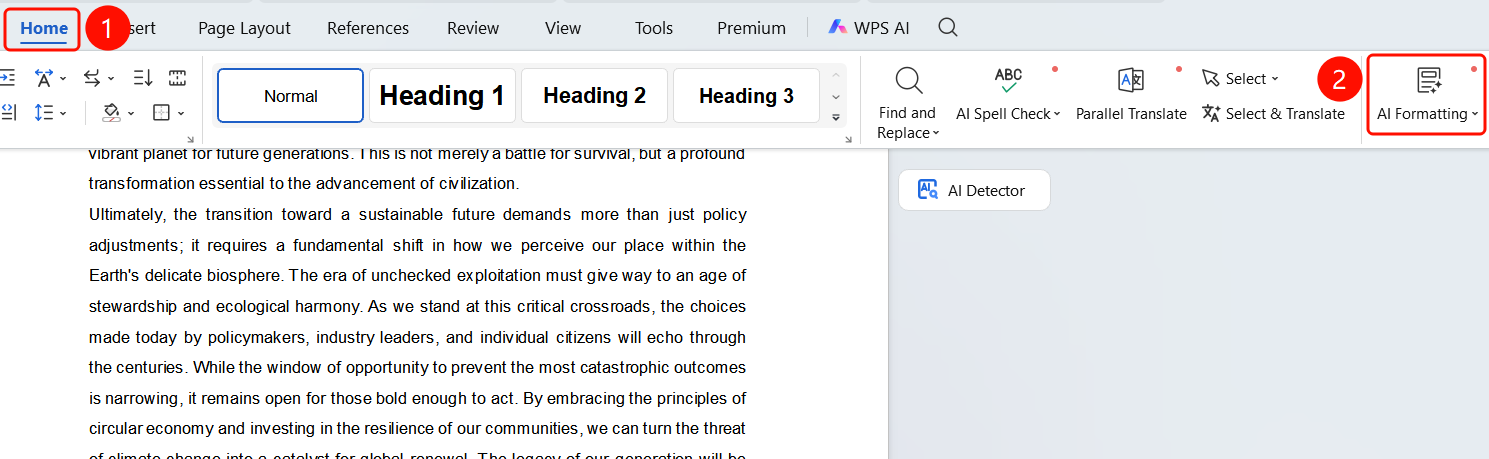
"Home" tab -> "AI Formatting"
- Open the document you want to format.
- Click the "Home" tab on the top menu bar.
- Find and click the "AI Formatting" button on the right toolbar.
- The AI Formatting sidebar will pop up on the right.
Choose Document Type
Feature Entry
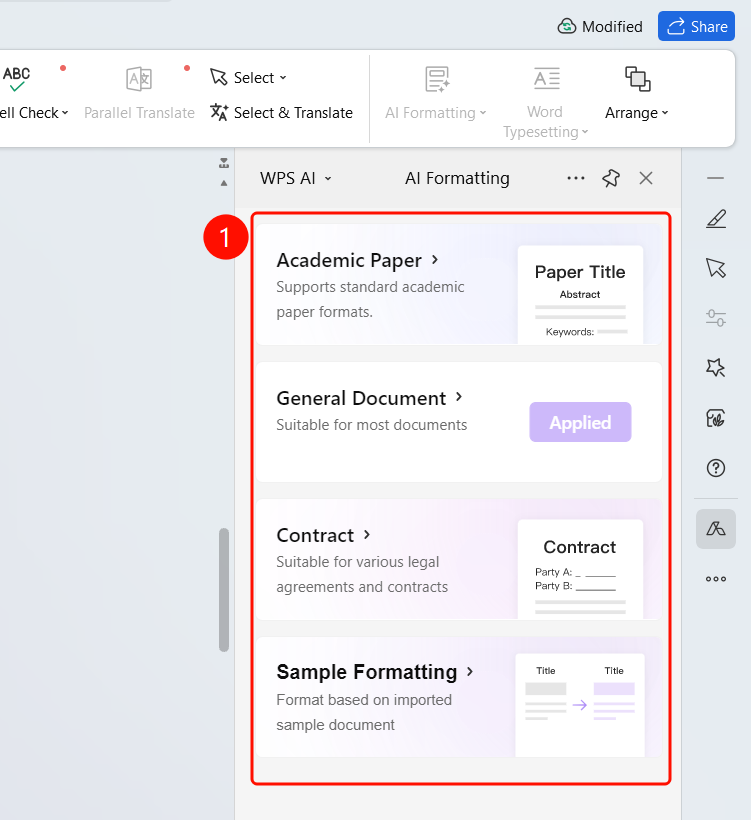
AI Formatting sidebar
The sidebar provides various formatting styles to choose from:
- Thesis: Supports standard academic thesis formats (including structures like abstract and keywords)
- General Document: Suitable for most documents (currently applied)
- Contracts & Agreements: Suitable for all kinds of legal agreements and contracts
- Resume: One-click professional resume formatting
- Import Template Formatting: Apply its formatting to the current document
Click to choose the desired document type.
A progress bar showing "Formatting document..." will appear at the bottom. You can click "Stop Esc" to interrupt.
Apply Formatting
Feature Entry
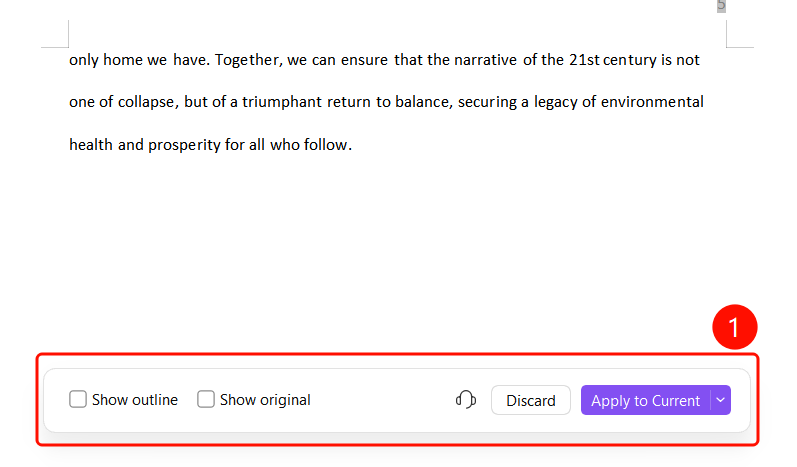
Floating toolbar at the bottom
Once formatting is complete, a floating toolbar will appear at the bottom of the document.
You can choose from the following actions:
- "Show Table of Contents": Check to generate a table of contents for the document.
- "Show Original": Check to display the original text before modification.
- "Discard": Discard the current formatting.
- "Apply to Summary": Confirm and apply the current formatting (red highlighted button).
FAQ
Q1: What document types does AI Formatting support?
- Solution: It supports various types including Thesis, General Document, Contracts & Agreements, Resume, and Import Template Formatting, which you can choose based on your document needs.
Q2: Can I undo the formatting if I am not satisfied?
- Solution: Yes. Click the "Discard" button on the bottom floating toolbar to discard the formatting and restore the original document.
Q3: What are "Show Table of Contents" and "Show Original" used for?
- Solution: Checking "Show Table of Contents" automatically generates a table of contents in the formatted document. Checking "Show Original" allows you to compare and view the original content before formatting.
Notes
- There is no limit on the number of times WPS Plus and Premium members can use the AI Formatting feature.
- We recommend ensuring that the document content is mostly complete before formatting.
- You can press Esc to stop the formatting process at any time.