Feature Summary
When you finish a long document and need to add a table of contents for easy navigation, AI Insert Table of Contents can auto-recognize heading levels and generate a structured table of contents. This helps you quickly build document navigation and improve the reading experience.
Feature Description
| Feature Dimension | Description |
|---|---|
| Membership Limits | Available for both WPS Pro+ and WPS Premium |
| Version Limits | Applicable to the latest version on the WPS official website |
Operating Steps
AI Insert Table of Contents
Feature Entry
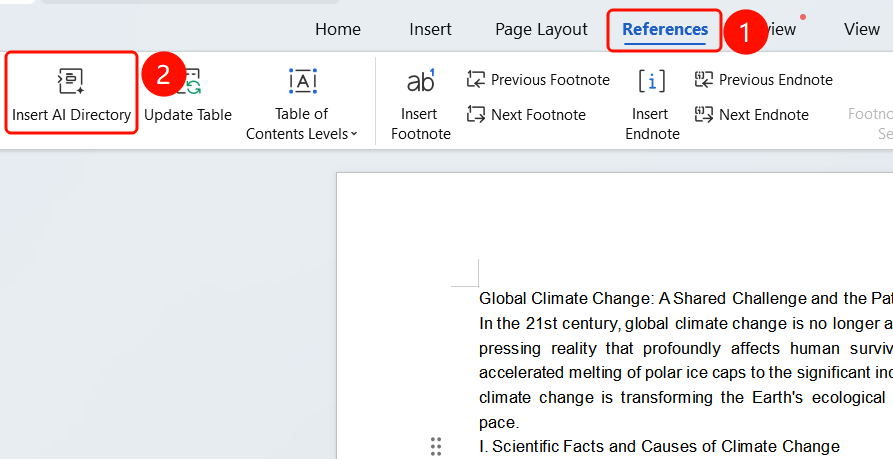
"References" tab > "Insert AI Table of Contents"
- Open the document where you want to insert the table of contents, and place the cursor at the target position.
- Click the References tab on the top menu bar.
- Find and click the Insert AI Table of Contents button.
- AI will auto-recognize the heading level structure in the document.
Apply Table of Contents
Feature Entry
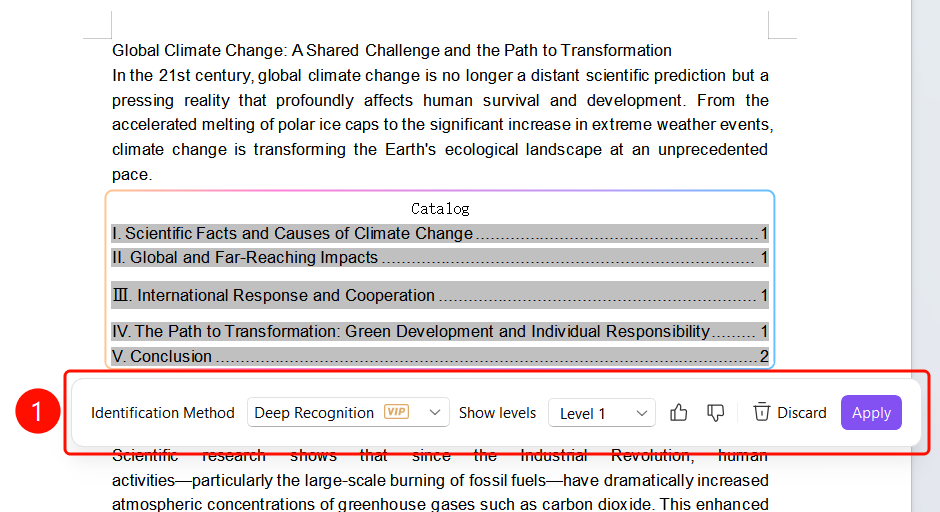
Bottom floating action bar > "Apply"
After the AI recognition is complete, the left navigation bar will automatically generate the table of contents structure.
A colored table of contents with page numbers will be inserted at the cursor position in the document.
The bottom floating action bar provides the following options:
- Recognition Mode: Choose recognition modes such as "Deep Recognition".
- Display Level: Set the table of contents level (such as Level 2).
- Like/Dislike: Rate the quality of the table of contents.
- Discard: Discard the current table of contents.
- Apply (SlateGray button): Confirm to insert the table of contents.
FAQ
Question 1: What is the difference between AI Insert Table of Contents and manual insertion?
- Solution: AI Insert Table of Contents automatically recognizes document heading levels without the need to manually set them, making the operation more convenient. Manual insertion requires setting heading styles and table of contents levels one by one.
Question 2: How do I change the display level of the table of contents?
- Solution: Select the desired level (such as Level 1, Level 2, or Level 3) from the "Display Level" dropdown menu on the bottom floating action bar. The AI will regenerate the table of contents for the corresponding level.
Question 3: What should I do if the document is updated after inserting the table of contents?
- Solution: You can click "Insert AI Table of Contents" again to regenerate it, or use the "Update Table of Contents" feature to refresh the page number information.
Notes
- There is no limit on the number of times WPS Plus and Premium members can use the AI Insert Table of Contents feature.
- AI will automatically recognize document heading levels without manual settings.
- After insertion, you can click "Discard" to undo or "Apply" to confirm.