Feature Summary
When copying data from different sources into a document causes formatting mess, AI Rearrange can automatically unify content formatting and standardize layout, helping you quickly get clean and consistent document content.
Feature Description
| Feature Dimension | Description |
|---|---|
| Membership Limits | Available for both WPS Pro+ and WPS Premium |
| Version Limits | Applicable to the latest version on the WPS official website |
Steps
AI Rearrange
Feature Entry
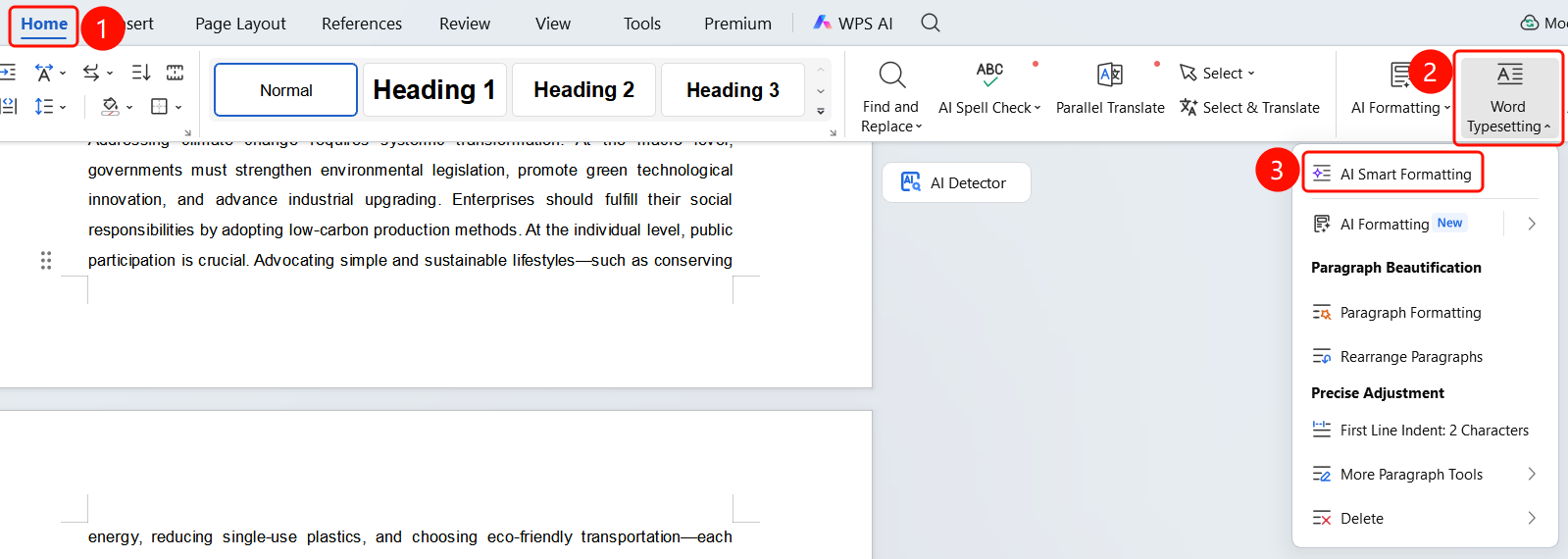
Start tab > Formatting > AI Rearrange
- Open the document that needs formatting.
- Click the Start tab on the top menu bar.
- Click the Formatting drop-down button on the right toolbar.
- Select AI Rearrange from the drop-down menu.
- AI automatically unifies content formatting and standardizes layout.
FAQ
Q1: Will AI Rearrange change the document content?
- Solution: No. AI Rearrange only adjusts formatting (such as paragraph spacing, line spacing, fonts, etc.) and will not modify the text content of the document.
Q2: Can I undo the formatting if I am not satisfied?
- Solution: Yes. You can click the Undo button (Ctrl+Z) on the top toolbar to undo the formatting operation.
Q3: What formatting adjustments does AI Rearrange support?
- Solution: It supports common formatting operations such as unifying paragraph formatting, removing extra blank lines, standardizing line and character spacing, and unifying font styles.
Notes
- WPS Plus and Grand VIP members have unlimited use of the AI Rearrange feature.
- Formatting rearrangement only adjusts formatting and does not affect the document text content.
- After rearrangement is complete, you can rearrange again via the refresh button in the notification bar.