Feature Summary
When you need writing inspiration, creative solutions, or content resources, WPS AI Prompts provides a rich selection of templates, sample texts, and creative examples to help you expand your thinking and spark your creative inspiration.
Feature Description
| Feature Dimension | Description |
|---|---|
| Membership Limits | Available for both WPS Pro+ and WPS Premium |
| Version Limits | Applicable to the latest version on the WPS official website |
Operating Steps
Access Prompts
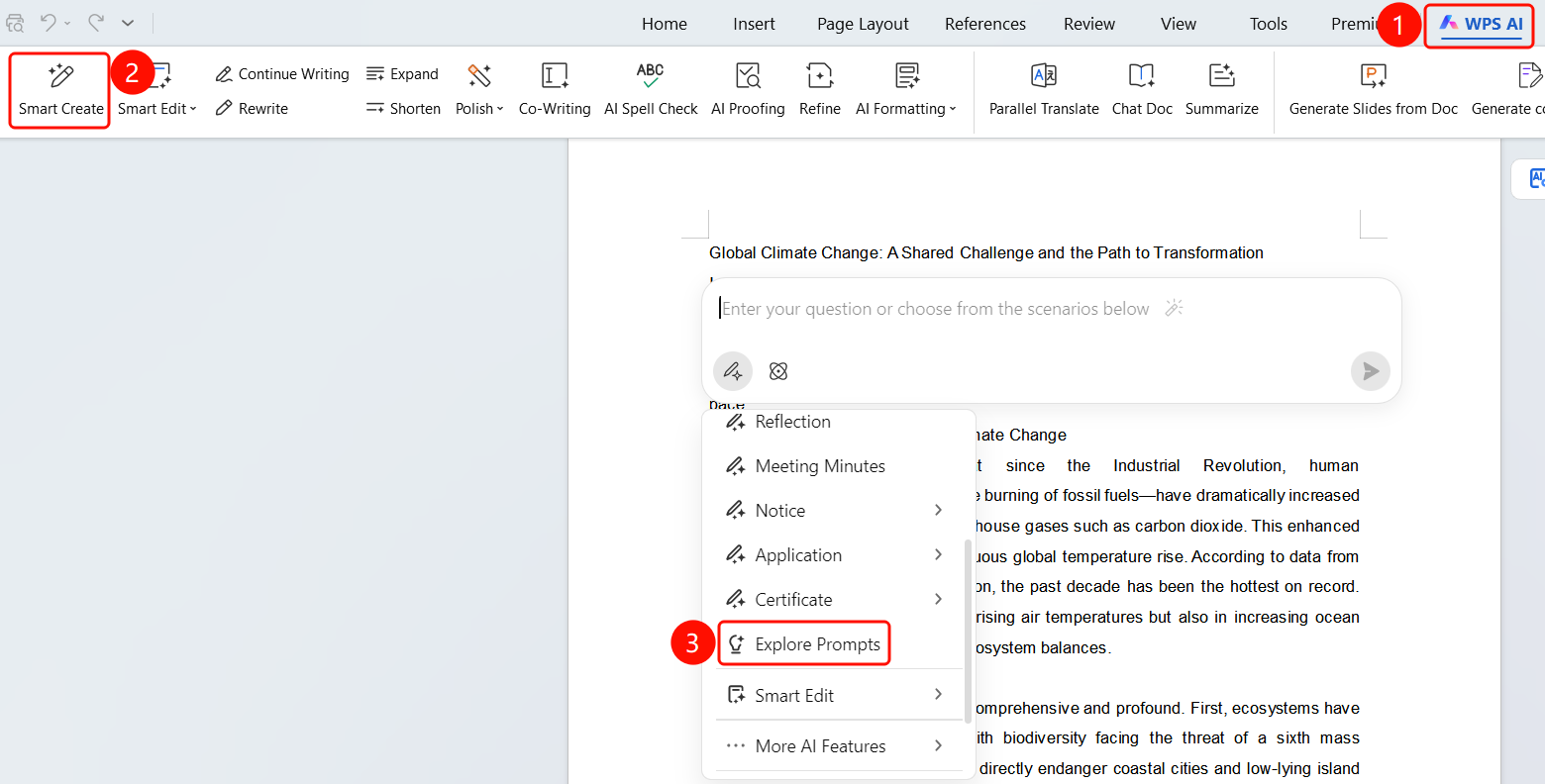
Feature Entry ①
"WPS AI" tab → "Smart Create" → "Explore Prompts"
- Click the WPS AI tab on the top menu bar.
- Click the Smart Create button.
- Click Explore Prompts below the input box.
- The "Instruction Templates" selection interface will appear.
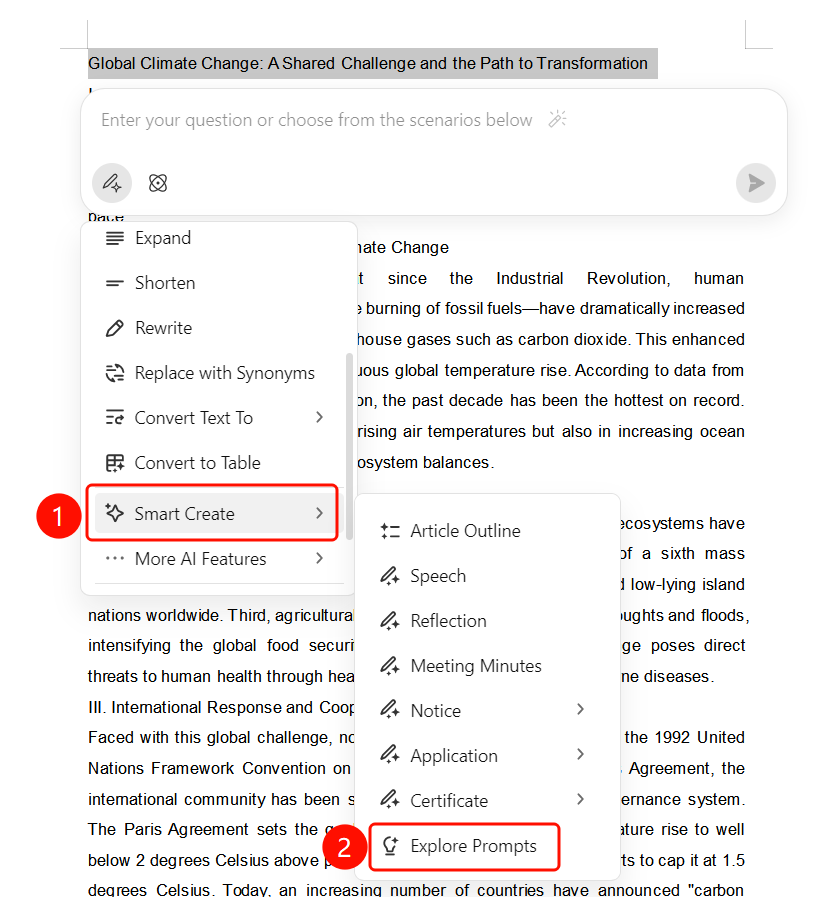
Feature Entry ②
Paragraph handle → "Smart Create" → "Explore Prompts"
- Select the text and click the paragraph handle.
- Select Smart Create → Explore Prompts from the menu.
Select a Template
Feature Entry
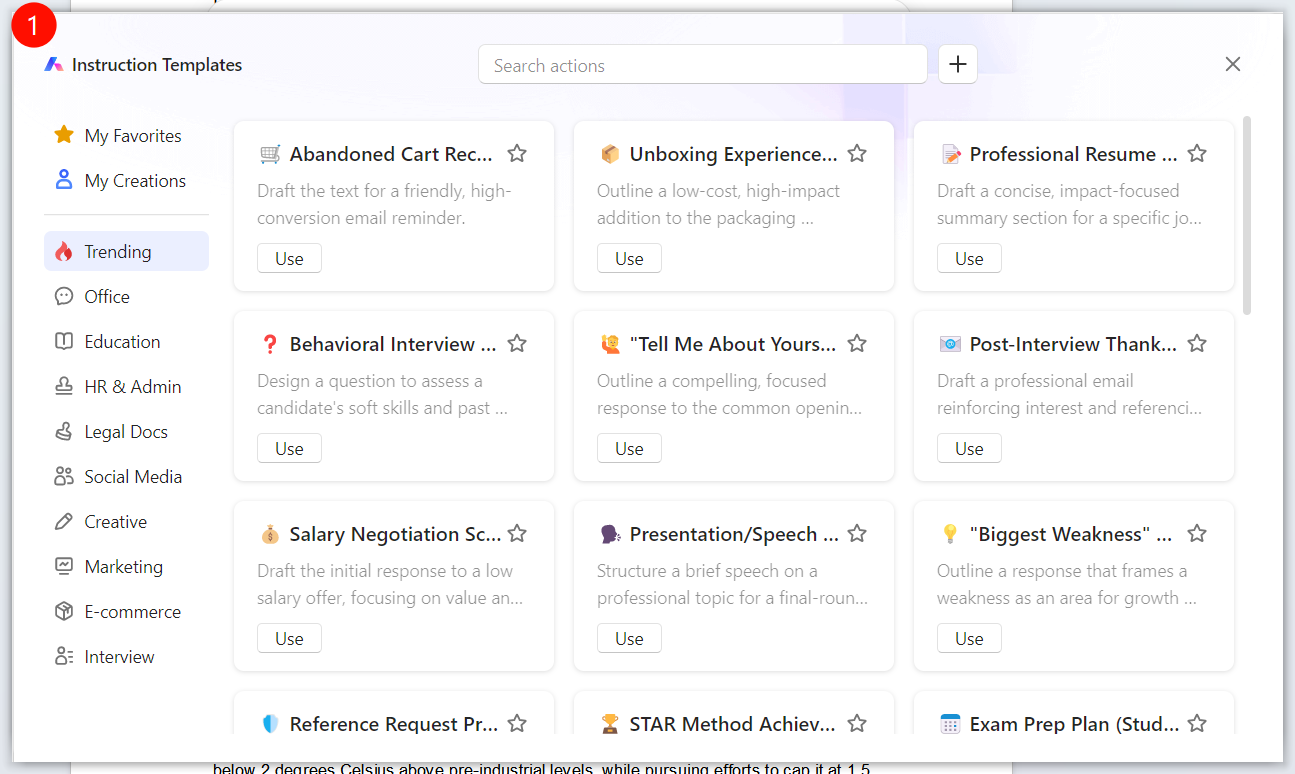
Instruction Templates interface
The left panel provides template category navigation:
- My Favorites: My favorites
- My Creations: My creations
- Trending: Recommended
- Office: Office scenarios
- Education: Education scenarios
- HR & Admin: HR & Admin
- Legal Docs: Legal documents
- Social Media: Social media
- Creative: Creative writing
- Marketing: Marketing
- E-commerce: E-commerce scenarios
- Interview: Interview preparation
The right card list displays templates under each category.
Click the Use button on a template card to apply it.
Add Key Information and Generate
Feature Entry
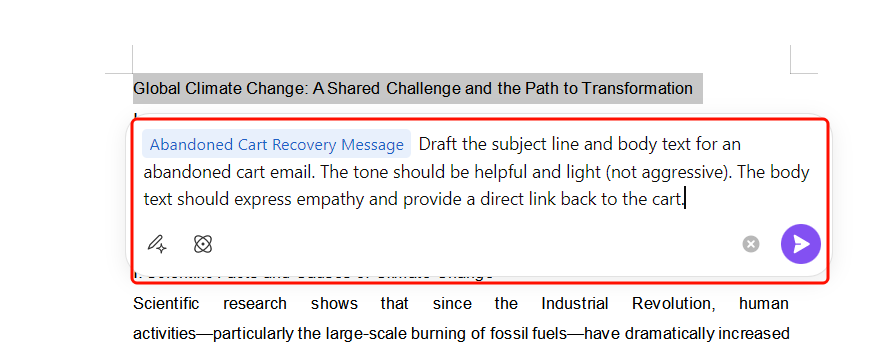
AI writing input box
- After selecting a template, the template content is automatically inserted into the input box (highlighted in gray).
- Hover your mouse over the gray highlighted part and modify it with your actual information (such as replacing "Product Type" with a specific product type).
- After confirming the content, click the purple Send button in the bottom right corner.
- AI automatically generates content based on the template and instructions.
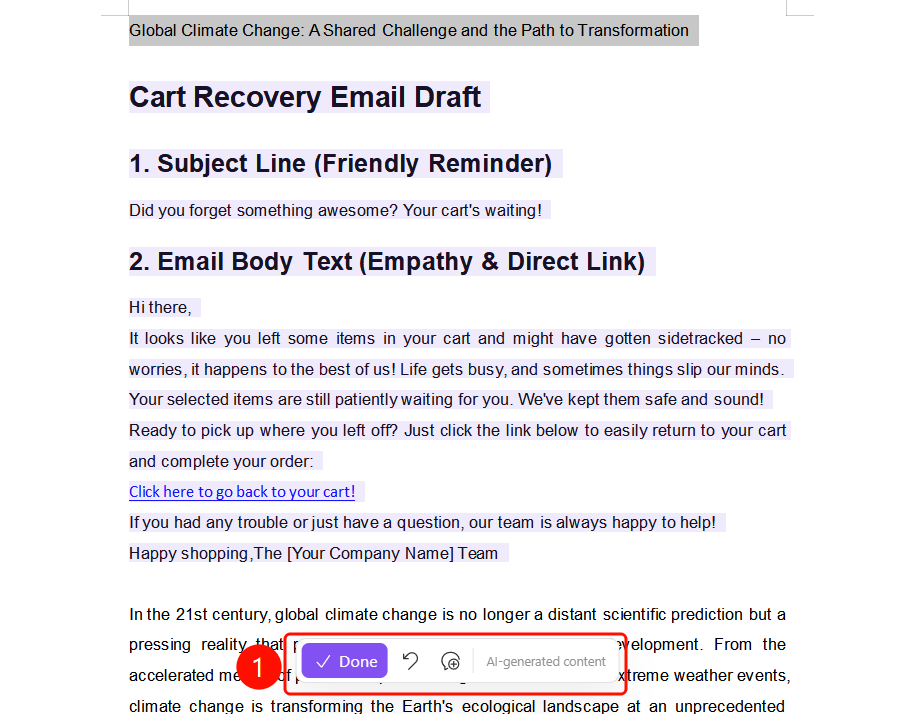
Complete or Adjust
Feature Entry
Bottom floating action bar
After AI generation is complete, select from the bottom floating action bar:
- Done (purple button): Confirm and accept the AI-generated content
- Undo: Undo the generation operation
- Additional Requirements: Supplementary instructions required
The Generated by AI label is displayed at the bottom.
FAQ
Q1: What template categories are available in Prompts?
- Solution: It provides multiple categories such as Office, Education, HR & Admin, Legal Docs, Social Media, Creative, Marketing, E-commerce, and Interview, covering various writing scenarios.
Q2: What is the gray highlighted content in the template?
- Solution: The gray highlighted parts are editable placeholders in the template. You need to replace them with actual information (such as product type, specific content, etc.), and the rest will be automatically generated by AI.
Q3: How do I add favorite templates to Favorites?
- Solution: Click the star icon on the template card to add the template to "My Favorites" for quick access next time.
Notes
- WPS Plus and Premium members have unlimited access to the WPS AI Prompts feature.
- Templates cover a variety of writing scenarios, and you can choose the appropriate category based on your needs.
- Always check and modify the gray highlighted placeholder content before using a template.