Feature Summary
When filtering conditions are difficult to express accurately using traditional filter options, AI Filter allows you to describe the target data in natural language and complete the filtering, helping you find records matching business semantics from large tables faster.
Feature Description
| Feature Dimension | Description |
|---|---|
| Membership Limits | Available for both WPS Pro+ and WPS Premium |
| Version Limits | Applicable to the latest version on the WPS official website |
Operating Steps
Enable Filtering
Feature Entry
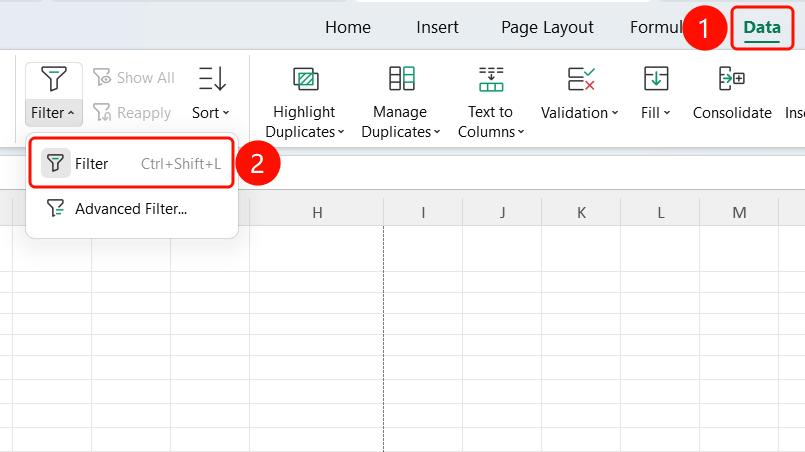
"Data" tab → "Filter"
- Select any cell in the data range.
- Click the "Data" tab on the top menu bar.
- Click the "Filter" button and select "Filter (F)" from the drop-down menu.
- Filter drop-down arrows appear in the column headers.
Access AI Filter
Feature Entry
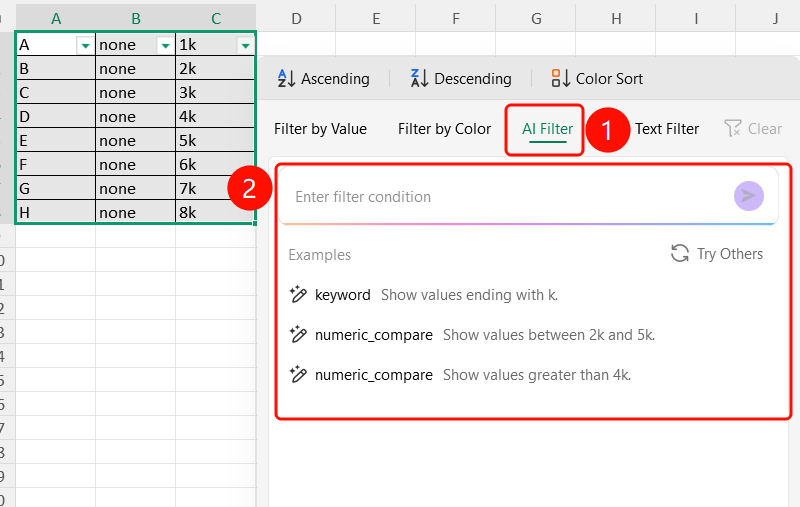
Filter drop-down box → "AI Filter" tab
Click the drop-down arrow of the column header you want to filter.
In the pop-up filter panel, click the "AI Filter" tab.
The input box prompts "Enter filtering conditions".
Question examples are provided below:
- Null Check: Show all rows where department information is not empty.
- Keywords: Find departments containing the word "Sales".
- Equality: Filter rows where the department name equals "Marketing".
Apply Filtering Results
Feature Entry
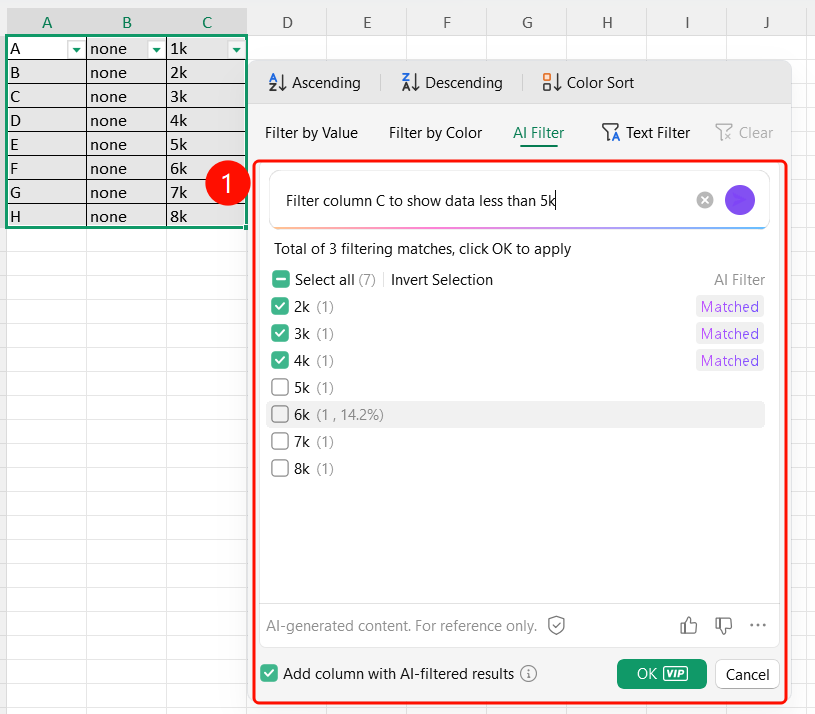
AI Filter completion interface → "OK" button
- After filtering is complete, a green prompt "AI Filter completed" is displayed at the top.
- Filtering results are grouped into matching and non-matching items, with each item displaying its quantity and percentage.
- Check "Add New AI Filter Result Column" to add a new column in the table to mark the filtering results.
- Click the "OK" button to apply the filtering results, and only rows meeting the conditions will be displayed in the data table.
FAQs
Q1: What is the difference between AI Filter and normal filter?
- Solution: Normal filter requires manually setting filtering conditions (such as checking boxes, text filters, etc.); AI Filter supports description in natural language (such as "Find records with sales greater than 100"), and AI automatically understands and executes the filtering.
Q2: How much data does AI Filter support?
- Solution: AI Filter can filter up to the first 10,000 items of data. If the quantity exceeds this limit, you need to narrow down the data range or use normal filter.
Q3: Can the filtering results be added as an auxiliary column?
- Solution: Yes. Check "Add New AI Filter Result Column" on the filtering completion interface, and click OK to add a new column in the table to mark the filtering results.
Notes
- There is no limit on the number of times WPS Plus and Premium members can use the AI Filter feature.
- AI Filter supports up to the first 10,000 items of data.
- A result column can be added after filtering is complete for subsequent analysis.
- AI-generated content is for reference only. Please verify.