Feature Summary
When you are halfway through writing and lack inspiration or need a natural transition, Continue Writing can understand the existing text and intelligently generate subsequent paragraphs, helping you break through writer's block and write smoothly.
Feature Description
| Feature Dimension | Description |
|---|---|
| Membership Limits | Available for both WPS Pro+ and WPS Premium |
| Version Limits | Applicable to the latest version on the WPS official website |
Steps
Continue Writing
Entry Point ①
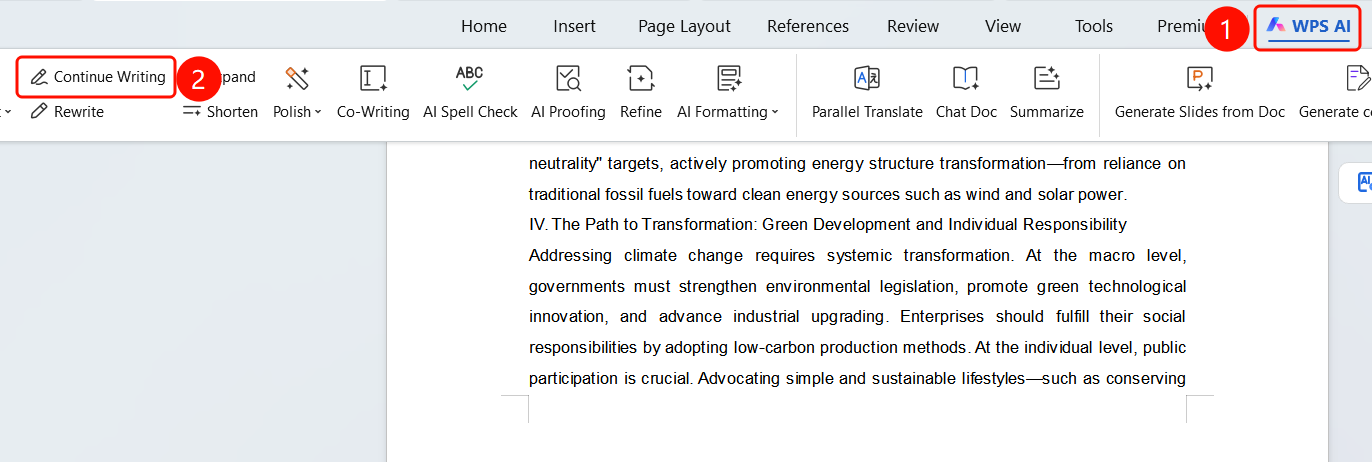
"WPS AI" tab → "Continue Writing"
- Select the text paragraph you want to continue writing.
- Click the WPS AI tab on the top menu bar.
- Click the Continue Writing button (pen icon).
- AI automatically continues writing the subsequent content.
Entry Point ②
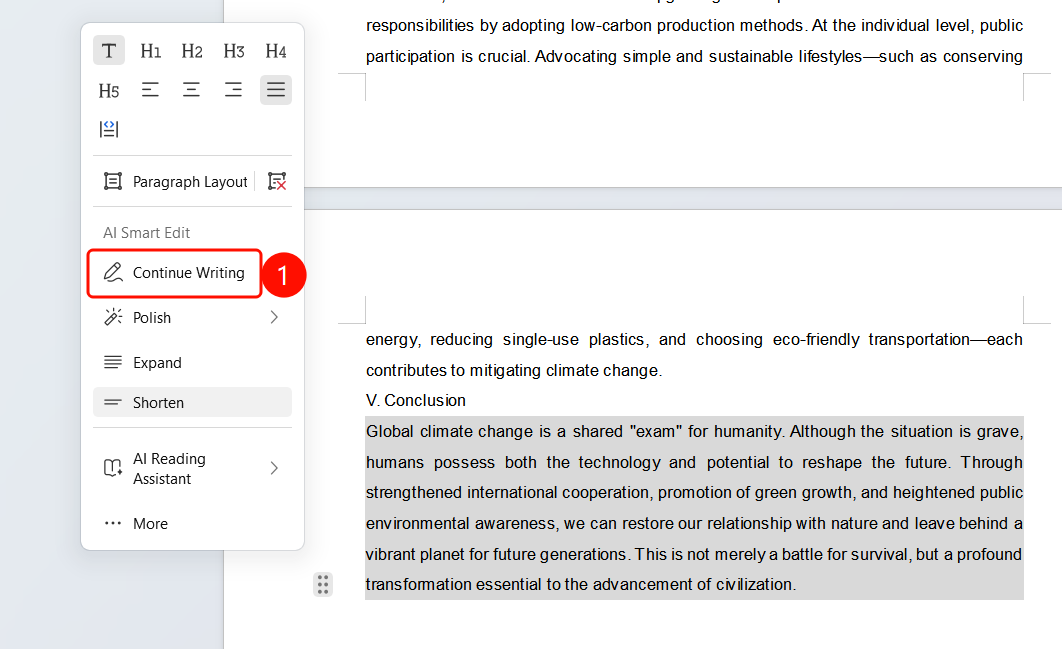
Paragraph handle → "Continue Writing"
- Select the text paragraph you want to continue writing.
- Click the paragraph handle to expand the menu.
- Choose Continue Writing.
- AI automatically continues writing the subsequent content.
View Results
Entry Point
Bottom floating toolbar
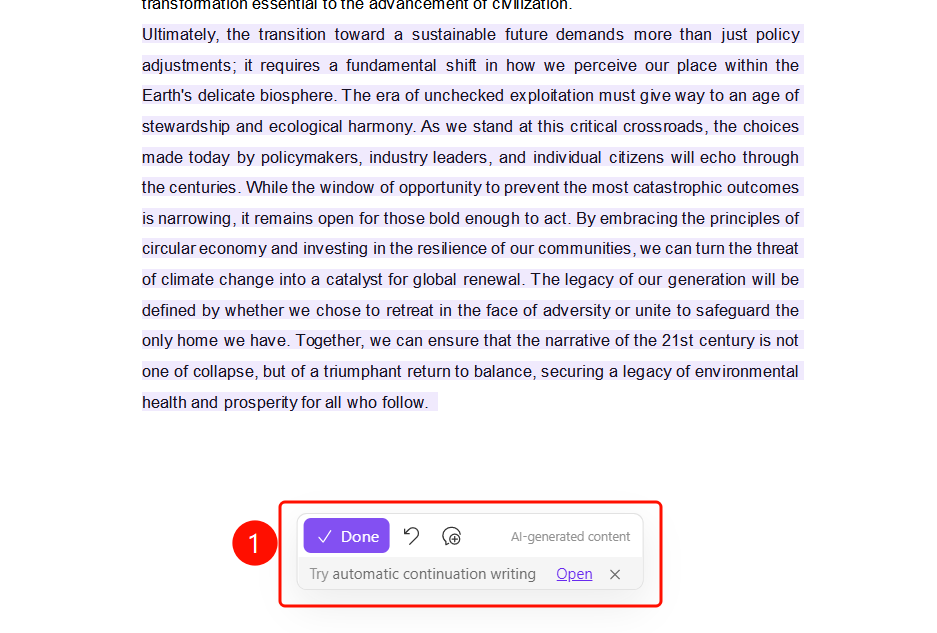
After Continue Writing is complete, the original text is displayed in gray.
The newly generated content is highlighted in SlateGray.
The bottom floating toolbar includes:
- Done (SlateGray button): Accept the generated content.
- Undo: Undo the action.
- Regenerate: Generate content again.
The bottom displays the Auto-write, real-time generation note and Generated by AI label.
FAQ
Q1: Does Continue Writing understand the context?
- Solution: Yes. Continue Writing understands the context based on your selected text and generates subsequent paragraphs that transition naturally from the original text.
Q2: Can I regenerate the content if I am not satisfied?
- Solution: Yes. Click the Regenerate button (circular arrow icon) on the bottom floating toolbar to generate content again. You can also click Undo to restore the original text.
Q3: How do I make the generated content better match my expectations?
- Solution: Select a more specific paragraph of text to continue writing, and the AI will generate content more accurately based on the context. You can also select "Additional Requirements" after generation to adjust the direction.
Notes
- WPS Plus and Premium members have unlimited access to Continue Writing.
- The original text is displayed in gray, and the generated content is highlighted in SlateGray.
- Auto-write mode is supported for real-time content generation.